Compress PDF for Confluence: Keep Page Attachments, SOPs, and Wiki Exports Easy to Open
To compress a PDF for Confluence, upload the file to LifetimePDF's Compress PDF tool, start with Medium compression, and keep the smaller copy only if headings, screenshots, diagrams, tables, and approval details still look clear.
For most Confluence PDFs, under 2MB is a strong target for lightweight page attachments, while longer SOPs, runbooks, exported wiki docs, and scan-heavy files usually work best around 2MB to 5MB.
Confluence works best when documentation feels easy to open, easy to trust, and easy to reuse. The problem is that attachments quietly gain weight over time. A clean SOP becomes a packet with screenshots. A runbook picks up appendices. A page export gets passed around for review, then attached again with one more version note on top. The goal is not to crush every file until it looks cheap. The goal is to keep the attachment light enough that teammates actually open it without losing the details that make the document useful.
Fastest path: run the Confluence PDF through LifetimePDF's Compress PDF tool on Medium, then do one quick readability check before you attach or replace the smaller copy.
Need the short version? Jump to Quick start: compress a Confluence PDF in under 2 minutes.
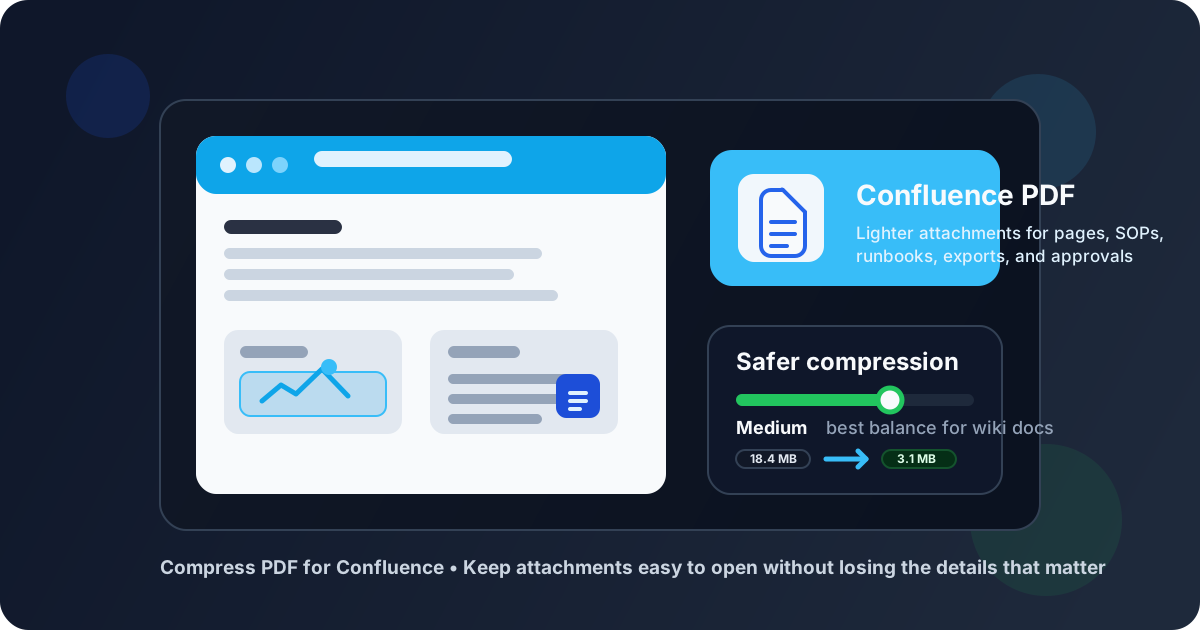
Table of contents
- Quick start: compress a Confluence PDF in under 2 minutes
- Why smaller PDFs help in Confluence workflows
- What file size should you aim for?
- Which compression level should you choose?
- Step-by-step: shrink a Confluence PDF with LifetimePDF
- Best strategy for common Confluence PDF types
- What if the PDF is still too large?
- How to keep page attachments readable
- Documentation habits that reduce PDF bloat in Confluence
- Related LifetimePDF tools and internal links
- FAQ (People Also Ask)
Quick start: compress a Confluence PDF in under 2 minutes
If your real goal is simply make this Confluence PDF smaller so people can open it faster, this workflow is usually enough:
- Open Compress PDF.
- Upload the SOP, runbook, exported page pack, approval packet, architecture note, or scanned support file you want to shrink.
- Choose Medium compression first.
- Download the smaller file and compare the new size with the original.
- Open it once and check the smallest useful details: screenshot labels, headings, table text, diagram callouts, signatures, dates, and version notes.
- If the file is still heavier than you want, use Split PDF or Extract Pages instead of forcing stronger compression across everything.
- If the PDF includes duplicate appendices, empty scan borders, backup pages, or outdated exports the page does not need, remove that weight before compressing again.
Why smaller PDFs help in Confluence workflows
Confluence attachments rarely stay in one place. They get linked in project pages, referenced in support notes, shared in chat, attached to tickets, revisited during onboarding, and exported again when someone needs a portable copy. When a PDF is heavier than it needs to be, every one of those moments becomes slightly slower and slightly more annoying.
Compression is not just about saving storage. It is a documentation hygiene habit. Smaller PDFs upload faster, open more smoothly, and make pages feel less cluttered. That matters even more when the file includes screenshots, flow diagrams, page exports, meeting packs, scanned approvals, or long tables people need to scan quickly instead of studying at 200% zoom.
Why compression usually helps
- Faster uploads: useful when you are updating SOPs, incident reviews, or support attachments in the middle of real work.
- Smoother page loading: smaller attachments feel less awkward when teammates open them from within a busy documentation page.
- Better mobile viewing: lighter PDFs are easier to open on phones and tablets during support, travel, or after-hours handoff work.
- Cleaner cross-tool sharing: the same PDF often moves from Confluence into Slack, Teams, email, or tickets.
- More practical archives: once the file is smaller and cleaner, it is easier to store, version, and reuse later.
- Less reader fatigue: oversized attachments make ordinary documentation feel heavier than the actual subject matter.
What file size should you aim for?
There is no perfect number for every Confluence attachment, but a few practical ranges keep you from compressing harder than necessary:
| PDF type | Good target | Why it works |
|---|---|---|
| Short SOPs, notes, text-heavy attachments | Under 2MB | Usually light enough for fast opening without harming readability |
| Runbooks, meeting packs, exported docs with screenshots | 2MB to 5MB | Often the best balance when diagrams and screenshots still need to look clean |
| Scan-heavy approvals, signed forms, archived paperwork | As small as possible while still legible | These files are naturally heavier, so readability matters more than chasing an arbitrary number |
The best target depends on what the reader actually has to do. If the PDF is just a quick reference, lighter is better. If it contains small diagram labels, screenshots, approval initials, or dense tables, keep more quality and accept a slightly larger file.
Which compression level should you choose?
Most people do better when they treat compression like a quality slider, not a race.
| Compression level | Best when | Watch out for |
|---|---|---|
| Low | You only need a modest reduction and the PDF includes small diagrams, screenshot labels, or fine print | File size may not shrink enough if the original scan is bloated |
| Medium | Best default for most Confluence attachments | Still review the smallest useful detail before replacing the original |
| High | The PDF is unusually large and mostly carries broad visuals or oversized scans | Screenshot text, table cells, and diagram annotations may become harder to read |
Step-by-step: shrink a Confluence PDF with LifetimePDF
- Use the final file, not a messy draft. If the attachment still includes duplicate exports, blank scanner pages, or old appendix material, clean that up first.
- Open Compress PDF.
- Upload the document. This could be a runbook, SOP, handoff note, architecture review, project export, meeting packet, or scan-heavy approval file.
- Choose Medium compression. It is usually the safest starting point for documentation work.
- Download the result and compare it with the original. Focus on the pages teammates are most likely to trust or question.
- Check the risky details. Look at screenshot labels, diagram notes, table headers, version numbers, signatures, and any faint scan text.
- If needed, reduce the document before compressing again. Use Delete Pages, Crop PDF, or Extract Pages to remove weight the page does not need.
That order matters. People often try repeated compression passes on an already bloated PDF when the smarter move is to remove the unnecessary pages or oversized scan borders first.
Best strategy for common Confluence PDF types
Different Confluence attachments need slightly different treatment:
SOPs and runbooks
These are usually text-heavy and respond well to Medium compression. The main risk is tiny screenshots, code snippets, or tables that become harder to read if you push too far.
Exported page packs and meeting documents
These often contain more pages than the reader really needs. If one exported packet mixes the main summary with raw appendices, split it before compressing again. A shorter packet usually beats a blurrier one.
Scanned approvals and signed paperwork
These are naturally bulky because each page behaves more like an image. Crop empty borders, delete blank backsides, and consider OCR PDF if the file should be searchable inside your documentation workflow.
Screenshot-heavy architecture or support docs
Screenshot labels, arrows, and tiny UI text are what usually break first. Keep Medium as your ceiling unless the images are oversized and still look fine after review.
What if the PDF is still too large?
If one normal compression pass does not get the result where you want it, the answer is usually not to keep squeezing the whole file.
- Extract only the relevant section: ideal when the page only needs one chapter, one appendix, or one approval section.
- Split long packets: better than making a 60-page export unreadable just to hit a smaller number.
- Delete duplicate pages: common in exported drafts, review packets, and scan bundles.
- Crop scanner waste: huge borders make scanned PDFs heavier than they look.
- Use OCR where helpful: searchable scans are easier to work with and sometimes easier to manage downstream.
In practice, people usually get better Confluence attachments by publishing a cleaner PDF, not just a more compressed one.
How to keep page attachments readable
The easiest mistake is judging the result only by file size. The better test is whether a teammate could open the file quickly and still trust what they are seeing.
Review these details before replacing the original
- Screenshot labels and interface text
- Diagram annotations and arrows
- Table headers, small numbers, and reference IDs
- Version notes, dates, and approval initials
- Faint scan text on signed or archived pages
If one of those elements becomes frustrating to read, back off. A slightly larger file is cheaper than a misunderstood document.
Documentation habits that reduce PDF bloat in Confluence
Compression helps, but better habits help more:
- Attach final versions, not working bundles: keep raw exports and backups out of the attachment people actually need.
- Prefer smaller, purposeful PDFs: a focused appendix or approval packet is easier to reuse than one giant everything-file.
- Clean scans before they spread: once a bulky scan gets reused across pages, its weight multiplies everywhere.
- Use page structure wisely: not every supporting document needs to live in the same PDF.
- Keep version comparisons intentional: when you need to prove what changed, use Compare PDFs instead of storing duplicate near-identical exports forever.
The more disciplined the input, the less often you need aggressive compression at all.
Related LifetimePDF tools and internal links
If your Confluence PDF still needs more cleanup after one compression pass, these tools usually help most:
- Compress PDF for the main size reduction step
- Extract Pages when the page only needs part of a packet
- Split PDF for long exports and mixed appendices
- Delete Pages to remove duplicate or irrelevant sections
- Crop PDF to reduce scan borders and wasted space
- OCR PDF for searchable scanned documentation
Related guides: Compress PDF for Confluence Without Monthly Fees, Compress PDF for Jira, and Compress PDF for Slack.
Need the practical fix right now? Start with compression, then clean the pages only if the result is still heavier than the Confluence page really needs.
FAQ (People Also Ask)
How do I compress a PDF for Confluence?
Upload the final PDF to a compressor, start with Medium compression, and keep the smaller copy only if headings, screenshots, diagrams, tables, and approval details still look clear. Medium compression is usually the best first pass for Confluence because it lowers file size without making documentation frustrating to read.
What file size should I aim for with Confluence attachments?
Under 2MB is a strong target for lightweight text-heavy attachments and quick page access. Longer SOPs, runbooks, exported wiki docs, and scan-heavy files usually feel best around 2MB to 5MB as long as the important details still read clearly.
Will compression make screenshots or diagrams blurry in Confluence?
It can if you compress too aggressively. That is why Medium compression is usually the safest starting point. Always review the smallest screenshot labels, diagram annotations, table text, and approval notes before replacing the original shared copy.
Should I split a large Confluence PDF instead of compressing it harder?
Often, yes. If one PDF mixes the main SOP or runbook with long appendices, raw exports, duplicate versions, or scanner waste, splitting it usually works better than forcing stronger compression across the entire file.
Which LifetimePDF tools pair best with Confluence workflows?
Compress PDF is the main starting point. Extract Pages, Split PDF, Delete Pages, Crop PDF, OCR PDF, Compare PDFs, and PDF Metadata Editor are especially useful when you want smaller, cleaner Confluence attachments without publishing more document than the page really needs.