Compress PDF for Bugzilla: Keep Bug Attachments, QA Evidence, and Review PDFs Easy to Share
To compress a PDF for Bugzilla, upload the file to LifetimePDF's Compress PDF tool, start with Medium compression, and keep the smaller copy only if bug screenshots, logs, and QA notes still read clearly.
If the PDF only partly matters to the bug, regression review, or verification step, extract the needed pages first so triagers and testers open less and get to the useful evidence faster.
Bugzilla attachments are usually practical working files, not polished presentations. They hold bug evidence, QA summaries, release signoffs, patch-review appendices, customer escalation notes, and scanned support paperwork that teams reopen more than once. The goal is not to make every PDF tiny. The goal is to remove unnecessary weight while keeping the screenshots, tables, timestamps, and review details people rely on easy to trust.
Fastest path: compress the real attachment on Medium, review the important details once, then extract or split pages only if the file is still bulkier than the Bugzilla thread really needs.
Want the quick version? Jump to Quick start: compress a PDF for Bugzilla in under 2 minutes.
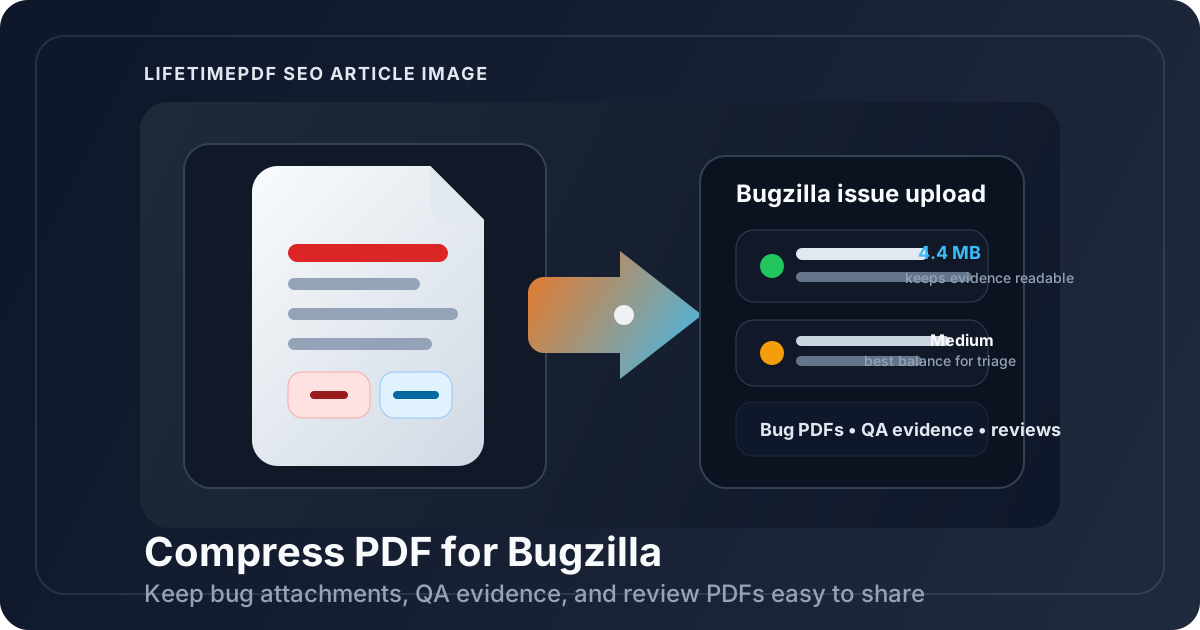
Table of contents
- Quick start: compress a PDF for Bugzilla in under 2 minutes
- Why smaller PDFs help in Bugzilla
- What file size should you aim for?
- Which compression level should you choose?
- Step-by-step: shrink a Bugzilla PDF with LifetimePDF
- Common Bugzilla PDFs that benefit from compression
- When splitting or extracting pages is smarter than more compression
- Readability checks before attaching the smaller file
- Workflow habits that keep Bugzilla files cleaner
- Related LifetimePDF tools and internal links
- FAQ (People Also Ask)
Quick start: compress a PDF for Bugzilla in under 2 minutes
If your goal is simply make this PDF easier to attach and review in Bugzilla, this workflow is usually enough:
- Open Compress PDF.
- Upload the bug evidence pack, QA summary, patch-review appendix, release note, or support file you actually plan to share.
- Choose Medium compression first.
- Download the smaller copy and compare the new size with the original.
- Open it once and check screenshots, timestamps, labels, tables, notes, and any detail another person may need to verify later.
- If only part of the file matters, use Extract Pages or Split PDF instead of forcing harsher compression on the whole document.
- If the PDF is scan-heavy, use OCR PDF before you share it.
Why smaller PDFs help in Bugzilla
Bugzilla attachments usually support active debugging and verification, not long-term archive viewing. They show up during bug triage, duplicate checks, regression reviews, QA retests, release signoff, customer escalation follow-up, and patch discussion. When a PDF is much heavier than it needs to be, every one of those moments becomes slower and a little more annoying.
Compression helps because it removes raw file weight, but the bigger win is smoother collaboration. Smaller PDFs upload faster, open faster, and feel less clumsy when developers, QA, support, or release managers revisit them from a laptop, a slower connection, or a phone. That matters more than people think. If a file feels annoying to open, people delay reviewing it.
Why lighter PDFs usually work better
- Faster uploads: useful when you are attaching evidence or updates in the middle of live bug work.
- Less review friction: teammates are more likely to open a clean 2MB to 5MB file right away than a bloated attachment.
- Better remote access: smaller PDFs behave better over VPNs, remote desktops, and slower test-lab connections.
- Cleaner bug history: attachments stay easier to navigate when every evidence pack is not oversized.
- Better file reuse: once a PDF is lighter, it is easier to resend in chat, email, or a wiki page later.
What file size should you aim for?
There is no universal perfect number because a one-page approval behaves differently from a long regression appendix, a screenshot-heavy evidence pack, or a scanned vendor document. Still, practical targets help you avoid compressing harder than the workflow actually needs.
| PDF type | Good target | Why it works |
|---|---|---|
| Short approvals or focused updates | Under 2MB | Easy to open fast on mobile and low-friction for quick reviews. |
| Everyday bug attachments and QA docs | 2MB to 5MB | Usually the best balance between readability and convenience. |
| Screenshot-heavy evidence packs or long review PDFs | 5MB to 10MB | Still workable, but worth shrinking if several people will reopen it often. |
| Over 10MB | Compress again or split it | Often larger than necessary for ordinary collaboration inside Bugzilla. |
Which compression level should you choose?
LifetimePDF keeps the decision simple: Low, Medium, or High. That is enough for most Bugzilla workflows because the real question is not technical perfection. It is whether the file becomes easier to share while still looking dependable.
Low compression
- Best when appearance matters more than aggressive size reduction.
- Useful for printable release notes, customer-facing summaries, or diagrams that need maximum crispness.
- Usually not the best first choice unless the PDF is already close to the size you want.
Medium compression
- Best default for most Bugzilla attachments.
- Usually keeps tables, screenshots, logs, comments, and small text readable.
- The safest starting point for bug evidence, QA PDFs, support files, and review packets.
High compression
- Useful when the file is still too bulky after a Medium pass.
- Best for oversized scans, draft packs, or files where ultra-sharp visuals matter less than smaller size.
- Always review carefully because aggressive compression can soften screenshots, charts, and fine text.
Step-by-step: shrink a Bugzilla PDF with LifetimePDF
- Pick the exact file you want to attach. Do not optimize a giant master packet if the Bugzilla bug only needs one section.
- Open Compress PDF.
- Start on Medium. That is usually enough for bug evidence, verification notes, support summaries, and review PDFs.
- Download the smaller copy. Compare the new size to the original so you know whether the gain is actually useful.
- Review the important details once. Check screenshots, timestamps, table text, page numbers, and any file another person may quote or verify later.
- Trim if needed. Use Extract Pages, Split PDF, or Delete Pages if half the document is unnecessary for the bug.
- Fix messy scans. Use OCR PDF or Crop PDF when oversized scans carry blank margins, skewed pages, or image-only text.
Common Bugzilla PDFs that benefit from compression
The exact file type changes by team, but these are the common PDFs that usually get lighter without causing trouble:
- Bug evidence packs: screenshot-heavy attachments used to explain a defect, regression, or workflow problem.
- QA verification PDFs: files that multiple people may reopen during retests and release checks.
- Patch-review appendices: supplemental documents, specs, and notes that support discussion around a fix.
- Approvals and forms: scanned signoffs, vendor paperwork, procurement forms, and internal approvals.
- Customer escalation summaries: PDFs that combine notes, screenshots, and next-step context.
- Support documents: exported attachments, reference materials, and internal runbooks that travel with bug history.
The pattern is simple: if the PDF exists to keep work moving rather than to preserve perfect print quality, there is a good chance it can be made smaller without hurting the job it needs to do.
Need the attachment-focused angle? This companion guide goes deeper into smaller bug uploads and lighter QA evidence.
When splitting or extracting pages is smarter than more compression
People often reach for harsher compression when the real problem is that the document is doing too many jobs at once. A 40-page all-in-one PDF attached to a focused bug is usually the wrong shape, even if it compresses well.
Trim first when:
- Only one section matters to the bug or verification step.
- The PDF contains appendices, backups, or older versions nobody needs right now.
- The document mixes internal notes with customer-facing pages.
- A long scan includes blank pages, scanner borders, or duplicate sheets.
In those cases, use Extract Pages or Split PDF first. A shorter PDF usually lands better than a heavily compressed one because it removes both file weight and reading overhead.
Still too big? Remove waste before forcing more compression.
Readability checks before attaching the smaller file
Do one quick review before you replace the original attachment. It takes less than a minute and catches most bad compression choices immediately.
- Zoom in on the smallest table text or stack-trace screenshot.
- Check screenshots that contain labels, timestamps, or interface details.
- Confirm signatures, initials, or approval marks are still easy to see.
- Review diagrams, logs, or timelines with thin lines and fine labels.
- Open the file at a normal laptop view, not just at extreme zoom.
Workflow habits that keep Bugzilla files cleaner
- Compress before attaching: make it part of the routine instead of waiting until somebody complains.
- Attach focused PDFs: send the section people need, not the whole archive.
- Clean scans first: crop borders, delete blanks, and OCR where useful.
- Name files clearly: smaller is good, but filenames should still make the bug, build, or release context obvious.
- Keep one quality check in the loop: the smallest file is not the winner if it made approvals or evidence harder to trust.
- Redact or clean metadata when needed: use Redact PDF or PDF Metadata Editor before sharing files more broadly.
Related LifetimePDF tools and internal links
Compress PDF is the main starting point, but these tools are often just as useful when the real problem is page bloat, messy scans, or oversized support material:
- Extract Pages for pulling only the pages a bug thread actually needs.
- Split PDF for breaking a long document into cleaner pieces.
- Delete Pages for removing filler, duplicates, or blank sheets.
- Crop PDF for trimming scanner borders and wasted space.
- OCR PDF for scan-heavy files that should also become searchable.
- Lifetime Access if you want the full toolkit without a recurring monthly subscription.
You may also find these related guides useful if you want broader companion coverage around issue attachments and software-specific PDF workflows:
- Compress PDF for Bugzilla: Upload Smaller Bug Attachments and QA Evidence Faster
- Compress PDF for Redmine
- Compress PDF for YouTrack
- Compress PDF for Taiga
- Compress PDF for Jira
Bottom line: for most Bugzilla PDFs, start with Medium compression, keep the important screenshots and logs readable, and remove irrelevant pages before you try harsher compression.
FAQ (People Also Ask)
How do I compress a PDF for Bugzilla?
Upload the PDF to a compressor, start with Medium compression, and keep the smaller copy only if screenshots, logs, tables, and small text still read clearly. If the file is still too large, extract only the relevant pages or split the document instead of forcing harder compression on the whole file.
What file size should I aim for in Bugzilla?
There is no single perfect number, but under 5MB is a strong target for many everyday bug attachments and QA documents. For screenshot-heavy packs, scans, or long review PDFs, cleanup and page trimming usually matter more than forcing every file under a tiny number.
Will compression make screenshots or logs blurry?
It can if you compress too aggressively. That is why Medium compression is usually the best first pass. Always review screenshots, timestamps, labels, table text, and small notes before replacing the original file.
When should I split a PDF instead of compressing it harder?
Split or extract pages when only one section matters to the bug, regression review, QA handoff, or verification step. A shorter, focused PDF usually works better than an over-compressed all-in-one file full of pages nobody needs right now.
Which LifetimePDF tools pair best with Bugzilla attachments?
Compress PDF is the main starting point. Extract Pages, Split PDF, Crop PDF, OCR PDF, Delete Pages, Redact PDF, and PDF Metadata Editor are especially useful when you want smaller, cleaner Bugzilla documents that teammates can still trust.