Check PDF Keywords Online: Review Hidden Metadata Before You Share, Archive, or Publish
To check PDF keywords online, open the final file in a metadata tool and inspect the hidden Keywords field stored inside the PDF.
If the tags are stale, duplicated, stuffed, too vague, or too private, clean them before the file leaves your hands.
That is the short answer. The useful part is knowing what the keyword field is actually for, why it is easy to forget during exports and revisions, and when the smartest move is not adding more metadata but removing bad metadata. In practice, a clean keyword field should help real retrieval or records work. If it only adds clutter, it is not doing its job.
Fastest path: inspect the final PDF copy online, judge whether the keyword tags still help anyone, then keep, rewrite, or remove them before sharing.
In a hurry? Jump to quick start: check PDF keywords online in about 5 minutes.
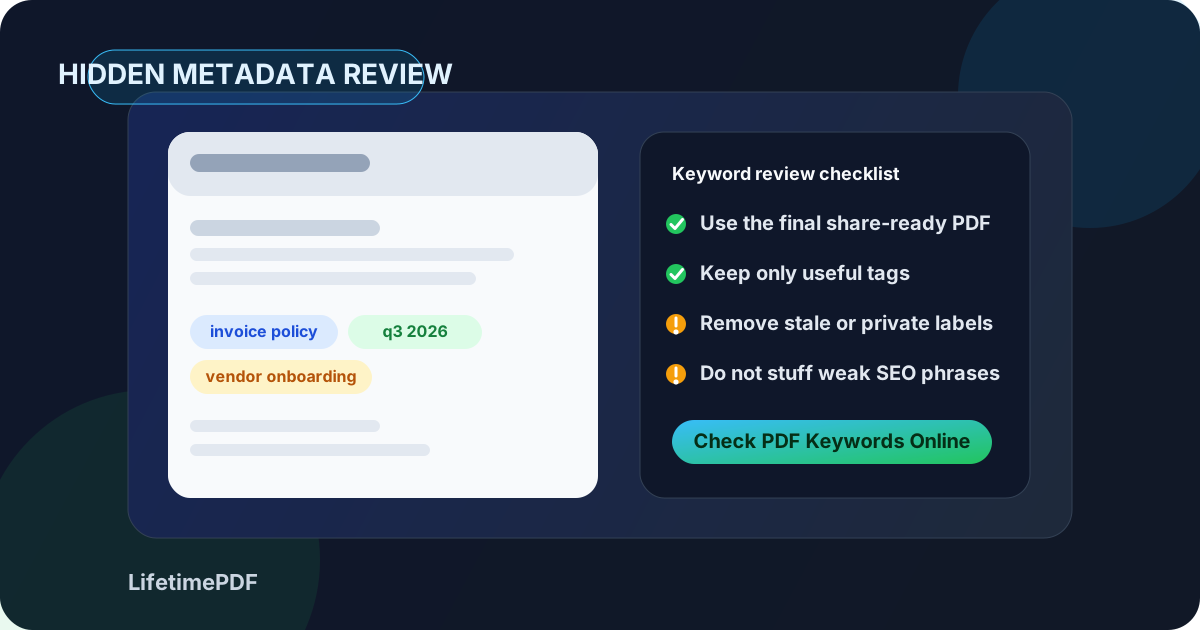
Table of contents
- Quick start: check PDF keywords online in about 5 minutes
- What you are really checking when you inspect PDF keywords
- Step-by-step: practical online workflow
- When to keep, rewrite, or remove the keyword field
- Why PDF keywords are not a magic SEO shortcut
- Common mistakes when checking PDF keywords online
- Examples of useful versus weak PDF keyword tags
- Related LifetimePDF tools and guides
- FAQ
Quick start: check PDF keywords online in about 5 minutes
If your goal is simple - make sure the hidden keyword metadata is not quietly messy before you upload, email, archive, or publish the file - use this order:
- Open the exact final PDF in PDF Metadata Editor.
- Read the hidden Keywords field directly instead of guessing from the filename or visible title.
- Ask whether the tags help a real filing, retrieval, or records workflow.
- Remove stale client names, old project labels, generic filler, duplicates, and any private shorthand that should not travel with the PDF.
- If the field is still useful, keep the final tag set short, readable, and specific.
- Save the cleaned copy and reopen it once so you know the change actually stuck.
What you are really checking when you inspect PDF keywords
The keyword field is hidden document metadata. It is not the filename in your downloads folder, not the page-one heading, and not a guaranteed search-engine ranking lever. It is simply a stored field that some systems, viewers, and records workflows can read.
That means checking PDF keywords online is less about decoration and more about hygiene. You are confirming whether the hidden tags still match the final document, whether they help a real retrieval process, and whether they accidentally reveal something you never meant to share.
| Thing | What it is | Why people confuse it |
|---|---|---|
| Filename | The storage name used by your device or cloud folder | People see it often, so they assume it is the same as metadata |
| Visible title | The title shown on the page or in a reader tab | It feels descriptive, but it does not automatically control the keyword field |
| PDF keywords | Hidden metadata stored inside the document | Because it is invisible during normal reading, it often goes unchecked for too long |
| Subject, author, creator | Other metadata fields living beside keywords | They all belong to the same cleanup workflow and should tell a consistent story |
Good outcome
The tags help somebody find, sort, retain, or understand the file later without exposing anything awkward.
Bad outcome
The tags are leftovers from drafts, internal workflow noise, or a pile of generic terms that help nobody and sometimes reveal too much.
Step-by-step: practical online workflow
1) Start with the final share-ready copy
This sounds obvious, but it is where people lose the plot. Metadata can change after merging, OCR, conversion, form editing, or export. If you inspect an early draft and then send a later version, you have not really checked the file that matters.
2) Read the keyword field directly
Use PDF Metadata Editor or review the broader workflow in PDF Metadata Checker. Do not infer the metadata from the visible content alone. The whole point is to see what the PDF is quietly carrying behind the scenes.
3) Check whether the tags still describe the current document
Ask a plain question: if someone saw only these tags, would they still make sense for the final file? A proposal that became a signed contract, a template that became a client deliverable, or a draft that turned into a public download can all carry stale keyword baggage from earlier stages.
4) Remove the easiest noise first
Delete duplicated tags, generic filler like document or important, draft-era labels, internal team shorthand, and anything that reads like folder clutter instead of helpful metadata. The biggest improvement usually comes from subtraction.
5) Keep the final set short and intentional
If the field still deserves to exist, keep a short set of specific terms that would help real retrieval later. A small number of clear tags beats a nervous list of twenty vaguely related ones.
6) Save and verify once
After editing, reopen the file and inspect the metadata again. That quick verification step matters because it confirms the final PDF now matches the story you actually want the document to tell.
Recommended order: inspect the final file, clean the hidden keyword field, then review the broader metadata picture before you send or publish the PDF.
When to keep, rewrite, or remove the keyword field
There is no prize for using the keyword field when it does not help. The right move depends on how the PDF will actually be used.
Keep it when the field supports a real retrieval workflow
If your archive, records system, or team library genuinely benefits from a small set of tags, keeping the field makes sense. In that case, the keywords should be stable, understandable, and tied to how people really search for the file later.
Rewrite it when the idea is good but the current tags are messy
Many PDFs inherit a half-useful keyword field from an older version, a template, or a previous project stage. When the field still has a purpose but the wording is stale, clean it up rather than letting the history of the document leak into the final copy.
Remove it when the field adds nothing or says too much
A blank field is often the cleanest answer for public files, client-facing PDFs, or one-off documents with no real archive logic behind them. If the tags add no retrieval value or expose internal context that should stay internal, clearing the field is a sensible choice.
- Keep when the tags help real search or retention.
- Rewrite when the field is useful but outdated, vague, or inconsistent.
- Remove when the tags are private, cluttered, generic, or unnecessary.
Why PDF keywords are not a magic SEO shortcut
This is where people often overcomplicate the job. The hidden PDF keyword field is not a smart place to dump every phrase you hope somebody might search for. That usually creates metadata clutter, not a better document.
If your real goal is discoverability, the visible title, useful content, clear filename, and healthy page structure do far more work than a stuffed keyword field. Treat PDF keywords like document metadata, not like an excuse for old-school SEO habits.
Good bias to keep
Use the keyword field to support filing and clarity. Do not turn it into a comma-heavy junk drawer of weak search phrases, repeated synonyms, and internal campaign leftovers.
Common mistakes when checking PDF keywords online
The same few mistakes show up again and again. Catching them once saves a lot of quiet metadata mess later.
Checking the wrong file version
You clean the draft, then send the exported, merged, or flattened copy that still carries old tags.
Keeping generic filler
Tags like pdf, file, report, or important rarely help anyone find the right document later.
Letting private shorthand travel
Internal codes, draft labels, and client nicknames can leak through metadata even when they never appear on the visible page.
Mistaking quantity for quality
A shorter, cleaner keyword field is often more useful than a long list of barely related terms.
Examples of useful versus weak PDF keyword tags
The easiest way to judge a keyword field is to imagine whether the tags would still make sense three months from now, after the file is buried inside a larger library of PDFs.
| Keyword set | Verdict | Why |
|---|---|---|
| vendor onboarding, q3 2026, invoice policy | Useful | Short, specific, and tied to a real business retrieval use |
| pdf, document, file, final, important | Weak | Too generic to help anyone distinguish this PDF from hundreds of others |
| client-a, draft-review, pricing-v2 | Risky | Potentially fine internally, but not great if the PDF is leaving your organization |
| proposal, proposal, proposal, sale, sales, proposal final | Poor | Stuffed, repetitive, and more anxious than useful |
This is the broader lesson: useful keywords behave like calm filing labels. Weak keywords behave like leftovers from edits, folders, exports, and wishful SEO thinking.
Related LifetimePDF tools and guides
Checking PDF keywords online works best inside a wider metadata cleanup workflow. These are the most useful next steps:
If you want a broader check before you share the file, View PDF Properties is the best companion read. If the file should not carry hidden details at all, go straight to Remove Metadata From PDF Online.
FAQ
How do I check PDF keywords online?
Open the final PDF in an online metadata tool, inspect the hidden Keywords field, and decide whether the tags still help real search, filing, or archives.
Can I check PDF keywords online without installing software?
Yes. A browser-based metadata editor or checker is often the fastest way to review the keyword field in the exact file you plan to share.
Do PDF keywords help SEO?
Not in the simplistic sense people often hope. The field is better treated as document metadata for retrieval and cleanup, not as a place to stuff ranking phrases.
Should I leave the keyword field blank if it adds no value?
Usually yes. A blank field is often cleaner than stale or overly generic tags that do not help anyone later.
What should I remove from PDF keywords before sharing a file?
Remove outdated tags, internal shorthand, project codes, client references that should stay private, repeated filler, and anything that no longer matches the final PDF.
Bottom line: check the hidden keyword field in the final PDF, keep only the tags that help real retrieval, and do not let stale metadata tell the wrong story about your file.
Published by LifetimePDF — Pay once. Use forever.