Canva to PDF Without Monthly Fees: Export Clean PDFs Without Adding Another Subscription
Yes — Canva to PDF without monthly fees usually means exporting your finished design as PDF Standard or PDF Print, then checking the final PDF once before you send it anywhere.
If the file still needs work, the cheapest sane workflow is to fix only the finished PDF problem instead of stacking another recurring tool on top of Canva.
That is the real search intent here. Most people are not struggling to find the download button. They are trying to avoid turning a simple handoff into a subscription pile: a proposal that needs to stay sharp, a workbook that must upload cleanly, a menu that should print well, a client deck that now needs protection, or a branded PDF that still needs a signature before it goes out. The useful answer is not more software. It is a cleaner order of operations.
Fastest practical path: export the right PDF from Canva, review it once, then compress, protect, sign, or merge only if the finished file actually needs that next step.
Need the short version? Jump to Quick start: Canva to PDF without monthly fees.
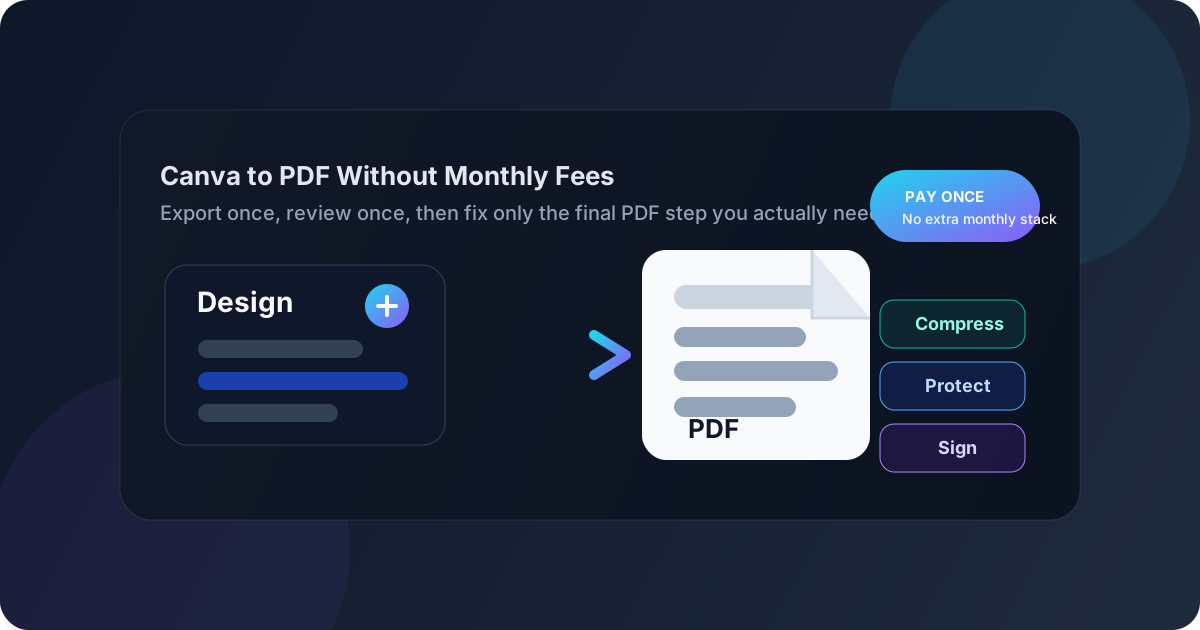
Table of contents
- Quick start: Canva to PDF without monthly fees
- What this search really means
- Which Canva PDF export should you choose?
- Step-by-step: the lean Canva-to-PDF workflow
- When Canva alone is enough
- What to do after export without adding another subscription
- Common mistakes that create unnecessary costs
- Related LifetimePDF tools and guides
- FAQ (People Also Ask)
Quick start: Canva to PDF without monthly fees
If the design is already done and you just want the shortest dependable route, use this order:
- Finish the design in Canva first: page order, links, headings, images, and margins.
- Choose PDF Standard for lighter digital sharing or PDF Print for sharper print-focused output.
- Export the file and open the actual PDF you plan to send.
- Check page order, visual sharpness, and any clickable links.
- If the file is too large, use Compress PDF.
- If it contains sensitive or approval-ready content, protect or sign the finished PDF instead of rebuilding the design.
What this search really means
People searching for Canva to PDF without monthly fees are usually not asking whether Canva can create a PDF at all. It obviously can. The deeper question is whether the whole workflow can stay efficient without turning into another recurring software bill.
In real life, the PDF usually needs one of four things after export: a smaller file size, privacy controls, a signature step, or bundled supporting pages. None of those should force you into a bloated stack if they only happen occasionally. That is why the smartest approach is to let Canva handle the design export, then use a focused PDF tool only for the final handoff task the finished document still needs.
| After export, the PDF needs... | What actually solves it | Best next step |
|---|---|---|
| A smaller file for email or uploads | Compression | Compress PDF |
| Safer sharing for client or internal content | Password protection | PDF Protect |
| Approval or sign-off | Signature workflow | Sign PDF |
| Appendices, forms, or terms pages attached | File assembly | Merge PDF |
That is the difference between a human-friendly workflow and a messy one. The human-friendly version does not assume every exported PDF deserves a giant monthly toolset. It solves one real need at a time.
Which Canva PDF export should you choose?
This is the decision that affects almost everything else. Choose the wrong export type and you may create a file that is larger than necessary or less crisp than expected.
| Export type | Best for | Main tradeoff |
|---|---|---|
| PDF Standard | Email attachments, lead magnets, normal downloads, digital review, everyday sharing | Usually lighter, but not always ideal for high-detail print work |
| PDF Print | Brochures, menus, workbooks, handouts, detail-sensitive visual output | Often sharper, but can become much larger and less convenient to send |
If the file mainly lives on screens, smaller is often better. If the file will be printed, handed to a client for production, or used where visual detail really matters, starting with the sharper export often makes more sense. The mistake is using print-heavy export settings for every single job and then wondering why the PDF becomes annoying to move around.
Step-by-step: the lean Canva-to-PDF workflow
A clean workflow matters more than piling on extra software. The best sequence is short.
1) Finalize the design before export
Check the exact version you want other people to open. That means page order, text, links, alignment, image crops, and anything close to the page edge. If the design still feels unfinished in Canva, exporting earlier will not help.
2) Match the export to the destination
A workbook download, a pitch deck, and a printable menu do not all need the same PDF profile. Match the export to the real destination instead of treating every document like a print job.
3) Open the exported PDF immediately
Open the actual file, not the design preview. Look at the first page, a middle page, and the last page. That quick pass catches most real-world problems before the PDF leaves your hands.
4) Solve the final PDF problem directly
- Too large? Use Compress PDF.
- Too sensitive? Use PDF Protect.
- Needs approval? Use Sign PDF.
- Needs extra pages attached? Use Merge PDF.
Practical sequence: Canva export → open the PDF → fix only the actual problem → send the final tested copy.
When Canva alone is enough
Not every export needs a second tool at all. If the PDF opens cleanly, the pages are in the right order, the links behave, and the file size is reasonable, you are already finished.
Canva alone is often enough for:
- simple flyers, one-pagers, and menus
- lead magnets and downloadable guides
- presentation handouts that just need to be shared
- basic workbooks and branded PDFs that are ready to go
The mistake is assuming that every PDF deserves a complicated pipeline. It does not. The lowest-cost workflow is often the one where you stop as soon as the exported file already does the job.
What to do after export without adding another subscription
This is where LifetimePDF fits naturally. Canva is where the design work happens. LifetimePDF is useful when the exported file needs one more professional step before delivery.
Compress PDF for upload limits and inbox sanity
This is the most common post-export need. Portfolios, brochures, guides, and image-rich handouts often look correct but become awkward to send. If size is the only problem, Compress PDF is faster than redesigning the entire file.
Protect PDF for private or client-facing material
Quotes, pricing sheets, internal training docs, draft proposals, and files containing sensitive details often need safer sharing. PDF Protect is the clean follow-up when the document should not travel casually.
Sign PDF for approvals and formal handoff
Once the design is final, the next step may be approval, not more editing. Use Sign PDF when the PDF is ready for review, agreement, or sign-off.
Merge PDF when the Canva export belongs in a bigger packet
A Canva-made cover page, workbook, or proposal often needs terms, appendices, contracts, or worksheets attached afterward. Merge PDF helps turn separate pieces into one deliverable without rebuilding the design.
Need the whole export-to-delivery workflow in one place?
The efficient rhythm is design in Canva → export the right PDF → review once → use one focused tool only if the handoff needs it.
Common mistakes that create unnecessary costs
Using PDF Print for every single job
Bigger is not always better. If the file mostly lives in email, downloads, or client review, a lighter export often makes more sense.
Trying to solve every problem inside the design tool
If the PDF already looks right but is too large, compression is the correct fix. If it is visually correct but private, protection is the correct fix. If it is complete but needs approval, signing is the correct fix.
Paying monthly for tasks that happen occasionally
Many people only need compression, signatures, or document assembly in bursts. A focused workflow is often cheaper and cleaner than subscribing to a large platform just in case.
Skipping the final open-and-scroll pass
The exported PDF is the real product other people see. A ten-second review catches more embarrassing mistakes than a lot of extra tweaking inside Canva.
Related LifetimePDF tools and guides
Canva to PDF without monthly fees usually sits inside a bigger design-delivery workflow. These tools and guides fit naturally around the same job:
- Compress PDF - shrink large exported designs for email, portals, and downloads.
- PDF Protect - secure pricing sheets, proposals, and internal PDFs.
- Sign PDF - finish the approval step after the layout is final.
- Merge PDF - combine the Canva export with forms, terms, or appendices.
Related blog guides
- Canva to PDF
- Canva to PDF Online
- Canva to PDF Online Free
- Canva to PDF Online Without Monthly Fees
- Compress PDF for Canva
FAQ (People Also Ask)
How do I export Canva to PDF without monthly fees?
Open the finished design, choose Download, select PDF Standard or PDF Print, export the file, and review it once. If the final PDF still needs work, solve that single problem directly instead of adding another recurring subscription.
Do I need another subscription to save Canva as PDF?
Usually no. Canva handles the core PDF export. Most people only need a follow-up PDF tool when the finished file needs compression, privacy controls, signatures, or file assembly.
What is the difference between PDF Standard and PDF Print in Canva?
PDF Standard is usually better for lighter digital delivery, while PDF Print is usually better when sharp detail or print output matters more than file size.
What if my Canva PDF is too big to upload or email?
If the design already looks right, compress the finished PDF instead of rebuilding the project. That is usually the fastest way to make the file easier to send.
Can I protect or sign a Canva PDF after exporting it?
Yes. Export first, then use protection for privacy, signatures for approvals, or merging for packets that need extra pages attached.