Compress PDF for Canva: Keep Brand Guides, Pitch Decks, and Design Exports Small Without Losing Layout Quality
To compress a PDF for Canva, export the design, upload it to LifetimePDF's Compress PDF tool, start with Medium compression, and keep the smaller version only after checking small text, page spacing, thin lines, logos, and image detail.
For most Canva workflows, under 2MB is a strong target for proposals, one-pagers, and deck-style PDFs, while image-heavier brand guides, workbooks, portfolios, and print-like exports usually work better around 2MB to 5MB.
Canva PDFs get heavy for ordinary reasons. A clean five-page deck turns into a client proposal. The proposal picks up mockups, photo spreads, appendix pages, case studies, and export versions for desktop and mobile review. The result is not always a better file. It is often just slower to share, harder to open on a phone, and more annoying to send through email, Slack, project tools, or client portals. Good compression fixes that without making the design feel careless.
Fastest path: use LifetimePDF's Compress PDF tool at Medium, then trim duplicate pages, crop wasteful margins, or split bulky appendix material only if the file is still heavier than the recipient actually needs.
Need the short version? Jump to Quick start: compress a Canva PDF in about 2 minutes.
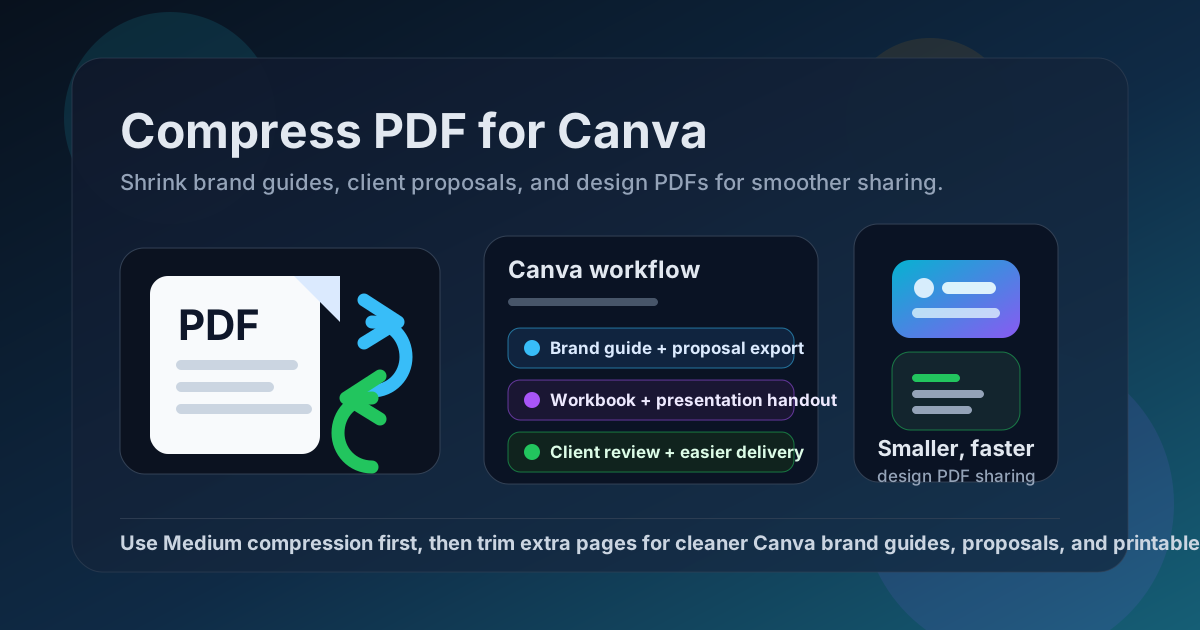
Table of contents
- Quick start: compress a Canva PDF in about 2 minutes
- Why smaller PDFs help in Canva workflows
- What file size should a Canva PDF be?
- Which compression level should you choose?
- Step-by-step: shrink a Canva PDF with LifetimePDF
- Best approach for common Canva PDF types
- What to do if the PDF is still too large
- How to keep text, layouts, and visuals readable
- Workflow habits that prevent PDF bloat
- Related LifetimePDF tools and useful reading
- FAQ (People Also Ask)
Quick start: compress a Canva PDF in about 2 minutes
If your real goal is simply make this Canva PDF smaller so it is easier to send, upload, or review, this is usually enough:
- Start with the actual export you plan to share, not an older draft full of duplicated pages or alternate versions.
- Open Compress PDF.
- Choose Medium compression first.
- Download the smaller file and compare the size drop.
- Check the fragile details once: small text, thin rules, mockup labels, chart text, QR codes, logos, and any full-bleed photos.
- If the file is still too heavy, use Delete Pages, Split PDF, or Crop PDF before trying stronger compression.
Why smaller PDFs help in Canva workflows
Canva sits close to handoff moments. You are usually not compressing for archival purity. You are compressing because the PDF needs to move: into an email, a client thread, a sales follow-up, a Notion page, a Slack channel, a project task, or a phone download that somebody will open while half distracted.
Smaller PDFs usually help because they:
- upload faster into work tools and client portals,
- open more smoothly on phones and older laptops,
- feel less risky to forward or attach,
- reduce friction when a reviewer only needs the key pages, and
- make follow-up versions easier to manage because each file is less bloated from the start.
Why compression usually pays off
Many Canva exports become large because they carry image-heavy spreads, duplicate intro pages, oversized screenshots, decorative background textures, or multiple sections that could have been split into separate PDFs. Compression helps, but it works best when paired with basic packet cleanup. In other words, a smaller final file often comes from better structure plus moderate compression, not from forcing one giant export through the harshest setting possible.
What file size should a Canva PDF be?
There is no single magic number, but these targets are practical for most Canva-based sharing workflows:
- Under 2MB: often ideal for proposals, one-pagers, short decks, menus, flyers, and light handouts.
- 2MB to 5MB: a comfortable range for brand guides, workbooks, client decks, case studies, and image-heavier exports.
- Above 5MB: still reasonable when the file contains many photos or detailed spreads, but worth reviewing for duplicate pages, appendices, and oversized visuals.
If the PDF is headed to a printer, a tender portal, or another workflow that depends on higher-fidelity graphics, keep the untouched original as your master copy. The compressed version is for sharing convenience, not for replacing every production-grade source file.
Which compression level should you choose?
Low compression
Use Low when the PDF already looks efficient and you only need a modest size drop. It is a safe option for short sales decks, simple one-pagers, and files with very fine design details.
Medium compression
Medium is the best default for most Canva PDFs. It usually cuts enough weight to make sharing easier while protecting the things people actually notice: typography, spacing, page rhythm, photo clarity, icons, charts, and brand color blocks.
High compression
Use High only when convenience matters more than visual polish. It can be useful for scan-heavy inserts, rough internal review copies, or appendix material that only needs to remain readable. It is usually the wrong first choice for client-facing decks and branded collateral.
What to inspect after compression
Canva exports tend to fail in predictable places after aggressive compression: very small text, thin divider lines, transparent overlays, gradients, QR codes, logos on dark backgrounds, and photo spreads with subtle shadow detail. Review those first instead of skimming only the cover page.
Step-by-step: shrink a Canva PDF with LifetimePDF
- Pick the right export. Start with the final deck, proposal, workbook, or brand guide you truly need, not every draft version you saved during the design process.
- Compress once before you start stacking edits. Open Compress PDF and try Medium first.
- Compare size against usefulness. A dramatic size drop is not a win if your smallest labels, icons, or charts look rough once downloaded.
- Trim structure before recompressing. Remove duplicate pages, split an appendix, or crop oversized white space if the PDF still feels heavy.
- Keep one clean master. Save the untouched original export separately so you never have to rebuild the best-quality version from a compressed copy.
Best approach for common Canva PDF types
1. Brand guides and sales one-pagers
These often carry logo lockups, color swatches, typography samples, and polished layouts that should still feel premium after compression. Medium compression is usually enough. Check the smallest brand notes, hex-code text, and thin dividing lines before sending.
2. Client proposals and pitch decks
Proposal PDFs often grow because they include mockups, testimonial pages, pricing sections, timelines, and case-study screenshots. Keep the core story intact, but be ruthless about duplicate appendix material. If the recipient only needs the pitch, a separate appendix PDF is often cleaner than one giant packet.
3. Workbooks, lead magnets, and handouts
These files are usually downloaded by a wider audience, which makes file weight more noticeable. A smaller PDF feels friendlier on mobile, faster on slower connections, and less annoying inside automated email sequences. Compression plus page cleanup usually does more for this format than aggressive image flattening alone.
4. Portfolios and case-study PDFs
Portfolios live or die on image quality and pacing. Compress carefully. Keep the details that prove craft: before-and-after visuals, interface screenshots, annotated callouts, and zoomed examples. If the portfolio is too large, shorten it before you punish the image quality.
5. Menus, price lists, and print-style exports
These often contain tight text spacing and repeated columns. Medium compression is still a good starting point, but inspect every small number, currency symbol, and thin separator line. If readability drops, the better fix may be a cleaner export or lighter source imagery rather than a harsher compression pass.
What to do if the PDF is still too large
If Medium compression did not get you where you need to be, do not immediately keep squeezing the same file. Try these moves first:
- remove duplicate or optional pages with Delete Pages,
- split a long appendix or bonus section with Split PDF,
- trim empty borders or wasteful margins with Crop PDF,
- re-export with cleaner source images if the original design is carrying oversized photos, and
- avoid multiple rounds of recompressing the same already-compressed PDF.
In many Canva workflows, packet discipline beats brute-force compression. A shorter, cleaner PDF often feels more professional than a bloated file pushed through a harsher setting.
How to keep text, layouts, and visuals readable
The safest habit is simple: review the compressed file at the sizes real people will use. Open it on a laptop, zoom to 100%, and if the audience is broad, glance at it on a phone too.
Readability checklist
- Can the smallest body text still be read without strain?
- Do thin rules, table dividers, and icon lines still look intentional rather than fuzzy?
- Are logos, brand colors, and gradient-heavy hero pages still clean?
- Do screenshots, mockups, and charts still support the point instead of looking muddy?
- Are QR codes, URLs, and contact details still easy to use?
If the answer is no on any of those, keep the cleaner original or step back to a lighter compression level.
Workflow habits that prevent PDF bloat
The best time to improve a Canva PDF is before it becomes a problem. These habits help:
- Export only the final pages you actually need.
- Keep a clean master copy and a separate share-ready copy.
- Split appendices, bonus pages, or case-study add-ons instead of forcing one oversized file to do everything.
- Use lighter source images when a design includes many full-page photos.
- Compress once thoughtfully instead of repeatedly compressing every revision.
That workflow keeps quality higher and makes later updates less painful.
Related LifetimePDF tools and useful reading
Canva document cleanup often turns into a few follow-on tasks. These tools pair well with compression:
- Compress PDF for the first size-reduction pass.
- Delete Pages to remove draft spreads, repeated covers, or bonus pages.
- Crop PDF to trim borders and reclaim dead space.
- Split PDF when the main deck and appendix should travel separately.
- Merge PDF if you need to combine multiple cleaned exports into one final handoff.
If you want adjacent reading, these guides fit the same workflow family: Canva to PDF Online, Compress PDF for Canva: Share Smaller Brand Guides, Client Proposals, and Design PDFs Faster, and Compress PDF for Canva Without Monthly Fees.
Bottom line: if the Canva PDF is too large, start with Medium compression, protect the details people actually notice, and clean the packet structure before you force the file any harder.
FAQ (People Also Ask)
How do I compress a PDF for Canva without ruining the design?
Export the final Canva PDF, upload it to a PDF compressor, start with Medium compression, and keep the smaller version only after checking small text, thin lines, page spacing, logos, and any images that carry detail. Medium is usually the safest place to start because it reduces size without flattening the design too aggressively.
What file size should I aim for with Canva PDFs?
Text-heavier one-pagers, proposals, and slide-style decks often feel good under 2MB. Brand guides, workbooks, portfolios, and image-heavier exports usually land more comfortably around 2MB to 5MB as long as the details people need are still sharp.
Will compression make Canva fonts or images blurry?
It can if you compress too hard. That is why Medium compression is usually the best first move. Always review small text, icons, charts, mockups, photos, and color-heavy spreads before sending the smaller file.
Should I compress before or after merging Canva pages?
If you already know the final packet, merge the final pages first and compress once. If the file is oversized because it contains draft pages, duplicated spreads, or appendix material, trim that structure before you compress again.
What if my Canva PDF is still too large after compression?
Delete duplicate pages, crop oversized white space, split a heavy appendix from the main document, or rebuild the export with cleaner source images. In many Canva workflows, better page selection and cleaner source assets solve more than aggressive recompression.