Compress PDF for Canva: Share Smaller Brand Guides, Client Proposals, and Design PDFs Faster
Yes - you can compress a PDF for Canva before sharing brand guides, client proposals, media kits, workbooks, presentation handouts, and printable downloads, and Medium compression is usually the safest place to start because it reduces file size without making text, logos, charts, mockups, or page layouts hard to review.
If the PDF includes extra draft pages, repeated appendix sections, or more high-resolution visuals than the next reader actually needs, trim the useful pages first because a smaller Canva PDF is easier for clients, teammates, and collaborators to open quickly and trust.
Canva PDFs often begin as polished design work and then turn into working documents. A proposal gets emailed to a client. A brand guide gets shared with contractors. A workbook gets downloaded by a lead. A handout gets opened on a phone five minutes before a meeting. When the file is heavier than the moment requires, every handoff gets slower. The goal is not to flatten your design into the tiniest possible file. The goal is to remove unnecessary weight while keeping the parts people still need to read, present, print, or approve.
Fastest path: Use LifetimePDF's Compress PDF tool, start with Medium compression, and make your Canva export easier to send in seconds.
In a hurry? Jump to Quick start: compress a PDF for Canva in under a minute.
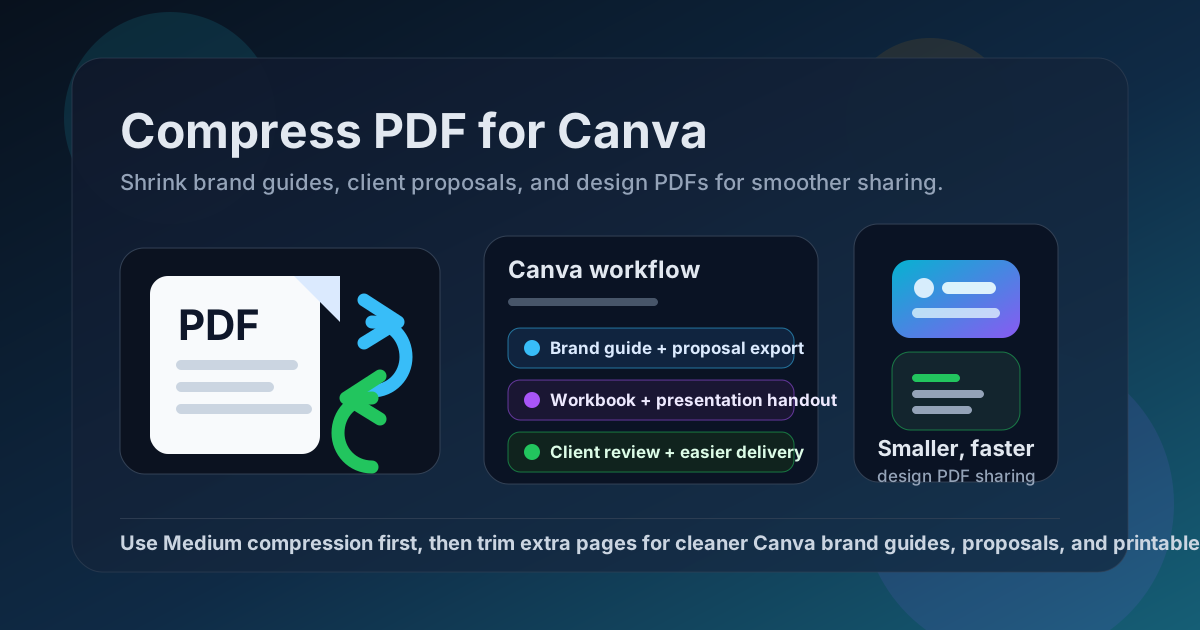
Table of contents
- Quick start: compress a PDF for Canva in under a minute
- Why compress Canva PDFs in the first place?
- What size should a Canva-friendly PDF be?
- Which compression level should you choose?
- Step-by-step: shrink a Canva PDF with LifetimePDF
- Common Canva PDFs that benefit from compression
- What if the PDF is still too large?
- How to keep text, layouts, and visuals readable
- Workflow habits that keep design PDFs lighter
- Related LifetimePDF tools and internal links
- FAQ (People Also Ask)
Quick start: compress a PDF for Canva in under a minute
If your goal is simply make this Canva PDF smaller so it is easier to email, upload, or review, keep the process simple:
- Open Compress PDF.
- Upload the brand guide, proposal, workbook, handout, media kit, pitch deck export, or printable download.
- Start with Medium compression.
- Download the smaller copy and zoom in on the smallest text, logo treatments, charts, and image-heavy pages.
- If it is still too large, use Extract Pages, Delete Pages, or Split PDF instead of repeatedly crushing the whole design.
That usually works because the biggest gains come from two moves together: reasonable compression and better scope. Most people do not need every draft page, alternate layout, or appendix panel bundled into the shareable version.
Why compress Canva PDFs in the first place?
Canva makes it easy to create polished PDFs, but polished does not always mean lightweight. A branded proposal can include full-width photos, layered textures, mockups, charts, and appendix pages. A workbook can include dozens of printable pages. A media kit can carry several high-resolution images even though the reader only needs a fast preview. Compression helps when the design needs to travel farther than the editor.
- Faster sharing: smaller PDFs are easier to email, upload, and attach to proposals or client portals.
- Smoother review: clients and teammates are more likely to open the file quickly if it is not unnecessarily heavy.
- Better mobile experience: lighter PDFs usually feel less painful on phones and tablets.
- Cleaner downloads: lead magnets, handouts, and workbooks feel more professional when they do not take forever to open.
- Less repeat friction: if the same design PDF gets forwarded repeatedly, every saved megabyte matters more than once.
None of this means every Canva PDF should be aggressively compressed. If the design depends on fine detail, the better move is often compress moderately and trim the extra pages, not squeeze everything until it looks tired.
What size should a Canva-friendly PDF be?
There is no single perfect number because a one-page flyer behaves differently from a 30-page brand guide. Still, a few practical targets help you stop at the point where the file feels small enough without risking a weaker reading experience.
| PDF type | Good working target | What to watch closely |
|---|---|---|
| Flyers, one-page proposals, and short handouts | Under 2MB | Small body text, QR codes, and logo clarity |
| Brand guides, client proposals, and presentation handouts | 2MB to 5MB | Headings, color blocks, page thumbnails, and charts |
| Workbooks, portfolios, and image-heavy media kits | 5MB to 10MB if needed | Photos, mockups, and detailed page spreads |
| Very large multi-section exports | Trim before chasing a number | Repeated pages, draft variants, and appendix clutter |
These are practical ranges, not hard limits. If a proposal must preserve close-up product mockups or tiny pricing tables, a slightly larger file is usually the better tradeoff. A readable PDF that gets the job done is more useful than a tiny one that feels compromised.
Which compression level should you choose?
The right level depends on what the Canva export actually contains. Some PDFs are mostly text and shapes. Others are full of photos, gradients, screenshots, or printable worksheets. Start in the middle, then adjust only if the result asks for it.
Low compression
Use Low when the document includes dense body text, fine line work, charts, small pricing tables, or image details that still need to look crisp after zooming in. This is often the safer choice for premium proposals, brand systems, and portfolio pieces.
Medium compression
Use Medium for most everyday Canva PDFs. It usually trims enough file size to matter while keeping the design polished and readable. For proposals, workbooks, lead magnets, client deliverables, and general design handouts, this is the best place to begin.
High compression
Use High when the PDF is bulky and convenience matters more than perfect visual sharpness. This can work for internal review copies, image-heavy drafts, or long handouts where the priority is fast delivery rather than premium presentation. Always preview carefully before sharing.
Step-by-step: shrink a Canva PDF with LifetimePDF
Here is a clean workflow that works well for most Canva exports:
- Open the tool. Go to Compress PDF.
- Upload the file. Add the proposal, workbook, guide, handout, portfolio, or marketing PDF you want to share.
- Choose Medium compression first. That is usually the safest balance between smaller size and preserved layout quality.
- Download the result. Compare the new file size with the original.
- Check the smallest important detail. Zoom in on body text, page numbers, captions, logo edges, charts, and any fine lines or icons.
- Trim the document if needed. If the file is still bulky, extract only the useful pages, delete duplicates, or split long sections into smaller PDFs.
Fast tool stack for Canva exports: compress first, then fix structure only if the file is still heavier than it should be.
Common Canva PDFs that benefit from compression
Some Canva exports are much more likely than others to become awkwardly large. These are the usual candidates:
- Brand guides: often include several pages of color systems, mockups, typography, and examples.
- Client proposals: can grow quickly when they mix cover pages, timelines, package tables, case studies, and appendix material.
- Workbooks and printable downloads: page count alone can make them heavier than expected.
- Media kits and portfolios: full-bleed images and device mockups often dominate file size.
- Presentation handouts: decks exported as PDF can stay useful at a much smaller size if they are cleaned up first.
- Lead magnets and guides: these benefit from lighter downloads because readers often open them on mobile right after signup.
- Campaign recaps: charts, screenshots, and branded slides can make internal and client review copies heavier than necessary.
If one of those files keeps feeling sluggish, the best fix is usually to compress it once and then tighten the page scope before it travels through the rest of the workflow.
What if the PDF is still too large?
If one compression pass does not solve it, the next move is usually not stronger compression. It is better document cleanup.
- Use Extract Pages if the recipient only needs one section of the deck, one pricing page, or one chapter of the workbook.
- Use Delete Pages to remove duplicate covers, draft variants, thank-you pages, or appendix content that is not relevant to the current reader.
- Use Split PDF if one exported file is trying to serve several audiences at once.
- Use Crop PDF if scans or imported pages include wasted borders or empty space.
- Use Merge PDF later if you want to rebuild a cleaner final packet from smaller polished parts.
How to keep text, layouts, and visuals readable
The danger is not just that a compressed Canva PDF looks softer. The bigger problem is that it can still look okay at a glance while the important details quietly become harder to trust.
- Zoom in on the smallest body text, captions, table rows, and page numbers.
- Check logo edges, brand marks, and fine line icons if the document is client-facing.
- Review charts and comparison tables because dense detail often degrades before headings do.
- Look at photo-heavy pages separately because image pages can soften sooner than text-led pages.
- Preview the PDF on a phone if many readers will open it from email or messaging apps.
- Keep the original export and treat the compressed version as the shareable copy, not the only authoritative copy.
If the compressed version fails any of those checks, step back. Use a lighter compression level or reduce the page count instead of forcing the whole file smaller at any cost.
Workflow habits that keep design PDFs lighter
The best compression workflow begins before the file ever reaches the compressor. A few habits keep Canva PDFs cleaner over time:
- Share focused versions: give each audience the section they actually need instead of one massive all-purpose export.
- Cut draft clutter: delete alternate layouts and approval leftovers before final delivery.
- Separate internal and external copies: keep the full working document, but send a lighter client-facing version.
- Reuse cleaned files: if a proposal or workbook gets shared repeatedly, optimize it once and keep using the polished version.
- Respect print readability: if someone will print the PDF, never chase size so hard that text and fine details become frustrating on paper.
Those habits usually improve the experience more than aggressive compression alone. A well-scoped document is easier to send, easier to review, and easier to trust.
Related LifetimePDF tools and internal links
Compressing a PDF for Canva is often one step inside a broader design-sharing workflow. These tools pair well with it:
- Compress PDF - reduce file size before sending proposals, guides, and downloads
- Extract Pages - share only the pages a client or teammate actually needs
- Delete Pages - remove draft pages, repeated covers, and appendix clutter
- Split PDF - break a long deck or workbook into smaller pieces
- Merge PDF - rebuild a cleaner final packet after trimming sections
- Crop PDF - trim wasted borders and empty margins
- PDF Metadata Editor - clean up title and document properties before delivery
Suggested internal blog links
- Compress PDF Online
- Compress PDF for Figma
- Compress PDF for Miro
- Compress PDF for Notion
- Compress PDF for Dropbox
Bottom line: for most Canva exports, start with Medium compression, then trim the page scope if the file is still heavier than the job requires.
FAQ (People Also Ask)
1) How do I compress a PDF for Canva?
Upload the exported Canva PDF to a PDF compressor, choose a compression level, and download the smaller result. For most people, Medium compression is the best starting point because it keeps text, logos, charts, mockups, and layouts readable while shrinking the file enough for smoother sharing.
2) Will compression ruin the quality of a Canva PDF?
Usually not if you begin with a moderate setting and review the result before replacing the original. The safest habit is to zoom in on the smallest text, the busiest chart, and any image-heavy page before you send the compressed copy.
3) What file size should I aim for with a Canva proposal or guide?
A practical target is under 2MB for short handouts and simple one-page documents, and around 2MB to 5MB for normal proposals, brand guides, and presentation handouts. If the file still needs to be larger to stay clear, clarity wins.
4) Should I split a long Canva PDF instead of compressing it harder?
Often, yes. If one file contains sections for different readers, splitting it usually works better than applying stronger compression across the entire export. A focused smaller PDF is easier to open and easier to act on.
5) Which Canva PDFs benefit most from compression?
Brand guides, client proposals, media kits, workbooks, portfolios, pitch deck handouts, lead magnets, and other image-heavy downloadable PDFs are all common candidates because they often include many pages or high-resolution visuals.
6) What if my Canva PDF is still too large after compression?
Extract only the relevant pages, delete duplicate or draft sections, crop wasted space, or split the PDF into smaller parts. In many cases, cleaning the structure works better than over-compressing the entire design.
Published by LifetimePDF - Pay once. Use forever.