Canva to PDF: Export Designs Cleanly Without Blurry Pages, Huge Files, or Broken Links
Yes — Canva to PDF usually just means exporting your finished design as PDF Standard or PDF Print, then checking the final file once before you send it anywhere.
If the exported PDF is too large, too print-heavy, or too sensitive to share openly, fix the finished PDF after export instead of rebuilding the design from scratch.
That is the part most guides skip. People searching for Canva to PDF are rarely stuck on the button. They are stuck on the handoff: a proposal that must look professional on every screen, a workbook that should print sharply, a lead magnet that cannot be enormous, a client deck that still needs a signature, or a branded PDF that has to survive email attachments and upload limits without falling apart. The clean workflow is simple: export the right PDF first, then use one small finishing step only if the file actually needs it.
Fastest practical path: export the correct PDF from Canva, review it once, then compress, protect, sign, or merge only if the final file needs that exact next step.
Need the short version? Jump to Quick start: Canva to PDF in a few minutes.
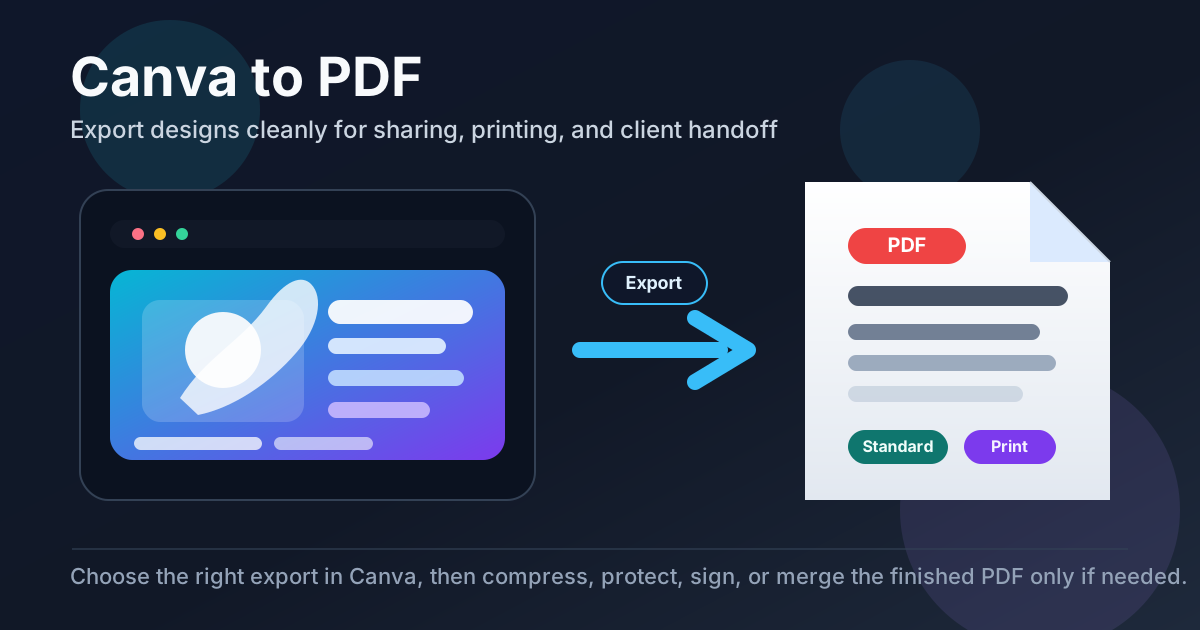
Table of contents
- Quick start: Canva to PDF in a few minutes
- Which Canva PDF type should you choose?
- Step-by-step: the clean Canva to PDF workflow
- How to avoid blurry pages, broken layouts, and oversized files
- Links, print settings, and real-world handoff checks
- Best tools to use after exporting from Canva
- Common Canva to PDF mistakes
- Related LifetimePDF tools and guides
- FAQ (People Also Ask)
Quick start: Canva to PDF in a few minutes
If you already have the design open and just want the shortest safe workflow, use this order:
- Finish the design in Canva first: page order, links, fonts, margins, and images.
- Choose PDF Standard for lighter digital sharing or PDF Print for sharper print-focused output.
- Export the file and open the actual PDF you plan to send.
- Check three things immediately: page order, visual sharpness, and clickable links.
- If the file is too large, run it through Compress PDF.
- If it contains client, pricing, or internal content, use PDF Protect before sharing.
Which Canva PDF type should you choose?
This is where most of the real quality difference comes from. The export choice should match what happens next, not what sounds more professional.
| Export type | Best for | Main tradeoff |
|---|---|---|
| PDF Standard | Email attachments, lead magnets, client review links, lightweight downloads, everyday sharing | Usually smaller, but not always the best choice for premium print output |
| PDF Print | Workbooks, brochures, event handouts, presentation leave-behinds, higher-quality print jobs | Often sharper, but can become much larger and less convenient to send |
If the file mainly lives on screens, smaller is usually better. If the file will be printed, mailed to a client for production, or handed to a designer or printer, sharper output usually matters more. The mistake is choosing a print-heavy export for every job and then wondering why the PDF is bloated.
Step-by-step: the clean Canva to PDF workflow
The safest Canva to PDF workflow is not complicated, but the order matters. Exporting too early or skipping the review pass is what usually creates embarrassment later.
1) Finalize the design before export
Check the exact version you want people to open. That means page order, headers, footers, visual alignment, links, page backgrounds, and any pages with charts or tables. If a heading still moves around in Canva, it will not magically behave better after export.
2) Export the PDF that matches the job
A downloadable workbook, a print handout, and a sales proposal do not all need the same PDF profile. Match the export to the outcome instead of treating every design like a print job.
3) Open the exported PDF immediately
Open the real file, not the Canva preview. Look at the first page, a middle page, and the last page. That catches most layout surprises fast.
4) Fix the PDF only if something specific is wrong
- Too large for email or upload? Use Compress PDF.
- Contains pricing, legal terms, or internal details? Use PDF Protect.
- Needs formal approval? Use Sign PDF.
- Needs appendices, forms, or contracts attached? Use Merge PDF.
Practical sequence: Canva export → open the PDF → fix only the actual problem → send the finished copy.
How to avoid blurry pages, broken layouts, and oversized files
Most Canva to PDF problems fall into three buckets: source quality, export mismatch, and over-correcting after export.
Blurry pages usually start with the source
If a design uses weak source images, stretched screenshots, or social-media graphics pushed past their comfortable size, the PDF can only preserve that weakness. PDF Print may help, but it cannot invent detail that was never there.
Huge files usually come from image-heavy print exports
Long workbooks, portfolios, image-rich pitch decks, and brand books can grow fast. If the visual quality is already good and the only real issue is size, do not redesign the file. Run the exported version through Compress PDF and check whether the new size still looks acceptable.
Layout surprises usually come from not reviewing the final file
A proposal might look perfect in Canva and still need one final check once it becomes a PDF. Watch for page breaks, clipped margins, awkward blank pages, and any full-page design where one shift becomes obvious immediately.
Do not solve every problem by exporting again
If the PDF is already visually correct but too large, compression is the right fix. If the PDF is correct but private, protection is the right fix. If the PDF is correct but incomplete, merging is the right fix. Re-exporting is only useful when the design itself still needs work.
Links, print settings, and real-world handoff checks
Canva PDFs often live in mixed workflows. One person clicks them on a phone. Another prints them. Another attaches them to a portal. That means one export setting is not enough by itself; you still need a fast handoff check.
Check links if the PDF is meant for digital reading
Test buttons, menu links, call-to-action links, and any linked table of contents. A digital workbook, lead magnet, welcome guide, or pitch deck can look finished while still failing at the exact point where a reader tries to click through.
Check margins and edge content if it may be printed
Full-bleed graphics, page-number zones, and edge-aligned text deserve a real look in the final PDF. What seems “close enough” on screen can feel sloppy on paper.
Check page order when the file is long
Menus, training books, branded reports, onboarding packets, and proposal decks often break trust through something simple: one page out of place. A quick scroll through thumbnails is usually enough.
Best tools to use after exporting from Canva
Canva is where the design work happens. LifetimePDF is useful when the exported file needs one more professional step before delivery.
Compress PDF for upload limits and inbox sanity
This is the most common post-export need. Portfolios, brochures, media kits, and handbooks can be visually right but annoying to send. Compress PDF is the obvious next move when size is the only problem.
Protect PDF for private or client-facing files
Quotes, pricing sheets, draft contracts, internal training documents, and private client materials often need more than good design. They need safer distribution. PDF Protect is a clean follow-up when the file should not travel casually.
Sign PDF for approvals and formal handoff
If the PDF is the version that actually gets approved, reviewed, or accepted, a signature step can finish the workflow without sending people back into the design tool. Use Sign PDF after the layout is final.
Merge PDF when the design belongs in a larger packet
A Canva-created cover page, workbook, or proposal often needs a contract, appendix, form, or supporting worksheet attached. Merge PDF helps turn scattered pieces into one deliverable.
Need the full export-to-delivery workflow?
The most efficient rhythm is design in Canva → export the right PDF → review once → finish the PDF with the one tool the handoff actually needs.
Common Canva to PDF mistakes
Using PDF Print for every single job
Bigger is not always better. If the file mainly lives in email, downloads, or client review, a lighter export often makes more sense.
Ignoring link tests
A beautiful PDF that sends readers nowhere is still broken. Click through the file once before calling it done.
Trying to solve file-size problems inside the design instead of after export
If the design already looks right, use compression on the PDF. That is usually faster and safer than redesigning the layout.
Sending sensitive PDFs without protection
Pricing, legal language, internal instructions, and client-only material should not always be treated like a public download. Protection is a workflow choice, not just a security feature.
Skipping the final open-and-scroll pass
The exported PDF is the product other people see. A ten-second review catches more real-world mistakes than a lot of extra polishing inside Canva.
Related LifetimePDF tools and guides
Canva to PDF usually sits inside a wider design-delivery workflow. These tools and guides fit naturally around the same job:
- Compress PDF - shrink large exported designs for email, portals, and downloads.
- PDF Protect - secure pricing sheets, proposals, and internal PDFs.
- Sign PDF - add the approval step after the layout is final.
- Merge PDF - combine the Canva export with contracts, forms, or appendices.
Related blog guides
- Canva to PDF Online
- Canva to PDF Online Free
- Canva to PDF Online Without Monthly Fees
- Compress PDF for Canva
- Merge PDF and Images
- How to Create Interactive PDFs With Buttons and Links
FAQ (People Also Ask)
How do I save Canva as a PDF?
Open the finished design, choose Download, select PDF Standard or PDF Print, export the file, and review the result once before sharing or printing it.
What is the difference between PDF Standard and PDF Print in Canva?
PDF Standard is usually better for smaller digital delivery, while PDF Print is usually better when you need sharper print-focused output and can tolerate a larger file.
Why is my Canva PDF blurry?
Blurry output usually comes from low-resolution source images, the wrong export choice for the job, or expecting a lightweight screen-friendly file to behave like a print-ready export.
Why is my Canva PDF so large?
Large PDFs usually come from image-heavy pages, long documents, transparent design elements, or print-quality exports. If the design already looks right, compress the finished PDF instead of rebuilding it.
What should I do after exporting Canva to PDF?
Review the file once, then use the smallest next step that matches the real need: compress for size, protect for privacy, sign for approvals, or merge it into a larger packet.