Add Signature Field to PDF Online: Prepare a Sign-Ready Form in Your Browser
To add a signature field to a PDF online, upload the file to a browser-based PDF field editor, place the signature box where the signer should act, label it clearly, test the workflow, and save the updated PDF.
If you need to sign the PDF yourself right now, use a signing tool instead of adding a blank signature field.
The online part matters because most people asking this are trying to avoid desktop software, installer friction, or a back-and-forth round of "can you open this on your machine?" A browser workflow is fast, but it still needs structure. A good sign-ready PDF is not just a file with a random box dropped on the page. It is a file that guides the next person cleanly through the signing step without guessing.
Fastest path: use PDF Field Editor in your browser to place the signature field, test the result with PDF Form Filler or Sign PDF, and flatten the final copy only after every signer is finished.
In a hurry? Jump to quick start: add a signature field online in a few minutes.
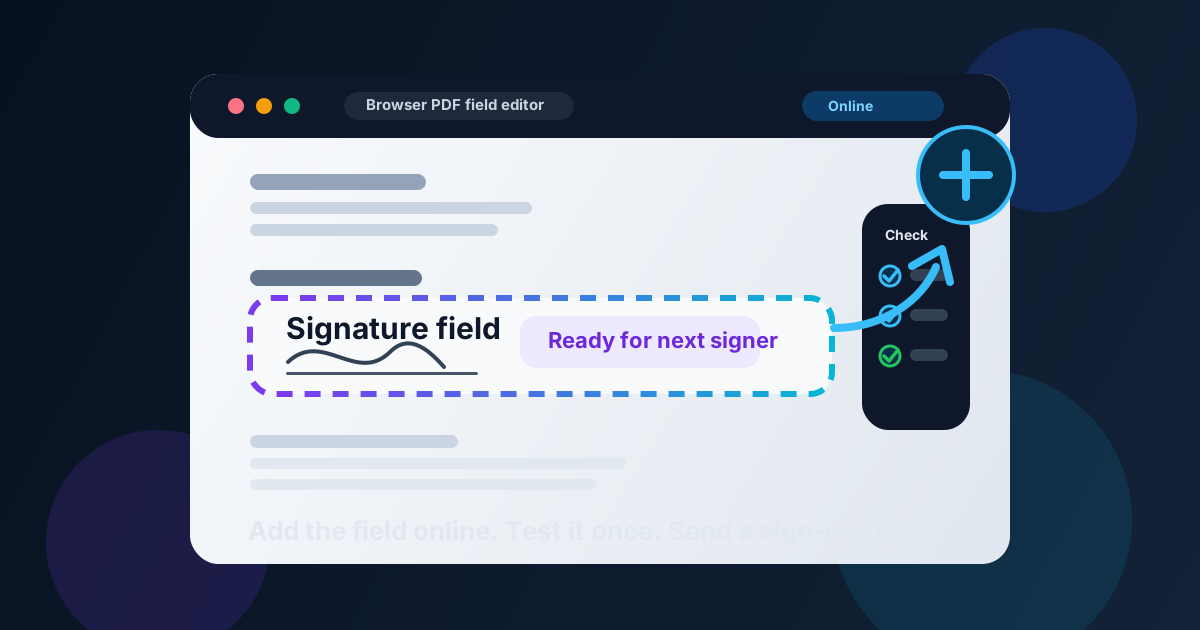
Table of contents
- Quick start: add a signature field online in a few minutes
- What adding a signature field online actually means
- Signature field online vs signing the PDF yourself
- When an online workflow makes sense
- Step-by-step: how to add a signature field to a PDF online
- Placement, size, and labeling tips
- How to handle multiple signers online
- Privacy and security habits worth keeping
- Common mistakes
- Related LifetimePDF tools and articles
- FAQ
Quick start: add a signature field online in a few minutes
If your goal is simply prepare this PDF so someone else can sign it cleanly in the browser, this is the short reliable workflow:
- Open PDF Field Editor.
- Upload the final PDF you actually plan to send.
- Add a signature field beside the signature label or line.
- Resize and align the field so it feels usable on desktop and mobile.
- If more than one person must sign, add a separate clearly labeled field for each signer.
- Save the updated PDF.
- Open the result in PDF Form Filler or Sign PDF and test it once before sending it out.
What adding a signature field online actually means
Adding a signature field online does not mean you are signing the document yourself. It means you are preparing the PDF in a browser so the next person has a clear place to sign. The browser-based part simply removes the need for desktop software.
In practice, people use this workflow for:
- contracts and statements of work that need client approval
- HR forms, onboarding packets, and acknowledgments
- vendor, procurement, or finance signoff pages
- internal approval documents with manager and employee signatures
- reusable templates that need the same sign-ready structure each time
If the signer is not you, and the document still needs to move through a workflow, a signature field is usually the right structure. If the document is already final and you are the signer, skip the field-building step and go straight to a signing tool.
| Task | Best tool | Why |
|---|---|---|
| Prepare a PDF online for someone else to sign later | PDF Field Editor | Adds a real signature field in the browser where the signer expects it |
| Sign the PDF yourself right now | Sign PDF | Places the actual signature instead of a blank field |
| Test whether the form behaves correctly | PDF Form Filler | Lets you preview the signer experience before the file leaves your hands |
| Lock the finished form after signing | Flatten PDF Form Data | Turns the completed form into a stable non-editable result |
Signature field online vs signing the PDF yourself
This is the point that clears up most confusion.
Adding a signature field online
You are building the workflow. The signature is still missing. Another person may sign later, or the document may pass through several people before the final approval is complete.
Signing the PDF online
You already have the final document and you need to place the actual signature now. In that case, go straight to Sign PDF instead of adding a blank field.
That is why this page is useful even if you already know how to sign a PDF. Preparing a sign-ready document is a different job from completing a signature on a final file.
When an online workflow makes sense
A browser-based workflow is especially useful when the document needs to move fast and the people involved are not all using the same software.
Good times to stay in the browser
- You want no install friction: useful when you need to fix the form quickly on a work laptop, borrowed machine, or locked-down company device.
- The signer may use different hardware: a clearly placed field is easier for people on phones, tablets, and desktops when the PDF is tested ahead of time.
- You are editing a reusable template: once the layout is stable, a browser-based field pass is often all you need.
- You need to route the file quickly: client approvals, internal signoff pages, and service confirmations benefit from a clean browser workflow.
When not to force it
If the document still needs heavy layout changes, a field editor is the wrong first stop. Finish the wording, spacing, page order, and other form elements first. Signature fields belong near the end of the preparation stage, not at the beginning of a messy draft.
Step-by-step: how to add a signature field to a PDF online
1. Start with the final layout you actually plan to send
The biggest avoidable mistake is placing a field on a PDF that still has moving paragraphs, shifting footers, or pages that may be reordered later. If the structure changes after the field is placed, the signing area may land in the wrong spot.
2. Open the PDF in a browser-based field editor
Use PDF Field Editor when the job is to prepare the form itself. This is also the right moment to add or adjust other fields if the document needs checkboxes, text boxes, dates, or initials nearby.
3. Place the signature field where the signer expects it
The cleanest location is usually next to a clear label such as Signature, Authorized Signer, Manager Approval, or Client Signature. The signer should not have to hunt through the page to figure out what action belongs to them.
4. Size the field for real use, not just visual neatness
A tiny field may look tidy in the editor and still feel frustrating on a phone or tablet. Give the signer enough room that the field feels intentional, visible, and easy to use.
5. Save the updated PDF and test it once
Open the result in PDF Form Filler or preview the flow in Sign PDF. This catches the most common problems before the document reaches a real signer: bad placement, unclear labels, cramped field size, or an awkward reading order.
Short reliable workflow: place the field in the browser, test the signer experience once, then send the PDF only after you know the interaction is clear.
Placement, size, and labeling tips
Signature fields are small interface elements, but they carry a lot of responsibility. If the placement is sloppy, the entire form feels harder to trust.
Keep the label obvious
If one person signs, Signature may be enough. If several people sign, be specific: Employee Signature, Client Signature, Approver Signature, or Authorized Representative.
Leave white space around the field
Do not wedge the signing area between dense paragraphs or into the footer clutter. A calm signing area lowers confusion and reduces accidental taps on smaller screens.
Match the field to the page rhythm
If the rest of the document already uses aligned form fields, make the signature area feel like part of the same system. If a printed signature line already exists, place the field over or just above that line rather than floating it somewhere unrelated.
| Good practice | Why it helps | Watch out for |
|---|---|---|
| Clear signer label | Prevents wrong-person mistakes when the PDF moves between people | Generic labels on multi-signer forms |
| Comfortable field size | Makes the document easier to sign on desktop and mobile | Tiny fields that look neat but feel cramped |
| Open space around the field | Keeps the action readable and intentional | Dense legal text or footer clutter around the box |
| Consistent alignment | Makes the form look professionally built | Random placement that feels improvised |
How to handle multiple signers online
Multi-signer PDFs become messy fast if every field looks identical and none of them explain whose action comes next.
Use one field per signer
Do not treat one shared signature box like a catch-all solution. Each signer should have a dedicated place to act.
Label the role, not just the action
Three boxes all labeled Signature invite mistakes. Labels like Prepared By, Approved By, and Client Signature make the route obvious.
Think about order before you send the file
If the signatures happen in sequence, the page should communicate that sequence naturally. Put the fields in a logical reading order and test the whole path once as if you were each signer.
Privacy and security habits worth keeping
Adding a signature field online is convenient, but convenience works best when it comes with basic discipline.
Upload intentionally
Make sure you are editing the real file you want to send, not an outdated draft or an already completed copy. This matters even more with contracts, HR forms, and client paperwork.
Keep the document interactive until the process is done
If you flatten the PDF too early, you remove the exact interactivity you were trying to create. Use Flatten PDF Form Data only after every signer has finished.
Protect finished files that carry sensitive information
Once the signatures are complete, consider PDF Protect if the document contains legal, financial, HR, or client data that should not be left exposed.
Log out or close shared-browser sessions
If you prepared the file from a shared machine, a coworking laptop, or a temporary workstation, finish the workflow cleanly. Browser convenience is great, but only if you remember the browser has a memory too.
Common mistakes
Using a signature field when you actually needed to sign right now
This is the classic mismatch. If the document is final and you are the signer, start with Sign PDF instead.
Adding the field before the layout is final
If paragraphs, page breaks, or surrounding form elements still move later, the signature area may drift into the wrong place.
Making the field too small
A neat-looking box in the editor can still feel awkward on mobile. Size the field for real signing behavior, not just page symmetry.
Skipping the test step
Most signer complaints come from avoidable problems: unclear labels, cramped spacing, or a field that is technically present but visually easy to miss. One quick test pass usually catches them.
Flattening before the workflow is finished
A flattened form no longer behaves like a form. Save that step for the end of the process.
Related LifetimePDF tools and articles
Adding a signature field online is usually one step in a larger form workflow. These are the most useful next steps:
- PDF Field Editor - add or adjust signature fields, text boxes, checkboxes, and other form elements in the browser.
- Sign PDF - place the actual signature when the document is ready to sign.
- PDF Form Filler - test the file and complete interactive form fields before you send it out.
- Flatten PDF Form Data - turn the completed form into a stable finished result.
- PDF Protect - add password protection if the signed form contains sensitive information.
Helpful related reading
Ready to prepare a sign-ready PDF in your browser?
Best workflow for most forms: finalize the layout → add the signature field online → test the signer experience → collect signatures → flatten or protect the finished copy if needed.
FAQ
How do I add a signature field to a PDF online?
Upload the PDF to a browser-based field editor, place the signature field where the signer should act, size and label it clearly, save the file, and test the result before you send it out.
What is the difference between adding a signature field online and signing the PDF yourself?
Adding a signature field prepares the document for a future signer. Signing the PDF means placing the actual signature on the file right now.
Can I add more than one signature field to the same PDF online?
Yes. Use one clearly labeled field per signer so each person knows exactly where to act and the approval path stays easy to follow.
Should I flatten the PDF after it is signed?
Often yes, if you want a finished non-editable record. Just do it after the signing workflow is complete, because flattening removes form interactivity.
Is it safe to add a signature field to a PDF online?
It can be, as long as you use a trusted browser-based tool, upload the correct file intentionally, test the result, and protect the completed PDF when it contains sensitive information.
Published by LifetimePDF — Pay once. Use forever.