How to Split PDF in Edge: Separate Pages from Downloads, Outlook Attachments, and OneDrive Without Mixing Up Versions
To split PDF in Edge, open a browser-based Split PDF tool in Microsoft Edge, choose the source file from Downloads, a saved Outlook attachment, OneDrive, SharePoint, or a local folder, set the page ranges you want, then download the smaller PDFs.
If you only need one portion instead of several new files, use Extract Pages instead so the result stays simpler and easier to name.
That is the short answer. The part that actually saves time is avoiding duplicate Edge downloads, stale Microsoft 365 revisions, wrong email attachments, and overly messy naming after the split is done.
Fastest path: open LifetimePDF's Split PDF tool in Edge, confirm the real source file first, split only the ranges you actually need, then review the smaller outputs once before you email, upload, or archive them.
In a hurry? Jump to Quick start: split PDF in Edge in a few minutes.
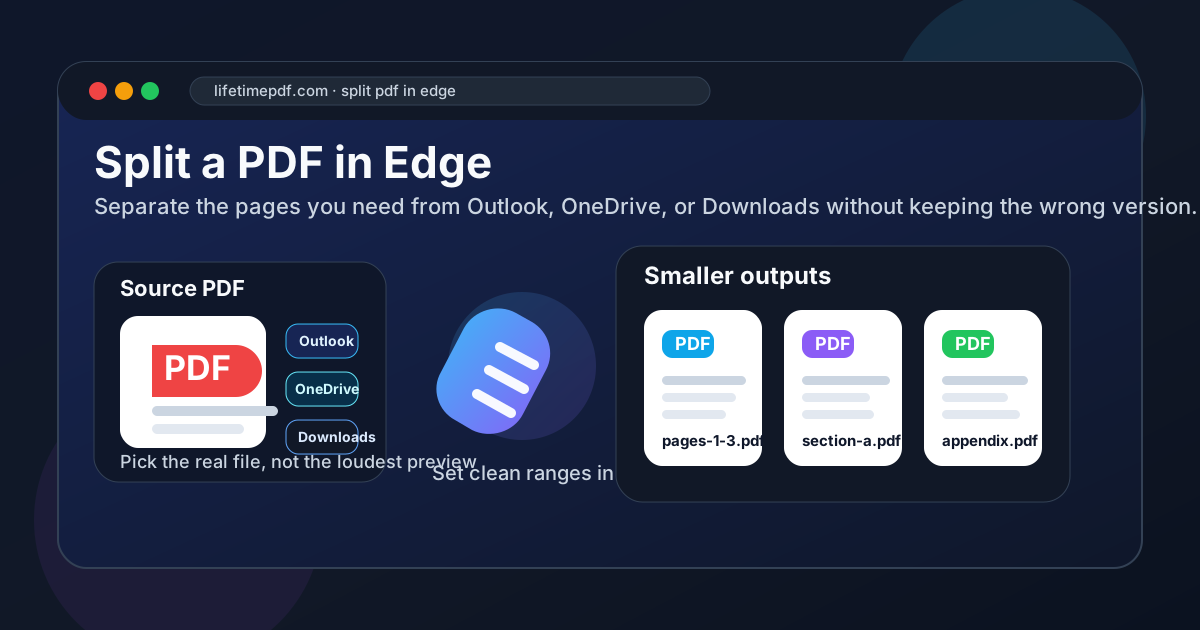
Table of contents
- Quick start: split PDF in Edge in a few minutes
- Why Edge is a practical place to start
- Step-by-step: split PDF in Edge
- How to choose the right source file from Downloads, Outlook, OneDrive, SharePoint, Teams, and local folders
- When to use Split PDF vs Extract Pages in Edge
- How to avoid stale Microsoft 365 versions and duplicate downloads
- What to do if the outputs still need cleanup, OCR, or compression
- Related LifetimePDF tools and guides
- FAQ
Quick start: split PDF in Edge in a few minutes
If the file is already the correct PDF and you simply need smaller parts, this is the Edge workflow most people actually want:
- Open Split PDF in Edge.
- Choose the real source file from Downloads, a local folder, or a saved copy from Outlook, OneDrive, SharePoint, or Teams.
- Select the page ranges or logical sections you actually need.
- Run the split and save the smaller PDFs with clear names.
- Open each output once in Edge and confirm the right first page, the right last page, and the right filename before sharing it.
Why Edge is a practical place to start
Edge is where a lot of office-style PDF work begins. A contract preview opens from Outlook. A policy packet lives in OneDrive. A SharePoint export lands in Downloads. A Teams attachment opens in a tab. If you need smaller PDFs for approval, filing, or upload, it makes sense to keep the workflow inside the browser instead of bouncing between several apps.
The catch is that Edge's built-in PDF viewer is still mainly a viewer. It is useful for opening, reading, printing, filling basic forms, or checking whether a file is the right one, but it does not create separate PDF outputs by itself. The actual split step still needs a proper tool inside Edge.
| Method | Best for | Where it struggles |
|---|---|---|
| Edge PDF viewer only | Opening one file quickly and checking whether it is the right document | It can preview PDFs, but it does not turn one file into several smaller PDFs by itself |
| Outlook or OneDrive previews | Spot-checking one attachment or one cloud revision | Easy to confuse previews, saved copies, synced files, and duplicate downloads when you need precise outputs |
| Edge + Split PDF | Creating several clean PDFs from one longer source without leaving the browser workflow | You still need to choose the correct source file and set the ranges deliberately |
| Edge + Extract Pages | Keeping one selected section as one new PDF | Not the right tool when one document needs to become several different outputs |
For most people, the sweet spot is simple: use Edge to find and verify the real PDF, open the split tool, create only the smaller files you need, then review them once before they move onward to email, a portal, or a shared drive.
Step-by-step: split PDF in Edge
If you want a repeatable Microsoft-friendly routine for contracts, board packs, onboarding packets, invoices, school forms, or large scanned documents, use this:
- Open the split tool. Launch Split PDF in Edge.
- Choose only the file you mean to split. Do not trust whichever tab is open already. Confirm the filename and location.
- Set the page ranges with a real goal. Decide whether you want logical sections, several single pages, or one clean excerpt instead of random fragments.
- Run the split once. Save the outputs somewhere obvious so they do not disappear among older Edge downloads with nearly identical names.
- Review the results. Open each smaller PDF once and verify the boundaries before you upload, send, or archive anything.
Useful rule: split according to how another person will use the files, not according to how the original document happened to be laid out. Meaningful outputs are easier to name, easier to review, and less likely to get sent to the wrong place.
If the split looks wrong, do not keep patching the outputs blindly. Go back to the source list, remove the stale download, export the correct OneDrive revision, replace the wrong Outlook attachment, or rethink the ranges and rerun the split once. A clean rerun is usually faster than rescuing a messy set of outputs afterward.
How to choose the right source file from Downloads, Outlook, OneDrive, SharePoint, Teams, and local folders
The most common Edge split problem is not the split itself. It is source confusion. One file opens from Outlook. Another sits in a OneDrive sync folder. A third is a SharePoint export. A fourth lands in Downloads with a (1) or (2) after a repeat save. If you split the wrong copy, the outputs may look technically fine while still being the wrong document.
A cleaner approach is to identify the final version before you split:
- Downloads: useful for recent browser exports, but often cluttered with stale copies and accidental duplicates.
- Outlook attachments: convenient for opening a file quickly, but save the attachment locally if you need a stable source for final splitting.
- OneDrive and SharePoint: helpful when the file came from a shared Microsoft 365 workspace, but confirm you are exporting the intended revision.
- Teams files: fine as a handoff point, but still worth tracing back to the real source folder before you split.
- Local folders: usually the calmest place to keep the exact PDF you actually mean to work on.
If you are moving quickly, create one temporary folder and place the exact source PDF there first. That small habit prevents a surprising number of bad splits because it stops previews, synced folders, downloads, and email tabs from all competing for your attention at once.
When to use Split PDF vs Extract Pages in Edge
People often search for split when they really need extract. The difference matters because it changes how many outputs you create and how much cleanup you do afterward.
| If your goal is... | Use this | Why |
|---|---|---|
| Turn one long PDF into several separate files | Split PDF | You need multiple outputs, each with its own page range or section |
| Keep one selected chapter, appendix, or form as one new PDF | Extract Pages | You only need one clean excerpt, not several new documents |
| Reorder pages before deciding what to keep | Organize PDF | Page order problems are easier to fix before you split |
A good rule is this: if someone else will receive several smaller documents, use split. If you only want one chosen section for yourself or for one upload, extract is usually the cleaner path.
How to avoid stale Microsoft 365 versions and duplicate downloads
The easiest way to ruin a split job in Edge is to assume the most visible file must be the right one. Microsoft 365 workflows often leave you with a browser preview, a synced folder copy, an older email attachment, and a newer download all at once. The file that opened first is not always the file you actually want.
Before you split, answer two questions: Which version is final? and What should each output be called? Once those answers are clear, the rest gets much calmer.
- Double-check filenames that look nearly identical, especially if Edge saved duplicate downloads with extra numbers.
- Do not assume the Outlook preview is the same as the attachment you saved yesterday.
- Confirm whether the OneDrive or SharePoint copy is newer than the local file in Downloads.
- Name the outputs by meaning, not just by page numbers, whenever another person will receive them.
- Open the finished files once and spot-check the first and last page in each one.
What to do if the outputs still need cleanup, OCR, or compression
Splitting solves document scope. It does not automatically solve everything else. Sometimes the outputs still contain blank pages, the order still needs a small correction, the file remains too large, or the source was a scan that is not searchable.
When that happens, use the follow-up tool that matches the real problem instead of repeating the split unnecessarily:
- Delete Pages if a smaller PDF still includes pages you do not want.
- Organize PDF if the order still feels off after the first pass.
- Compress PDF if the outputs are correct but still too large for email or portal limits.
- OCR PDF if the source was scanned and you need searchable text after splitting.
The order usually works best like this: split first, confirm the ranges are right, then fix the one remaining issue. That keeps the workflow predictable and avoids extra work on the wrong version.
Good sequence: verify the real file, split it once, review the outputs, then compress or clean them up only if a real problem remains.
Related LifetimePDF tools and guides
Splitting often overlaps with one or two other PDF tasks. These are the most useful companions in Edge-heavy workflows:
- Split PDF — turn one large file into several smaller PDFs.
- Extract Pages — keep one selected range as one new PDF.
- Organize PDF — preview, reorder, and prepare the file before splitting.
- Delete Pages — remove unwanted pages while keeping one cleaned-up copy.
- Compress PDF — shrink the final smaller files if upload limits still complain.
Related reading on LifetimePDF: How to Split PDF on Windows, How to Merge PDFs in Edge, How to Sign a PDF in Edge, How to Add Text to a PDF in Edge, and How to Compare PDFs in Edge.
Edge shortcut: confirm the real file, split only what you actually need, give the outputs names that still make sense tomorrow, and review them once before they leave Downloads, Outlook, or OneDrive.
FAQ: How to split PDF in Edge
Can Edge split PDF files by itself?
Edge can preview PDFs very well, but its built-in viewer does not create separate PDF files by itself. Use a browser-based Split PDF tool inside Edge for the actual split.
What is the cleanest way to split a PDF from Outlook or OneDrive in Edge?
Confirm which file is the real source first, then split that copy in Edge. That prevents you from creating outputs from an older preview, the wrong cloud revision, or a duplicate download.
When should I use Extract Pages instead of Split PDF in Edge?
Use Extract Pages when you only want one smaller output from a larger PDF. Use Split PDF when one document needs to become several separate files.
Will splitting a PDF in Edge reduce quality?
Usually no. Splitting normally keeps the original text, layout, and page quality because you are reorganizing pages into smaller PDFs rather than turning them into screenshots.
What if the file is a scan or the split outputs are still too large?
If the source is a scan, splitting will still work, but it will not make the text searchable by itself. OCR the PDF if you need searchable text, and compress the final outputs after splitting if upload limits still complain.
Published by LifetimePDF — Pay once. Use forever.