Table of contents
- Quick start: compare PDFs in Edge in a few minutes
- Why Edge is a practical place to compare PDFs
- Edge viewer or a dedicated Compare PDFs tool?
- Step-by-step: compare the right files the right way
- Outlook, OneDrive, and SharePoint workflow tips
- Scanned, protected, or oversized PDFs: what to do first
- Common Edge comparison problems and quick fixes
- Related LifetimePDF tools and guides
- FAQ
Quick start: compare PDFs in Edge in a few minutes
If you already know which two PDFs should be reviewed, this is the fastest Edge workflow:
- Download or sync the older PDF and the revised PDF into one folder with clear names.
- Open Compare PDFs when you want faster difference detection, or open both files in separate Edge windows if the changes are obvious and the job is small.
- Run OCR PDF first if either file is scanned.
- Unlock the file first if permissions block a normal review.
- Check names, dates, amounts, clauses, page order, and deleted pages before you worry about minor formatting shifts.
Why Edge is a practical place to compare PDFs
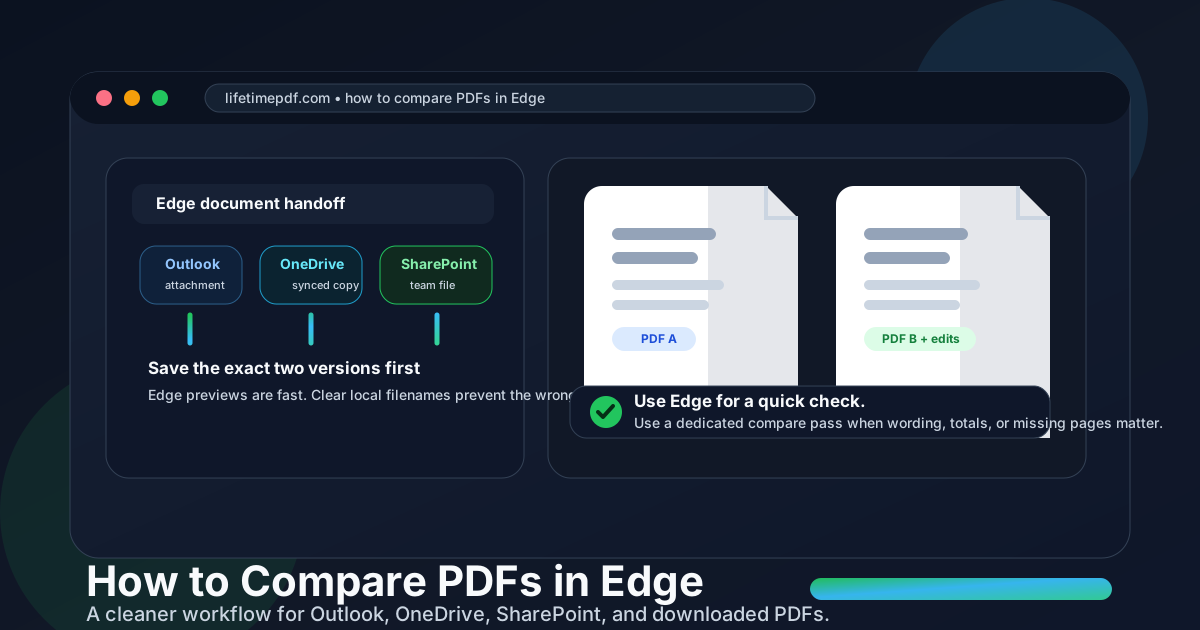
Many business PDFs already pass through Edge before you do anything deliberate. A contract comes from Outlook. A proposal opens from SharePoint. A revised price sheet lives in OneDrive. An invoice lands in Downloads after a portal login. That makes Edge a natural place to begin, because the file is already in front of you.
The catch is that Edge can make version confusion feel invisible. One tab may show a preview from Outlook on the web, another may point to a synced OneDrive copy, and your Downloads folder may contain yesterday's export with a nearly identical name. If you compare the wrong two files, even a perfect comparison tool cannot rescue the result.
The cleanest Edge workflow uses each part for what it does best:
- Edge previews help you open the file quickly and confirm it is the right document.
- Your working folder is where the baseline and revised versions should live with obvious filenames.
- Edge's built-in PDF viewer is good for a fast human review when the differences are large and easy to see.
- Compare PDFs is better when wording, totals, deleted pages, or clause changes need to stand out clearly.
Edge is strongest when it gets you to the right file quickly. A dedicated comparison pass is what tells you what actually changed.
Edge viewer or a dedicated Compare PDFs tool?
Both are useful, but they solve different problems.
| Method | Best when | Where it struggles |
|---|---|---|
| Edge windows and the built-in PDF viewer | You want a quick visual side-by-side review and the edits are easy to notice. | Subtle wording changes, updated totals, and missing pages are easy to miss in longer PDFs. |
| Compare PDFs | You want changed text, page differences, and important revisions to surface faster. | Scanned or restricted files still need OCR or unlocking first for the cleanest result. |
| Extract Pages first, then compare | Only one section changed and the rest of the packet would add noise. | It adds one extra step, but often saves more time than reviewing a full document. |
A simple rule helps here. If you are thinking I only need a quick look, Edge may be enough. If you are thinking I need confidence before I approve, send, or sign this PDF, use Compare PDFs.
Step-by-step: compare the right files the right way
1. Save the exact baseline and revised PDF first
Before comparing anything, get both versions into one obvious folder. Rename them clearly if needed, such as client-contract-original.pdf and client-contract-revised.pdf. This matters more than it seems, especially when Edge is showing previews from multiple cloud sources that look almost identical.
2. Use Edge for a quick first pass
Edge is a convenient first stop when you want to confirm that both files are the right ones, the page count looks plausible, and the obvious sections appear where you expect them. For short files with very visible edits, that quick human review may be enough.
3. Switch to Compare PDFs when exact changes matter
When a contract clause, budget total, proposal language, or invoice detail must be checked carefully, move beyond the viewer and open Compare PDFs. This is the faster route when the real job is not opening the file but catching the changes that could affect approval, payment, or compliance.
4. Clean up scans, restrictions, and noisy page ranges first
If either PDF is scanned, use OCR PDF first so the file has real searchable text. If the PDF is protected and you are authorized to review it, use Unlock PDF. If only one section changed, isolate that range with Extract Pages before comparing.
5. Review high-risk changes before cosmetic ones
Start with the differences that actually create risk:
- names, legal entities, and addresses,
- dates, renewal terms, and deadlines,
- totals, rates, or quantities,
- deleted or added pages,
- approval wording, obligations, and signature sections.
Once those are clear, you can decide whether the remaining differences are meaningful or just normal layout drift.
Useful habit: compare only the versions you would actually send, sign, or archive. If the file still needs OCR, unlocking, or page cleanup, do that before the final review.
Outlook, OneDrive, and SharePoint workflow tips
Edge-specific confusion usually comes from cloud handoff, not from comparison itself. These simple habits prevent most wrong-file mistakes:
Outlook attachments
If the PDF opened from Outlook on the web, save the actual attachment before you compare it. A browser preview is fine for a glance, but a saved copy is safer when the document matters.
OneDrive sync folders
Make sure the local file is fully synced before you treat it as the final revised version. A stale synced copy can look current just because it came from the right folder.
SharePoint and Teams links
Shared links often change the context but not the filename. If several people are reviewing revisions, add the date or status to the downloaded name so the baseline and revised versions cannot be confused later.
Downloads folder clutter
Edge makes it easy to accumulate files with names like contract (4).pdf or proposal-final-final.pdf. Move the two real versions into one working folder before you compare anything. That small cleanup step prevents a lot of wasted review time.
Scanned, protected, or oversized PDFs: what to do first
Comparison quality depends heavily on the quality of the files you feed into it. Three issues create most of the noise in Edge workflows: scans, restrictions, and long mixed-content packets.
Scanned PDFs
If text selection does not work, you are probably looking at image-based pages. OCR adds a searchable text layer and usually makes the comparison far more useful. Without OCR, the review can lean too heavily on image-level differences instead of the text you actually care about.
Password-protected or restricted PDFs
If you are allowed to work with the file but the PDF blocks normal review, remove the restriction first with Unlock PDF. That is often the missing step when one version opens normally and the other keeps fighting the comparison process.
Huge packets with one small revision
If only one chapter, appendix, or pricing section changed, cut the noise before you compare. Use Extract Pages to isolate the range that matters, then run the comparison on the smaller set.
Common Edge comparison problems and quick fixes
I am not sure which version is newer
Fix the naming first. Save both files into one folder and label them clearly before you review anything. A short naming cleanup is cheaper than approving the wrong revision.
The PDFs look different, but I cannot tell what actually changed
That is the point where a manual Edge review stops being efficient. Move to Compare PDFs so the result depends less on your eyes catching every subtle change.
One of the PDFs is a copier scan or phone scan
Run OCR PDF first. If the scan is skewed, shadowed, or blurry, focus on the highest-risk pages first because low-quality scans can add noise to any comparison.
The comparison is cluttered by pages that do not matter
Extract the changed section and compare only that range. This is common with contracts, report appendices, policy binders, and proposal packets where most pages stayed untouched.
Edge, Outlook, or SharePoint keeps confusing which copy I opened
Stop comparing from previews. Save the files locally, put them in one working folder, and reopen those exact copies in Edge or Compare PDFs. That single habit removes most cloud-preview confusion.
Related LifetimePDF tools and guides
Edge comparison workflows usually connect to one or two other tools. These are the most useful companions:
- Compare PDFs — faster revision review when the changes need to stand out clearly.
- OCR PDF — turn scanned pages into searchable text before comparison.
- Unlock PDF — remove restrictions when a protected file blocks normal review.
- Extract Pages — compare only the portion that actually changed.
- Compare PDF Versions — useful when the real job is reviewing revisions before approval.
- How to compare PDFs on Windows — helpful if your workflow is device-first instead of browser-first.
- How to edit a PDF in Edge — useful when the file needs one more fix before final review.
- How to watermark a PDF in Edge — useful when the reviewed copy needs a draft or confidential label.
Practical sequence: save the right two versions, OCR or unlock if needed, compare only the pages that matter, then review the risky changes before you send, sign, or archive the revised PDF.
FAQ: How to compare PDFs in Edge
How do I compare PDFs in Edge?
Save the original and revised PDF into one folder, open them in Edge for a quick manual review, or use a dedicated Compare PDFs tool when you need wording, number, and page-level changes to stand out faster.
Can Microsoft Edge compare two PDFs by itself?
Edge is great for opening and reviewing PDFs side by side, but it does not automatically surface every changed word, number, or missing page. It is best for quick manual checks, not deeper revision review.
Should I compare an Outlook or SharePoint preview, or a saved copy?
A saved copy is safer. Browser previews are fine for a glance, but downloading or syncing both PDFs into one obvious folder makes it far easier to compare the right versions.
What should I do if one PDF is scanned?
Run OCR first so the scanned file has searchable text. That usually produces cleaner comparison results and makes it easier to tell whether the wording changed or only the scan quality changed.
Can I compare password-protected PDFs in Edge?
Yes, if you are authorized to access them. Unlock the files first, then compare them so the content can be reviewed normally.
Published by LifetimePDF — Pay once. Use forever.