Compare PDF Versions: Catch Draft Changes Without Rereading the Whole File
Yes — to compare PDF versions, upload the earlier file and the revised file to a comparison tool so it can surface changed wording, updated numbers, missing pages, and moved sections fast.
If either PDF is scanned or messy, run OCR first, then trim the review to the pages that actually changed if you want a cleaner result.
Most version reviews are not really about the PDF format. They are about trust. You want to know whether a draft came back with a harmless wording cleanup, a quietly changed date, a revised price, a deleted appendix, or a clause that now means something materially different. That is why a good version-comparison workflow matters. It helps you find the delta between two drafts quickly enough to act on it instead of rereading the entire file from page one every time someone says, “just a few small edits.”
Fastest practical path: compare the true baseline against the newest draft, review the high-risk changes first, then use OCR or page extraction only if the first pass is noisy.
In a hurry? Jump to Quick start: compare PDF versions in a few minutes.
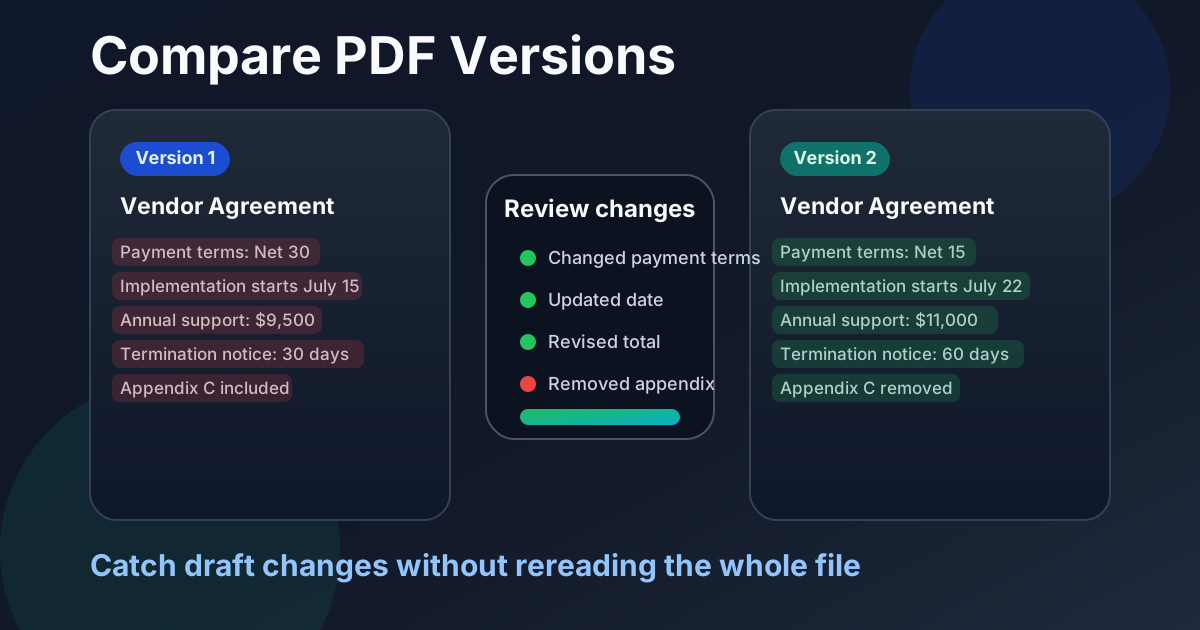
Table of contents
- Quick start: compare PDF versions in a few minutes
- What “compare PDF versions” actually means
- How to prepare the files before you compare
- Step-by-step: compare PDF versions with LifetimePDF
- Which changes matter most during version review
- Whole document vs selected pages
- Version discipline: small habits that prevent big review mistakes
- Related LifetimePDF tools and guides
- FAQ (People Also Ask)
Quick start: compare PDF versions in a few minutes
If the only question is “what changed between these two drafts?”, this workflow is usually the fastest path to a reliable answer:
- Open Compare PDFs.
- Upload the earlier version first and the revised version second.
- Review highlighted differences for wording changes, changed numbers, added or removed pages, and layout shifts.
- If either file is scan-based, run it through OCR PDF before trusting the result.
- If the comparison feels noisy, use Extract Pages and rerun the review on the relevant section only.
msa-v4.pdf and msa-v5-client-edits.pdf is much safer than comparing final.pdf against final-new.pdf.
What “compare PDF versions” actually means
Comparing PDF versions is a specific kind of PDF review. You are not merely checking whether two files differ somewhere. You are tracing the changes between an earlier draft and a later draft so you can judge whether those revisions are acceptable, risky, incomplete, or worth escalating.
That makes version comparison especially useful in workflows where one document keeps circulating through edits. Contracts move between legal teams. Proposals come back from clients with new assumptions. Policies get revised before approval. Technical documentation changes quietly between releases. In all of those cases, the real job is to find the changes that alter meaning, obligations, cost, timing, or trust.
| Document type | What usually changes | What to review first |
|---|---|---|
| Contracts | Clauses, dates, payment terms, attachments | Liability, termination, renewal, totals |
| Proposals and quotes | Scope wording, pricing, delivery notes | Totals, exclusions, timelines, assumptions |
| Policies and SOPs | Responsibilities, deadlines, procedures | Approval language, reporting duties, change dates |
| Reports and board packs | Numbers, commentary, appendix pages | Revised figures, deleted notes, missing pages |
| Manuals and specs | Steps, tolerances, diagrams, warnings | Safety notes, measurements, changed procedures |
A strong comparison workflow narrows your attention to the parts that changed so you can spend your human judgment where it counts. That is the difference between thoughtful review and endless rereading.
How to prepare the files before you compare
Many bad comparison results are really bad inputs. A few setup steps usually improve the review more than rerunning the same noisy comparison again and again.
1) Make sure you have the real baseline
The earlier draft should be the version you actually want to measure against. If you accidentally compare an internal markup against a client-facing revision from a different branch of work, the result may be technically correct but practically useless.
2) Remove access problems first
If a file is protected, unlock it before the review using Unlock PDF when you have permission to do so. If the file is a scan, OCR it first so the comparison can work from readable text instead of only page images.
3) Expect layout reflow
A one-line insertion near the beginning of a dense PDF can ripple through later pages. That does not always mean the entire document was rewritten. Sometimes it just means the layout moved. Version review works best when you separate reflow noise from real meaning changes.
4) Trim the review when the document is huge
If only pages 18 through 24 matter, comparing the entire 140-page packet slows you down. Extract the relevant range first and review the tighter comparison. This is especially helpful when the unchanged appendix section is larger than the changed section.
Step-by-step: compare PDF versions with LifetimePDF
Open the comparison tool
Start with LifetimePDF Compare PDFs. It is the fastest way to surface differences between the older draft and the newer one.
Upload the earlier version first
Treat the earlier draft as the baseline. This makes it easier to interpret what was added, removed, or revised in the newer file. If you are reviewing several revisions, compare them in sequence instead of jumping from version 1 to version 6 immediately.
Upload the revised version second
Add the latest draft, returned contract, corrected report, or amended exhibit packet. At this stage, the job is not to read every page in order. It is to let the comparison surface where your attention should go.
Review the highest-risk changes first
Start with the differences that can change decisions, obligations, or sign-off confidence:
- prices, totals, rates, and discounts,
- dates, renewal periods, deadlines, and effective dates,
- scope statements, obligations, or exclusions,
- signature pages, exhibit references, and appendix lists,
- approved wording that now appears softened, narrowed, or expanded.
Run a tighter second pass if needed
If the first comparison is too busy, extract only the affected chapter, clause block, or appendix pages and compare again. A shorter second pass is often easier to trust and much faster to approve.
Need a cleaner review? Isolate the changed section and compare the smaller PDFs again.
Which changes matter most during version review
Not every detected difference deserves the same amount of attention. A revised comma rarely matters. A revised payment term often does. Good reviewers separate surface change from decision change.
High-signal changes to prioritize
- Changed numbers: prices, rates, percentages, quantities, page counts, and due dates
- Deleted text: especially when a warning, exception, or requirement quietly disappears
- Inserted clauses: new obligations, approvals, restrictions, or caveats
- Moved sections: sometimes content is not deleted, just relocated where it is easier to miss
- Missing pages or attachments: especially schedules, appendices, and exhibit references
This is where version comparison earns its keep. It does not replace judgment. It helps you spend judgment on the exact parts of the file that changed meaningfully.
Whole document vs selected pages
There is no universal winner here. The right choice depends on how much you already know about the revision.
Compare the whole document when:
- you do not know where the changes happened,
- you need to catch removed or added pages anywhere in the file,
- the document is short enough that a full review is still practical.
Compare selected pages when:
- you already know the affected section,
- the document is long but the change is localized,
- appendices, cover pages, or attachments are creating unnecessary noise,
- you need a fast answer on one clause, one chapter, or one pricing table.
In practice, the best workflow is often a full-document pass followed by a tighter page-range pass. First find where the revisions live. Then tighten the review to the part that matters.
Version discipline: small habits that prevent big review mistakes
Version comparison tools work better when the humans around them behave sensibly. A few light habits save a lot of wasted review time:
- Name drafts clearly with version numbers, dates, or owner tags.
- Keep one agreed baseline so teams are not comparing against different “latest” files.
- Archive approved versions before fresh edits begin.
- Document major changes when the revision is business-critical.
- Use metadata checks when title or author history matters for records or compliance.
None of these habits are glamorous. They just make it harder for a document review to go sideways because the wrong file got compared, the right appendix vanished, or the approval chain lost track of which draft was real.
Related LifetimePDF tools and guides
Compare PDF versions is usually one step inside a larger workflow. These related tools and guides help when the files need cleanup before or after the review:
- Compare PDFs for the actual version comparison
- OCR PDF when scans need readable text before comparison
- Extract Pages when only one section matters
- Unlock PDF when you have permission to compare protected files
- PDF Metadata Editor when title or author fields need review alongside the content
- Compare PDFs for the broader exact-match workflow
- Compare PDF Versions Online if you want the modifier-specific online guide
Want the shortest path? Start with Compare PDFs, then add OCR or page extraction only when the first pass needs cleanup.
FAQ (People Also Ask)
How do I compare PDF versions?
Upload the earlier draft and the revised draft to a PDF comparison tool, review the highlighted differences, and OCR scan-based files first if you want cleaner text-level results.
What is the difference between compare PDFs and compare PDF versions?
Compare PDFs is the broader job of checking two files for differences. Compare PDF versions is the more specific workflow of reviewing how a later draft changed from an earlier draft.
Can I compare scanned PDF versions?
Yes, but scanned files usually compare better after OCR because the tool can read actual text instead of relying only on page images.
Why does a version comparison sometimes show too many differences?
Too many differences usually means the files include scan noise, layout reflow, extra cover pages, irrelevant appendices, or the wrong pair of drafts. Clean up the inputs and rerun the comparison on the relevant section.
Should I compare the whole file or just the pages that changed?
Compare the whole file when you do not know where the revision happened. Compare selected pages when the changed section is already known and you want a faster, cleaner review.