How to Rotate a PDF on Windows: Fix Sideways Scans from File Explorer, Edge, and Outlook Fast
To rotate a PDF on Windows, open LifetimePDF's Rotate PDF tool in Edge or Chrome, choose the file from File Explorer, Downloads, OneDrive, or a saved Outlook attachment, rotate the wrong page or the whole file, and save the corrected PDF back to your PC.
If the document opens sideways, upside down, or with one awkward page in the wrong direction, that is usually the fastest clean fix without installing extra desktop software.
That is the short answer. The useful part is knowing when to rotate one page instead of the whole document, how to avoid saving the wrong version into a messy Downloads folder, and when to fix orientation before OCR, signing, printing, or emailing the file. On Windows, the rotation itself is easy. The real mistake people make is sharing the unfixed original by accident.
Fastest path: open Rotate PDF on Windows, correct the sideways page, save the finished copy with a clear filename, then move straight into OCR or compression only if the file still needs cleanup.
In a hurry? Jump to Quick start: rotate a PDF on Windows in 3 minutes.
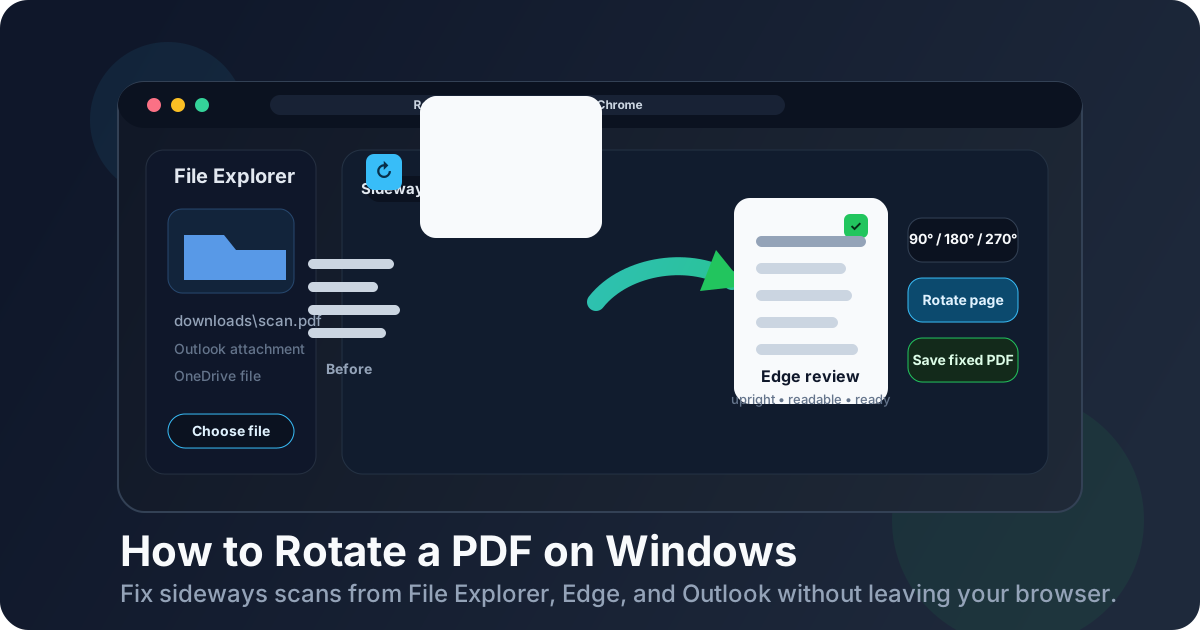
Table of contents
- Quick start: rotate a PDF on Windows in 3 minutes
- The easiest Windows workflow for rotating PDFs
- Step-by-step: rotate a PDF from File Explorer, Outlook, Downloads, or OneDrive
- Edge viewer vs a browser-based rotation tool on Windows
- Rotate one page vs the whole PDF on Windows
- Common Windows PDF sources and what to do with each
- Common Windows problems and quick fixes
- What to do after the PDF is upright again
- Related LifetimePDF tools and guides
- FAQ (People Also Ask)
Quick start: rotate a PDF on Windows in 3 minutes
If you just need the file to stop opening sideways and you do not want to overcomplicate it, use this workflow:
- Open Rotate PDF in Edge or Chrome.
- Choose the file from File Explorer, Downloads, Desktop, Documents, OneDrive, or a saved Outlook attachment.
- Rotate the wrong page or pages by 90°, 180°, or 270°.
- If the whole document is wrong, rotate the full file. If only one page is wrong, rotate only that page.
- Download the corrected PDF back to your Windows PC.
- Open it once in Edge or another viewer and confirm the reading direction now looks right from start to finish.
The easiest Windows workflow for rotating PDFs
On Windows, the real friction is usually not the rotation button. It is where the PDF currently lives and whether you can save the corrected version cleanly. The file might be in File Explorer, buried in Downloads, attached to Outlook, synced to OneDrive, or opened from a browser after a portal download. Once you know where the source file is and where the corrected version should go, the fix is quick.
A browser-based rotation workflow works well because it keeps the sequence short: choose the file, fix the orientation, save the corrected copy, and move on. That is often cleaner than opening several temporary previews, rotating the wrong duplicate, or discovering after an email reply that you attached the original sideways file instead of the corrected one.
| Situation | Best move | Why it helps |
|---|---|---|
| Only one receipt, scan, or signature page is sideways | Rotate one page | Keeps the rest of the document untouched |
| The entire PDF opens the wrong way in Edge or another viewer | Rotate the full file | Faster than fixing pages one by one |
| The PDF came from a scanner and text is sideways too | Rotate first, then OCR | Gives text recognition a cleaner starting point |
| The file is going to email or upload after the fix | Save with a clear new filename | Reduces the chance of sharing the wrong version |
Step-by-step: rotate a PDF from File Explorer, Outlook, Downloads, or OneDrive
1) Start with the actual source file
If the PDF came from Outlook or a browser download, save it first instead of relying on a temporary preview. Windows users lose time when they rotate one version and later reopen a different copy from Downloads, Recent Files, or an email thread.
The clean approach is simple: pick one source file, fix that file, then save the corrected result with a name you will recognize later. A filename like contract-upright.pdf or invoice-rotated.pdf is much safer than keeping two files called scan.pdf in two different folders.
2) Open Rotate PDF in Edge or Chrome
Open LifetimePDF's Rotate PDF tool in your Windows browser. That gives you a direct path from source file to corrected copy without committing to a heavyweight desktop workflow.
3) Choose the PDF from File Explorer or a saved attachment location
Most Windows PDFs come from one of a few places:
- Downloads after a browser save
- Desktop for quick access
- Documents or a project folder
- OneDrive for synced work files
- Saved Outlook attachments for forms, invoices, and contracts
Choose the real file you want to fix, not a cached preview you will never find again later.
4) Decide whether one page or the whole document needs rotation
This step matters more than people think. If only one page is sideways, rotating the entire file just creates a different problem. If the whole document is wrong, rotating only one page means you will still need another pass.
Before you save, quickly scan page thumbnails or page order in the viewer and decide which of these two situations you are in:
- One-page problem: a single scan, appendix page, receipt, or signature page is wrong
- Whole-file problem: every page is sideways or upside down because of the way the source was scanned or exported
5) Use the right angle: 90°, 180°, or 270°
Most Windows rotation jobs need a simple quarter turn, but not always. A page that is sideways usually needs 90° or 270°. A page that is fully upside down needs 180°.
The easiest rule is to rotate until the page reads naturally without tilting your head, then stop there. Over-rotating is more common than people expect, especially when the file contains mixed portrait and landscape pages.
6) Save the corrected PDF and review it once
After the rotation is done, save the corrected copy back to your PC and open it once in Edge or another viewer. That final check takes a few seconds and prevents the classic Windows mistake: uploading, printing, or emailing the original file by accident.
Edge viewer vs a browser-based rotation tool on Windows
On Windows, Edge is useful for quickly opening and inspecting a PDF. It lets you confirm whether the file is sideways, whether only one page is affected, and whether anything else looks wrong before you start fixing it.
A browser-based rotation tool is better when you need the final corrected file. That is especially true when the PDF came from Outlook, a client portal, a scanner, or a shared download folder and you want a clean save path instead of a vague temporary preview.
| Use case | Edge alone | Rotate PDF workflow |
|---|---|---|
| Quickly inspect the file | Good | Also fine, but not necessary yet |
| Fix one sideways page and save a corrected copy | Limited | Best option |
| Move straight into OCR or compression | No | Easy follow-up workflow |
| Handle Outlook attachments, portal downloads, or OneDrive files cleanly | Sometimes awkward | Usually smoother |
Rotate one page vs the whole PDF on Windows
This is where people either save time or create new problems. Rotating one page is ideal when the document is mostly fine and just one scan was fed through the scanner the wrong way. Rotating the whole file is better when the entire document is misoriented from the start.
Typical one-page examples include:
- a single receipt in an expense packet
- a sideways signature page in a contract
- one photo-based page inside a larger PDF
- one form page scanned from a different device
Typical full-document examples include:
- a scanner exported the whole file landscape instead of portrait
- a phone scan app saved every page sideways
- a batch of old archive pages all opens upside down
If you are unsure, rotate the first affected page, review the rest, and only then decide whether the whole document needs the same treatment.
Common Windows PDF sources and what to do with each
PDF from Outlook
Save the attachment first, then rotate the saved copy. That keeps you from replying with the wrong version later because both the original attachment and the corrected file still exist.
PDF from Downloads
Downloads folders get messy fast. If you rotate a file there, rename the corrected copy immediately or move it into a clearer folder before you forget which file is which.
PDF from OneDrive
If the file is part of a shared project, save the corrected copy with an obvious name before replacing anything. That makes it easier to confirm you fixed the right version before the file syncs or gets re-shared.
PDF from a scanner or copier
Scanner exports often need more than rotation. If the pages are crooked, dark around the edges, or hard to read, rotate first and then consider cropping or OCR so the document becomes both upright and more usable.
Common Windows problems and quick fixes
I rotated the PDF, but I reopened the wrong version
This is the most common Windows mistake. The fix is to save the corrected copy with a distinct filename and open that exact file once before you send it anywhere.
Only one page is wrong, but now the rest are wrong too
That usually means the whole file was rotated instead of the affected page. Go back, restore the original if needed, and rotate only the page that actually needs it.
The file is upright now, but text is still hard to search
Rotation fixes direction, not searchability. If the PDF is still just an image, run it through OCR PDF next so you can search, highlight, and copy the text.
The PDF looks fine, but it is too large to email
Once the orientation is correct, use Compress PDF if the file is still too heavy for Outlook or another upload limit. That sequence works better than compressing first and discovering later that the wrong page orientation still needs fixing.
The page is upright, but black scanner borders are still distracting
That is a cropping problem, not a rotation problem. Use Crop PDF after rotation if the file still looks rough around the edges.
What to do after the PDF is upright again
Once the file opens the right way, the next step depends on what the document is for.
- Need searchable text? Run OCR next.
- Need to sign it? Move into a signing workflow after the pages are upright.
- Need to email it? Compress it if the file size is still too large.
- Need only part of it? Extract the pages you actually need before sharing.
Doing things in this order keeps your workflow cleaner. Fix orientation first, then optimize, search, sign, or share. It is much easier to judge the rest of the job once the document is no longer sideways.
Practical rule: rotate first, verify once, then move on to OCR, cropping, compression, or signing only if the file still needs more work.
Related LifetimePDF tools and guides
- Rotate PDF for correcting sideways or upside-down pages
- OCR PDF for making a rotated scan searchable
- Crop PDF for removing dark scanner edges after rotation
- Compress PDF for smaller email-friendly files
- How to OCR a PDF on Windows if the document still behaves like an image
- How to Extract Pages from PDF on Windows if you only need part of the corrected file
- How to Password Protect a PDF on Windows if the file is sensitive before sharing
FAQ
How do I rotate a PDF on Windows without Adobe Acrobat?
Open a browser-based Rotate PDF tool in Edge or Chrome on your Windows PC, choose the file from File Explorer, rotate the affected page or the whole document, then save the corrected copy back to your computer. For most people, that is the fastest no-install workflow.
Can I rotate only one page in a PDF on Windows?
Yes. If only one page is sideways, rotate just that page. That keeps the rest of the document untouched and is especially useful for mixed scan bundles, forms, receipts, and signature pages.
Should I use Edge's viewer or a browser-based tool on Windows?
Edge is useful for a quick inspection. A browser-based workflow is usually better when you need a corrected file you can save clearly, review once, and continue using for OCR, compression, or signing.
Why is my PDF still sideways after I save it on Windows?
Usually the wrong page was rotated, the corrected file was saved with a confusing name, or the original PDF was reopened from Downloads, Outlook, or another folder by mistake. Open the corrected copy once and confirm it before sharing.
Should I rotate a scanned PDF before OCR on Windows?
Yes. Rotating first usually gives OCR a cleaner starting point because the text is already facing the correct direction before you try to make the document searchable.