How to Repair a Corrupted PDF on Chromebook: Rescue Broken Downloads, Drive Files, and School Handouts
To repair a corrupted PDF on Chromebook, save the file in Files, confirm it is actually damaged and not just stuck in a bad Chrome or Drive preview, then recover readable pages with PDF to Image or surviving text with PDF to Text, rebuild one clean copy, and use OCR only if the repaired PDF still needs search and text selection.
If the file matters, stop reopening the same classroom, Gmail, or portal preview and work from one downloaded copy in Files so you are repairing the real document instead of a temporary wrapper.
That is the short answer. The useful part is knowing how Chromebook previews mislead people, which symptoms point to real corruption, and when it is smarter to salvage the content than to keep fighting the original container. On ChromeOS, the same PDF can fail in one browser path and open in another, so a calm recovery workflow matters more than random retries.
Fastest path: save one clean copy to Files, decide whether the problem is damage, a lock, or a bad download, recover what still works, then rebuild once.
In a hurry? Jump to quick start: repair a damaged PDF on Chromebook in a few minutes.
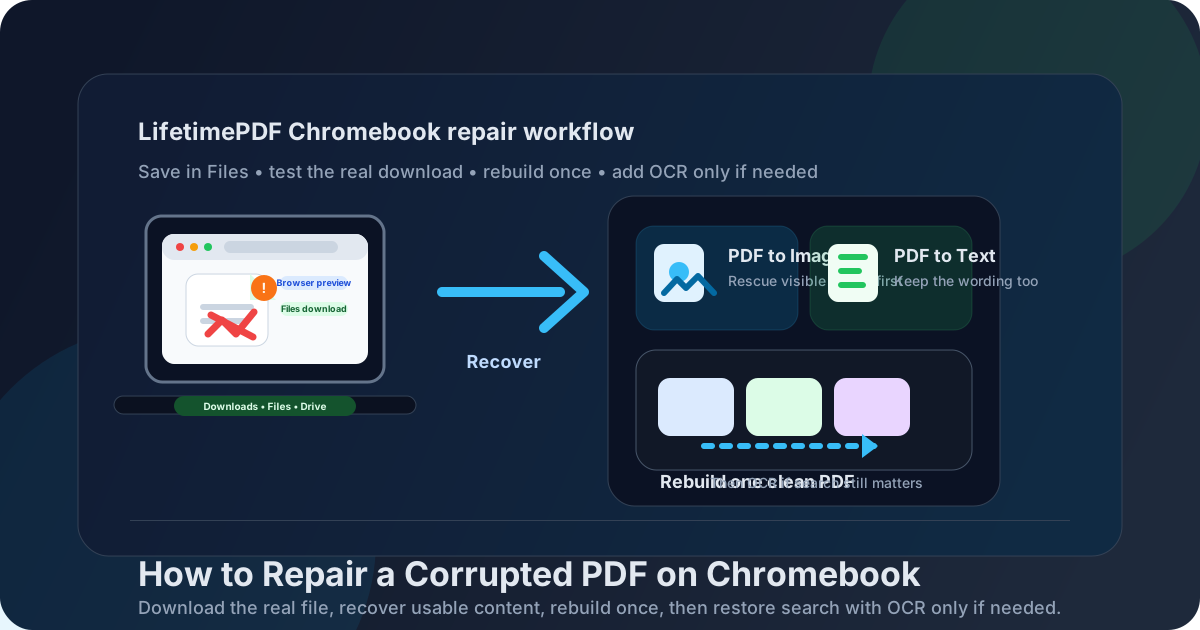
Table of contents
- Quick start: repair a damaged PDF on Chromebook in a few minutes
- What counts as a corrupted PDF on Chromebook and what does not
- Step-by-step: repair a PDF from Files, Drive, Gmail, browser downloads, or classroom portals
- Best repair paths for common Chromebook symptoms
- When to stop repairing and ask for a fresh export
- Related LifetimePDF tools and guides
- FAQ
Quick start: repair a damaged PDF on Chromebook in a few minutes
If the document is urgent and you need the shortest sensible recovery path, use this order:
- Save the PDF from Gmail, Drive, Chrome, Google Classroom, or a portal into Files so you are working from one clear local copy.
- Try opening that saved copy again. If the file only asks for a password, switch to PDF Unlock instead of repair steps.
- If the pages still display, preserve them immediately with PDF to Image.
- If the wording matters and any text still extracts, save that too with PDF to Text.
- Turn the recovered page images into one stable replacement file with Images to PDF.
- If the rebuilt copy is readable but image-only, run OCR PDF so search and copy-paste work again.
What counts as a corrupted PDF on Chromebook and what does not
People call many different problems “corruption.” On Chromebook, the symptoms often look similar even when the fix is completely different.
| What you see on Chromebook | What it usually means | Best first move |
|---|---|---|
| The file asks for a password or blocks copying or printing | Locked PDF, not corrupted | Use PDF Unlock if you are authorized |
| The file shows blank pages, refuses to open, or crashes one viewer path | Possible corruption or a bad download | Save to Files, test the exact download again, then recover content |
| The PDF looks fine but you cannot search or select text | Scanned or image-only PDF | Repair only if the structure is broken; otherwise use OCR |
| The PDF fails inside Chrome, Drive, or Classroom but not elsewhere | Viewer or transfer issue | Download a fresh copy and test outside the preview wrapper |
| Only one or two pages render badly | Partial corruption or bad embedded objects | Rescue the good pages, then request a fresh copy of the missing ones if needed |
This distinction saves time. A locked file does not need repair. A scan may need OCR instead. A viewer-specific glitch may disappear the moment you work from the saved file in Files instead of a temporary preview. Real repair work starts only after you know the PDF itself is unstable.
Step-by-step: repair a PDF from Files, Drive, Gmail, browser downloads, or classroom portals
Here is the practical Chromebook workflow that keeps the repair process tidy.
1) Save the exact file you plan to repair
Chrome previews, Google Drive previews, Gmail attachments, school portals, and classroom handoffs can all leave you with multiple versions of what seems like the same PDF. Move the file into one obvious folder in Files or Downloads first. That reduces the risk of checking one copy, recovering another, and sending a third.
2) Test whether the file is truly damaged or just awkward
Open the saved copy again. If it asks for a password, use PDF Unlock instead of repair steps. If it opens in Files but not inside a portal, the issue may be the wrapper, not the PDF itself. If it fails everywhere, assume you need recovery rather than simple retrying.
3) Re-download the file before you do anything clever
On Chromebook, interrupted downloads, browser cache weirdness, and Drive handoff problems are common. If the PDF came from a portal, shared drive, or class platform, grab a fresh copy once before you spend energy rebuilding. Many “corrupted” ChromeOS PDFs are really incomplete downloads wearing a scary costume.
4) Recover page visuals if the pages still show
If the pages render but the file throws errors, exports badly, or behaves unpredictably, use PDF to Image right away. This preserves the visible content outside the broken PDF structure. For invoices, signed forms, statements, school handouts, and scanned records, that is often the fastest way to save what matters.
5) Recover text too if the wording matters
Reports, contracts, worksheets, and research papers often matter as text, not just as pictures. If any of the text layer still survives, run PDF to Text and keep that output. Even if the original PDF never becomes healthy again, the wording may still be recoverable.
6) Rebuild one clean replacement file
Take the recovered page images and create a new stable PDF with Images to PDF. This step replaces the damaged internal structure with a fresh document that is easier to open, submit, and archive. In most real workflows, one dependable rebuilt PDF is better than ten attempts to save the original broken one.
7) OCR only after the rebuilt copy is stable
If the repaired file is readable but behaves like a stack of images, finish with OCR PDF. That gives the rebuilt document searchable and selectable text. OCR is usually the cleanup step, not the first rescue step.
Recommended order: save one copy, diagnose the symptom, rescue what still works, rebuild once, then add OCR only if the repaired version still needs it.
Best repair paths for common Chromebook symptoms
Different failure patterns need different recovery moves. This table is the fastest way to choose the right one.
| Chromebook symptom | What to do first | Best next move |
|---|---|---|
| The PDF shows visible pages but saving or sharing fails | Recover pages with PDF to Image | Rebuild with Images to PDF |
| The text layer is garbled, broken, or partly missing | Save whatever text still extracts with PDF to Text | Keep the text for reference and rebuild from visuals if layout matters too |
| The file only fails in Drive, Classroom, Gmail, or one browser preview | Download a fresh copy to Files | Work from the saved local file instead of the preview wrapper |
| The repaired PDF is readable after rebuild but not searchable | Keep the repaired copy | Run OCR PDF if search and copy-paste matter |
| The file is really restricted, not broken | Use PDF Unlock | Return to the normal workflow |
Warning signs that a fresh copy will beat repair
- Key pages never render at all, so there is nothing useful to recover.
- The same file fails again after a clean download from the source.
- A signed, legal, or compliance-sensitive PDF must remain exact, not just visually similar.
- Embedded attachments, form logic, or annotations matter and would be lost in an image-based rebuild.
- The sender or source system can export the document again quickly, making a new file cheaper than a messy rescue.
The pattern behind all of this is simple: preserve the part that still behaves, then replace the broken container with one clean output. If the missing pieces are more important than the saved pieces, ask for a fresh export sooner rather than later.
When to stop repairing and ask for a fresh export
Repair is not always the smartest move. If the PDF came from a billing portal, government system, e-sign platform, legal workflow, or school administration tool, exactness may matter more than quick recovery. In those cases, a fresh export is often the cleaner answer.
Ask for a new copy when the file is missing pages, signatures, attachments, fillable form behavior, or important hidden structure that an image-based rebuild cannot preserve. Also ask for a new export when the sender still has the source document and can recreate the PDF in a minute. Rebuilding is great for readable recovery. It is not magic for lost source-level features.
Related LifetimePDF tools and guides
These are the best follow-up tools when your Chromebook repair workflow turns into action.
If you want the broader desktop-and-mobile recovery strategy, the generic guide Repair Corrupted PDF is the best companion read.
FAQ
How do I repair a corrupted PDF on Chromebook?
Save the PDF to Chromebook Files, confirm the file is actually damaged and not just locked or half-downloaded, recover visible pages with PDF to Image or surviving text with PDF to Text, rebuild a clean PDF, and use OCR only if the repaired copy still needs a searchable text layer.
Why does a PDF look corrupted on Chromebook but open somewhere else?
Because the problem is not always true corruption. A Chrome preview, Drive wrapper, Classroom attachment handoff, or incomplete download can make a healthy PDF seem broken on Chromebook even when the underlying file is recoverable.
What if my Chromebook PDF only asks for a password?
That usually means the PDF is locked, not corrupted. If you are authorized, use PDF Unlock instead of trying recovery steps designed for damaged files.
Should I OCR a corrupted PDF on Chromebook right away?
Usually no. First recover or rebuild one stable readable copy. OCR is most useful after that if the repaired PDF still needs search, text selection, or copy-paste.
When should I stop trying to repair the PDF on Chromebook and ask for a new copy?
Ask for a fresh export when key pages never render, the rebuilt copy is missing important content, the document must remain exact for legal or compliance reasons, or repeated clean downloads from the source keep failing in the same way.
Bottom line: on Chromebook, the best PDF repair workflow is not endless retrying. It is diagnose, preserve, rebuild, then polish only if the repaired copy still needs more.