How to Password Protect a PDF in Brave: Lock a File from Downloads, Gmail, and Google Drive Before You Share It
To password protect a PDF in Brave, open LifetimePDF's PDF Protect tool in Brave, upload the final PDF from Downloads, a saved Gmail attachment, Google Drive, or a local folder, add and confirm the password, then download the protected copy.
If the document still needs edits, a signature, or redaction, finish that first and use the password as the last step before you share the file.
That is the short answer. The part that usually wastes time in Brave is not the password box. It is deciding which copy is truly final when you have a Gmail preview, a Drive tab, a private-window download, and a browser file with almost the same name all sitting within reach.
Fastest path: confirm the exact PDF you plan to send, open PDF Protect in Brave, add the password carefully, save the protected copy with a clear filename, and test it once before you share it.
In a hurry? Jump to Quick start: protect a PDF in Brave in a few minutes.
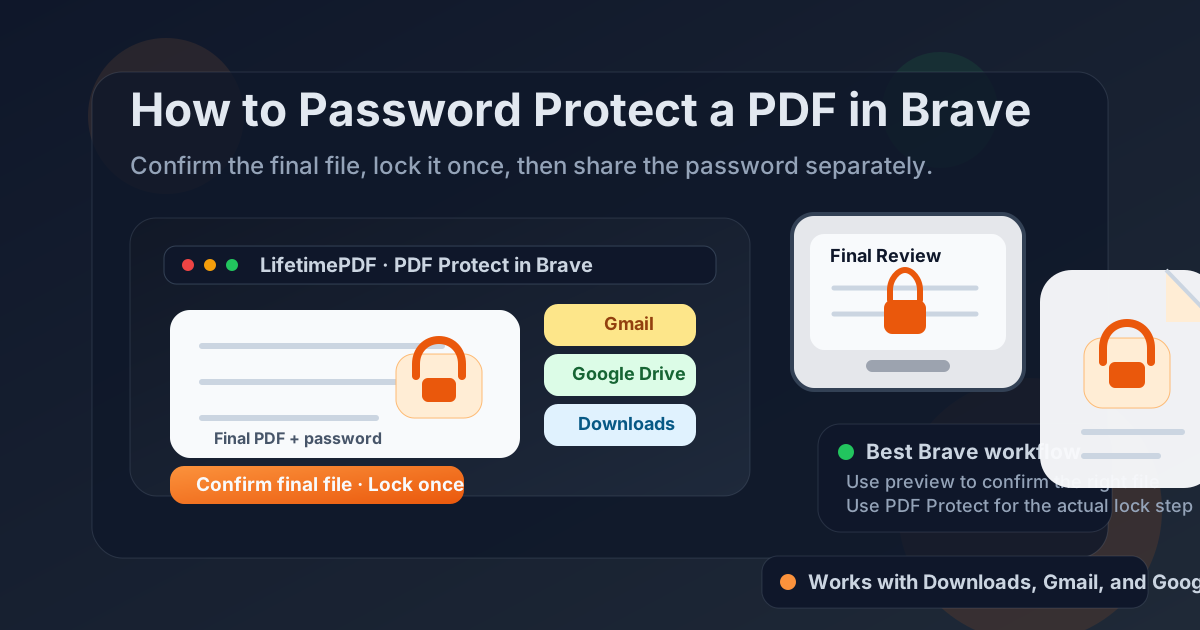
Table of contents
- Quick start: protect a PDF in Brave in a few minutes
- Why Brave is a good handoff point for PDF protection
- Step-by-step: how to password protect a PDF in Brave
- Brave's viewer, Shields, and a dedicated protection workflow
- Good password habits for files you may need again later
- Gmail attachments, Google Drive files, private windows, and Downloads
- Sign, redact, or compress first? The right order matters
- How to save and share the protected copy more safely
- Related LifetimePDF tools and guides
- FAQ
Quick start: protect a PDF in Brave in a few minutes
If the file is already final and you simply need to lock it before sending, this is the Brave workflow most people actually want:
- Open PDF Protect in Brave.
- Choose the exact PDF from Downloads, a saved Gmail attachment, Google Drive, a portal export, or a folder where you intentionally saved it.
- Enter and confirm the password carefully.
- Download the protected PDF and rename it so the final version is obvious.
- Open the protected file once in Brave to confirm the password prompt appears.
- Share the password separately when practical.
Why Brave is a good handoff point for PDF protection
Brave is where many everyday PDFs already show up. An intake form opens from Gmail. A client packet lives in Google Drive. A signed file downloads from a portal. A copy lands in the browser's download list while yesterday's version is still nearby. That makes Brave a very practical staging area for PDF protection.
The limit is simple: reviewing a PDF is not the same thing as securing it. Brave's built-in viewer is useful for confirming page order, checking whether the document is complete, and reopening the final copy after you lock it. The actual protection step is clearer when it happens in a tool built specifically for adding a password to the final file.
In practice, the reliable sequence is short:
- identify the exact PDF you are about to share,
- finish any edits, signatures, or redaction first,
- protect that final copy,
- save it with a filename that makes the protected version obvious,
- open it once before you attach, upload, or forward it.
| Method | Best for | Where it struggles |
|---|---|---|
| Brave PDF viewer only | Opening the file, confirming page order, and checking the final protected copy | It is not the clearest place to run a full protection workflow when the PDF came from Gmail, Drive, or a portal preview |
| Gmail or Drive previews | Fast visual checks before you decide which file is the real source | Easy to confuse with saved attachments, downloaded copies, or synced versions with nearly the same name |
| Brave + PDF Protect | Adding a password quickly, staying in one browser session, and creating one clear final file | You still need one quick review so you do not send the original instead of the protected copy |
| Print-to-PDF or repeated re-download workarounds | Almost never the best choice unless your workflow has a very specific requirement | Slower, harder to trust, and much more likely to leave you with duplicate versions you do not want |
Brave is the workspace. The protection step should still happen in a workflow that makes the final file easy to trust.
Step-by-step: how to password protect a PDF in Brave
If the document matters and you do not want to secure the wrong version, use this sequence:
- Make sure the PDF is really final. If the file still needs edits, signatures, page cleanup, redaction, or compression planning, finish that work first. Password protection works best as the last sharing step.
- Confirm the exact source file. Decide whether the real PDF is the Gmail attachment you saved, the Google Drive file you downloaded, the portal export, or the copy already sitting in Downloads. The first preview you see is not always the copy you should protect.
- Open the protection tool. Launch PDF Protect in Brave.
- Upload the right file. If Brave, Gmail, or Drive has several similarly named copies nearby, pause and check the filename before you continue.
- Add and confirm the password carefully. Slow down just enough to avoid a typo. For important files, store the password in your password manager instead of trusting memory.
- Download the protected copy with a clear name. Something like contract-protected.pdf or packet-secure.pdf is far safer than keeping two nearly identical versions side by side.
- Open the protected PDF once. Check that the password prompt appears and that the document still opens normally after you enter it.
- Share the file and password separately when practical. That one habit makes a protected PDF meaningfully safer than sending everything together in the same forwarded thread.
Shortest reliable sequence: finish the document, protect the final copy once, test it immediately, then send the password separately.
Brave's viewer, Shields, and a dedicated protection workflow
Brave's built-in viewer is genuinely useful. It opens quickly, it is already where many web-based PDFs land, and it makes final visual checks easy. If all you need is a quick read-through, it does its job well.
The trouble starts when you want a clean start-to-finish protection workflow. If the file came from Gmail, a Google Drive folder, a portal preview, or a browser download queue, the built-in viewer can leave you doing version-management work instead of actually finishing the task.
Brave also adds one more variable: Shields. On a trusted PDF tool, Shields can occasionally interfere with uploads, downloads, or script-heavy workflows. If a trusted page stalls, review Shields for that specific tab before assuming the protection tool itself is broken.
Use Brave's viewer when:
- you want to confirm the document is the right one before protecting it,
- you need to review the final protected copy once,
- you want a quick page-order or visual check before sending.
Use a browser-based protection tool when:
- you want the shortest path from unprotected PDF to locked final copy,
- the file came from Gmail, Google Drive, a portal preview, or Brave Downloads,
- you want to avoid workarounds that create extra versions,
- you care more about one clean result than pretending the preview alone is the full workflow.
Good password habits for files you may need again later
The strongest password in the world does not help much if you mistype it in the confirmation box or cannot identify it again when someone replies two weeks later asking for the file. Good PDF protection is not only about technical strength. It is also about whether the password is usable and recoverable on your side.
- Do not rush the confirmation field. Most everyday failures are ordinary typing mistakes.
- Store the password safely. A password manager beats memory for anything important.
- Avoid vague near-duplicates. Tiny variations on the same password are easy to confuse when you revisit the file later.
- Match the effort to the document. Routine paperwork and sensitive legal, medical, financial, or HR PDFs do not deserve the same casual treatment.
- Keep the filename meaningful. If the protected copy has a clear name, you are less likely to resend the wrong file in a follow-up message.
The goal is not to create drama. It is to protect the file without creating a second problem for yourself or the recipient.
Gmail attachments, Google Drive files, private windows, and Downloads
Most Brave mistakes here are source mistakes. The same PDF can exist as a Gmail preview, a saved attachment, a Google Drive tab, a private-window download, and two numbered files in Downloads that all feel interchangeable when you are in a hurry.
Gmail attachments
Gmail is a fine place to confirm you received the right attachment, but it helps to save or clearly identify the file you actually plan to protect. Otherwise, it is very easy to lock one copy and later reply with the original attachment from the thread instead.
Google Drive files
Google Drive is convenient because the document may already be synced and ready, but that same convenience can blur the line between a local copy, a downloaded version, and the final PDF you intended to send. Rename the protected file clearly so you do not upload the original back to the same folder by mistake.
Portal previews and shared links
Portal workflows are where version confusion gets expensive. One tab holds a preview, another triggers a download, and an older copy may still be sitting in Downloads from an earlier review. If the document matters, work from one clearly named source file so the protected version is obvious when it is time to upload or send it back out.
Private windows in Brave
Private windows are useful, but they can make file tracking worse if you are moving quickly. A PDF preview may disappear with the session while the real saved copy ends up in Downloads next to an older version. If you start in a private window, confirm where the file actually landed before you protect anything.
Downloads in Brave
Brave's download list is convenient, but it also makes numbered duplicates easy to miss. Before you protect the file, check whether you are working with document.pdf, document (1).pdf, or a stale copy from earlier in the day.
Sign, redact, or compress first? The right order matters
Password protection is usually the last step, not the first one. If the PDF still needs real work, doing that work after protection often creates another unprotected copy or forces you to repeat the whole process.
- Sign first if the document still needs your signature.
- Redact first if information must be permanently removed rather than merely hidden behind a password.
- Compress before the final lock if the file is too large for email or an upload portal.
- Review the final content version so you know the document is complete.
- Password protect the final file right before you share it.
If you still need those earlier steps, use Sign PDF, Redact PDF, or Compress PDF before you return to PDF Protect.
How to save and share the protected copy more safely
Once the file is protected, a few small habits make the whole workflow more reliable:
- Name the final copy clearly. Make it obvious which file is protected.
- Keep the original and protected copy distinct. If needed, move the final PDF into a dedicated folder.
- Test before you attach or upload. Open the protected PDF once in Brave and confirm the password prompt appears.
- Use a second channel for the password. Email plus chat, text, or a quick call is safer than one combined message.
- Think about where the file goes next. If you are re-uploading to Drive or a portal, make sure the protected version is the one you actually choose.
| If this happens | What to do next |
|---|---|
| The PDF still needs your signature | Use Sign PDF first, then add the password afterward |
| The document contains information recipients should never see | Use Redact PDF before protection |
| The file is too large for email or a portal | Use Compress PDF on the version you actually intend to send, then protect that final copy |
| You are not sure which file is the final one | Reopen the protected copy in Brave and confirm the filename before sending or re-uploading it |
One clean final copy is easier to trust than a pile of almost identical PDFs with slightly different names.
Related LifetimePDF tools and guides
Password protection often overlaps with one or two other PDF jobs. These are the most useful companions in Brave workflows:
- PDF Protect — add a password to the final PDF.
- Sign PDF — finish signing before you protect the document.
- Redact PDF — remove sensitive content before you lock the file.
- Compress PDF — reduce file size if the copy you plan to send is still too large.
Related reading on LifetimePDF: How to Sign a PDF in Brave, How to Add Text to a PDF in Brave, How to Compress a PDF in Brave, How to Flatten a PDF in Brave, and How to Verify a PDF Signature in Brave.
Brave shortcut: confirm the right source, protect the final copy once, review it immediately, and only then send or re-upload it.
FAQ: How to password protect a PDF in Brave
Can Brave password protect a PDF by itself?
Brave is excellent for opening and reviewing PDFs, but the cleanest way to add a password is usually a browser-based PDF protection tool running inside Brave. That keeps the workflow simple without relying on print workarounds or separate desktop software.
How do I password protect a PDF from Gmail or Google Drive in Brave?
Open or save the PDF from Gmail or Google Drive, confirm which file is the true final copy, upload that file into a PDF protection tool in Brave, add the password, download the protected version, and test it once before sending it onward.
Should I sign or redact the PDF before I protect it in Brave?
Yes. Finish signing first, and redact first if information must be permanently removed. Password protection should usually be the last step before you share the final document.
What if Brave or a private window left me with several copies of the same PDF?
Pause long enough to identify the exact file you mean to protect. Downloads, Gmail previews, Drive tabs, private-window downloads, and browser tabs can look interchangeable until you lock one version and send a different one by mistake.
What if Brave Shields interferes with a trusted PDF workflow?
If a trusted PDF tool stalls while uploading or downloading, check whether Brave Shields is interfering in that tab. Relax the protection for the trusted page, finish the task, and then restore your normal setting afterward.
Published by LifetimePDF — Pay once. Use forever.