How to Merge PDFs on Windows: Combine Files from File Explorer, Downloads & Outlook Without Losing Order
To merge PDFs on Windows, open a browser-based Merge PDF tool in Edge or Chrome, choose the files from File Explorer, Downloads, OneDrive, or a saved Outlook attachment, arrange them in the right order, then save the combined PDF back to your PC.
If one source is still a scan, screenshot, or image instead of a PDF, convert it into PDF first so the final packet stays clean and easy to review.
That is the short answer. The part that actually saves time on Windows is knowing how to gather files from a few different desktop locations, how to avoid sloppy ordering mistakes after a bunch of downloads and email attachments pile up, and when to merge first versus when to clean up size, rotation, or image-based pages after the packet itself is already correct.
Fastest path: open LifetimePDF's Merge PDF tool in Edge or Chrome, pull the PDFs from File Explorer or Outlook, set the reading order carefully, merge once, then compress or clean up the finished packet only if the destination still complains.
In a hurry? Jump to Quick start: merge PDFs on Windows in a few minutes.
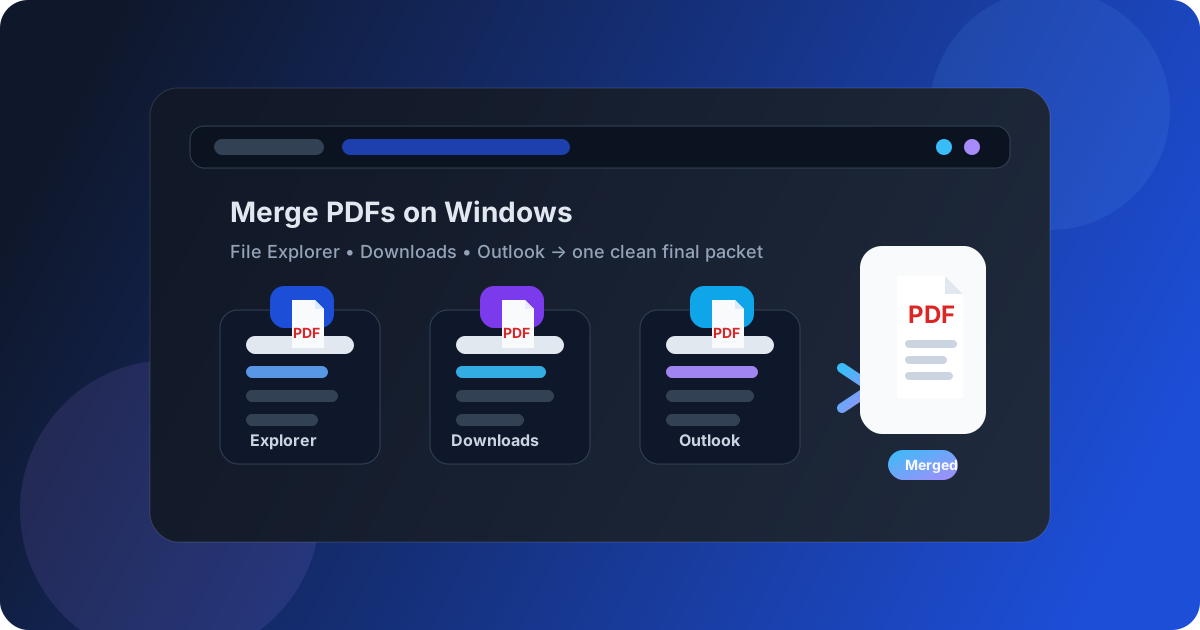
Table of contents
- Quick start: merge PDFs on Windows in a few minutes
- The easiest Windows workflow for combining PDFs
- Step-by-step: merge PDFs in Edge or Chrome
- How to pull files from File Explorer, Outlook, Downloads, and OneDrive
- What to do with scans, screenshots, and image-based pages
- How to keep the page order sane on desktop
- What to do if the merged PDF is too large or still needs cleanup
- Related LifetimePDF tools for smoother Windows workflows
- FAQ (People Also Ask)
Quick start: merge PDFs on Windows in a few minutes
If the files are already PDFs and you just need one clean packet, this is the Windows workflow most people actually want:
- Open Merge PDF in Edge or Chrome.
- Choose the source files from File Explorer, Downloads, Desktop, OneDrive, or a saved Outlook attachment.
- Arrange the documents in the exact order another person should read them.
- Run the merge and download the combined PDF.
- Open the finished file once and check the first pages, one middle section, and the end before sending it anywhere.
The easiest Windows workflow for combining PDFs
Windows gives you plenty of places where PDFs can pile up: Downloads, Desktop, OneDrive sync folders, Outlook attachments, shared drives, and whatever random project folder looked convenient at the time. That is exactly why a browser-based merge workflow tends to work so well. It does not care where the files started. It focuses on the result you actually need: one final PDF in the right reading order.
File Explorer is great for finding the documents. Outlook is where many of them arrive. OneDrive keeps files within reach across devices. But none of those pieces alone give you a clean final packet. The practical move is to gather the right files, merge them once, and then treat cleanup as a second step only if the final file still has a problem.
| Method | Best for | Where it struggles |
|---|---|---|
| File Explorer only | Finding PDFs and checking the finished result | It organizes files, but it does not turn several documents into one clean final packet by itself |
| Outlook attachment previews | Opening one attachment quickly | Awkward for building one combined PDF from several email attachments and local files |
| Edge or Chrome + Merge PDF | Combining multiple PDFs from different Windows sources | You still need to choose the right files and set the order carefully |
| Merge first, compress after | Keeping the workflow fast and predictable | Only works if you remember to review the finished packet before you send it |
For most people, the sweet spot is simple: use File Explorer to collect what belongs together, open the merge tool in Edge or Chrome, combine the files in the right order, and only then decide whether the finished document needs compression, page cleanup, or rotation.
Step-by-step: merge PDFs in Edge or Chrome
If you want a repeatable Windows routine that works for client packets, onboarding forms, invoices, school documents, case files, or project handoffs, use this:
- Open the merge tool. Launch Merge PDF in Edge or Chrome.
- Pick only the files that belong together. Ignore the urge to throw every vaguely related PDF into the same packet.
- Set the reading order deliberately. Main file first, supporting pages second, appendices or proofs after that.
- Run the merge once. Download the finished PDF to a location you can find again easily.
- Do one quick review. Check the start, middle, and end of the finished file before sending it off.
Useful rule: the final order should match how a stranger would read the packet, not the order the files happened to appear in Downloads.
If the result looks wrong, do not keep patching the finished file blindly. Go back to the source list, remove the wrong document, fix the order, or replace the image-based file with a cleaner PDF version. One clean rerun is usually faster than trying to rescue a messy merge afterward.
How to pull files from File Explorer, Outlook, Downloads, and OneDrive
The most common Windows merge problem is not the tool. It is source chaos. One file is sitting in Downloads. One arrived in Outlook. Another lives in OneDrive. A fourth version is still on the Desktop with a nearly identical name. If you merge the wrong combination, the final packet becomes confusing fast.
A cleaner approach is to identify the final version of each document before you merge:
- Downloads: good for recent browser exports and portal downloads, but full of stale copies if you never clean it.
- File Explorer folders: best place to confirm filenames, dates, and where the finished merged PDF should be saved.
- Outlook attachments: useful source material, but save the attachment first if you need to compare versions or keep a local copy.
- OneDrive: handy when the file came from another device or colleague, but double-check that it finished syncing before you merge.
If you are working under time pressure, a temporary folder can help. Drop the exact PDFs you want into one place, merge from there, and name the final file clearly. That avoids accidentally pulling in a draft, a duplicate export, or the wrong revision from an email thread.
What to do with scans, screenshots, and image-based pages
Not every source on Windows starts life as a proper PDF. Sometimes it is a phone screenshot, a scan from a multifunction printer, a photo, or a document someone pasted into email as an image. Those files can still belong in the final packet, but they should usually be normalized first.
The simple rule is this: if it is not already a PDF, convert it into PDF before the merge. That keeps the final output more predictable and stops you from ending up with a packet that feels like a weird mix of file types jammed together.
If a scanned page is sideways, blurry, or much larger than the rest of the packet, fix that after you confirm the overall merge is correct. The goal is not perfection before step one. The goal is a coherent final document that you can improve in sensible stages.
If you need that conversion step, use Images to PDF before the merge. It is usually faster than dragging miscellaneous image files into the same workflow and hoping the final packet behaves like a real document.
How to keep the page order sane on desktop
The easiest way to ruin a merged PDF on Windows is to assume the order in File Explorer is the same as the order the next person should read. It usually is not. Downloads are often sorted by time. Email attachments are often grouped by thread. Shared folders may contain old and new revisions side by side.
Before you merge, answer one question: What should page one of the final packet be? Once you know that, the rest becomes easier. Put the cover or main document first, followed by the supporting pages, exhibits, references, or secondary attachments.
- Keep the main document first.
- Put signature pages or proof pages where they make sense in the reading flow.
- Do not bury the most important document between attachments just because that is how it arrived.
- Open the finished file once and spot-check the beginning, a middle section, and the ending.
That last review matters. A merged PDF can technically succeed while still being wrong in a human sense. The order can be off, a duplicate file can slip in, or one attachment can belong to an older revision. Catching that before the upload or reply email saves a surprising amount of embarrassment.
What to do if the merged PDF is too large or still needs cleanup
Once the combined PDF is correct, only then decide whether it needs more work. The two most common follow-up problems are size and page cleanup.
| If this happens | What to do next |
|---|---|
| The merged PDF is too large for Outlook or an upload portal | Use Compress PDF after the merge is already correct |
| The packet contains one blank or unnecessary page | Remove it with Delete Pages |
| One scanned page is sideways | Fix it with Rotate PDF |
| The packet includes an image file instead of a PDF | Convert it first with Images to PDF, then merge again if needed |
Resist the urge to do every cleanup step preemptively. A lot of files are perfectly fine once merged. If the finished PDF opens quickly, reads clearly, and uploads without complaint, you are done.
Related LifetimePDF tools for smoother Windows workflows
Merge is often the center of the job, but Windows desktop workflows usually touch one or two related tools too:
- Merge PDF when the job is one final packet.
- Images to PDF when one source is a screenshot, phone photo, or scan.
- Compress PDF when Outlook or an upload form rejects the file size.
- Delete Pages when the finished packet contains an extra sheet or a blank scanner page.
- Rotate PDF when one page is sideways after the merge.
If you handle PDFs on Windows often: a clean merge workflow plus a few related fixes usually covers most real-world desktop document tasks without turning every job into a giant software project.
FAQ: how to merge PDFs on Windows
How do I merge PDFs on Windows without installing another app?
Open a browser-based Merge PDF tool in Edge or Chrome, choose the files from File Explorer, Downloads, OneDrive, or Outlook, arrange them in the right order, merge them, and save the finished PDF back to your Windows PC.
Can I merge Outlook attachments and local PDFs together?
Yes. Save the Outlook attachment if needed, then combine it with the local PDFs from File Explorer, Desktop, Downloads, or OneDrive in one merge workflow.
What if one of my sources is a screenshot or scanned page instead of a PDF?
Convert that image-based file into PDF first, then merge it with the rest. That makes the final document easier to review, share, and troubleshoot.
How do I keep the right page order when merging PDFs on Windows?
Arrange the files in the order another person should read them, not the order they happened to appear in your folder or inbox. After the merge, check the first pages, a middle section, and the end.
What should I do if the merged PDF is too large to email?
Keep the merge as-is, confirm the packet is correct, and then compress the finished PDF. That is usually cleaner than trying to guess which source file caused the size problem before you even know whether the merge is right.