How to Flatten a PDF in Safari: Lock Filled Forms from Downloads, Mail, and iCloud Drive Before You Share
To flatten a PDF in Safari, open a dedicated Flatten PDF tool in Safari, choose the exact file from Downloads, a saved Mail attachment, or iCloud Drive, flatten the final copy once, and review it before you send it anywhere.
If you only need visible form answers or checkboxes to become fixed page content, use Flatten PDF Form Data; if the whole document needs a broader finishing pass, use Flatten PDF and keep that reviewed output as the version you email, upload, print, or archive.
That is the short answer. The part that actually saves time in Safari is avoiding browser preview confusion, duplicate downloads, and the common iCloud mistake where you flatten one copy but send the older editable version from Mail or Finder a minute later. Safari is a comfortable place to review a PDF, but the reliable result comes from flattening the right file once, checking it once, and keeping one clearly named finished version.
Fastest path: finish the form or document first, flatten the exact copy you really plan to send, reopen it once in Safari, and only then email, upload, print, or archive it.
In a hurry? Jump to Quick start: flatten a PDF in Safari in a few minutes.
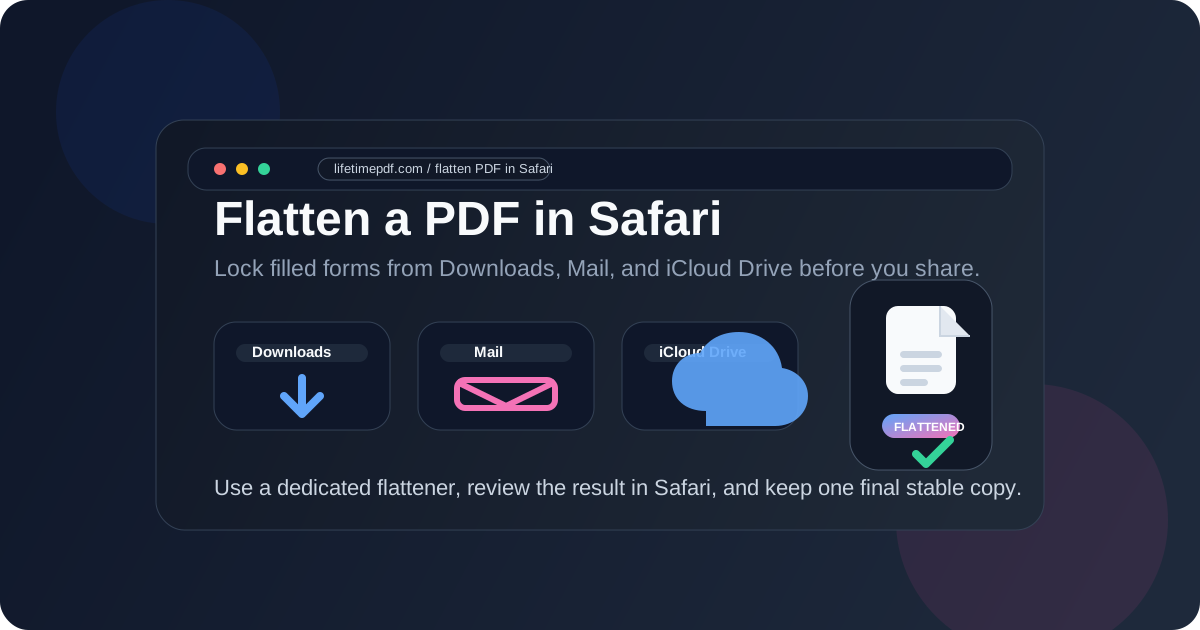
Table of contents
- Quick start: flatten a PDF in Safari in a few minutes
- Why Safari is a useful PDF workspace but not the flattening step by itself
- Step-by-step: flatten a PDF from Downloads, Mail, or iCloud Drive
- Flatten PDF Form Data vs Flatten PDF in Safari
- Safari preview, Print to PDF, and dedicated flattening
- When flattening helps and when it is unnecessary
- Common Safari flattening mistakes and quick fixes
- Related LifetimePDF tools for smoother Safari workflows
- FAQ
Quick start: flatten a PDF in Safari in a few minutes
If the file already exists and you only need a dependable final version for an email, upload portal, client packet, school form, signed approval, or print-ready copy, this is the cleanest Safari routine for most people:
- Open Flatten PDF Form Data in Safari if the PDF is mainly a completed fillable form.
- Use Flatten PDF if the whole document needs a broader finalization pass.
- Choose the exact file from Downloads, a saved Mail attachment, or iCloud Drive.
- Flatten the final copy once and reopen the result in Safari.
- Check the smallest important detail in the document before you send it anywhere.
The critical part is not the click. It is making sure you flatten the right version. Safari makes it easy to keep a browser preview, a downloaded file, and an iCloud copy open at the same time, which is convenient until the wrong one becomes the document you actually attach or upload.
Why Safari is a useful PDF workspace but not the flattening step by itself
Safari is where a lot of Apple users already meet their PDFs. A form opens from Mail, a client packet sits in iCloud Drive, a portal exports a download, or a shared link opens a browser preview before anyone saves a local copy. That makes Safari a comfortable place to verify the file, zoom in on the details, and decide whether the document is actually final.
The limit is simple: opening a PDF in Safari is not the same thing as flattening it. The built-in preview is helpful for reading and checking, but it does not replace a dedicated flattening workflow. The safest pattern is to use Safari as the workspace and a purpose-built flattener for the actual finishing step.
In practice, the reliable sequence is short:
- identify the exact PDF you really plan to send,
- choose the right flattening path,
- flatten the final copy once,
- reopen it in Safari and review it,
- use that checked version for the real handoff.
That sounds obvious, but it prevents the most common Safari mistake: finalizing one copy while Mail, iCloud Drive, or Downloads quietly keeps an older version within easy reach.
| Situation | Best Safari-friendly move | Why it works better |
|---|---|---|
| A completed fillable form needs a stable final version | Flatten PDF Form Data | Visible field values behave more like fixed page content across Mail previews, iCloud links, browser tabs, and printed copies. |
| The whole PDF needs a broader finalization pass | Flatten PDF | You create one steadier delivery copy instead of leaving the document half-finished. |
| The file is already correct but too large | Compress the flattened copy afterward | You reduce size on the exact version you are actually sharing. |
| The PDF still needs edits or another signature | Do not flatten yet | Flattening is a finishing step, not a drafting step. |
Step-by-step: flatten a PDF from Downloads, Mail, or iCloud Drive
The best Safari workflow depends less on the browser and more on your version control. If you flatten the final copy at the right moment, Safari becomes a very efficient last-check station. If you flatten too early or from the wrong location, you create extra work for yourself.
1. Start with the exact file you plan to send
Before you do anything, decide which copy is the real one. If you opened the PDF from Mail, save the attachment if needed and confirm the filename. If the file lives in iCloud Drive, make sure the version you are seeing is current. If it came from Downloads, verify you are not looking at yesterday's export with a nearly identical name.
This matters because flattening the wrong version is the biggest source of rework. Safari itself is rarely the problem; confusing copies are.
2. Open the right flattening path in Safari
If the document is mainly a filled form, start with Flatten PDF Form Data. That is usually the cleaner choice when the visible answers, checkboxes, or typed entries are what you want to lock into place. If the whole file needs a broader finishing pass, use Flatten PDF instead.
Choosing the right path up front keeps the result cleaner and avoids doing extra conversions you never needed.
3. Choose the PDF from Downloads, Mail, or iCloud Drive
Upload the exact PDF you confirmed in step one. If you are working from iCloud Drive, be deliberate about whether you want the local synced copy or a freshly downloaded copy. If Mail opened the PDF in a browser tab, do not assume that preview is the same thing as the file you will later attach.
A useful habit is to keep the source and destination obvious. If the PDF is going back into iCloud Drive, rename the flattened file clearly before you re-save or replace it. If it is going back into Mail, keep the final filename simple enough that you will recognize it immediately in the attachment picker.
4. Flatten the final copy once
Flattening is the finishing move. Do it after the form is filled, after comments are resolved, after the page order is settled, and after everyone has agreed the content is ready. That way you are creating one dependable delivery copy instead of multiple "final-final-really-final" versions.
If you flatten too early, later changes become awkward. If you flatten too late, you risk sending a file that still behaves differently in another viewer. The sweet spot is right before the real handoff.
5. Reopen the result in Safari and check the details that matter
Once the flattened file downloads, open that result in Safari and inspect the pieces that actually matter: visible field values, initials, page order, orientation, and any tiny text or numbers that would be painful to discover as errors after the upload is complete.
This is where Safari is genuinely useful. Its viewer makes quick validation easy. You are not asking Safari to do the flattening; you are using it to confirm that the flattening worked on the right copy.
6. Rename and store the reviewed version where you will actually use it
A clear filename saves more time than people expect. Add a practical suffix such as -flattened, -final, or a dated version if the workflow is formal. Then place that reviewed file in the same folder or cloud location you will really upload, attach, or archive from.
This small step eliminates the last-minute scramble where Safari, Mail, and iCloud Drive all appear to show the same document while only one of them is truly the checked final copy.
Useful rule: preview in Safari, flatten in a dedicated tool, review again in Safari, and share only the reviewed output.
Flatten PDF Form Data vs Flatten PDF in Safari
These two choices sound similar, but they solve slightly different problems.
Flatten PDF Form Data is usually the better answer when the PDF is a form and the goal is to make the visible entries behave like fixed content. Think onboarding packets, intake forms, school documents, permit forms, or any file where the fields are already complete and you want fewer surprises when another person opens it.
Flatten PDF is the better fit when the whole file needs a broader finalization step before delivery. That can include documents that passed through several edits, files headed for a portal that behaves unpredictably, or PDFs you simply want to stabilize before archiving or printing.
| If your goal is... | Start here |
|---|---|
| Lock visible filled fields and checkboxes into the page | Flatten PDF Form Data |
| Create a steadier final delivery copy of the whole document | Flatten PDF |
| Fill fields before you lock them | PDF Form Filler |
| Shrink the finished version for email or portal limits | Compress PDF |
Safari preview, Print to PDF, and dedicated flattening
When the built-in Safari preview helps
Safari is excellent for reviewing the source PDF and checking the result after flattening. It is quick, familiar, and already part of many Mac and iPhone workflows. For a last visual pass, the built-in preview is genuinely convenient.
Why Print to PDF feels tempting
Print-to-PDF feels like an easy fix because it creates another PDF-looking output. When people are in a rush, it can seem close enough to flattening. The downside is that it often creates one more file without solving the version-control problem that caused the confusion in the first place.
Why a dedicated flattener is usually cleaner
A dedicated flattener gives you an intentional finishing step. That matters when the PDF contains forms, signatures, or cloud-storage duplicates, because the goal is not just to produce another copy. The goal is to produce the final copy you trust.
In other words, Safari is the workspace, while flattening is the workflow decision that makes the file easier to share across Mail, iCloud links, upload portals, shared folders, and printers.
When flattening helps and when it is unnecessary
Flattening is usually the right move when:
- the form is complete and you want the visible answers to stay put,
- the PDF is headed to an upload portal that sometimes mishandles interactive elements,
- you want a steadier version for Mail, Messages, or another handoff,
- you are archiving a finished file and do not want lingering field behavior,
- you plan to print and want a cleaner final copy.
Flattening is usually unnecessary when:
- the document still needs edits, comments, or page changes,
- someone still needs to fill or revise fields,
- the signature workflow is not finished yet,
- the file is fine as-is and you only need a smaller size,
- you are still deciding which version is the real final one.
A simple rule works well: if you would be annoyed to make one more content change after this step, it is probably the right moment to flatten. If you expect another round of edits, wait.
Common Safari flattening mistakes and quick fixes
I flattened the browser preview, not the downloaded file
This happens a lot with Mail and shared links. Go back, identify the exact source file, flatten that copy, and rename the result clearly so the reviewed version is easy to recognize later.
iCloud Drive is still showing the older version
Save or sync the new flattened file intentionally instead of assuming the old tab updated itself. If version history matters, store the flattened file with a distinct name and verify the timestamp before you send anyone the link.
I used Print to PDF and now I have another confusing copy
Keep only the version you truly plan to use, then flatten that file with a dedicated tool. The real fix is simplifying the workflow, not adding one more export that looks almost the same.
The flattened PDF is still too large
After you confirm the flattened copy looks right, run that finished version through Compress PDF. Compressing the reviewed output is cleaner than shrinking an earlier draft and then flattening a different copy later.
The file still needs another edit or signature
Go back to the editable version instead of forcing changes onto the flattened copy. Flattening works best when it marks the end of the workflow, not the middle.
Related LifetimePDF tools for smoother Safari workflows
If Safari is where you handle PDFs most often, these tools pair naturally with flattening:
- Flatten PDF Form Data for locking visible filled form values into the page.
- Flatten PDF for a broader finalization pass.
- PDF Form Filler if you still need to complete fields before flattening.
- Sign PDF when the final version needs a signature after the content is settled.
- Compress PDF if the reviewed copy is bigger than your inbox or portal allows.
Related reading: how to flatten a PDF on Mac, how to flatten a PDF in Edge, how to flatten a PDF in Chrome, how to compress a PDF in Safari, and how to sign a PDF in Safari.
If Safari is already where your PDF work starts, keep the workflow simple: choose the right final file, flatten it once, review it once, and share the copy you actually checked.
FAQ: How to flatten a PDF in Safari
How do I flatten a PDF in Safari?
Open a dedicated PDF flattener in Safari, choose the final file from Downloads, Mail, or iCloud Drive, flatten that copy once, and review it before you send it anywhere important.
Can Safari flatten PDFs by itself?
No. Safari can preview PDFs and help you open or save them, but it does not replace a dedicated flattening step. Use a proper PDF flattener when you need a stable final copy.
Should I flatten a PDF before sending it from Mail or uploading it to iCloud Drive?
Usually yes when the document is already final. Flattening helps create a steadier delivery copy, but it only works well if you flatten the exact version you truly plan to send or store.
Should I sign before or after flattening a PDF in Safari?
Finish the content first, flatten when appropriate, and sign the exact version you want to preserve. If the file uses formal digital signatures, avoid changing it afterward because that can invalidate the signature.
What if the flattened PDF is still too large?
After you confirm the flattened copy looks right, use Compress PDF on that reviewed version so you shrink the file you are actually sharing.
Published by LifetimePDF — Pay once. Use forever.