How to Flatten a PDF in Arc: Finalize Filled Forms, Lock Portal Uploads, and Save One Stable Copy Across Spaces
To flatten a PDF in Arc, open a dedicated Flatten PDF tool in Arc, choose the file from Downloads, Gmail, Google Drive, or a portal export, flatten the final copy once, and review it before you send or upload it anywhere.
If you only need visible form answers to become fixed page content, use Flatten PDF Form Data; if the whole document needs a broader finalization pass, use Flatten PDF and save that reviewed output as the version you share.
That is the short answer. The part that actually saves time in Arc is avoiding Spaces mix-ups, pinned-tab confusion, sidebar previews, and duplicate downloads that make two nearly identical PDFs feel interchangeable until you upload the wrong one. Arc is a comfortable place to review files because it keeps the browser workflow fast, but the reliable result comes from picking the true final copy, flattening it once, checking it once, and keeping one clearly named finished version.
Fastest path: finish the form or document first, flatten the exact copy you really plan to send, reopen it once in Arc, and only then upload, email, print, or archive it.
In a hurry? Jump to Quick start: flatten a PDF in Arc in a few minutes.
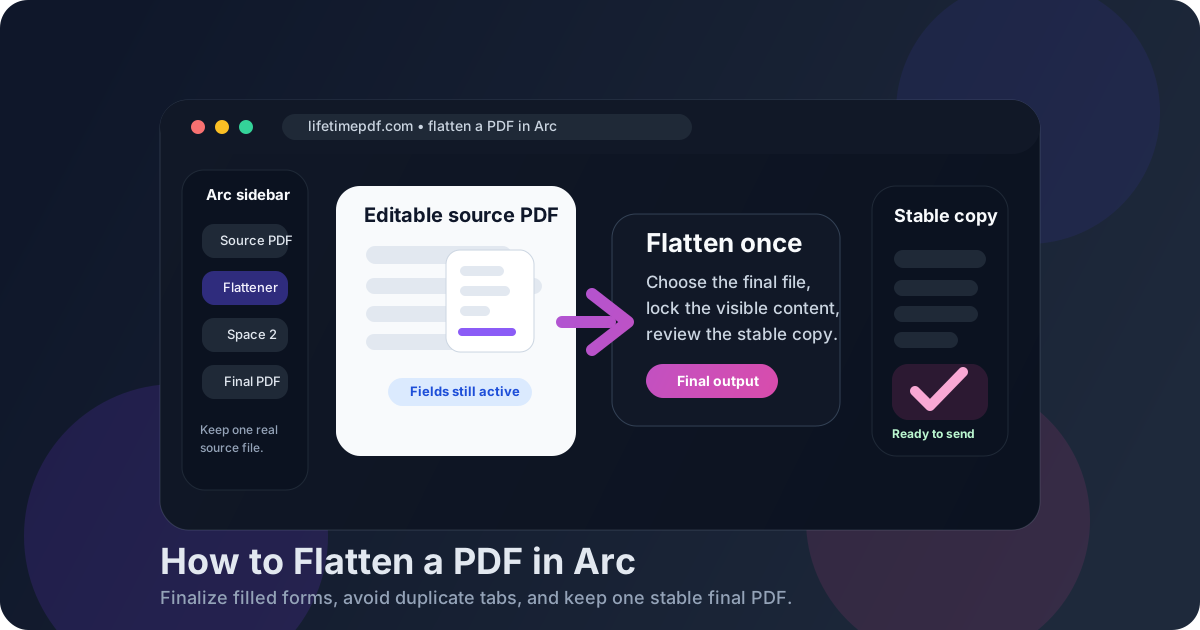
Table of contents
- Quick start: flatten a PDF in Arc in a few minutes
- Why Arc is a good PDF workspace but not the flattening step by itself
- Step-by-step: flatten a PDF from Downloads, Gmail, Drive, or a portal
- Flatten PDF Form Data vs Flatten PDF in Arc
- Arc preview, Spaces, and why Save as PDF is not the same as flattening
- When flattening helps and when it is unnecessary
- Common Arc flattening mistakes and quick fixes
- Related LifetimePDF tools for smoother Arc workflows
- FAQ
Quick start: flatten a PDF in Arc in a few minutes
If the file already exists and you only need one dependable final version for email, a client portal, school paperwork, onboarding, approvals, or archiving, this is the cleanest Arc routine for most people:
- Open Flatten PDF Form Data in Arc if the PDF is mainly a completed fillable form.
- Use Flatten PDF if the whole document needs a broader finalization pass.
- Choose the exact file from Downloads, a saved Gmail attachment, Google Drive, or a portal export.
- Flatten the final copy once and open the result in Arc.
- Check the smallest important thing in the document before you send it anywhere.
The most important part is not the click. It is making sure you flatten the right version. Arc makes it easy to keep a sidebar preview, a portal tab, a Space copy, and a Downloads file open at the same time, which is useful until the wrong file becomes the one you actually upload.
Why Arc is a good PDF workspace but not the flattening step by itself
Arc is where a lot of PDFs already land. A document opens from Gmail, a contract lives in Drive, a portal creates a download, or a teammate sends you a file you preview in the browser before you do anything else. That makes Arc a comfortable place to review the document, confirm that you have the right copy, and decide whether the file is actually final.
The limit is simple: opening a PDF in Arc is not the same thing as flattening it. The browser viewer is useful for reading, zooming, and checking details, but it does not give you a clean dedicated flattening workflow by itself. That is why the safest pattern is to use Arc as the workspace and a purpose-built flattener for the actual finishing step.
In practice, the reliable sequence is short:
- identify the exact PDF you really plan to send,
- choose the right flattening path,
- flatten the final copy once,
- reopen it in Arc and review it,
- use that checked version for the real handoff.
That sounds obvious, but it prevents the most common Arc mistake: finalizing one copy and then dragging a different duplicate into Gmail or the next upload field from another Space or pinned tab.
| Situation | Best Arc-friendly move | Why it works better |
|---|---|---|
| A completed fillable form needs a stable final version | Flatten PDF Form Data | Visible field values behave more like fixed page content across viewers, portals, and inbox previews. |
| The whole PDF needs a broader finalization pass | Flatten PDF | You create one steadier delivery copy instead of leaving the file half-finished. |
| The file is already correct but too large | Compress the flattened copy afterward | You reduce size on the exact version you are really sending. |
| The PDF still needs edits or another signature | Do not flatten yet | Flattening is a finishing step, not a drafting step. |
Step-by-step: flatten a PDF from Downloads, Gmail, Drive, or a portal
1. Start with the exact file you plan to send
If the PDF is sitting in a Gmail preview, a Drive tab, or a portal overlay, save or identify the real final copy first if that will make the handoff clearer. Working from one obvious source file is the easiest way to avoid flattening one version and sharing another.
2. Open the right flattening path in Arc
Use Flatten PDF Form Data when the goal is locking visible form values into the page. Use Flatten PDF when the whole document needs a broader finalization pass. Picking the right route first keeps the workflow short, and short workflows are usually safer workflows.
3. Choose the PDF from Downloads, Gmail, Drive, or the portal export
Pick the file from the place where you can still recognize it later. If it came from Gmail, a saved attachment is often easier to manage than a floating preview tab. If it came from Drive or a portal, make sure you are not using an older duplicate download with the same name.
If Arc still has similar versions parked in another Space, pinned tab, or split view, close the distractions before you flatten. That tiny cleanup step saves a surprising amount of browser confusion.
4. Flatten the final copy once
This is not a step to repeat casually. The point is to create one stable output you can inspect and trust. If you already know the document still needs field changes, extra text, or a new signature, stop before flattening and finish the document first.
5. Open the result in Arc and check the details that matter
Do not just glance at the first page. Zoom in on the things most likely to cause trouble later:
- typed names, dates, and totals
- checkboxes and radio selections
- signature appearances and initials
- small text near field borders
- portal-facing pages with legal language or invoice totals
That quick check is what turns flattening from a hopeful step into a reliable workflow.
6. Save the reviewed copy with a clear name
Good filenames solve a surprising amount of Arc chaos. If the original is still in Downloads or Drive, make the flattened version obvious so you do not attach the editable or older file by accident.
Recommended Arc sequence: identify the source file, flatten once, review once, then send the reviewed copy.
Flatten PDF Form Data vs Flatten PDF in Arc
These workflows sound similar, but they solve slightly different problems.
Flatten PDF Form Data is the cleaner choice when the PDF is mainly a completed fillable form and you want visible answers, checked boxes, and typed values to become part of the page. That is the common Arc situation for school forms, onboarding packets, reimbursement sheets, approvals, applications, and contracts.
Flatten PDF makes more sense when the whole document needs a broader finishing pass. That is useful when the file includes more than active fields or when you want the entire PDF to behave like a steadier final share copy.
- Need to lock completed form fields into the page? Use Flatten PDF Form Data.
- Need a broader whole-file flattening path? Use Flatten PDF.
- Still typing answers or changing the document? Finish first with PDF Form Filler.
In Arc, making that choice early matters because it keeps the workflow direct. The fewer unnecessary steps you create, the fewer opportunities there are to lose track of the real final copy.
Arc preview, Spaces, and why Save as PDF is not the same as flattening
Arc users usually bounce between three instincts: preview the file in the built-in viewer, use a Save-as-PDF or print-style detour, or move to a dedicated flattening workflow. All three can produce something, but they are not the same thing.
When the built-in viewer helps
- you need to inspect the file before finalizing it,
- you want to compare the editable and flattened copies,
- you are checking whether the final result still looks correct.
Why Save as PDF feels tempting
- you want a quick workaround in a hurry,
- you are trying to force the document into a more static state,
- you are working around a viewer or portal preview issue.
Why a dedicated flattener is usually cleaner
- the document is already complete,
- you want one stable output for email, portals, printing, or archiving,
- you want visible form results to behave more consistently across different viewers,
- you want less version confusion than ad-hoc Save-as-PDF detours tend to create.
In short: Arc's viewer helps you inspect the document. Flattening helps you finish the document. A Save-as-PDF detour can create another copy, but it is not the same thing as choosing a purpose-built finishing step.
When flattening helps and when it is unnecessary
People usually search for this because something feels unstable. The PDF looks fine in one tab but odd in another. A recipient opens the file and still sees active fields when they were supposed to see a finished document. A portal preview behaves unpredictably. Those are the moments when flattening usually earns its keep.
Flattening is usually the right move when:
- the form or document is complete and ready to send,
- you want visible fields, checkboxes, or typed answers to behave more like normal page content,
- the PDF will be uploaded to a portal, emailed, printed, or archived,
- you are tired of viewer-specific weirdness and want one calmer delivery copy.
Flattening is usually unnecessary when:
- the document still needs edits,
- someone else still needs to fill a field or sign it,
- you are keeping the file as a reusable blank template,
- the real problem is file size, scan cleanup, OCR, or page order rather than editability.
Useful final-step sequence: finish the form, flatten the delivery copy, reopen it once, then sign, protect, or compress only if the real workflow still needs those steps.
Common Arc flattening mistakes and quick fixes
I flattened the wrong copy
This is the biggest Arc problem. Start from one clear source file, save the flattened version with a fresh name, and reopen that exact result once before you send it anywhere.
The portal still shows the original behavior
Make sure you actually uploaded the reviewed flattened version and not the earlier editable file from Downloads, Gmail, or Drive. Version mix-ups are much more common than flattening failures.
Arc kept me in a preview tab instead of giving me a clean file
That usually means you are still working from the browser preview instead of the real PDF. Save the actual file first, then flatten the saved copy so you know exactly what you are finalizing.
I still have the same PDF open in another Space
That is convenient until it is not. Close the older tab or rename the final file clearly so you do not drag the wrong copy into the next upload field.
The flattened PDF is still too large
After you confirm the flattened copy looks correct, use Compress PDF on that finished version. That way you shrink the file you are actually sending instead of optimizing the wrong draft.
The file still needs edits after flattening
Go back to the editable source if you still have it, make the changes there, and then create one fresh final flattened copy. Flattening too early usually creates avoidable rework.
Related LifetimePDF tools for smoother Arc workflows
Flattening a PDF in Arc is often only one step in a bigger document workflow. These tools and companion guides pair well with it:
- Flatten PDF Form Data — lock visible form results into the page for a steadier final copy.
- Flatten PDF — broader flattening when the whole file needs a finalization pass.
- PDF Form Filler — finish typed fields before you flatten the final Arc copy.
- Sign PDF — sign the exact version you really intend to send.
- Compress PDF — reduce size for upload limits after the finished file is correct.
- PDF Protect — protect sensitive delivery copies before you share them.
Related reading on LifetimePDF: how to edit a PDF in Arc, how to sign a PDF in Arc, how to compress a PDF in Arc, how to add text to a PDF in Arc, how to compare PDFs in Arc, and flatten PDF form data online.
If you work with PDFs constantly, a clean Arc workflow matters more than another workaround. Choose the right final file, flatten it once, review it once, and move on with a copy you actually trust.
FAQ: How to flatten a PDF in Arc
How do I flatten a PDF in Arc?
Open a dedicated PDF flattener in Arc, choose the file from Downloads, Gmail, Google Drive, or a portal export, flatten the final copy once, download it, and review it before you send it anywhere important.
Is Save as PDF the same as flattening a PDF in Arc?
No. Save as PDF can create another copy, but flattening is the finishing step that turns completed fields or final document content into a steadier delivery version.
Should I flatten a PDF before uploading it from Arc?
Usually yes when the form or document is already final. Flattening helps visible field values and completed content behave more consistently across browser viewers, Gmail previews, Google Drive, and upload portals.
Can Arc keep the wrong PDF open while I flatten another copy?
Yes. Arc sidebar tabs, Spaces, previews, and duplicate downloads can make two similar PDFs feel interchangeable. Confirm the exact source file before you flatten anything.
What if the flattened PDF is still too large?
After you confirm the flattened copy looks right, use Compress PDF on that final version so you shrink the file you are actually sending.
Published by LifetimePDF — Pay once. Use forever.