How to Fill Out an Uneditable PDF Form on Windows: Fix Scanned, Locked, and Flattened Files Fast
To fill out an uneditable PDF form on Windows, save the file locally, open a browser-based PDF form filler in Edge or Chrome, then place text, checkmarks, and signatures directly on top of the page where the original PDF will not let you type.
If the form is scanned, flattened, or locked, the blanks usually are not real fields, so the fastest Windows workflow is save one clean copy first, fill the content in short passes, sign last, and review the finished PDF before you send it.
That is the answer most people actually need on Windows. The frustration usually comes from a form that looks normal in Outlook, Teams, Edge, or a browser preview but behaves like a dead image once you click into the boxes. Sometimes the file was scanned, sometimes the original fields were flattened away, and sometimes restrictions are the real problem. The practical fix is not printing, handwriting, and rescanning. It is using a cleaner desktop workflow that treats the PDF page as the template and your answers as a precise overlay.
Fastest path: open LifetimePDF's PDF Form Filler in Edge or Chrome, upload the PDF from Downloads, Outlook, Teams, or File Explorer, place your answers where needed, then sign and save the finished copy on your Windows PC.
In a hurry? Jump to Quick start: fill an uneditable PDF on Windows in 3 minutes.
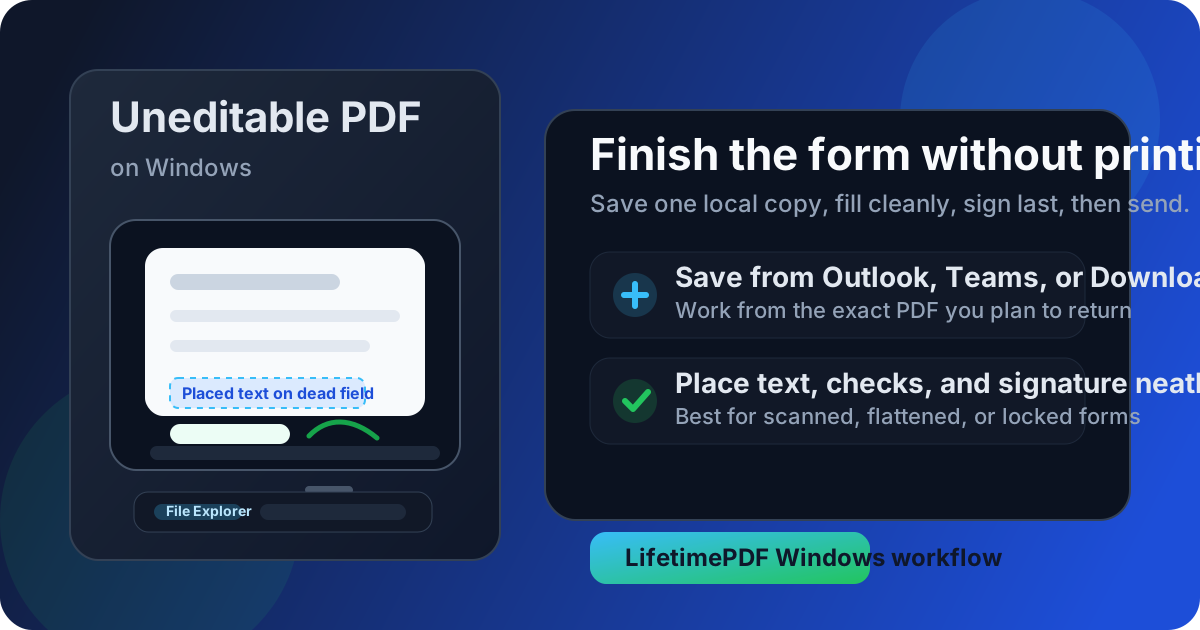
Table of contents
- Quick start: fill an uneditable PDF on Windows in 3 minutes
- Why a PDF form feels uneditable on Windows
- Step-by-step: complete the form from Downloads, Outlook, or Teams
- Best way to handle scanned, flattened, and secured PDFs
- When to unlock, run OCR, or skip both
- How to sign, save, and send the final copy
- Common Windows mistakes that make forms look messy
- Related LifetimePDF tools for this workflow
- FAQ (People Also Ask)
Quick start: fill an uneditable PDF on Windows in 3 minutes
If you just need the shortest route from stubborn attachment to finished file, use this workflow:
- Save the exact PDF from Outlook, Teams, Downloads, or a browser preview to one local folder.
- Open PDF Form Filler in Edge or Chrome.
- Upload the file from File Explorer.
- Place text manually where the original PDF refuses to accept typing.
- Add your signature with Sign PDF only after the rest of the form is complete.
- Download the finished copy, review it once, then email or upload it.
Why a PDF form feels uneditable on Windows
The form usually is not broken in a mysterious way. Most Windows PDF headaches come from one of four common situations:
1) You are looking at a preview, not working from the real file
Outlook, Teams, browsers, and some portals show quick previews that make a PDF look editable even when you have not saved the actual document yet. Working from one local copy avoids version mix-ups and weird viewer behavior.
2) The PDF is scanned
A scanned PDF is mostly just page images. Blank lines and boxes may look interactive, but there are no true fields underneath, so clicking does nothing.
3) The PDF was flattened
Flattening merges the form layer into the page itself. That is common after someone already completed, printed, or exported the file once. The layout survives, but the editable fields do not.
4) The file has restrictions
Some PDFs open fine but block editing, comments, or signing. If you are authorized to work with the file, you may need PDF Unlock before you try the rest of the workflow.
Once you know which case you are dealing with, the fix becomes much more obvious. You either save the right local copy, place content manually, unlock the document, or run OCR when text recognition actually matters.
Step-by-step: complete the form from Downloads, Outlook, or Teams
This is the cleanest Windows workflow when the form looks normal but refuses to cooperate.
1) Save the exact PDF you plan to return
Do not work from a floating email preview if you can avoid it. Save the attachment to Downloads, Desktop, or Documents, or move it into a project folder if you want a better audit trail. That one habit prevents a lot of mistakes, especially when Outlook has multiple versions of the same form or Teams opens a synced copy from a shared folder.
2) Open the form filler in Edge or Chrome
Go to PDF Form Filler and upload the local file. A dedicated form-filling workflow is usually faster than trying to force Edge, a browser preview, or a legacy desktop viewer to behave.
3) Upload from File Explorer
Pull the PDF from wherever Windows saved it: Downloads, an Outlook attachment folder, a Teams download, a OneDrive sync folder, or another File Explorer location. If you have several copies with similar names, rename the one you want before uploading so you do not accidentally return yesterday's version.
4) Fill the document in short passes
Start with names, dates, IDs, and short text boxes first. Then add checkmarks, initials, and smaller notes. On Windows, this usually keeps your spacing cleaner because you are not bouncing randomly around the page. If the form turns out to be truly fillable, great. If it is dead underneath, place your text where it belongs and keep moving.
5) Review before you sign
Zoom in once before adding the signature. This is where you catch answers that sit slightly too high, dates that landed outside a box, or fields that need one more line break. Signing too early is the easiest way to create extra cleanup work later.
Best way to handle scanned, flattened, and secured PDFs
These three cases look similar from the outside, but the best fix is slightly different in each one.
Scanned PDFs
If you cannot select text, search for a word, or place the cursor in any box, the file probably behaves like an image. The fastest answer is usually to place text on top of the page and finish the form. If you also need searchable text for records, extraction, or reuse, run OCR PDF first.
Flattened PDFs
Flattened forms are common with insurance packets, onboarding documents, school paperwork, and anything that has already been processed once. They often look polished but will not accept typing. In that case, treat the page like a background template and overlay your answers cleanly.
Secured or locked PDFs
If the viewer tells you editing is restricted, comments are blocked, or the file is protected, use PDF Unlock only when you are authorized to edit the document. Unlocking helps when permissions are the obstacle. It does not create form fields inside a scan that never had them.
When to unlock, run OCR, or skip both
A lot of people overcomplicate this part. Here is the simple rule set:
- Use Unlock PDF when Windows says editing is blocked and you have permission to change the file.
- Use OCR when you need searchable text, copy-paste, or a cleaner digital record after the form is complete.
- Skip both when your real goal is just to return the form today and manual text placement already solves the problem.
| Situation | Best next step | Why |
|---|---|---|
| Fields are visible but nothing is editable because of permissions | Unlock PDF | Restrictions may be the only real blocker |
| The PDF acts like a flat image and text is unsearchable | Run OCR if you need searchable text | OCR can restore useful text recognition |
| You only need to finish and return the form quickly | Use PDF Form Filler directly | Fastest path with the fewest extra steps |
How to sign, save, and send the final copy
Finishing neatly matters just as much as filling the form. This is the part that determines whether the returned PDF looks professional.
Add the signature last
Use Sign PDF after the rest of the form is stable. That way you are not moving a signature around every time you fix spacing, initials, or a checkbox.
Save the file with a useful name
Rename the final copy so it is obvious what it is. Something like tax-form-jordan-signed.pdf or intake-form-final.pdf is much better than sending back scan_0047(1).pdf.
Review at full zoom once
Open the downloaded PDF and zoom in enough to catch line placement, dates, initials, and signatures. One review pass is usually enough if you filled the form in clean sections.
Compress or protect when needed
If the finished file is too large for email or a portal, use Compress PDF. If it contains sensitive information and you need to reduce accidental edits, use Protect PDF before sending.
Common Windows mistakes that make forms look messy
- Editing the wrong copy: the preview in Outlook is not always the same file you later attach or upload.
- Fighting dead fields too long: if the blanks never become interactive, switch to manual text placement instead of retrying the same click.
- Signing too early: signatures should come after the main answers, not before them.
- Skipping the final review: one zoomed-in pass catches misaligned dates, clipped text, and small checkbox mistakes.
- Sending giant scanned files: compress them when necessary instead of hoping the recipient's portal accepts a huge upload.
Related LifetimePDF tools for this workflow
PDF Unlock
Remove editing restrictions when you are authorized to change the document.
Open PDF UnlockOCR PDF
Useful when a scanned form needs a searchable text layer before or after completion.
Open OCR PDFCompress PDF
Shrink oversized scans and final forms before emailing or portal upload.
Open Compress PDFProtect PDF
Add protection to the finished copy before sharing sensitive information.
Open Protect PDFFAQ (People Also Ask)
How do I fill out an uneditable PDF form on Windows?
Save the PDF locally, upload it into a browser-based PDF form filler in Edge or Chrome, then place text, checkmarks, and signatures directly on top of the page where the original file will not let you type.
Why will a PDF not let me type on Windows?
The file is usually scanned, flattened, or permission-restricted. That means the boxes you see are either not real fields or editing is blocked, so you need a form filler, an unlock step, or OCR depending on the file.
Should I use OCR before filling out an uneditable PDF form on Windows?
Only when you need selectable or searchable text. If your goal is simply to complete and return the form, manual text placement is often faster than OCR.
Can I do this from an Outlook or Teams attachment?
Yes, but it is safer to save the attachment first and work from one local copy. That helps you avoid preview quirks and version confusion.
How do I keep the completed PDF from shifting when someone else opens it?
Fill the content first, sign last, review the downloaded copy at full zoom, and protect the final PDF if needed before sending. That reduces layout surprises and accidental edits.