How to Check if a PDF Has Fillable Fields on Windows: Find Interactive Forms Before You Start Typing
To check if a PDF has fillable fields on Windows, open the file, click inside likely boxes, press Tab, and try typing one short test value.
If nothing accepts focus, the cursor never appears, or the page behaves like one flat image, the file is probably scanned, flattened, or just a visual form rather than a true interactive PDF.
That is the short answer. The part that saves time is knowing how to test the file without accidentally completing the wrong copy, how to tell a real field from a decorative box, and what to do next when the document only looks fillable. On Windows, those mistakes happen constantly because PDFs often arrive through Outlook, Teams, browser downloads, shared folders, or portals that show a clean preview even when the form underneath is not interactive at all.
Fastest practical path: save the PDF locally, click a likely field, press Tab, test one box or checkbox, then switch to the right fix if the file turns out to be scanned or flattened.
In a hurry? Jump to quick start: tell if a PDF is fillable on Windows in under 3 minutes.
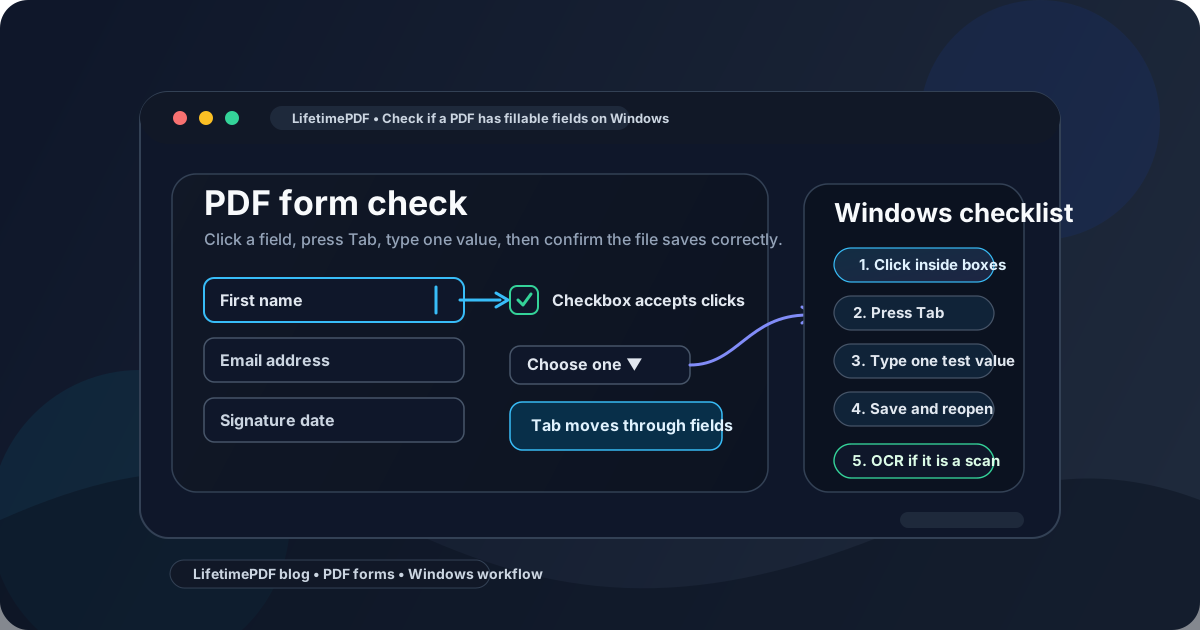
Table of contents
- Quick start: tell if a PDF is fillable on Windows in under 3 minutes
- What counts as a real fillable field on Windows
- Step-by-step: check a PDF for fillable fields on Windows
- Windows signals that tell you what kind of PDF you have
- Edge vs Chrome vs other Windows PDF viewers
- Signs the PDF is not really fillable
- What to do if the file is scanned, flattened, or locked
- Related LifetimePDF tools for smoother Windows form work
- FAQ
Quick start: tell if a PDF is fillable on Windows in under 3 minutes
If you want the shortest route to a reliable answer, use this sequence:
- Save the PDF from Outlook, Teams, your browser, or Downloads into one clear folder in File Explorer.
- Open the file on Windows and click inside a place that should obviously be a field.
- Press Tab to see whether focus jumps to the next input.
- Type one short value, check one box, or open one dropdown if possible.
- If nothing responds, switch to PDF Form Filler or OCR PDF instead of wasting time fighting the file.
What counts as a real fillable field on Windows
On Windows, people often treat any blank line, square, or signature underline as a form field. That is exactly how time gets lost. A real fillable PDF usually reveals itself in a few concrete ways:
- A text cursor appears when you click inside a text box.
- Tab moves focus from one field to another instead of doing nothing.
- Checkboxes react to clicks instead of behaving like printed symbols.
- Dropdowns open or at least show a focused selection area.
- The value stays inside the field instead of floating on top like free text annotation.
- The file can be saved and reopened with the test value still present in the same place.
A PDF can still be usable even if it is not truly fillable. It just needs a different workflow. That is why the goal here is not to prove the document is “good” or “bad.” The goal is to identify what kind of file you actually have before you start completing it.
Interactive PDF form
Text boxes, checkboxes, dropdowns, and signature areas accept focus and behave like real controls.
Flattened PDF form
The layout looks like a form, but the controls are dead. You may still need to place text manually.
Scanned PDF form
The entire page behaves like an image. OCR may help with text recognition, but it does not magically create working fields by itself.
Step-by-step: check a PDF for fillable fields on Windows
Here is the workflow that works best when you want a dependable answer instead of guessing.
Step 1: Save the exact file you plan to use
On Windows, PDFs often open from an Outlook preview, a Teams attachment, a browser tab, or a temporary Downloads copy. That makes people test one version, edit another, and send back a third. Save the form into a clearly named folder first so you know the file you are checking is the same one you plan to complete.
Step 2: Click the spots that should obviously be interactive
Start with the most obvious targets: name fields, date boxes, yes/no checkboxes, initials boxes, and signature areas. If the PDF is truly fillable, at least some of those areas should accept focus immediately. If every click feels like clicking a poster, not a form, that is an early warning sign.
Step 3: Press Tab and watch what Windows does
The Tab key is one of the cleanest tests because it exposes whether the PDF contains an actual field sequence. In a good fillable form, focus jumps from field to field. In a weak or static PDF, nothing happens, or the viewer exits the page flow without touching any form controls at all.
Step 4: Type one short value on purpose
Use a harmless test like Test, 123, or a single checkbox click. You are not completing the document yet. You are checking whether the input behaves like part of the form. A real fillable field holds the text neatly in place and usually respects the box boundaries.
Step 5: Save, close, and reopen if the result matters
If the document is important, do one extra pass: save the PDF, close it, then reopen it. This confirms whether the value remains attached properly. Some clumsy workflows let you type on the screen but fail when the file is saved, flattened badly, or reopened in another Windows viewer.
Best next move after the test: if the form works, fill it normally. If it does not, move straight to the correct repair path instead of retrying the same dead file.
Windows signals that tell you what kind of PDF you have
This table is the quickest way to interpret what Windows is showing you.
| What you see on Windows | What it usually means | Best next step |
|---|---|---|
| You click a field and get a text cursor | The PDF probably contains a real text field | Type one short test value and keep going |
| Tab moves through boxes in order | The document likely has an interactive field structure | Fill the form normally and review it before sending |
| The page looks fine, but nothing accepts focus | The PDF is probably static or flattened | Use PDF Form Filler to place text manually |
| The whole page behaves like an image | The file is likely scanned | Run OCR PDF and retest |
| You can see fields, but values disappear after save | The workflow or viewer may be unreliable | Switch to a dedicated browser-based form tool and reopen the saved copy |
| Checkboxes are just printed squares | The form layout is visual only | Manually place marks or rebuild the form fields if you own the document |
The main idea is simple: a Windows PDF preview is not the same thing as a Windows PDF form workflow. You are looking for signs of interactivity, not just signs of legibility.
Edge vs Chrome vs other Windows PDF viewers
For quick checks, Microsoft Edge and Google Chrome are both useful because they make it easy to open the file quickly and test clicks, focus, and basic input. But neither viewer is the final judge of form quality.
- Edge: convenient for opening attachments and quick form tests on a Windows PC.
- Chrome: similarly good for fast testing, especially if your workflow already lives in browser tabs.
- Other PDF viewers: sometimes better for niche workflows, but they can still hide the same underlying problem if the PDF itself is static.
If one Windows viewer behaves strangely, that does not always mean the PDF is broken. But if multiple viewers cannot focus fields, and your test in a dedicated form tool fails too, it is usually the file, not the viewer.
Do not confuse a signature line with a signature field
A printed line that says Signature is just design. A real signature field responds to clicks, shows a focus area, or opens a signing workflow. On Windows, that difference is easy to miss if you judge the page by appearance alone.
Signs the PDF is not really fillable
Most failed Windows form sessions come from the same handful of clues. If you see several of these at once, stop trying to type directly into the file:
- The page looks slightly fuzzy, like a scanned printout.
- Clicking blank boxes never creates a cursor.
- Pressing Tab moves nowhere useful.
- The whole page selects like one large image.
- Checkboxes, date slots, and signature lines are only part of the artwork.
- Fields exist visually, but text placement floats awkwardly instead of staying inside boundaries.
- The PDF opens, but Windows warns you about restrictions or does not let you save edits reliably.
None of those signs mean the document is hopeless. They just mean you need a different workflow than ordinary field typing.
What to do if the file is scanned, flattened, or locked
Once your Windows test tells you the form is not truly fillable, the right move depends on why it failed.
If the PDF is scanned
Run OCR PDF first so the document has searchable text. OCR helps you read and work with the file more cleanly, but remember: OCR does not automatically create proper fillable fields. It makes the page smarter. It does not magically turn a scan into a well-built form.
If the PDF is flattened
Use PDF Form Filler to place text, checkmarks, or initials exactly where they belong. This is usually the fastest way to complete a static form on Windows without printing, handwriting, and rescanning it.
If you own the document and need real fields
Open PDF Field Editor and add or repair the controls properly. That is the better route when you are the one distributing the form and want other people to have a clean interactive experience rather than a workaround.
If permissions or workflow restrictions get in the way
Some PDFs are technically interactive but still awkward because of save restrictions, fragile field behavior, or portal-specific export problems. In those cases, it helps to test the file in a dedicated browser-based workflow, complete a short save-and-reopen check, and make sure the finished copy behaves the same way outside the original viewer.
Related LifetimePDF tools for smoother Windows form work
These are the most useful next steps after you identify what kind of PDF you are dealing with:
If your next step is actual completion rather than diagnosis, the companion guide How to Fill Out a PDF Form on Windows picks up exactly where this article leaves off.
FAQ
How do I check if a PDF has fillable fields on Windows?
Open the PDF, click inside likely fields, press Tab, and type one short test value. If Windows shows a cursor, focus moves between controls, and the value stays in place, the PDF probably has real fillable fields.
Why can't I type into a PDF form on Windows even though it looks like a form?
Because many PDFs are only visual layouts. They may be scanned pages, flattened forms, or static exports with printed lines and boxes that never behave like interactive controls.
What is the fastest Windows test for a fillable PDF?
Click a likely field, press Tab, and try typing one short value. That quick test usually tells you more than staring at the layout and guessing.
Can Microsoft Edge open a PDF that is not really fillable?
Yes. Edge can display a PDF cleanly even when the file underneath is only a scan or a static design. A nice preview is not proof of interactivity.
What should I do if the PDF is scanned or flattened?
Use OCR if the document behaves like an image, then use a PDF form filler to place answers manually. If you control the document, repair or rebuild the form with a field editor so future users get real interactive fields.
Bottom line: on Windows, do not trust the appearance of a PDF form. Trust what happens when you click, tab, type, save, and reopen.