How to Fill Out a PDF Form in Chrome: Complete Forms from Downloads, Gmail, and Drive Without Losing Your Answers
To fill out a PDF form in Chrome, open LifetimePDF's PDF Form Filler in Google Chrome, upload the real PDF from Downloads, a saved Gmail attachment, Google Drive, or another folder, complete the fields, then download the finished copy.
If the form will not let you type, it is usually scanned, flattened, or locked, so use a workflow that can place text manually, then sign or flatten only after the answers are complete.
That is the short answer. The part that usually trips people up in Chrome is not the typing. It is keeping the right version straight when you still have a Gmail preview tab, a Drive copy, an older download, and a half-finished form all hanging around at once.
Fastest path: save or confirm the exact PDF you need, open PDF Form Filler in Chrome, fill the form, add a signature if required, then save one clearly named final copy before you upload or email it back.
In a hurry? Jump to Quick start: fill a PDF form in Chrome in a few minutes.
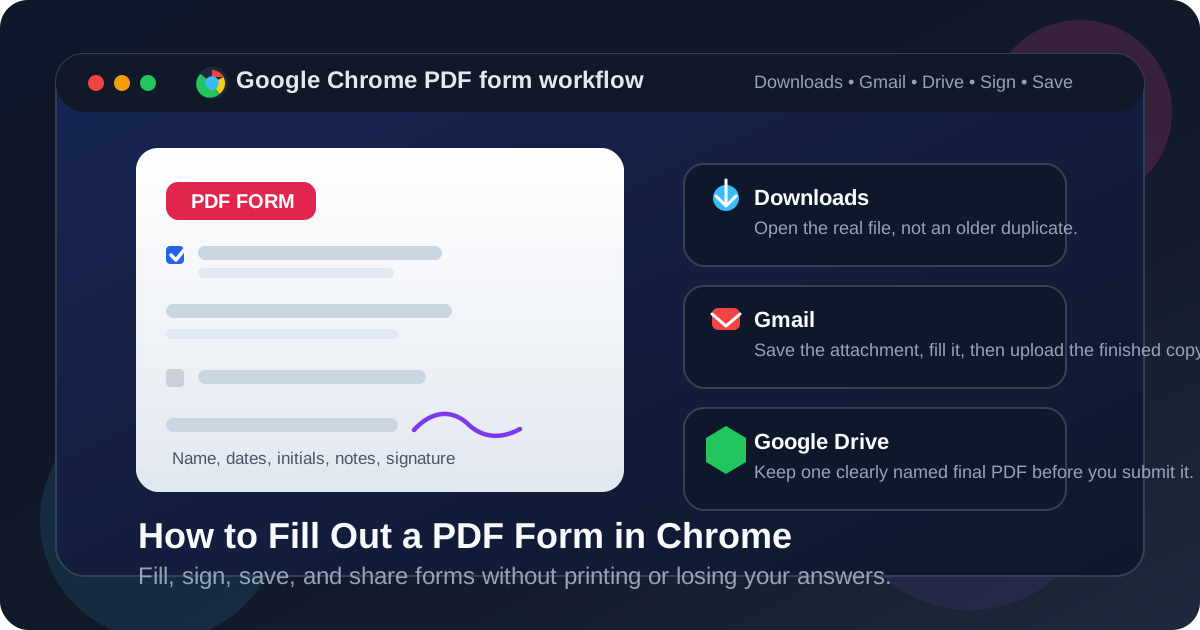
Table of contents
- Quick start: fill a PDF form in Chrome in a few minutes
- Why this Chrome workflow works well
- Step-by-step: fill the form in Chrome
- Fillable vs scanned vs locked PDF forms
- Chrome's PDF viewer vs a dedicated form filler
- How to sign, save, flatten, and submit the final PDF
- Common Chrome mistakes and quick fixes
- Best Chrome use cases for PDF forms
- Related LifetimePDF tools and guides
- FAQ (People Also Ask)
Quick start: fill a PDF form in Chrome in a few minutes
If you want the shortest route from incoming form to finished file, use this order:
- Open PDF Form Filler in Google Chrome.
- Choose the real PDF from Downloads, a saved Gmail attachment, Google Drive, or another folder.
- Type into the existing fields if the PDF is truly fillable.
- If the form is scanned or flattened, place text manually where each answer belongs.
- Add a signature with Sign PDF if the form requires it.
- Download the completed PDF, review it once, and only then email it back or upload it.
Why this Chrome workflow works well
Chrome is already where many PDF forms start. Someone emails you a form in Gmail. A school, client, or HR portal opens a PDF in a Chrome tab. A Google Drive link launches a preview in the browser before you ever think about files and folders.
That makes Chrome a good starting point, but not always a complete finishing tool. Chrome's built-in PDF viewer is useful for reading and sanity-checking a form, yet real-world forms often need more than simple viewing. You may need to type into fields, place text on top of a scanned page, add initials, insert a signature, flatten the result for a portal, or save a polished final copy that does not get mixed up with the original attachment.
A dedicated browser-based form filler keeps that whole workflow in one place without forcing you to print, handwrite, rescan, or juggle desktop software for a one-off task.
| Workflow piece | What Chrome helps with | What the dedicated tool handles better |
|---|---|---|
| Opening the form | Fast previews from Gmail, Drive, downloads, and portals | Uploading the exact file you want to complete |
| Typing answers | Basic readability and quick review | Field entry, manual text placement, checkmarks, and cleaner output |
| Finishing the file | Easy re-open and visual check | Signing, flattening, unlocking when authorized, and saving one final version |
Step-by-step: fill the form in Chrome
Here is the practical workflow that avoids most of the usual confusion.
Step 1: Identify the real source file before you start typing
A lot of PDF form mistakes have nothing to do with the form fields themselves. They happen because the wrong copy was opened. Before you answer anything, decide whether the real source is the Gmail attachment, the file you already downloaded, the copy in Google Drive, or the PDF inside a portal workflow.
If the filename is generic like form.pdf or application.pdf, rename the finished copy later with something clearer. That one habit saves a surprising amount of follow-up stress.
Step 2: Open PDF Form Filler in Chrome
Open LifetimePDF PDF Form Filler in Chrome and upload the exact file you plan to return. If the PDF came from Gmail or Drive, you do not need to overcomplicate the process. Just make sure you are working on the final source, not a preview that you will forget to save.
Step 3: Fill true fields first, then place text manually if needed
Some PDFs are built properly, which means the fields accept typing immediately. Others only look like forms but are really scanned pages, flattened exports, or converted files with no working fields underneath. In those cases, a form filler that can place text manually is the calmer option.
- Fillable PDF: click the field, type, move on.
- Scanned or flattened PDF: place text where the answer belongs.
- Checkbox-heavy forms: review alignment before saving so ticks or marks sit where they should.
- Date and initials fields: zoom in enough to keep placement clean rather than guessing at default scale.
Step 4: Add signatures after the answers are complete
If the document requires a signature, finish the rest of the form first. That way you do not have to redo the signature because a line of text moved, a checkbox was missed, or the signer date needed to change.
Use Sign PDF for that last step. It is usually cleaner than trying to squeeze a signature into a workflow too early.
Step 5: Save the completed copy with a name that makes sense
This is where Chrome users avoid the Gmail-and-Drive trap. Save the finished PDF with a filename that clearly distinguishes it from the original, such as tax-form-completed.pdf or client-intake-signed-final.pdf. If you leave the name unchanged, there is a good chance you will later upload the original blank form by mistake.
Fillable vs scanned vs locked PDF forms
Not every PDF form behaves the same way, and your Chrome workflow should change depending on the type of file you received.
| Form type | What it looks like | Best move in Chrome |
|---|---|---|
| Fillable PDF | Real input fields, tab order, clickable boxes | Upload it into PDF Form Filler, type into the fields, then save the final copy |
| Scanned PDF | Looks like a paper form turned into an image | Place text manually on top of the page and review spacing before saving |
| Flattened PDF | Looks crisp but fields are no longer interactive | Treat it like a static page and place the answers manually where needed |
| Locked PDF | Editing or form actions are restricted | Only use Unlock PDF if you are authorized to edit the file |
The useful mindset is simple: if you cannot type, it does not mean the form is impossible. It usually just means the PDF was built in a less helpful way than you hoped.
Chrome's PDF viewer vs a dedicated form filler
Chrome's built-in viewer is great for previewing PDFs quickly, but it is not always the right place to finish the job. If the form is simple, you may get away with a basic viewer. If the stakes are higher, the dedicated route is usually smoother.
| Method | Best for | Where it struggles |
|---|---|---|
| Chrome PDF viewer | Opening, reading, and checking a PDF quickly | Scanned forms, manual text placement, consistent signing, and portal-friendly finishing |
| LifetimePDF PDF Form Filler | Typing, placing text, signing, and saving polished forms from one browser workflow | You still need a final review pass before sending |
In other words, Chrome is a great doorway. The dedicated form filler is what actually gets the document over the finish line cleanly.
How to sign, save, flatten, and submit the final PDF
Once the answers are in place, most people still have one more step. They need to sign the form, upload it to a portal, or email it back without sending a messy version.
- Need a signature? Use Sign PDF after the form content is complete.
- Portal rejects interactive fields? Run the finished file through Flatten PDF so the visible answers stay fixed.
- File is too large? Use Compress PDF after the content is finalized.
- Contains private data? Consider Protect PDF before storing or sharing the final copy.
Common Chrome mistakes and quick fixes
I filled the form in a preview, then lost my answers
This usually happens when someone edits a browser preview mentally instead of treating the file like a real final document. Save or upload the actual PDF into the form filler first, then save the finished output clearly.
The form will not let me type anywhere
The PDF is probably scanned, flattened, or badly built. Use a tool that can place text manually instead of assuming the file is broken beyond repair.
The file is locked
If you are allowed to edit it, use Unlock PDF. If you are not authorized, stop there and ask for an editable version rather than forcing the wrong workflow.
My signature looked fine until I changed another answer
That is why signing should come after the form content is final. Fill first. Sign second. Flatten only if necessary.
The portal rejected the completed file
Try flattening the form after you finish it. Many upload systems behave better with one stable, non-interactive final PDF.
I uploaded the blank form instead of the completed one
Rename the finished file immediately and store it where you can identify it at a glance. Chrome, Gmail, and Drive are all helpful right up until they give you three nearly identical filenames to choose from.
Best Chrome use cases for PDF forms
Filling out a PDF form in Chrome is especially practical when the document already reached you through a browser-first workflow.
- Job and HR forms: complete onboarding packets, agreements, and tax forms sent by email or portal.
- School paperwork: finish consent forms, applications, and student documents from Gmail or Drive.
- Client intake packets: answer forms, sign them, and send them back without printing anything.
- Government or healthcare forms: fill out the official PDF, then flatten the final copy if the portal is strict.
- Remote teams: handle shared PDFs from Google Drive without bouncing between several apps.
In each case, the benefit is speed without sacrificing clarity. You stay in Chrome, but you still finish with a proper completed PDF instead of a loose collection of previews and guesswork.
Related LifetimePDF tools and guides
Filling the form is usually part of a larger PDF workflow. These tools and guides pair well with it:
- PDF Form Filler — complete fillable, scanned, and awkward PDFs in one browser workflow.
- Sign PDF — add the signature after the form answers are complete.
- Unlock PDF — remove editing restrictions if you are authorized to do so.
- Flatten PDF — lock the visible answers into a more portal-friendly final copy.
- Compress PDF — reduce file size after the form is finished.
- How to Sign a PDF in Chrome — the next step when a completed form still needs a signature.
- How to Flatten a PDF in Chrome — useful when upload systems want a more stable final file.
- How to Fill Out a PDF Form on Windows — broader device guidance if your workflow is more desktop-centered than browser-centered.
Quick decision: use PDF Form Filler for the answers, Sign PDF for the signature, Unlock PDF only when you are allowed to edit the file, and Flatten PDF when the portal needs a steadier final copy.
FAQ: How to fill out a PDF form in Chrome
Can I fill out a PDF form directly in Chrome?
Chrome is great for opening PDFs, but a browser-based PDF form filler inside Chrome is usually the easiest way to type, place text, sign, save, and finish the file cleanly.
How do I fill out a PDF form from Gmail or Google Drive in Chrome?
Open or save the PDF from Gmail or Google Drive, confirm which copy is the real one you need to return, upload that file into a PDF form filler in Chrome, complete the answers, save the finished PDF, and review it once before sending it back.
What if the PDF form will not let me type in Chrome?
The PDF is usually scanned, flattened, or permission-restricted. Use a form filler that can place text manually, or unlock the file first if you are authorized to edit it.
Should I sign the form before or after filling it out in Chrome?
Usually after. Finish the rest of the form first, then add the signature so the final placement stays clean and you do not have to redo it later.
What if a portal rejects the completed PDF?
Flatten the completed form to lock in the visible answers, and compress it afterward if the portal also has strict file-size limits.
Published by LifetimePDF — Pay once. Use forever.