How to Fill Out a PDF Form and Save It: Type, Sign & Download a Clean Final Copy
To fill out a PDF form and save it, open the file in a PDF form filler, type into real fields or place text manually where needed, then download the completed PDF and review it once before sending.
If the form will not accept typing, it is usually scanned, flattened, or restricted, so you need a workflow that lets you add text, dates, checkmarks, and signatures without printing and rescanning.
That is the direct answer. The useful part is knowing how to handle the three versions of this problem people actually face: a true fillable form, a static scanned form that only looks editable, and a file that saves badly or comes back rejected by email, HR, legal, healthcare, tax, school, or government portals. A good workflow should work on Windows, Mac, Linux, Chromebook, iPhone, iPad, and Android without turning a five-minute task into a print-sign-scan detour.
Fastest practical path: open PDF Form Filler, upload the right copy of the document, complete the answers, sign it if needed, download the final PDF, and review it once before sending.
In a hurry? Jump to quick start: fill out and save a PDF form in under 5 minutes.
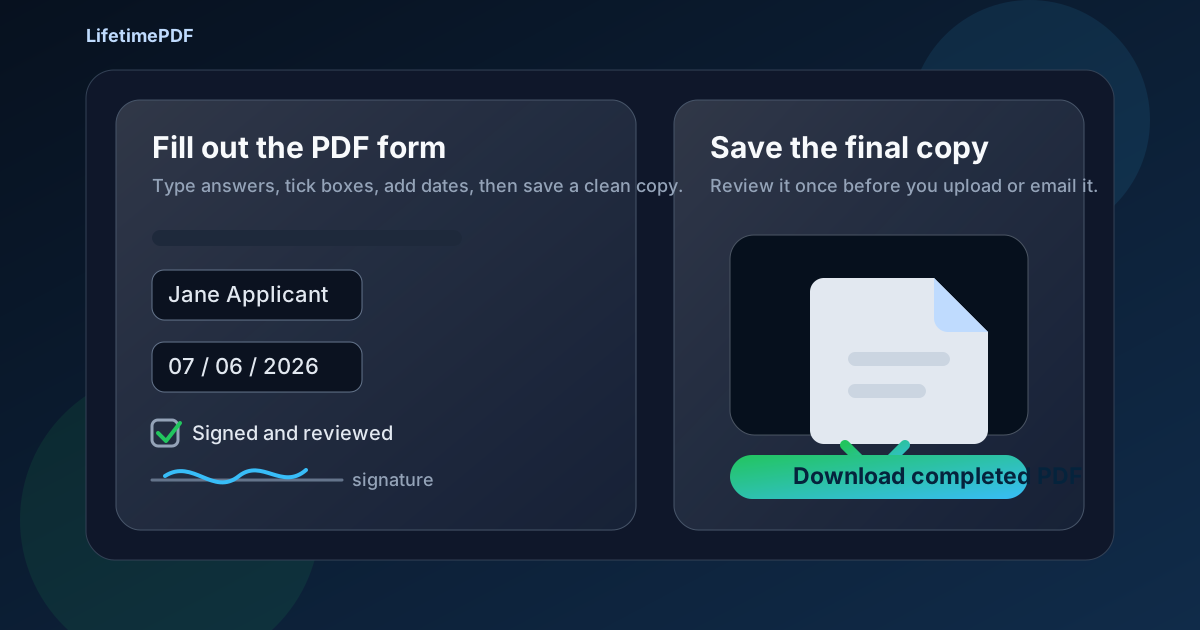
Table of contents
- Quick start: fill out and save a PDF form in under 5 minutes
- What “fill out a PDF form and save it” actually means
- Fillable vs scanned vs restricted PDFs
- Step-by-step: the easiest workflow from blank form to finished copy
- How to save a clean final copy that is ready to send
- Signatures, initials, dates, and other finishing touches
- Common problems when a PDF form will not behave
- Privacy and security checks before you send the file
- Related LifetimePDF tools and guides
- FAQ
Quick start: fill out and save a PDF form in under 5 minutes
If you want the shortest route from blank form to finished file, use this order:
- Open PDF Form Filler.
- Upload the exact PDF you plan to send back, not a preview copy from a browser tab if you can avoid it.
- Type into the form fields if the PDF is truly fillable.
- If the form is scanned or flattened, place text, dates, and checkmarks manually where each answer belongs.
- Add a signature with Sign PDF after the main content is complete.
- Download the finished file, reopen it once, and only then email or upload it.
What “fill out a PDF form and save it” actually means
The phrase sounds simple, but it usually combines four smaller jobs:
- Open the right copy so you are not editing a disposable preview or stale attachment.
- Complete the form content with names, dates, addresses, notes, checkboxes, and responses.
- Add finishing marks such as initials, signatures, or a date field if the document needs them.
- Save a clean final PDF that still looks right when reopened, uploaded, forwarded, or archived.
Most frustration happens at the edges of that workflow. Someone can type into the file but not save it cleanly. Someone else can save it, but the document was only a scan so the answers look misaligned. Another person fills the form in a portal preview, closes the tab, then discovers they never changed the actual file they intended to send. Once you treat the workflow as a sequence instead of one vague action, the problem gets much easier.
Fillable PDF form
Best-case scenario. The PDF contains real form fields, accepts focus, and usually lets you tab from field to field.
Scanned or flattened PDF
Looks like a form, but behaves like a picture. You need manual text placement instead of built-in fields.
Restricted or awkward PDF
The file may be locked, badly built, or unstable after saving. In that case, unlock it first or rebuild the workflow around a cleaner copy.
Fillable vs scanned vs restricted PDFs
Before you worry about saving, it helps to know what kind of file you actually have.
Fillable PDFs
These contain actual interactive fields underneath the design. Clicking into a name box usually shows a cursor. Pressing Tab often moves from one field to the next. Saving is normally straightforward because the form was built for typing in the first place.
Scanned or flattened PDFs
These are common with government forms, lease paperwork, medical forms, school packets, and anything that has been printed and rescanned at least once. The page may look perfectly professional, but the “fields” are only visual boxes and lines. You can still complete the form; you just need to place text on top of the page instead of expecting real field behavior.
Restricted PDFs
Some PDFs are locked against editing, protected in awkward ways, or built so poorly that they fail after download. If you are authorized to work with the file, start with PDF Unlock so you are not fighting a file-level restriction while trying to finish basic form work.
Quick reality check before you commit to the form
- Click test: does a cursor appear in the field?
- Tab test: can you move between fields?
- Search test: can you select or find text, or is the page acting like one big image?
- Save test: after entering one sample value, does it survive a close-and-reopen check?
If you want a deeper diagnosis before editing, the companion guide How to Check if a PDF Has Fillable Fields is a good first stop.
Step-by-step: the easiest workflow from blank form to finished copy
Here is the workflow that works well across desktop and mobile without depending on one specific operating system.
Step 1: Save one working copy first
If the PDF came from email, a portal download, chat, or cloud storage, save one copy in a place you can find again. That sounds obvious, but it prevents one of the most common mistakes: editing a preview, then later opening a different version and thinking your changes vanished.
Step 2: Upload the PDF into a form filler
Open LifetimePDF PDF Form Filler and upload the file from Downloads, Documents, your desktop, Files, or your phone storage. This gives you one stable workspace whether the PDF is truly fillable or not.
Step 3: Enter the answers in the right style for the file
If the form contains real fields, type normally. If it does not, place text manually with clean alignment and consistent sizing. This is where many people lose time by insisting the file should behave differently instead of switching to the right method.
Step 4: Add dates, checkmarks, initials, and signatures only after the answers are stable
Signatures should usually come near the end, not at the beginning. If you sign too early and later realize a field is missing or a date format is wrong, you create extra cleanup work for yourself.
Step 5: Download the completed PDF and reopen it once
The reopen check is worth the extra few seconds. It confirms whether text stayed aligned, pages saved in the correct order, and signature placement still looks professional outside the editing view.
Step 6: Only then compress, protect, or send it
After the form itself is correct, you can shrink it for upload limits with Compress PDF, remove sensitive data with Redact PDF, or secure it with PDF Protect if the recipient expects a protected final copy.
Best next move after the first save: reopen the file immediately. If it still looks clean, you can send it with far more confidence.
How to save a clean final copy that is ready to send
A saved PDF is only useful if it still looks right after you download it. These habits help more than people expect:
- Keep text alignment consistent so dates, names, and notes look intentional instead of drifting across the page.
- Use one working copy instead of downloading multiple near-identical versions with confusing names.
- Check every signature page because signatures often reveal spacing issues that text alone does not.
- Review on the same device you plan to send from if the form is headed to a mobile portal or email client with strict preview behavior.
- Compress only after content is final so you are not repeatedly shrinking and re-editing the same file.
| If the PDF behaves like this | Best next step |
|---|---|
| The fields accept typing normally | Finish the answers, save the file, reopen it once, then send it. |
| The page looks like a form but does not accept typing | Place text manually with a form filler instead of fighting the dead fields. |
| The file is locked or edit controls are blocked | Unlock an authorized working copy first, then complete the form. |
| The completed PDF is too large for upload | Compress the final saved copy, then reopen it once before submission. |
| The form contains private information you do not need to share | Redact the extra information before emailing or uploading the document. |
In other words, “save it” is not the finish line by itself. The real finish line is a file that opens cleanly, preserves your changes, and is ready for the next person or system that needs it.
Signatures, initials, dates, and other finishing touches
Once the form content is correct, the finishing details usually go quickly.
Use signatures at the end of the workflow
This keeps you from nudging the signature around after fixing a forgotten checkbox, missing date, or line break above it. If the recipient only needs a normal signed form, Sign PDF is usually enough.
Make dates readable and consistent
Use the date format the form or recipient expects. A neat date field is a small detail, but it makes the whole document feel more trustworthy.
Be careful with portals that validate file size or page count
A finished PDF can still bounce if it exceeds upload limits. Compress after saving, and if the portal is unusually strict, make sure the page count and orientation still look correct before the final upload.
Practical signing rule
If the document does not specifically require a certificate-based digital signature workflow, most people should treat signing as a final placement step after the form answers are complete and reviewed.
Common problems when a PDF form will not behave
"I can't type into the form"
The PDF is probably scanned, flattened, or poorly built. Switch to manual text placement instead of assuming the file contains live fields.
"My changes did not save"
You may have edited a preview copy or closed the file before downloading the finished version. Save one working copy and reopen the final download.
"The file is locked"
Use PDF Unlock if you are authorized to edit the document. Restrictions often block normal form work for no good reason.
"The upload portal rejected the file"
Compress the completed copy, verify the page count, and make sure the file still opens normally before trying again.
If the issue starts earlier in the process, the platform-specific guides for Windows, Mac, iPhone, iPad, Android, Chromebook, and Linux can help with device-specific quirks.
Privacy and security checks before you send the file
Form work often involves sensitive information, so the last minute before sending is worth using well.
- Review every page for stray notes, duplicate signatures, or fields you meant to leave blank.
- Redact what is not required if the recipient only needs part of the information.
- Protect the file when appropriate using PDF Protect.
- Compress only after the content is final so you do not accidentally send the wrong revision.
- Keep your finished copy in a clearly named folder in case you need to resend it later.
None of that is complicated, but those small checks are exactly what separates a quick, confident submission from an annoying round of “please resend the form” emails.
Related LifetimePDF tools and guides
If you need help with the next step after filling out the form, these pages are the most natural companions:
If your first question is whether the document is even editable, start with How to Check if a PDF Has Fillable Fields. If you already know the device you are working on, jump straight to the platform guide that matches it.
FAQ
How do I fill out a PDF form and save it?
Open the PDF in a form filler, upload the file, type into real fields or place text manually, then download the completed copy and review it once before sending.
Why can't I type into my PDF form?
The file is usually scanned, flattened, or restricted. In that case, use manual text placement or unlock the PDF first if you are authorized to edit it.
Should I sign the PDF before or after I fill it out?
Usually after. Fill the form first, then add the signature once the rest of the content is correct so you do not have to reposition it later.
Can I save a scanned PDF form after typing on it?
Yes. A scanned form can still be completed by placing text, dates, checkmarks, and signatures on top of the page, then saving the finished copy.
What should I do if the completed PDF is too large to upload?
Compress the completed PDF after saving it, then reopen the smaller file once to make sure everything still looks right before submission.
Bottom line: the best way to fill out a PDF form and save it is to use one steady workflow from upload to final review instead of bouncing between previews, printers, and rescans.