How to Edit a PDF on iPhone: Fill Forms, Change Text, and Save a Clean Final Copy from Files, Safari, or Mail
To edit a PDF on iPhone, open the file from Files, Mail, Messages, or Safari Downloads and use a browser-based PDF editor for cleaner typed changes, form filling, and placed text; use Markup only for light notes or quick one-off touches.
If you need to rewrite full sentences or paragraphs, convert the PDF to Word first; if the file is scanned, run OCR before trying to edit it because iPhone cannot meaningfully edit text that is still just an image.
That is the short answer. The useful part is knowing when iPhone editing is genuinely easy, when a PDF is fighting you because it was never meant to be deeply edited, and how to avoid the classic mobile mess where the file exists in Mail, Files, and Downloads at the same time and you end up changing the wrong copy.
Fastest path: open the PDF from Files or Mail, use a browser tool for form-style changes or placed text, move bigger rewrites into PDF to Word, then reopen the finished PDF once from Files before you send it anywhere.
In a hurry? Jump to Quick start: edit a PDF on iPhone in a few minutes.
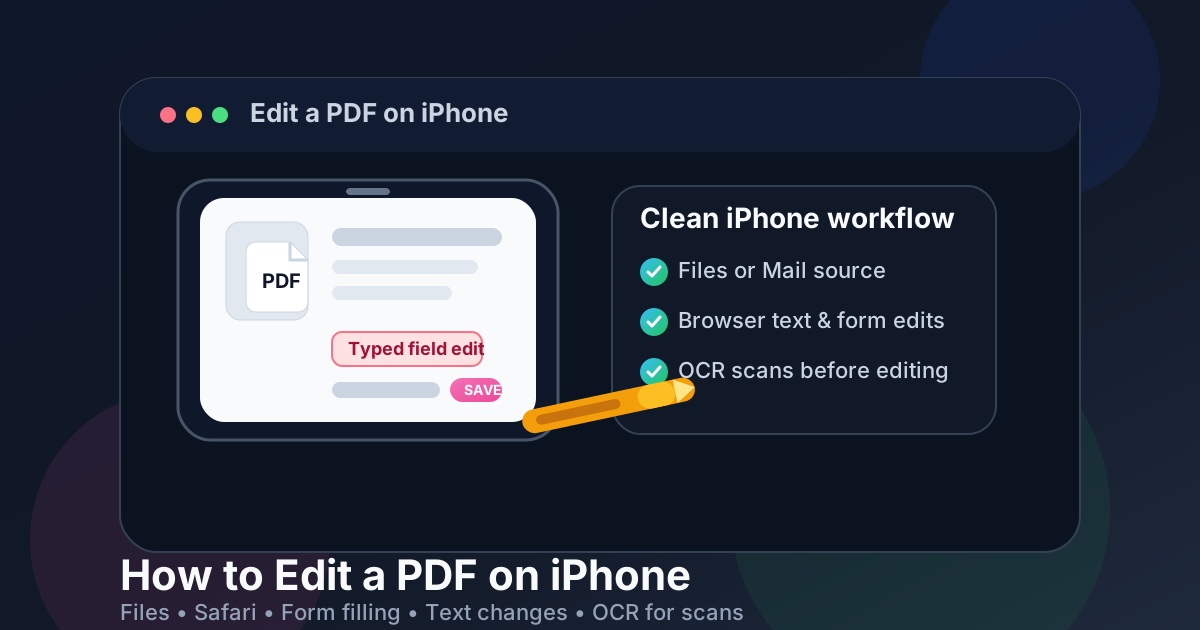
Table of contents
- Quick start: edit a PDF on iPhone in a few minutes
- The best iPhone workflow for editing PDFs
- Files, Safari, and Markup: which option fits the job?
- Step-by-step: edit a PDF from Files, Mail, Messages, or Safari Downloads
- Text edits, form fields, and signatures on iPhone
- How to handle scanned PDFs on iPhone
- How to save, share, and secure the final copy
- Common iPhone PDF editing problems and quick fixes
- Related LifetimePDF tools and guides
- FAQ
Quick start: edit a PDF on iPhone in a few minutes
If your PDF is already on your phone and you mainly want the clean answer, this is the workflow most people actually need:
- Open the exact file from Files, Mail, Messages, or Safari Downloads.
- Use Markup only if you just need a tiny note, highlight, or quick signature-like touch.
- Use Edit PDF or PDF Form Filler if you want cleaner typed text, form fields, or a more reliable save-and-download flow.
- If you need to rewrite sentences or paragraphs, switch to PDF to Word, make the change there, then export again with Word to PDF.
- If the PDF is really a scan, run OCR PDF first.
- Save the finished file with a clear new name and open it once from Files before sharing it.
The best iPhone workflow for editing PDFs
On iPhone, PDF editing works best when you stop treating every change as the same job. Sometimes you are really just filling a form. Sometimes you are signing a document. Sometimes you want one tiny text correction. Sometimes you are trying to rewrite a paragraph inside a file that was exported as a final layout and never wanted to be deeply edited in the first place.
That is why the best iPhone workflow is usually this simple:
- Markup for very light work: highlights, notes, and simple one-off touches.
- Browser tools for cleaner placed edits: better when you want typed text, form filling, or a smoother save-and-share workflow from Safari.
- PDF to Word for bigger text changes: safer for rewrites, clause updates, or paragraph fixes.
- OCR for scanned PDFs: the first step when the text cannot be selected at all.
iPhone workflows often feel easy until duplicate copies start spreading. The PDF might live in Mail, inside Files, in a Safari download folder, and in a message thread at the same time. A good workflow keeps one obvious source file, makes the smallest useful change, then saves one clearly named final copy.
Files, Safari, and Markup: which option fits the job?
A lot of iPhone users start by tapping the PDF wherever it lands, and that instinct is fine. The trick is understanding what each route is actually good at and where it starts to feel improvised.
| What you need to do | Best iPhone option | Why it works |
|---|---|---|
| Highlight text, add a quick note, or make one tiny touch | Markup | Fast and built in, with almost no setup. |
| Fill form-style fields or place typed text cleanly | Browser-based PDF editor | Usually easier for cleaner placed edits and a more controlled export workflow. |
| Rewrite sentences, clauses, or paragraphs | PDF to Word | Real text rewrites are usually safer outside the fixed PDF layout. |
| Edit a scanned PDF | OCR first | A scan behaves like an image until recognition makes the text searchable and selectable. |
In plain English: use Markup when the edit is tiny and local. Use a browser tool when you want cleaner field entry or placed text. Leave the PDF layer when the change is really a content rewrite, not a markup job.
Step-by-step: edit a PDF from Files, Mail, Messages, or Safari Downloads
1) Start with the exact PDF you mean to change
This sounds obvious, but it is one of the most common iPhone mistakes. You preview a file from Mail, save a copy into Files, download another from Safari, then later edit the wrong version. If the document matters, save one clear source copy first.
2) Decide whether the job is markup, form filling, or real editing
If you only need to highlight, note, or make one tiny correction, Markup may be enough. If you want a cleaner typed workflow, open Edit PDF or PDF Form Filler in Safari.
3) Keep small changes small
Minor date changes, names, short notes, form answers, and signatures are one thing. Full paragraph rewrites are another. If the text change is getting bigger than a quick correction, stop forcing it inside the PDF and move the file through PDF to Word instead.
4) Reopen the saved copy once on your iPhone
Do not trust the editing moment alone. Open the finished file from Files and look at it like the next person will. This is where you catch awkward line breaks, covered totals, a missed field, or the classic problem where you saved the wrong version under the wrong name.
5) Finish the workflow instead of leaving it half-done
If the file is sensitive, protect it. If it contains private information that should not remain, redact it. If it is bulky because of scans or screenshots, compress it. Editing is often only one step in the real iPhone workflow.
Clean sequence: choose the real source PDF → use Markup or a browser editor for light changes → switch to Word for bigger rewrites → OCR scans first → reopen the final copy once before sharing.
Text edits, form fields, and signatures on iPhone
Most iPhone PDF editing jobs fall into one of three buckets. Once you know which bucket you are in, the next step becomes much clearer.
Light form filling and placed text
If the document is basically a form, use PDF Form Filler for a cleaner browser-based workflow for typed fields, placed text, and a polished save step. This is a great fit for contracts, onboarding documents, school forms, intake packets, approvals, and upload-ready paperwork.
Small text corrections
Small changes can work directly in a browser-based editing workflow, especially if the document only needs one name, date, total, or short phrase adjusted. Keep the change modest and always check the saved result at normal zoom from Files afterward.
Bigger text rewrites
If you need to change whole sentences, update policy wording, rewrite a proposal paragraph, or revise several sections, do not make iPhone PDF editing harder than it needs to be. Convert with PDF to Word, make the rewrite there, then export a new PDF with Word to PDF.
The reason is simple: the deeper the text rewrite, the more likely the PDF layout will start pushing back with weird spacing, clipped lines, or awkward reflow.
If your main job is markup rather than editing, you may also want how to annotate a PDF on iPhone. If the real goal is a signature, how to sign a PDF on iPhone is the more specific guide.
How to handle scanned PDFs on iPhone
A scanned PDF is where iPhone users lose the most time. You tap on the page, try to change a sentence, and nothing behaves like text. That is because the PDF is often just a photograph of the original document.
The fix is to run OCR PDF first so the text becomes searchable and selectable. After that, you can review what the recognition found and decide whether you only need searchability, a few fixes, or a deeper text workflow.
- Run OCR first if you cannot select text normally.
- Check names, dates, totals, and signatures more carefully if the scan quality is poor.
- Expect more cleanup if the scan is crooked, shadowed, low-resolution, or handwritten.
- Use conversion only after recognition if the final goal is a deeper text rewrite.
For many iPhone users, OCR is the real win. A searchable PDF is often more useful than a heavily rewritten PDF, especially for receipts, intake packets, old paper files, and archive documents that just need to become usable again.
How to save, share, and secure the final copy
Save the edited PDF with a new name
Try not to trust a vague filename like document-final-final2.pdf. Use something that explains what changed, such as lease-signed-and-filled.pdf, application-completed.pdf, or proposal-revised.pdf. iPhone folders get messy quickly when Files, Mail, and Safari all keep their own versions.
Protect the file if access actually matters
A clean edit does not control who opens the file. If the document should not be casually opened or altered, add a password with PDF Protect after the content is final.
Redact anything that should not remain
If private information appears in the document, use Redact PDF. Do not confuse visual coverage with actual removal. If the content must be gone, it needs redaction, not a box or annotation sitting on top.
Compress the file if it got bulky
If the edited PDF is large because of scans, screenshots, or image-heavy pages, shrink it with Compress PDF before attaching it to email or uploading it to a portal.
Common iPhone PDF editing problems and quick fixes
The file lets me mark it up, but not really rewrite the text
That is normal. iPhone tools are strong for markup, notes, and form-style changes, but they are not the best place for bigger paragraph edits. Move the PDF through Word if the change is truly content-level.
I edited the wrong copy from Mail, Files, or Safari Downloads
Save one source copy into one obvious folder before you start. Mobile convenience becomes chaos fast when the same PDF exists in four places.
The saved file looks worse than it did while I was editing it
Reopen the finished PDF outside the editing interface and inspect it at normal zoom. Layout problems, covered text, and bad line breaks show up more clearly in the final saved copy.
The PDF is scanned and nothing is selectable
That means OCR comes first. Until recognition happens, you are mostly interacting with an image, not editable text.
I only needed a form fill or signature, not a full edit
Good. Keep the workflow light. Use a form-focused tool or a signing flow instead of treating every iPhone PDF task like a full document rewrite.
Related LifetimePDF tools and guides
Editing a PDF on iPhone often turns into one or two related cleanup steps. These are the most useful companion tools:
- Edit PDF — start a browser-based editing workflow.
- PDF Form Filler — fill fields, place typed text, and complete form-style documents.
- PDF to Word — better for bigger text rewrites.
- Word to PDF — export a fresh clean PDF after editing the source content.
- OCR PDF — turn scans into searchable, selectable documents.
- PDF Protect — add password protection to the final copy.
- Redact PDF — remove sensitive information permanently.
- Compress PDF — shrink a bulky edited file before sending.
Related reading on LifetimePDF: how to fill out a PDF form on iPhone, how to fill out an uneditable PDF form on iPhone, how to sign a PDF on iPhone, how to redact a PDF on iPhone, and how to watermark a PDF on iPhone.
iPhone shortcut: use Markup when the change is tiny, use a browser tool when you want a cleaner editing flow, move bigger rewrites into Word, and OCR scanned PDFs before trying to edit them.
FAQ: How to edit a PDF on iPhone
How do I edit a PDF on iPhone without installing an app?
Open a browser-based PDF editor in Safari, upload the file from Files or Mail, make the change, download the edited copy, and review it once from Files before sharing it. That gives you a cleaner workflow than trying to do every job inside Markup.
Can iPhone edit the actual text of a PDF?
It can handle light typed edits and form-style changes through a browser-based editor, but bigger paragraph rewrites are usually easier after converting the PDF to Word. PDFs are designed to preserve layout, so deep text editing is rarely the smoothest route on a phone.
What is the best way to edit a scanned PDF on iPhone?
Run OCR first. A scanned PDF usually behaves like an image until OCR makes the text searchable and selectable, which gives you a much better starting point for edits or conversion.
Can I fill out and sign a PDF on iPhone in the same workflow?
Yes. Fill the typed fields first with PDF Form Filler, then sign the document afterward. That keeps the layout cleaner and makes it less likely that the signature will cover nearby fields or labels.
Should I use Markup or a browser-based editor on iPhone?
Use Markup for highlights, notes, and very small one-off changes. Use a browser-based editor when you want cleaner placed text, form filling, better save-and-download control, or a smoother workflow from Files, Mail, and Safari.
Published by LifetimePDF — Pay once. Use forever.