How to Crop a PDF in Brave: Remove White Margins, Scanner Borders, and Crop Marks Without Losing the Right Version
To crop a PDF in Brave, open LifetimePDF's Crop PDF tool in Brave, choose the file from Downloads, Gmail, Google Drive, or a local folder, adjust the crop area so only the content you want remains, then save the cleaned PDF.
If the page only looks messy because of white margins, dark scanner borders, or crop marks, cropping is usually the fastest browser-based fix before you bother with OCR or compression.
That is the short answer. The part that actually saves time in Brave is keeping track of the real source file when a portal preview, a Gmail attachment, a Drive copy, and a duplicate download all look close enough to be dangerous.
Fastest path: confirm the exact source file first, open LifetimePDF's Crop PDF tool in Brave, trim only the outer clutter you really want gone, save the cleaned copy with a clear filename, then move on to OCR, compression, or sharing only if the document still needs more work.
In a hurry? Jump to Quick start: crop a PDF in Brave in 4 minutes.
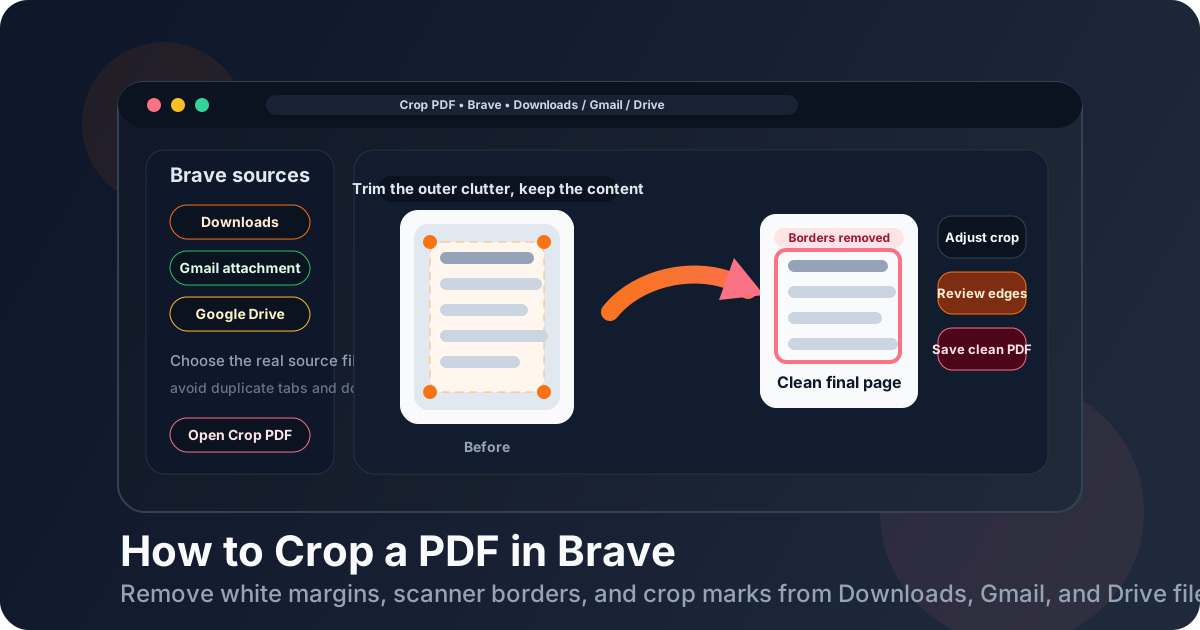
Table of contents
- Quick start: crop a PDF in Brave in 4 minutes
- The easiest Brave workflow for cropping PDFs
- Step-by-step: how to crop a PDF in Brave
- What cropping actually fixes in Brave
- Brave preview vs a browser-based crop tool
- Crop one page vs the whole PDF in Brave
- How to handle Gmail attachments, Drive files, and Downloads without cleaning the wrong copy
- Common Brave problems and quick fixes
- What to do after the PDF looks clean
- Related LifetimePDF tools and guides
- FAQ
Quick start: crop a PDF in Brave in 4 minutes
If you already know the page just needs a cleaner border, this is the simplest Brave workflow for most people:
- Open Crop PDF in Brave.
- Choose the PDF from Downloads, a saved Gmail attachment, Google Drive, or another folder.
- Decide whether you need to crop one page or apply the same crop across several similar pages.
- Trim away the white margins, dark scanner edges, or crop marks without touching the real content.
- Download the cleaned PDF, save it with a clear name, and open it once in Brave to confirm the result.
The most important part is not the crop box. It is making sure you clean up the right file. Brave makes it easy to have a Gmail preview, a Drive tab, and a duplicate from Downloads open at the same time.
The easiest Brave workflow for cropping PDFs
Brave is often where rough-looking PDFs already show up. A Gmail attachment opens in a tab, a portal export lands in Downloads, Google Drive launches another copy in preview, and an older version might still be hanging around from an earlier browser session. That is why the crop itself usually is not the hardest part. Source confusion is.
People often trim the page area on the first PDF they happen to have open, then later upload the untouched original because Brave still had the wrong version sitting in another tab. Others crop too aggressively because the preview looked ugly and they wanted the border gone fast. The safer pattern is simple: identify the exact source file, crop only the outer junk, save the cleaned copy with a distinct name, and review it once before you share it.
| Situation | Best Brave-friendly move | Why it works better |
|---|---|---|
| The PDF has huge white margins around every page | Crop the pages evenly | You make the content feel larger and cleaner without changing the document text or page order. |
| The scan has dark edges or copier shadows | Check orientation, then crop | You remove the noisy outer frame while keeping the actual page area intact. |
| The file still shows crop marks or print marks | Trim only the production leftovers | You keep the intended page content while removing what only mattered during print prep. |
| Only one cover page or appendix page looks wrong | Crop just that page | There is no reason to force the same trim onto pages that already look fine. |
| The final PDF is still too large | Crop first, then compress | It is smarter to fix the visible page area before optimizing file size. |
Step-by-step: how to crop a PDF in Brave
Here is the practical browser workflow most people actually need.
1. Confirm the real source PDF first
If the file came from Gmail, Google Drive, a portal, Slack, or a local folder, pause long enough to confirm which copy is supposed to be the source. A browser preview, a shared-link view, and a downloaded local file can look interchangeable when they are not.
2. Open Crop PDF in Brave
Go to Crop PDF in Brave. Keeping the whole cleanup workflow inside one browser session is usually the least annoying way to move from preview into a real edit.
3. Upload the PDF from Downloads, Gmail, Drive, or another folder
Choose the version you actually intend to keep after cleanup. If there are duplicate downloads with names like scan.pdf, scan (1).pdf, and scan-final.pdf, this is the moment to slow down before you trim anything.
4. Decide what the crop is supposed to remove
Do not drag the crop box blindly. Identify the actual problem first:
- White margins: trim the empty border so the content sits more cleanly on the page.
- Dark scanner edges: remove the noisy outer frame without cutting off stamps, signatures, or page numbers.
- Crop marks or print marks: trim the production leftovers but keep the intended page content.
- One oversized page in a packet: crop only the page that looks wrong so the rest stay untouched.
5. Apply the crop to the correct page scope
If every page has the same border problem, a consistent crop across the document usually looks cleaner. If only one page is messy, crop only that page. Mixed documents are where people overcorrect, so take an extra second before you apply the crop broadly.
6. Save the cleaned PDF with a clear filename
Good naming saves real time later. A name like proposal-cropped.pdf, scan-cleaned.pdf, or packet-trimmed.pdf is much more useful than document-final-2.pdf.
7. Open the result once before you share it
In Brave, one quick review pass prevents a lot of avoidable mistakes. Make sure the margins or borders you wanted gone are really gone, the useful content is still intact, and you did not crop too aggressively near signatures, page numbers, or footnotes.
Useful habit: keep the original untouched until the task is finished. Edit the copy, review the copy, then share the copy.
What cropping actually fixes in Brave
Cropping is not the same as editing text, redacting content, or reorganizing pages. It is mainly about cleaning up the visible page area so the document feels intentional instead of awkward.
Oversized white margins
These often come from scans, exported handouts, or documents converted with too much empty space around the content. Cropping makes the text block feel larger and easier to read, especially on laptop screens inside a browser viewer.
Dark scanner borders
Flatbed scans and phone-captured pages often bring along shadowy edges, uneven black frames, or accidental background noise. Cropping removes those distractions and makes the final file look much more deliberate.
Crop marks, trim marks, and print production leftovers
Some PDFs were created for print and still show marks around the outside edge. If the recipient only needs the finished page content, cropping those marks away is often the cleanest browser-friendly fix.
One page that does not match the rest of the packet
This is common in merged PDFs where most pages are normal but one appendix, screenshot, or inserted scan carries a different amount of empty space. Cropping just that page can make the whole packet feel more polished.
Brave preview vs a browser-based crop tool
Brave's built-in PDF viewer is good for inspection. It lets you notice the ugly margins, the scanner border, or the page that looks wrong. But when you actually need to crop and save a corrected version, a browser-based crop tool is usually smoother.
That distinction matters because previewing and fixing are not the same job. Brave can help you understand what is wrong with the file, but the real question is whether you now have a clean final PDF you can upload, email, archive, or share.
| Option | Best for | Limit |
|---|---|---|
| Brave PDF viewer | Checking whether the PDF has border, margin, or orientation problems | It is mainly a viewing step, not the cleanest place to create a polished cropped copy. |
| Browser-based Crop PDF tool | Actually trimming the page area and saving a clean final file | You still need to review the result once so you do not cut off useful content. |
Crop one page vs the whole PDF in Brave
This is one of the most important decisions in the workflow. Cropping every page is not automatically better. It is only better when the document really has the same border problem across the whole file.
Crop one page when:
- only one scan page has dark edges
- the cover page has print marks but the rest does not
- one inserted screenshot or form has awkward extra space
- you are fixing a single appendix page in a merged packet
Crop the whole PDF when:
- every page came from the same scanner and has the same outer border problem
- all pages have oversized empty margins that make the file hard to read
- the PDF was exported with a consistently oversized page area
If you are unsure, start with one page. It is safer to test your crop on a representative page first than to apply the same trim everywhere and discover too late that tables, page numbers, or signatures sit closer to the edge on other pages.
How to handle Gmail attachments, Drive files, and Downloads without cleaning the wrong copy
Gmail attachments
Gmail preview is useful for confirming you have the right attachment, but it is not the best place to trust your memory about versions. If the file matters, save the real attachment or make sure you know exactly which Brave tab is tied to the source before you crop it.
Google Drive files
Drive is convenient, but it can blur the line between the cloud copy, a shared revision, and a downloaded local file. If the document may have changed recently, confirm which copy is supposed to be final before you trim anything.
Downloads in Brave
Downloads is often the easiest place to work from, but it is also where duplicates pile up. Brave also makes it easy to reopen a recently viewed PDF and assume it is the newest copy. Check the filename and modified date before you trim anything.
Portal previews and duplicate tabs
Client portals, school systems, and service dashboards often create a preview first and a download second. If the document matters, make sure you are cleaning the actual downloaded file rather than trusting the tab that happened to stay open.
Rule of thumb: if you are not completely sure which copy is current, stop and identify the source file before you trim any page area.
Common Brave problems and quick fixes
I cropped the PDF, but I reopened the wrong version
This is classic browser behavior when a preview tab, a download, and a Drive copy all stay visible. Save the cleaned file with a distinct filename and open that exact saved copy once before you upload or share it.
I removed the margins, but now page numbers or signatures are cut off
That usually means the crop box was set too tight. Go back and leave a little breathing room around the real content. PDFs do not need to be trimmed to the millimeter to look cleaner.
Only one page was messy, but I cropped every page
That usually happens when a packet contains mixed page types. Restore the original if needed and reapply the crop only to the page or section that actually needs it.
The document looks cleaner, but it is still sideways
That is a rotation issue, not a crop issue. Use Rotate PDF so the page opens upright. If the file needs both fixes, rotate first and crop second.
The PDF looks good now, but the text is still not searchable
Cropping changes the visible page area. It does not make a scan searchable. If the file is still just an image, run it through OCR PDF next so you can search, highlight, and copy the text.
The PDF looks cleaner, but it is still too large to send
Once the page area is fixed, use Compress PDF if the file is still too heavy for Gmail or another upload limit. Structure and readability first, file size second.
What to do after the PDF looks clean
Once the document looks right, the next step depends on what the file is for.
- Need searchable text? Run OCR after cropping.
- Need a smaller file? Compress the cleaned copy.
- Need to protect the file before sending it? Password-protect the corrected version, not the rough original.
- Need better page order? Reorder, split, or extract pages after the visual cleanup is done.
Doing things in this order keeps the workflow calmer. Clean the page area first, then optimize, search, protect, or reorganize. It is much easier to make good decisions once the PDF no longer looks cluttered around the edges.
Practical rule: crop first, verify once, then move on to OCR, compression, or protection only if the document still needs more work.
Related LifetimePDF tools and guides
- Crop PDF for trimming away white margins, scanner borders, and crop marks
- Rotate PDF for fixing sideways pages before you crop
- OCR PDF for making a cleaned scan searchable
- Compress PDF for reducing file size after cropping
- Protect PDF for locking the cleaned file before you share it
- How to Rotate a PDF in Brave if the page direction is wrong before you crop
- How to OCR a PDF in Brave if the scan still behaves like an image
- How to Compress a PDF in Brave if the cleaned file still needs to get smaller
- Remove Crop Marks from PDF if print-production marks are the main problem
FAQ
How do I crop a PDF in Brave without Adobe Acrobat?
Open a browser-based Crop PDF tool in Brave, choose the file from Downloads, Gmail, Google Drive, or another folder, adjust the crop area to remove margins or borders, apply it to the correct page or pages, then save the cleaned PDF. For most people, that is the fastest no-install workflow.
Can Brave crop a PDF by itself?
Not really. Brave is good for previewing PDFs, but a browser-based Crop PDF tool is the part that actually trims the page area and saves a cleaned copy.
Can I crop just one page in a PDF in Brave?
Yes. If only one page has awkward margins, dark scanner edges, or print marks, crop just that page. That keeps the rest of the document untouched and is especially useful for mixed scan bundles, cover sheets, and appendix pages.
Will cropping remove white margins and scanner borders from a PDF?
Usually yes. Cropping is one of the cleanest ways to trim oversized white margins, dark scanner edges, and crop marks while keeping the useful page content centered and easier to read.
What if Brave has multiple similar PDF tabs or duplicate downloads open?
Stop and identify the source file first. Save the cleaned PDF with a clearly different name, then reopen that exact file once before you upload, attach, or share it.
Published by LifetimePDF — Pay once. Use forever.