How to Compress a PDF on Linux: Make Files, Scans & Attachments Smaller Fast
To compress a PDF on Linux, open LifetimePDF's Compress PDF tool in Firefox or Chrome, choose the file from your file manager, Downloads, a saved Thunderbird attachment, or a shared folder, compress it once, and save the smaller copy back to your Linux machine.
If the PDF is still too large, remove extra pages or crop wasted scan borders before compressing again so the file gets lighter without turning the text into mush.
That is the short answer. The useful part is knowing when compression is enough, when the file is really bloated because of scanner junk or unnecessary pages, and how not to shrink the PDF beautifully on Linux only to email the untouched original from Thunderbird, Downloads, or a synced folder five minutes later. A calm Linux workflow is simple: start with the exact copy you plan to send, make one smaller version, review the result, then clean the source only if the size problem is still real.
Fastest path: open Compress PDF in Firefox or Chrome, shrink the file once, review the smallest useful text, then use page deletion, cropping, or OCR only if the final copy still misses the size target.
In a hurry? Jump to Quick start: compress a PDF on Linux in 4 minutes.
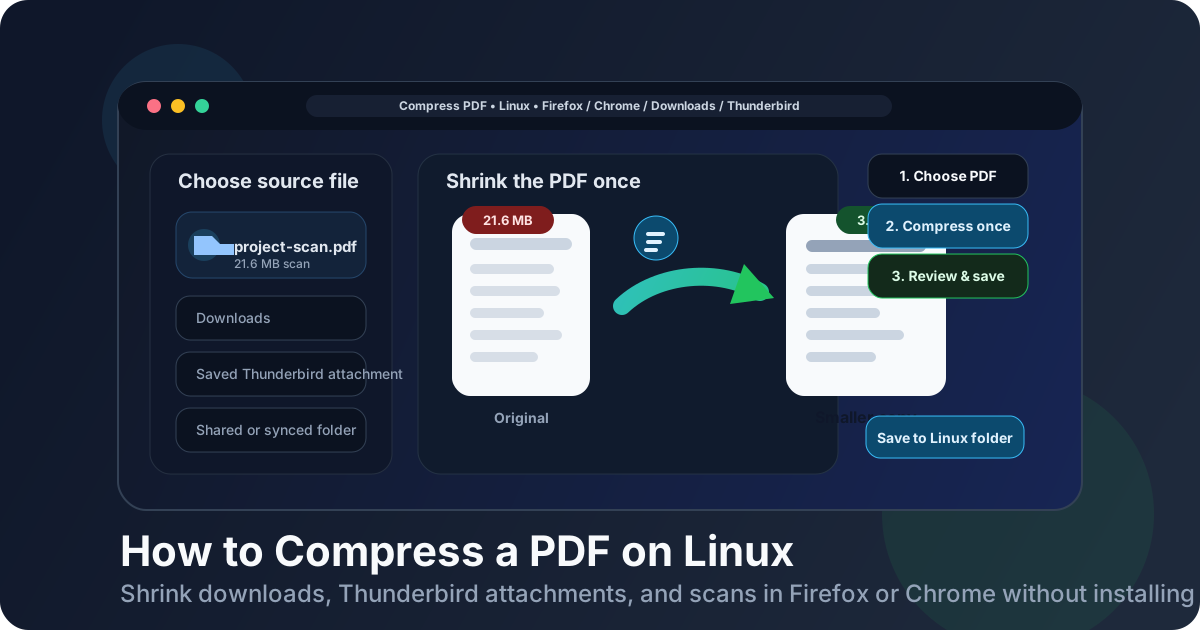
Table of contents
- Quick start: compress a PDF on Linux in 4 minutes
- The easiest Linux workflow for smaller PDFs
- Step-by-step: compress a PDF from your file manager, Downloads, Thunderbird, or a shared folder
- When compression is enough and when cleanup works better
- Common Linux PDF situations and the best move for each
- Troubleshooting: why the file is still too large or too ugly
- Best order for scans, OCR, and compression on Linux
- Related LifetimePDF tools and guides
- FAQ (People Also Ask)
Quick start: compress a PDF on Linux in 4 minutes
If the PDF is already on your Linux machine and you just need it smaller for email, a portal, school, government, or client upload, this is the workflow most people want:
- Open Compress PDF in Firefox or Chrome on Linux.
- Choose the file from your file manager, Downloads, a saved Thunderbird attachment, or a shared folder.
- Compress the PDF once and download the smaller copy.
- Open the result and check the smallest useful text before you send it anywhere.
- If the file is still too large, remove blank pages with Delete Pages or trim wasted borders with Crop PDF.
The easiest Linux workflow for smaller PDFs
On Linux, the hardest part is usually not clicking the compress button. It is file handling. The PDF may sit in Downloads, come from Thunderbird, live in Nautilus or Dolphin, arrive from a scanner output folder, or sync through Nextcloud, Dropbox, or another shared directory. Once you pull the right copy into a simple browser workflow, shrinking it is usually straightforward.
A browser-based workflow works especially well on Linux because it avoids turning a tiny file-size problem into a full desktop editing session. You choose the file, make one smaller version, save it back to the folder that matters, and move on. That is much cleaner than bouncing between previews, export dialogs, and filenames like invoice-final-smaller-really-final.pdf in Downloads.
Linux also makes review easy enough that you can actually verify the result. Open the smaller copy in your browser or preferred viewer and zoom in on tables, signatures, totals, line items, or fine print before you upload anything important. Smaller only counts if the PDF is still pleasant to read and safe to use.
| Situation | Best move | Why it works |
|---|---|---|
| A normal PDF is only slightly above an upload limit | Compress once | You probably only need a lighter delivery copy, not a different document |
| A scanned packet looks huge and messy | Crop borders, then compress | Dark edges and oversized margins add weight without adding value |
| The file contains extra pages nobody asked for | Delete pages first | Removing dead weight beats crushing the whole document harder |
| You need searchable text from a scan | Organize, OCR, then compress the final copy | That keeps the document cleaner and avoids optimizing the wrong version |
| The PDF lives in Thunderbird or a synced folder and you keep mixing copies up | Save one working copy clearly | It is easier to upload and much harder to resend the wrong file later |
Step-by-step: compress a PDF from your file manager, Downloads, Thunderbird, or a shared folder
Here is the practical version most Linux users actually need:
- Start in Firefox or Chrome. Open LifetimePDF's Compress PDF tool.
- Choose the exact source file. Pick it from Nautilus, Dolphin, Downloads, a saved Thunderbird attachment, or a project folder that actually matters.
- Compress the file once. Do not guess your way through four passes before you even check the output.
- Download the smaller copy. Save it with a clear name so it does not vanish into a stack of similar files.
- Open it once and inspect the important parts. Check small text, tables, signatures, totals, and any detail that would make the PDF useless if it got too soft.
- Only clean further if needed. If the file still misses the target, remove extra pages, crop wasted borders, or OCR the right version before you try another smaller copy.
What if the PDF came from Thunderbird?
Thunderbird attachments are easy to mix up because the original stays sitting in the message thread while the compressed copy lands in Downloads or the folder you choose. Save the attachment first, compress that saved copy, then attach the smaller version when you reply. It sounds obvious, but this is exactly where people do the work and still send the original.
What if the PDF came from a shared folder or sync client?
Shared folders are fine, but version confusion happens fast if the original and the smaller copy both sit in the same directory with nearly identical names. Save one working copy clearly, compress it, then replace or share only after you confirm you are looking at the smaller version.
What if the PDF is a scanned file from Linux?
Scanned files often carry more useless weight than people think. Thick borders, blank pages, uneven shadows, or giant white margins can make a Linux PDF much heavier than it needs to be. In those cases, a little cleanup before a second compression attempt usually works better than brute force.
When compression is enough and when cleanup works better
Compression is great when the PDF is already clean and just a bit too large. If the document is text heavy, digitally generated, and not padded with oversized images, one pass is often enough.
Compression is not the whole answer when the file is bloated for obvious reasons:
- There are blank or duplicate pages nobody needs.
- The scan includes dark edges or giant white margins.
- The document contains full-color photos that are not essential.
- You only need part of a larger packet.
- The source is already a weak scan and another compression pass will just make it uglier.
In those situations, cleanup produces better results than force. You remove wasted data first, then compress a leaner file. That usually protects readability better than repeatedly squeezing the same messy PDF.
- The PDF is already neat
- You just need to get under an upload cap
- The file is mostly text or clean vector content
- You only need a smaller delivery copy
- The PDF is a bulky scan
- Extra pages are inflating the file
- Borders and margins waste space
- You need the result to stay comfortable to read
Common Linux PDF situations and the best move for each
1. Portal upload from Downloads
If a portal only cares about file size, compression first makes sense. Start with the finished PDF, shrink it once, and check that names, dates, signatures, and fine print still look safe.
2. Thunderbird attachment that must be resent smaller
Save the attachment to your Linux machine first, compress that saved copy, then attach the smaller version. This avoids the classic mistake of shrinking one file and sending the untouched original from the message thread anyway.
3. Scan from a networked printer or scanner folder
These files often arrive bigger than they need to be. If the packet includes blank pages, shadows, or scanner borders, clean those issues first and then compress the final version.
4. Shared folder PDF that other people also touch
Keep the smaller copy clearly named until you verify it. Shared directories make it easy to lose track of which version is final, especially when the original and the compressed copy sync at different times.
5. Scan that also needs searchable text
Organize the pages, crop if needed, run OCR if searchable text matters, then compress the final delivery copy only if size is still a problem.
Troubleshooting: why the file is still too large or too ugly
If your Linux PDF stays too big after compression, it usually comes down to one of these problems:
- The file started enormous. High-resolution scans or image-heavy packets often need cleanup first.
- You are keeping unnecessary pages. Delete the dead weight before you shrink what remains.
- Margins and shadows waste space. Crop them instead of crushing the whole document harder.
- You compressed the wrong copy. This happens constantly when a file exists in Thunderbird, Downloads, and a synced folder at the same time.
- You overcompressed a weak scan. If the text already looks soft, another pass will rarely save the day.
How to tell whether the output is still safe to use
Zoom in on the smallest text that actually matters. If a person would struggle to read the total on an invoice, the date on a form, the labels in a small table, or the instructions next to a signature line, the file may be smaller but it is not better. Smaller only counts if the document is still usable.
Best order for scans, OCR, and compression on Linux
Order matters more than people think. A sensible sequence saves time and protects quality:
- Start with the exact pages you need.
- Crop wasted scan borders if the page area is messy.
- Run OCR PDF if you need searchable or selectable text.
- Compress the finished delivery copy if the file still needs to be smaller.
That order is especially helpful on Linux because it keeps you from optimizing a version you were going to replace anyway. If you compress first and then delete pages, crop borders, or OCR a new copy, you may end up redoing the work unnecessarily.
Related LifetimePDF tools and guides
If compression alone is not enough, these tools and companion guides usually solve the real problem faster:
- Compress PDF for the actual size reduction step
- Delete Pages when extra pages are inflating the file
- Crop PDF when scans have too much wasted border area
- OCR PDF when you need searchable text from a scan
- How to Crop a PDF on Linux for scan-edge cleanup
- Scan to PDF on Linux if the document starts as a fresh Linux scan
- How to Split PDF on Linux when you only need part of a larger file
Want the shortest route? If the PDF is basically fine, compress it once. If it is a messy scan, clean the pages first, then make the smaller delivery copy.
FAQ (People Also Ask)
How do I compress a PDF on Linux without installing another editor?
Open a browser-based PDF compressor in Firefox or Chrome on your Linux machine, choose the file from your file manager, Downloads, Thunderbird, or a shared folder, compress it once, download the smaller copy, and review readability before you send it anywhere important.
Can I compress a Thunderbird attachment on Linux?
Yes. Save the Thunderbird attachment first or choose it from the file picker, compress it, then attach the smaller copy when you reply. That is safer than working from a temporary preview and accidentally sending the original again.
Why is my Linux PDF still too large after compression?
Large Linux PDFs often contain full-color scans, blank pages, oversized margins, or dark scanner borders. In those cases, cleanup usually helps more than another compression pass.
Will compressing a PDF on Linux reduce quality?
It can if you push too far, especially with scans, photos, and tiny text. One careful compression pass is usually safer than repeatedly shrinking the same file without checking the output.
Should I crop or OCR before compressing a PDF on Linux?
Usually organize the pages first, crop wasted borders if the scan is messy, OCR if you need searchable text, and compress the final delivery copy only if size still matters. That order avoids optimizing the wrong version.