How to Check PDF Forms on Linux: Okular, Evince, and Save Behavior Before You Share
To check PDF forms on Linux, open the final file in Okular, Evince, or the same viewer your audience will actually use, test several fillable fields, move through the form with Tab, and confirm the data still holds after you save and reopen it.
If focus jumps, fields are fake, typed data vanishes, or the PDF only behaves in one viewer, the safest fix is usually to repair the source form and export again before you share it.
That is the short answer. The useful Linux answer is that a form can look perfectly respectable in Firefox preview, a portal tab, or one desktop reader while still breaking the moment somebody tabs through it, signs it, or saves a local copy from Downloads, Thunderbird, Nautilus, Dolphin, or a synced folder. Good form QA on Linux is less about trusting a pretty screen and more about proving the workflow still works after normal handoffs.
Fastest practical path: open the exact Linux copy, confirm the form is truly fillable, test keyboard order, enter sample data, then save and reopen before you send it anywhere important.
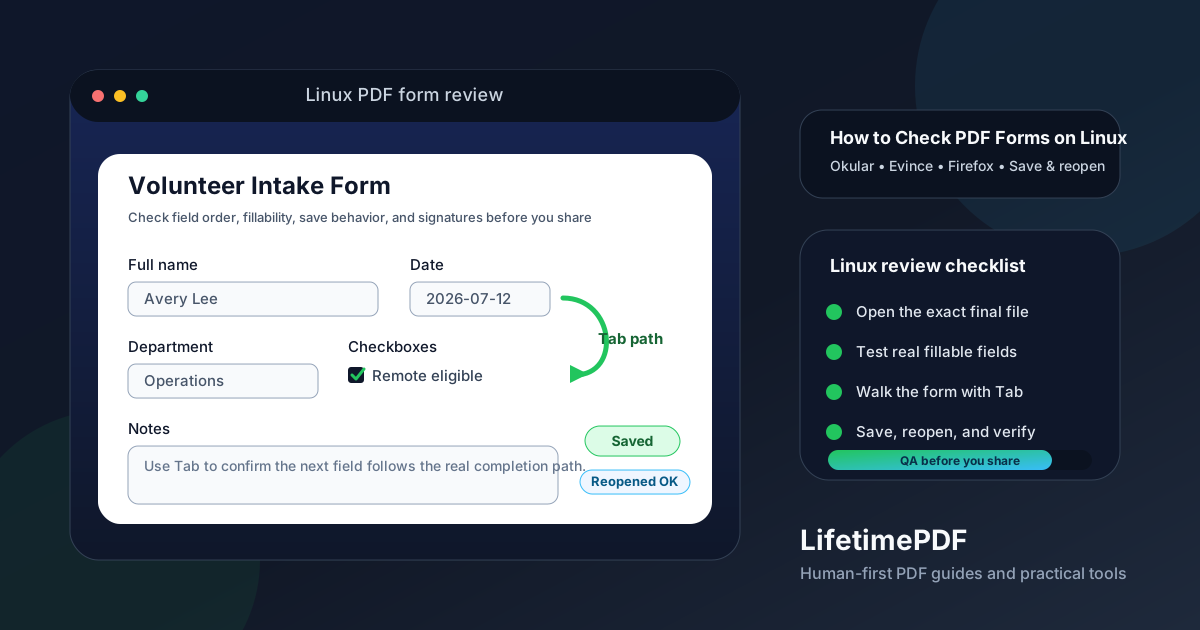
Table of contents
- Quick start: check PDF forms on Linux in about 8 minutes
- What you are really checking when you inspect PDF forms
- Where Linux users get misled
- Step-by-step: how to check PDF forms on Linux
- Warning signs that the form only looks ready
- When to fix the source versus patch the PDF
- Related LifetimePDF tools and guides
- FAQ
Quick start: check PDF forms on Linux in about 8 minutes
If your real goal is simply tell me whether this Linux PDF form is safe to share, use this order:
- Open the exact PDF you plan to email, upload, archive, or sign from Downloads, Thunderbird, Gmail, Firefox, Chromium, Nautilus, Dolphin, or the portal export where the final version landed.
- Click several fields right away. Make sure you are dealing with a real fillable form, not a scan or a visual mockup with blank lines.
- Move through the form in the order a person would naturally complete it. Use Tab and Shift + Tab in Okular, Firefox, Chromium, or the viewer your users rely on. If focus jumps into the wrong page, section, or signature box, that is already a serious usability problem.
- Enter realistic sample data in text fields, checkboxes, dates, and signatures if the form includes them.
- Save the file, close it, reopen it from your local filesystem, and confirm the entered data still makes sense and has not vanished, flattened badly, or broken the layout.
- If the file is scanned or image-heavy, run OCR PDF first and then decide whether the better move is rebuilding the form instead of tolerating a weak export.
What you are really checking when you inspect PDF forms
Checking PDF forms on Linux is not just asking whether a field lights up when you click it. The more useful question is whether the form guides a person cleanly through a task: where to start, what to enter, what is required, what comes next, and whether the file still works after the first real save.
That matters for accessibility, but it also matters for ordinary work. People complete forms on Linux from company laptops, university labs, personal desktops, privacy-focused setups, virtual machines, remote sessions, and thin clients. If the form fails under that kind of normal pressure, it is not a tiny annoyance. It becomes follow-up work, resubmissions, or avoidable distrust.
| What a healthy Linux PDF form does | What a weak form does instead | Why it matters |
|---|---|---|
| Moves through fields in a sensible order | The user lands in the wrong section, another page, or a signature block too early | People lose context and start guessing what comes next |
| Makes each field obvious | Labels are vague, tiny, or too dependent on surrounding layout | Linux users can work fast, but not if the form keeps making them interpret unclear cues |
| Preserves data after saving | Entries disappear, signatures fail, or the file reopens strangely | Trust drops the moment somebody's work is lost |
| Works outside the first viewer | Looks fine in a browser preview but breaks after opening locally in Okular or Evince | The real audience sees the failure, not the first preview pane |
| Survives routine handoffs | Saved copies, attachments, synced folders, or another Linux viewer behave differently | The “final file” stops being reliable in practice |
Where Linux users get misled
Linux does not usually fail because people cannot open a PDF. It fails because the first viewer gives false confidence. A form can appear perfectly normal in a browser tab, then behave differently once it is saved locally, reopened in Okular, passed to Evince, or shared with somebody using another viewer.
Preview comfort
Firefox or Chromium may make the layout feel fine, but a real handoff starts after download, save, reopen, and another person's viewer.
Field illusion
A scan with boxes can look official even when nothing is interactive. Click tests and Tab tests reveal whether the form is real.
Saved-copy surprise
Some failures show up only after the file is saved to Downloads, reopened from disk, and passed through the normal sign or upload workflow.
Linux users are often more comfortable switching apps, but that can hide the problem rather than solve it. If the PDF only works because a technically confident person knows which viewer to avoid, the form is still weak. The audience may be a customer, applicant, patient, parent, or coworker who only sees the broken path.
Step-by-step: how to check PDF forms on Linux
1. Open the exact final Linux copy first
Start with the PDF that will actually leave your machine. Do not test an earlier draft in one app if the real file came through Thunderbird, Gmail, Firefox, Chromium, a portal export, Nextcloud, Google Drive, or a synced folder. Tiny version differences are where weak form behavior often hides.
2. Confirm the form is not only pretending to be fillable
Click into several fields and try obvious controls. If you are staring at blank lines on a scan, a flattened design export, or a photographed paper form, you may not have a real fillable PDF at all. If the file is image-based, run OCR PDF first. OCR helps you inspect the file, but it does not automatically turn a weak scan into a good form. If you need a first pass just to confirm the form exists, the related guide How to Check if a PDF Has Fillable Fields on Linux is the quick triage version.
3. Test the field path instead of trusting the layout
Move through the form in the same order a real person would use. Use Tab and Shift + Tab in Okular, Firefox, Chromium, or the same viewer your users rely on. A healthy Linux form follows the natural completion order. A weak one jumps sideways, skips required sections, or lands in fields that do not match the surrounding labels. Pair this with a quick look at PDF tab order on Linux if the form feels disorganized.
4. Enter real sample data, not cosmetic filler
Type short and long answers. Test numbers, dates, checkboxes, radio groups, initials, and signatures if the workflow expects them. If the form is meant to be completed online, use PDF Form Filler as a second reality check. If approvals or signoff matter, run a quick handoff test in Sign PDF too. If your goal is actual completion rather than QA, the related guide How to Fill Out a PDF Form on Linux covers the everyday user path.
5. Save, reopen, and review the next step
Many Linux form failures do not appear until the file is saved, attached, reopened from a local folder, or passed through another app. Save the file, reopen it from disk in the viewer that matters most, and confirm the data, selections, and signatures remain intact. If the form is meant to be printed, uploaded, or forwarded, spot-check that path as well.
6. Repair the source and export again if the form logic is weak
If the PDF came from Word, LibreOffice, Google Docs, Acrobat, a design tool, or a dedicated form builder, the cleanest fix is usually upstream. If the source is gone, recover what you can with PDF to Word, repair the form logic, then export a cleaner replacement with Word to PDF.
Reliable sequence: confirm fillability, test field order, check labels, try real input, then save and reopen before sending the form anywhere important.
Warning signs that the form only looks ready
Form problems repeat themselves. Once you know the usual failure patterns, you can spot them much faster during a Linux review.
| Warning sign | What goes wrong | Better move |
|---|---|---|
| Visual-only fields | The PDF looks like a form but the boxes are not real fillable controls. | Rebuild true fields instead of relying on appearance alone. |
| Broken next-field path | The user jumps across sections or pages instead of staying in the natural completion order. | Fix field order in the source or form builder. |
| Weak labels or tiny cues | People do not know what belongs in a field or whether it is required. | Clarify labels, instructions, and examples before export. |
| Save-and-reopen failure | Entered data disappears, signatures break, or the file reopens strangely. | Test the full workflow and repair the source before distribution. |
| Viewer-only confidence | The form seems fine in one Linux app but fails after saving, sharing, or opening elsewhere. | Trust the saved-file test, not only the first viewer that happened to cooperate. |
One simple smell test: if a first-time user would need outside explanation to finish the form confidently on Linux, the structure probably needs more work.
Where people get fooled
The spacing looks tidy, the boxes line up, and the PDF feels official, so everyone assumes it works. That visual neatness creates false confidence. A real Linux form review asks whether the file still behaves properly during typing, moving to the next field, saving, signing, reopening, and sharing—not just whether one viewer renders the page calmly.
When to fix the source versus patch the PDF
Source-first repair usually wins when the form problem is broad rather than local. If multiple fields are unclear, field order drifts across pages, signatures misbehave, or the file was never truly fillable to begin with, the final PDF is usually the wrong place to fight every symptom one by one.
Repair the source when:
- multiple pages in the form behave differently,
- field order is broken across large sections,
- the PDF came from Word, LibreOffice, Google Docs, Acrobat, a design tool, or a form builder you still control,
- the form will be revised or reused again later,
- form problems appear alongside reading-order, tab-order, or accessibility issues.
If the file is part of a broader accessibility review, pair this form check with accessibility, reading order, and tab order. Forms work best inside a document structure that is already predictable and coherent.
Related LifetimePDF tools and guides
Useful tools
Need a cleaner form workflow without juggling scattered tools? LifetimePDF combines form filling, signing, OCR, source recovery, and conversion utilities in one pay-once toolkit.
FAQ
How do I check PDF forms on Linux quickly?
Open the final Linux copy, confirm the form is truly fillable, follow the expected field order with Tab, test real inputs, then save and reopen the file to make sure the workflow still holds up.
Can a Linux PDF form look polished and still be broken?
Yes. Many forms look professional in a browser preview or one Linux viewer while still having weak field order, unclear labels, or save behavior that fails once someone actually uses the file.
Which Linux app should I use to check PDF forms?
Okular is often a strong desktop check, but the better answer is to test the same viewer your audience will realistically use. A form that only works in one app still needs more QA.
What if the PDF form is just a scan?
Run OCR first, then decide whether the form needs to be rebuilt as a real fillable PDF. A scan can preserve appearance without preserving usable form behavior.
Should I fix form problems in the PDF or in the original source?
If you still control the source, fix it there first. A clean export from the original form builder or document usually produces a better long-term result than repeated PDF-only patching.