How to Check PDF Forms on Chromebook: Test Fields, Tab Order, Saving, and Signatures Before You Share
To check PDF forms on Chromebook, open the exact saved PDF in Chrome or Files, test every likely field with clicks and Tab, enter short sample values, then save and reopen the file to confirm the form still works.
If boxes only look fillable, focus jumps around, signatures fail, or data disappears after saving, the PDF form is not ready to share yet.
That is the short Chromebook answer. The useful answer is knowing how to tell the difference between a form that merely opens nicely on ChromeOS and a form that still behaves properly when a real person has to type, tab through fields, tick boxes, add a signature, save the file, reopen it, and send it back without guessing. Chromebook previews are convenient, but convenience hides weak forms surprisingly well.
Fastest practical path: save the real copy, click a few obvious fields, test the form with Tab and Shift + Tab, enter one short sample in key controls, then save and reopen the same file before you trust it.
In a hurry? Jump to quick start: check PDF forms on Chromebook in about 7 minutes.
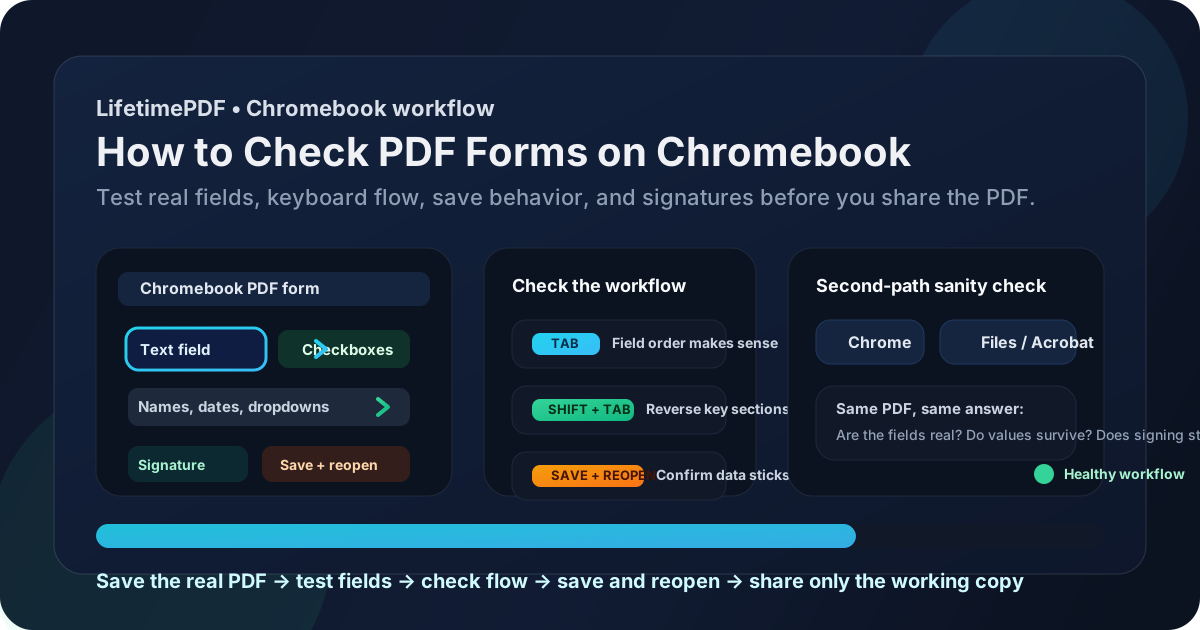
Table of contents
- Quick start: check PDF forms on Chromebook in about 7 minutes
- What you are really checking on Chromebook
- Where Chromebook previews mislead people
- Step-by-step: how to check PDF forms on Chromebook
- Fast signs the form is weak or broken
- Scan, flattened form, or healthy interactive PDF?
- When to fix the source instead of apologizing for the PDF
- Related LifetimePDF tools and guides
- FAQ
Quick start: check PDF forms on Chromebook in about 7 minutes
If your real goal is simply tell me whether this Chromebook PDF form is safe to send out, use this sequence:
- Save the exact PDF you plan to share, upload, sign, or archive instead of testing only a temporary Gmail, Drive, or browser preview.
- Open the file in Chrome or Files and click a few obvious text fields, checkboxes, date fields, and signature areas.
- Press Tab and Shift + Tab through the important sections to check the field flow.
- Type one short sample value and test one checkbox or dropdown so you can confirm the controls really respond.
- Save the file, close it, and reopen the same copy from Files or Chrome.
- Make sure the sample values, checkbox states, and any signature placement still look correct after reopen.
- If anything feels fake, fragile, or oddly manual, switch to PDF Form Filler, OCR PDF, or PDF Field Editor before the file reaches someone else.
What you are really checking on Chromebook
Checking PDF forms on Chromebook is bigger than asking whether a text cursor appears in one box. The practical question is whether the whole form workflow behaves like a real form from start to finish.
On Chromebook, that means paying attention to four separate things:
- Field reality: the boxes, checkboxes, dropdowns, and signature areas accept focus instead of acting like decorative artwork.
- Field flow: Tab and Shift + Tab move through the form in a sequence a real human would naturally follow.
- Save behavior: what you typed is still there after save and reopen.
- Workflow honesty: the form works because it is well built, not because you learned how to tiptoe around its weaknesses.
Healthy form
You click, tab, type, save, and reopen without surprises. The PDF quietly does its job.
Misleading form
The page looks official in Chrome or Files, but the controls underneath are dead, out of order, or unreliable after saving.
Typical cause
The PDF was scanned, flattened, copied from an old template, or exported with weak field structure that nobody fully retested on Chromebook.
Where Chromebook previews mislead people
Chromebook gives you several quick ways to open a PDF, which is helpful until that convenience creates false confidence. A form can look perfectly normal in Chrome, Files, Drive preview, or a Gmail attachment view while still hiding dead fields, broken field order, or save problems underneath.
| Chromebook viewing path | What it is good for | What it cannot safely prove |
|---|---|---|
| Chrome browser preview | Confirming the PDF opens and broadly looks like the right file. | That the fields are real, the field order is healthy, and the values will still survive after save and reopen. |
| Files app or a saved local copy | Testing the actual file you plan to send instead of a temporary preview layer. | You still need a real click, Tab, typing, and save test before you can trust the form. |
| Drive or Gmail preview | Useful for a quick first glance and attachment confirmation. | These views can hide whether the downloaded copy is static, flattened, or fragile once edited. |
| Dedicated browser-based form test | Proving whether the field behavior, saving, and signing flow hold up under real use. | It will not repair the underlying document by itself, but it will show you quickly whether the form is trustworthy. |
Step-by-step: how to check PDF forms on Chromebook
This workflow gives you a dependable answer without turning a quick check into a giant rebuild project.
Step 1: Start with the final Chromebook copy
Save the exact PDF you plan to upload, email, or archive. If the file is still living inside Gmail preview, Drive preview, or a browser-only view, save the real copy first. You want to test the version that will actually leave your Chromebook.
Step 2: Confirm the PDF is a real form and not just posing as one
Click likely text boxes, date fields, checkbox groups, and signature areas. If nothing accepts focus, or if the whole page feels like an image with printed blanks, you probably do not have a healthy interactive form yet. In that case, pair this check with How to Check if a PDF Has Fillable Fields on Chromebook.
Step 3: Let Tab and Shift + Tab expose the real field flow
Do not rely only on clicking around. Keyboard navigation is one of the fastest ways to expose a weak form. Good forms let the cursor move through names, dates, checkboxes, and signature blocks in a calm, logical sequence. Weak ones jump into the wrong column, skip sections, or land in a signature too early.
If you need a deeper field-order check after this broader review, the companion guide How to Check PDF Tab Order on Chromebook goes deeper.
Step 4: Test the field types that matter most
A form can pass one text-box test and still fail everywhere else. On Chromebook, deliberately test:
- one plain text field,
- one date field,
- one checkbox or radio button group,
- one dropdown if the form includes one,
- one signature or initials area if the workflow depends on it.
If the PDF is meant to be completed in-browser, try it in PDF Form Filler. If the flow includes signing, test the handoff in Sign PDF instead of assuming the last step will work.
Step 5: Save, close, and reopen the same file
This is where fragile forms often reveal themselves. Some PDFs accept typing once and then lose data, break the signature appearance, or shift elements after saving. Save the file, reopen it from Files or Chrome, and make sure the answers stay where they belong.
Step 6: Compare one second Chromebook path if the first feels odd
Viewer quirks do exist. If one path behaves strangely, open the same saved PDF another way and repeat the test. If both paths expose the same issue, trust the evidence and repair the form. If only one path is weird, you still learned something important about the environment your users may hit.
Step 7: Repair or rebuild the weak section before the file leaves your hands
If the form is scanned, run OCR PDF first. If the file is static or flattened, use PDF Form Filler for a clean manual workflow. If you control the document and need a better long-term fix, use PDF Field Editor or recover the source with PDF to Word, repair it, then export again with Word to PDF.
Reliable sequence: save the real copy → test real fields → run a Tab pass → try key control types → save and reopen → repair the weak section → retest the final file before sharing.
Fast signs the form is weak or broken
These are the most common Chromebook warning signs worth taking seriously.
| What you notice | What it usually means | Best next move |
|---|---|---|
| Obvious fields never accept focus | The PDF is likely scanned, flattened, or only visually designed to look like a form. | Use OCR or a form filler instead of forcing the dead layout. |
| Tab jumps into the wrong column or signature too early | The field order is weak. | Repair the field sequence before anyone else uses the form. |
| Checkboxes or dropdowns react unpredictably | The controls may be badly exported or only partly interactive. | Test a second view, then rebuild or replace the weak section if needed. |
| Typed values vanish after save or reopen | The form workflow is unreliable even if the fields looked fine at first. | Do not share it yet. Switch to a stronger browser-based workflow or repair the source. |
| Everyone ends up clicking manually around the form | The PDF is surviving on workarounds instead of structure. | Treat that as a real failure and fix the form upstream. |
Healthy default
If the form only feels usable because people abandon the keyboard, ignore confusing save behavior, or memorize where the broken sections are, the form is not healthy enough yet.
Scan, flattened form, or healthy interactive PDF?
Chromebook form problems get easier once you name the kind of file you are looking at.
| Type of PDF | What it feels like on Chromebook | Best response |
|---|---|---|
| Healthy interactive form | Fields accept focus, Tab makes sense, and data survives save and reopen. | Complete the form normally and review it once before sharing. |
| Flattened or fake form | The boxes look real but behave like artwork. | Use PDF Form Filler or rebuild the fields. |
| Scanned form | The whole page behaves like an image. | Run OCR PDF and decide whether you need a manual completion workflow or a real rebuild. |
| Broken export | Some fields work, but others break, shift, or disappear after saving. | Fix the source or replace the faulty form structure before sending it onward. |
The most useful thing you can do is stop treating every PDF with empty boxes as the same kind of document. They are not. Once you know which category you have, the next step becomes much clearer.
When to fix the source instead of apologizing for the PDF
Small form problems can be patched. Repeated form problems usually deserve a source fix.
Patch lightly when
- one isolated field or checkbox group is weak,
- the rest of the form behaves normally,
- the save-and-reopen workflow still looks stable after a small repair.
Fix the source when
- multiple sections feel fake or inconsistent,
- keyboard flow breaks across pages,
- signature areas, dates, and checkboxes all show different problems,
- the form will be reused by staff, customers, applicants, patients, or signers repeatedly,
- the PDF already has related issues around reading order, tab order, or accessibility.
My practical opinion: if more than one future human depends on the PDF, one clean repair upstream is cheaper than a long chain of polite workarounds downstream.
FAQ
How do I check PDF forms on Chromebook?
Save the PDF on your Chromebook, test likely fields, move through the form with Tab and Shift + Tab, enter short sample values, then save and reopen the file to make sure the form still works after a real check.
Can a Chromebook PDF form look fine and still be broken?
Yes. Chrome, Files, or Drive preview can make a PDF look polished while the field structure, save behavior, or signature step underneath is still unreliable.
What is the fastest sign that a PDF form is not really fillable?
The fastest sign is when obvious fields never accept focus, Tab does nothing useful, or typed values do not stay anchored inside a real field. That usually means the PDF is scanned, flattened, or badly exported.
Should I test save and reopen when checking PDF forms on Chromebook?
Absolutely. Some forms appear to work during the first edit and then lose values, break signatures, or shift content after saving. Save-and-reopen testing catches that before the PDF reaches someone else.
What should I do if the PDF is a scan instead of a real form?
Run OCR if the page behaves like an image, then use a form filler to place text or rebuild the fields properly if you control the source document.
Published by LifetimePDF — Pay once. Use forever.