How to Check PDF Bookmarks on Windows: Edge, Chrome, and Acrobat Navigation Checks Before You Share
To check PDF bookmarks on Windows, save the final PDF locally, open the bookmark or table-of-contents panel in Edge, Chrome, or Acrobat Reader, and click the main entries to confirm the labels, hierarchy, and jump targets still match the document.
If the outline skips key sections, uses vague names, or lands a page early or late, fix it before you share the PDF so readers are not fighting the navigation.
That is the fast answer. The useful Windows answer is that bookmark problems often hide inside perfectly normal-looking PDFs. The file opens cleanly in a browser tab, looks polished in File Explorer previews, and still turns into a frustrating scroll-fest once a client, reviewer, or teammate tries to jump between sections. A quick bookmark check is one of the easiest ways to make a long PDF feel trustworthy instead of improvised.
Fastest practical path: open the exact Windows copy, scan the top-level outline, click the bookmarks people will actually use, compare them with the visible headings, then rebuild stale entries before you send the file onward.
In a hurry? Jump to quick start: check PDF bookmarks on Windows in about 5 minutes.
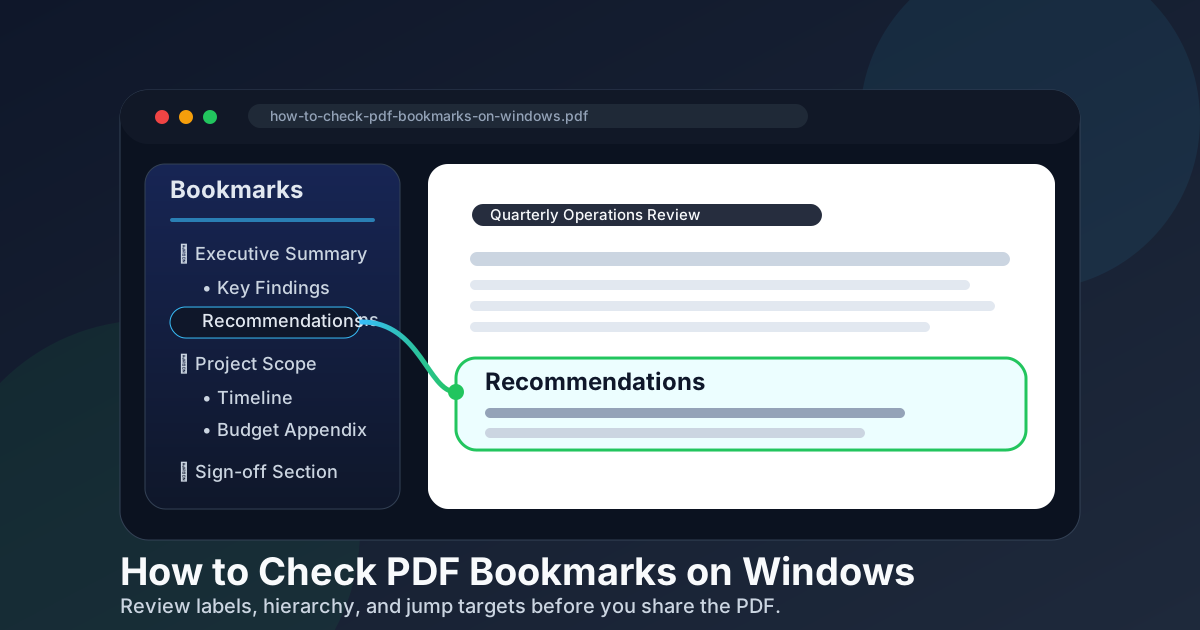
Table of contents
- Quick start: check PDF bookmarks on Windows in about 5 minutes
- What Windows users should verify first
- Where Windows hides bookmark problems
- Step-by-step: practical Windows bookmark workflow
- Common Windows bookmark failures
- When to rebuild the outline instead of patching it
- Final checklist before you share or archive the PDF
- Related LifetimePDF tools and guides
- FAQ
Quick start: check PDF bookmarks on Windows in about 5 minutes
If your real goal is simply tell me whether this Windows PDF is easy to navigate before I send it, use this order:
- Save the exact PDF you plan to email, upload, archive, share, or submit into a normal Windows folder.
- Open that saved file, not an Outlook preview, Teams preview, OneDrive thumbnail, or browser draft from an older tab.
- Show the bookmark or table-of-contents panel in Edge, Chrome, Acrobat Reader, or another Windows viewer that exposes the outline clearly.
- Check the top-level labels first so you can see whether the major sections sound like the real document.
- Click the high-value entries such as the summary, scope, pricing, appendix, exhibit tabs, or signature section.
- If anything feels stale, compare the sidebar with the visible headings and fix the outline before the PDF leaves your machine.
What Windows users should verify first
On Windows, the most useful bookmark check is not “does this PDF have a sidebar.” It is does the sidebar still describe the final document accurately. A bookmark tree can exist and still be bad. It can carry old section names, point at the wrong pages after a merge, or overwhelm the reader with a wall of overly detailed entries.
Start with three simple questions. Do the main bookmark labels sound like the visible headings? Do the important jumps land on the right sections? Does the hierarchy help someone move through the file faster instead of making the sidebar feel like another problem to decode? If the answer to any of those is no, the PDF still needs cleanup.
| What you are checking | What it tells you | What it does not guarantee |
|---|---|---|
| Top-level bookmark labels | Whether the PDF immediately sounds organized to a reader | That the jumps still land correctly deeper in the file |
| Clicked destinations | Whether the important outline entries still target the right pages after edits, merges, or OCR | That every minor child entry is also trustworthy |
| Hierarchy depth | Whether the sidebar helps navigation instead of burying it in clutter | That the labels themselves are clear enough for first-time readers |
| Match with headings or TOC | Whether the sidebar and the visible document structure tell the same story | That the PDF is ready if the bookmark names still feel vague or generic |
Where Windows hides bookmark problems
Windows gives you several ways to open a PDF quickly, but those paths do not prove the same thing. Some are good for confirming you saved the right file. Fewer are good for proving the navigation still works.
File Explorer preview
Useful for spotting the right file, but not enough to trust the outline. A clean preview can hide stale bookmarks completely.
Edge or Chrome
Helpful for checking how real readers may open the PDF, especially when the file lives in browser tabs or portals, but you still need to click the important jumps.
Acrobat Reader
Usually the clearest Windows path for testing outline depth, major destinations, and whether the bookmark tree feels overly dense.
Email or chat preview
Fine for a glance, but risky when the outgoing file may differ from the cloud-rendered preview or an earlier attachment version.
Bookmark trouble shows up most often after a Windows workflow includes merging, deleting pages, OCR-cleaning scans, or assembling a packet from several sources. The PDF still opens normally, so nobody notices that the sidebar is now one page off, still uses pre-merge section names, or is missing a whole appendix that the visible file clearly contains.
Common false assumption
If the first two bookmarks work, many people assume the rest of the outline is fine. On Windows, that is exactly how broken bookmark trees survive into proposals, contract packets, manuals, and board books. Test the entries people will actually revisit, not just the first two that happened to land correctly.
Step-by-step: practical Windows bookmark workflow
This workflow is quick enough for everyday document QA and strong enough for the PDFs people actually complain about later.
1) Start with the exact outgoing Windows copy
Do not inspect only a browser tab, Outlook preview, or synced thumbnail if another saved file is the one truly headed to a client, portal, archive, or teammate.
2) Open a bookmark-aware viewer
Use Edge, Chrome, Acrobat Reader, or another Windows PDF app that exposes the bookmark panel clearly enough to test labels and destinations instead of guessing from page thumbnails alone.
3) Scan the top layer before clicking everything
Ask whether the main entries sound like a finished document: summary, chapters, appendices, exhibits, schedules, policies, pricing, or signature materials.
4) Click the high-value jumps first
Prioritize the sections readers actually revisit. A proposal's pricing section matters more than a minor child bookmark three levels deep.
5) Compare the outline with the visible document
Check whether the bookmark names match headings, divider pages, page numbering, or the visible table of contents so the navigation feels coherent from every angle.
6) Clean the outline, then test the final copy once more
Rename vague entries, remove dead jumps, add missing top-level sections, or rebuild the tree completely when the structure has drifted too far from the final Windows PDF.
Reliable sequence: open the final Windows file → show the bookmark panel → scan the top level → click the important jumps → compare with headings or TOC → rebuild stale navigation before sharing.
Common Windows bookmark failures
Most bookmark problems repeat the same patterns. Once you know them, you can diagnose a messy sidebar in minutes instead of treating the whole PDF like a mystery.
| What you notice | What it usually means | Best next move |
|---|---|---|
| The bookmark names feel generic or old | The outline still reflects draft language, imported section titles, or internal editor terms | Rename the top-level entries so they match the final reader-facing headings |
| The jump lands one page early or late | Pages were inserted, removed, or merged after the outline was built | Retarget the affected entries and retest the high-value sections |
| Major sections are missing from the sidebar | The PDF was exported without a complete outline or the bookmarks were never finished | Add the missing top-level structure before sharing a long file |
| The visible TOC and bookmark panel disagree | One navigation layer was updated and the other was not | Repair both so readers do not get two different maps of the same PDF |
| The sidebar is a dense wall of entries | The hierarchy is technically detailed but practically hard to use | Simplify the top layer and keep deeper branches only where they genuinely help navigation |
The PDF came from a merge
Assume the outline needs testing. Merged packets are where old bookmark names and shifted destinations survive most often on Windows.
The PDF came from OCR or a scan cleanup
Search may improve, but the navigation may still be stale. OCR does not automatically produce a clean, reader-friendly bookmark tree.
Readers only revisit a few sections
Those are the entries to test first. If pricing, exhibits, or signatures fail, the PDF feels broken no matter how pretty the rest looks.
The file looks polished on page one
That visual polish creates false confidence. A good cover page says nothing about whether the bookmark tree still reflects the final page order.
When to rebuild the outline instead of patching it
Sometimes one or two renamed bookmarks are enough. Sometimes the cleanest move is to rebuild the whole outline deliberately. The tipping point is not perfectionism. It is whether the current tree still gives readers a reliable mental map of the file.
- Patch the existing outline when only a few labels are vague, one appendix moved, or two or three entries need retargeting.
- Rebuild the top layer when the major sections changed names or order during revisions, but the deeper content is still close enough to reuse.
- Rebuild the full tree when the PDF was merged from several sources, converted from scans, or revised so heavily that the current hierarchy feels like a map of a different document.
- Trim the outline aggressively when the sidebar contains too much micro-detail and readers would navigate faster with fewer, clearer entries.
- Leave it alone when the outline is accurate, readable, and proportionate to the document. Not every healthy PDF needs more layers.
Practical next tools: clean the navigation structure first, then pair it with links or a visible contents page only when the document truly benefits from both.
Final checklist before you share or archive the PDF
Before the file leaves your Windows machine, make sure these boxes are effectively checked:
- You reviewed the exact outgoing file, not a preview or older export.
- You opened the bookmark panel in a viewer that actually exposes the outline clearly.
- You tested the sections readers are most likely to revisit, not just the first bookmark in the list.
- You compared the outline with the visible headings, appendix labels, or table of contents.
- You renamed, removed, or rebuilt stale entries instead of hoping readers will work around them.
- You reopened the final saved copy once so the corrected Windows PDF is the one you actually send.
That final recheck matters. A surprising number of bookmark problems are version problems rather than strategy problems. Someone fixes one file, sends another, and then wonders why the recipient says the navigation still feels broken.
FAQ
How do I check PDF bookmarks on Windows?
Save the PDF locally on Windows, open it in a viewer that shows the bookmark or table-of-contents panel, scan the outline, and click the most important entries to confirm the labels, hierarchy, and jump targets still match the document.
Can Microsoft Edge show PDF bookmarks on Windows?
Yes. Edge can help you review the bookmark or table-of-contents sidebar when the PDF contains one, but the important step is still testing the major jumps and comparing them with the visible headings.
Why do PDF bookmarks break after merging files?
Merging files, inserting pages, deleting sections, or OCR-cleaning scans can shift the destinations and leave old labels behind. The entries may still exist, but they no longer describe the final page order accurately.
What makes a bookmark outline feel bad on Windows?
Weak bookmark outlines usually have vague labels, missing major sections, broken jumps, or a hierarchy so dense that the sidebar becomes harder to use than the PDF itself.
Should PDF bookmarks match the table of contents and headings?
Usually yes. The bookmark panel, visible headings, and table of contents should tell the same story so readers can trust the navigation however they move through the document.
Make the sidebar as trustworthy as the document itself.
On Windows, the cleanest bookmark workflow is simple: review the exact file, test the important jumps, fix stale labels or destinations, and reopen the final copy once before you send it onward.
Published by LifetimePDF — Pay once. Use forever.