How to Check if a PDF Is XFA on Linux: Okular, Evince, and Browser Compatibility Clues
To check if a PDF is XFA on Linux, save the exact file locally, open it in Okular or Evince, then compare the same PDF in Firefox, Chromium, or another browser workflow and watch for missing fields, placeholder pages, broken layout, or unsupported-form warnings.
If the document behaves one way in a Linux desktop viewer but falls apart in browser preview, upload, or signing steps, there is a strong chance you are dealing with an XFA form rather than a standard fillable PDF.
On Linux, this matters because form problems often look like viewer problems first. A PDF opens, but fields do not respond. A browser shows a static page. A portal upload strips the logic out of the form. A sender swears the file works on their machine, yet your Linux workflow exposes the compatibility gap immediately. A fast cross-viewer check tells you whether the safe move is to keep the form in a narrow workflow, flatten the finished result, or rebuild it into something more portable.
Fastest path: save one clean Linux copy, compare Okular or Evince with Firefox or Chromium, then treat mismatched behavior as the clue worth following.
Need the short version? Jump to quick start: tell if a Linux PDF is XFA in about 5 minutes.
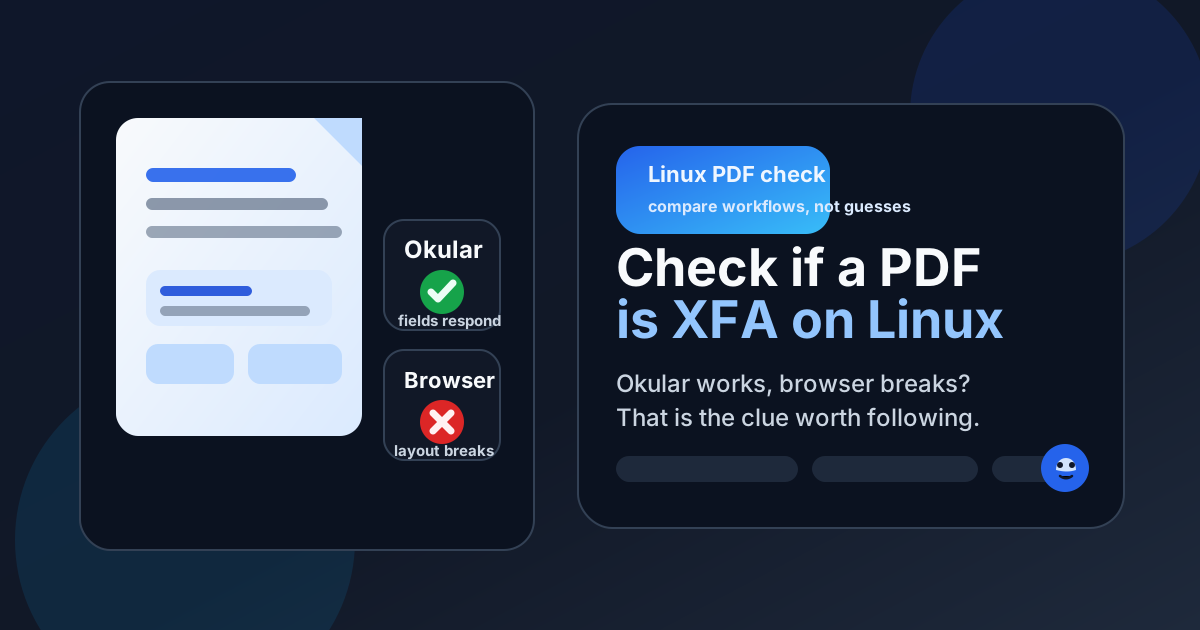
Table of contents
- Quick start: tell if a Linux PDF is XFA in about 5 minutes
- What XFA usually looks like on Linux
- The strongest Linux-side signs a PDF may be XFA
- Step-by-step: compare desktop viewers, browsers, and real workflow touchpoints
- XFA vs AcroForm vs flat PDF
- What to do if the file really is XFA
- Mistakes that waste time during a Linux check
- Related LifetimePDF tools and guides
- FAQ
Quick start: tell if a Linux PDF is XFA in about 5 minutes
If you want the fastest reliable answer, do this:
- Save the PDF out of Thunderbird, a browser tab, cloud preview, or chat download so you are testing the exact Linux file you plan to use.
- Open it in Okular or Evince and test a few real fields, buttons, or dropdowns.
- Open the same saved copy in Firefox or Chromium.
- Watch for missing fields, dead buttons, a placeholder page, layout shifts, unsupported-form warnings, or a save-reopen failure.
- If one workflow behaves normally but another strips the form down to something static or broken, treat that mismatch as a likely XFA clue and plan the next step carefully.
What XFA usually looks like on Linux
XFA stands for XML Forms Architecture. In practical Linux terms, that usually means you are dealing with a PDF form that behaves more like a small application than a plain document. Fields may appear or disappear, sections may expand, calculations may run, and the form may depend on a narrower set of supported viewers than an ordinary fillable PDF.
That is why XFA trouble on Linux often shows up as a compatibility mystery instead of a tidy technical diagnosis. A file opens in Okular but seems limited in a browser. A portal preview loses live behavior. A recipient sees a placeholder page or cannot submit the form after it looked readable at first glance. The document is not necessarily damaged. It is often just less portable than a standard AcroForm PDF.
| Linux situation | What it often means | What to do next |
|---|---|---|
| Desktop viewer shows more than browser preview | The form may depend on a viewer with better PDF form support | Compare the exact same file side by side before you trust it |
| Fields vanish or never accept focus in browser flow | The PDF may be using unsupported form behavior | Test the saved local copy in Okular or Evince and decide whether the form is portable enough |
| Layout expands, collapses, or feels dynamic | Dynamic XFA behavior becomes more likely | Keep completion in the safest workflow or rebuild the form |
| Upload or signing step rejects the file | The next platform may not support the form structure well | Flatten a completed copy or rebuild the document as a standard fillable PDF |
The strongest Linux-side signs a PDF may be XFA
No single symptom proves everything, but this pattern is usually enough to make a smart call quickly.
1) The form behaves differently across Linux viewers
If a saved PDF looks workable in Okular or Evince but loses fields, buttons, or save behavior in Firefox, Chromium, or a portal preview, you are probably dealing with more than a standard AcroForm.
2) A browser or portal shows only a placeholder page
Linux users often discover XFA when a browser tab shows a message-like shell, a stripped-down page, or a form that looks present but is clearly not functional.
3) The form is clearly dynamic
If sections appear, repeat, collapse, or recalculate as you type, that is consistent with XFA-style behavior and deserves a deeper compatibility check.
4) A save, reopen, or upload step breaks the result
A Linux viewer can make a form look usable until the document has to survive a real handoff. That break after save or upload is one of the strongest practical clues.
Step-by-step: compare desktop viewers, browsers, and real workflow touchpoints
The safest Linux check is not theoretical. It follows the actual path your PDF will take. You are trying to learn whether the file is a portable form or a viewer-dependent one.
1. Save the real file locally before you test
Do not judge the PDF from Thunderbird preview, a browser tab, or a cloud preview alone. Save it to a normal Linux folder first. That removes one common source of confusion: sometimes the preview layer is the problem, not the PDF itself.
2. Open it in Okular or Evince and test a few real actions
Try the form where Linux users are most likely to inspect it carefully. Fill a few fields, click a button if one exists, change a dropdown, and save the file. If everything behaves normally there, you have a clean baseline for the next comparison.
3. Open the same saved copy in Firefox or Chromium
This matters because browsers represent the path many recipients actually use when a PDF arrives through email, chat, cloud storage, or a portal. If the fields disappear, the layout breaks, or the viewer shows only a reduced-function version of the form, that difference is much more useful than a technical label you may never see.
4. Reopen the file after saving
Some forms fail only after a save cycle. Enter test data, save the PDF, close it, and reopen it in both the desktop viewer and browser path if possible. If values vanish, buttons stop working, or the file only preserves data in one environment, you have learned something important about the form's portability.
5. Test the real destination if the form is headed somewhere
If the PDF is meant for upload, signature, or portal submission, test that step too. A file can look acceptable on a Linux desktop but still fail in a browser-based workflow that does not support XFA well. The safest time to discover that is before a deadline.
A reliable Linux sequence
- Save the file locally.
- Test in Okular or Evince.
- Compare in Firefox or Chromium.
- Save and reopen once.
- Test the upload or signing step if it matters.
What counts as a real XFA clue
- Unsupported-form hints or placeholder pages
- Missing or dead fields outside the safer viewer
- Layout reflow or expanding sections
- Portal or signing failure after viewer success
- Different save behavior between workflows
Need a quick form-safe cleanup? If the goal is to deliver the completed result rather than preserve live field behavior, flattening the finished copy is usually safer than hoping every recipient supports the same form structure you do.
XFA vs AcroForm vs flat PDF
These can look similar at first glance, which is why people often misdiagnose the problem. The difference is not the visual appearance. The difference is what kind of form structure lives underneath and how broadly that structure travels.
| Type | How it behaves | Linux compatibility pattern |
|---|---|---|
| Standard AcroForm PDF | Normal text fields, checkboxes, dropdowns, and signatures inside a fixed page layout | Usually the safest for desktop viewers, browser previews, uploads, and broader sharing |
| XFA PDF | May include dynamic sections, scripted behavior, changing layout, or a narrower support footprint | Often works best in a limited set of workflows and less reliably elsewhere |
| Flat PDF | Looks like a form but has no live fields underneath | Easy to open almost anywhere, but not truly interactive |
This is why a good Linux check asks two separate questions:
- Is the PDF actually interactive?
- If it is interactive, is it portable or workflow-dependent?
If you skip the second question, you can wrongly assume a file is healthy just because one viewer lets you type in it.
What to do if the file really is XFA
The right response depends on whether you are just trying to complete the form once or you control the form workflow itself.
If you only need to submit the form
If you own the workflow
For many teams, the most practical fix is not make every viewer understand the form. It is stop handing every viewer a form structure it was never meant to carry well. If the document must travel widely, portability beats cleverness.
Mistakes that waste time during a Linux check
- Trusting the preview: browser and cloud previews are convenient, but they are not a full form audit.
- Testing only one field: some XFA problems show up only after save, submit, or re-open steps.
- Assuming every interactive PDF is portable: a form that accepts typing in one viewer is not automatically safe everywhere.
- Sending the live XFA file to everyone: if the recipient only needs the completed result, a flattened copy is often safer.
- Blaming Linux itself: the bigger issue is usually form compatibility across viewers and platforms, not the operating system alone.
Related LifetimePDF tools and guides
If the XFA check shows a portability problem, these are usually the most useful next steps:
FAQ
How do I check if a PDF is XFA on Linux?
Save the file locally, open it in Okular or Evince, then compare the same PDF in Firefox, Chromium, or another browser-based path. If the form behaves correctly only in the safer workflow and breaks elsewhere, that is one of the strongest practical signs that it is XFA.
Can a Linux browser show an obvious XFA label?
Sometimes you may see a hint that the form is unsupported, but not always. On Linux, the viewer comparison usually tells you more than a hidden technical tag would.
Does viewer-specific behavior always mean XFA?
No, but it is a serious clue. Permissions, corruption, scans, flat PDFs, and preview limitations can also cause trouble, which is why you should compare the exact saved copy across workflows and test one full fill-save-reopen cycle.
What is the safest way to share a completed XFA form from Linux?
If the recipient only needs the finished result, flattening the completed copy is usually safer than assuming they have the same supported workflow you used to complete it.
Should I rebuild an XFA form if my team relies on browsers, portals, and mixed devices?
Usually yes. If the workflow depends on browser previews, uploads, signatures, or broad sharing, a standard AcroForm PDF is usually much easier to support than a workflow-dependent XFA form.
Bottom line: on Linux, the fastest trustworthy XFA check is a side-by-side behavior check between a desktop viewer and a browser workflow, followed by one real save/reopen or upload test.