How to Check if a PDF Is XFA: Spot Dynamic Forms Before They Break in Browser, Mobile, or Signing Workflows
To check if a PDF is XFA, open it in Acrobat or another full PDF viewer, then compare that behavior with the same file in a browser or mobile preview and watch for unsupported-form warnings, missing fields, or broken layout.
If the PDF works in Acrobat but falls apart in browser, mobile, or e-sign workflows, there is a strong chance you are dealing with an XFA form rather than a standard fillable PDF.
This matters because many people do not discover XFA until the worst possible moment. The form looks fine on one machine, then refuses to load correctly for a client, an applicant, a patient, or a teammate who opens it somewhere else. A quick compatibility check helps you decide whether the safe move is to keep using the original Adobe-centered workflow, complete the form and flatten the final copy, or rebuild the document into a more portable format.
Fastest practical path: open the PDF in Acrobat first, test the same file in a browser or phone, and treat Acrobat-only behavior as a major XFA clue.
In a hurry? Jump to quick start: tell if a PDF is XFA in about 5 minutes.
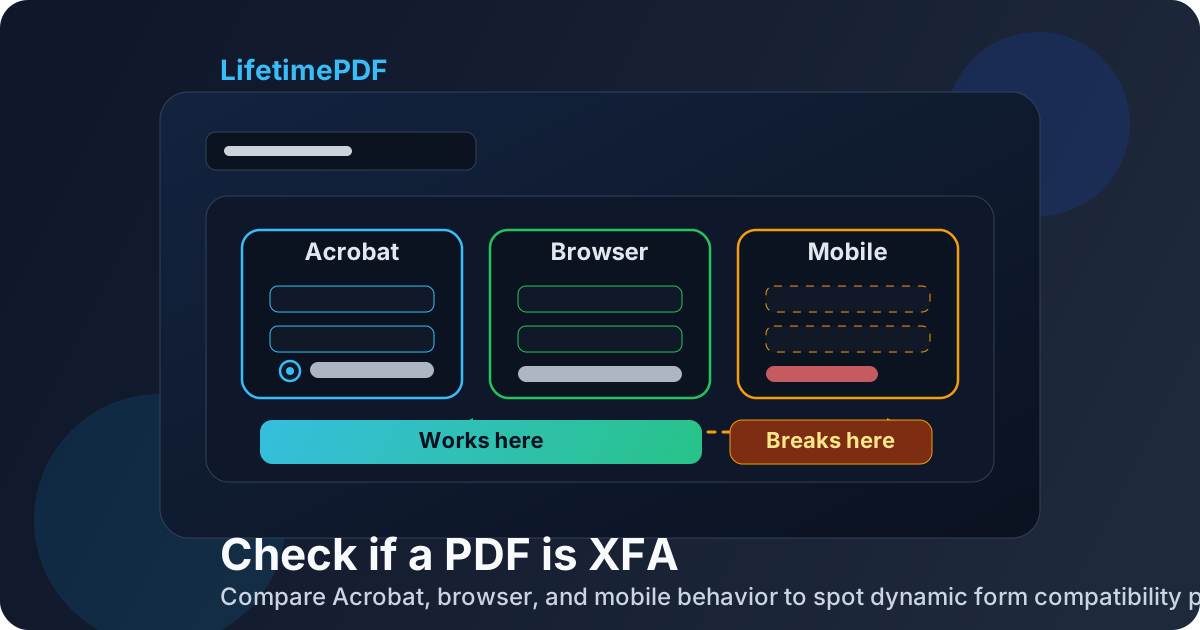
Table of contents
- Quick start: tell if a PDF is XFA in about 5 minutes
- What XFA means in plain English
- The biggest signs a PDF may be XFA
- The fastest reliable checks
- AcroForm vs XFA vs flat PDF
- Why XFA forms break in real workflows
- What to do if the PDF is XFA
- If you created the form and need wider compatibility
- Related LifetimePDF tools and guides
- FAQ
Quick start: tell if a PDF is XFA in about 5 minutes
If you only need a fast, practical answer, use this sequence:
- Open the PDF in Acrobat Reader or another full-featured PDF viewer.
- Fill one or two fields and note whether the form behaves normally there.
- Open the exact same file in a browser tab, cloud preview, or phone viewer.
- Watch for missing fields, broken alignment, non-working buttons, or messages that the form is unsupported.
- If the file only works properly in Acrobat, treat it as a likely XFA form and plan the rest of the workflow carefully.
What XFA means in plain English
XFA stands for XML Forms Architecture. In plain terms, it is a way of building PDF-based forms that can carry more dynamic behavior than a basic fillable PDF. Sections can appear or disappear, layouts can expand, calculations can run, and the file can behave more like a mini application than a simple document.
That sounds useful, and sometimes it is. The problem is compatibility. Many modern browser viewers, phone previews, cloud storage previews, and e-sign tools do not handle XFA forms as reliably as traditional AcroForm PDFs. So the same file can seem fine in one viewer and unusable in another.
| Term | What it usually means | Why you care |
|---|---|---|
| AcroForm | A standard fillable PDF with normal form fields | Usually more portable across viewers and workflows |
| XFA form | A form using XML Forms Architecture, often with dynamic behavior | Can be powerful, but often causes compatibility headaches outside Acrobat |
| Flat PDF | A static page with no live fields underneath | Easy to view anywhere, but not a true interactive form |
So the question is rarely academic. When people search for how to check if a PDF is XFA, they are usually trying to explain a failure: why the form will not open correctly, why fields vanished, why a signing workflow broke, or why someone on mobile cannot finish the document.
The biggest signs a PDF may be XFA
No single clue proves everything, but a pattern of clues usually tells the story quickly.
1) Acrobat works, browser preview does not
This is one of the strongest practical signs. If the file behaves normally in Acrobat but loses fields, scripts, or layout in a browser or cloud preview, XFA becomes much more likely.
2) Phone or tablet viewers show a broken form
Mobile PDF apps often display the page but fail to honor the form logic. Blank areas, frozen controls, or partial rendering are common warning signs.
3) The form is dynamic
If sections grow, repeat, collapse, or reflow depending on answers, you may be looking at an XFA workflow rather than a plain AcroForm.
4) A signing or upload platform rejects it
Some portals and signature systems accept normal PDFs but struggle with XFA structure. Rejection, conversion errors, or missing data after upload are major clues.
The fastest reliable checks
These checks are useful because they mirror how real people encounter form failures. You are not just hunting for a label inside the file. You are testing whether the PDF behaves like a portable form or an Acrobat-dependent one.
1. Compare Acrobat with a browser preview
Open the PDF in Acrobat Reader first. If it fills normally there, open the same file in Chrome, Edge, Safari, Drive preview, or another browser-based viewer. A clean AcroForm often survives that jump. An XFA form is much more likely to lose parts of its behavior.
2. Test the file on mobile
Phones and tablets expose compatibility problems fast. If a user says the form works on desktop but not on iPhone, iPad, or Android, that is not random bad luck. It is often a sign the PDF relies on features those viewers do not fully support.
3. Watch for unsupported-form warnings
Some viewers are surprisingly honest. They may say the document contains an unsupported form type or recommend opening it in Adobe software. That warning is worth taking seriously.
4. Check whether the layout itself is changing
Standard fillable PDFs usually keep a fixed page layout while letting fields accept data. XFA forms can behave more dynamically. If the page grows, rearranges itself, or reveals whole sections based on answers, that is a strong technical clue.
5. Test the completion workflow, not just the first click
Some forms appear to work until you save, submit, re-open, or upload them. So do not stop at typing one name. Enter a few fields, save the file, reopen it, and if relevant, try the real upload or signing destination.
Practical rule: if the form has to travel beyond Acrobat, test that travel path immediately instead of assuming every fillable-looking PDF is equally portable.
AcroForm vs XFA vs flat PDF
People mix these up all the time because all three can look similar on screen. The difference is not appearance. The difference is how much real form structure lives underneath, and how widely other viewers can honor it.
| Type | How it behaves | Compatibility pattern |
|---|---|---|
| Standard AcroForm PDF | Text boxes, checkboxes, radio buttons, dropdowns, and signatures behave like normal PDF fields | Usually the safest choice across desktop, browser, and many mobile workflows |
| XFA PDF | May include dynamic layout, scripted logic, repeating sections, or Adobe-specific form behavior | Often works best in Acrobat and less reliably elsewhere |
| Flat or scanned PDF | Looks like a form but does not contain real interactive fields | Views easily almost anywhere, but requires manual overlay or rebuilding to complete digitally |
This is why it helps to ask two separate questions:
- Is the PDF fillable at all?
- If it is fillable, is it using a portable form model or an Acrobat-dependent XFA one?
If you skip the second question, you can misdiagnose the problem. A document might be interactive, but still be a bad fit for browser, phone, or signing workflows.
Why XFA forms break in real workflows
XFA headaches usually show up in the spaces between tools. The PDF was built for one environment, but the real world uses many.
Browser previews
A browser may display the page but ignore part of the form logic, leaving users with dead fields or an apparently blank document.
Mobile review
Phone and tablet viewers are great at convenience, not always at advanced form support. The form may look present but not actually work.
E-sign and portal uploads
Some systems flatten or reject the file, strip field behavior, or fail to preserve the entered data when the PDF is more complex than expected.
Save and reopen problems
A user may enter data successfully once, then discover later that values disappeared, shifted, or no longer match the visible layout.
What to do if the PDF is XFA
The right answer depends on whether you only need to complete the file once or whether you control the workflow.
If you just need to finish the form today
Use the viewer the document was clearly designed for. If Acrobat is the only place where it behaves correctly, do the completion step there instead of forcing the form through a browser preview that already showed warning signs.
If you need to send the finished result onward
Consider exporting or flattening the completed copy before sharing it more widely. That reduces the chance that a recipient sees broken controls or loses the entered data when they open the file in a lighter viewer.
If you are collecting signatures or uploads
Test the real destination before rollout. A document that opens on your machine is not automatically safe for a portal, HR system, legal workflow, or intake form process.
Most common safe move: complete the XFA form in the environment that supports it best, then flatten the final copy before sending or archiving it.
If you created the form and need wider compatibility
If this is your form, not someone else’s, the long-term fix is usually not to keep telling users which viewer to install. The better fix is to simplify the workflow.
- Review whether the form really needs dynamic XFA behavior.
- If broad compatibility matters, rebuild the file as a standard fillable PDF with ordinary fields.
- Test the rebuilt version in desktop, browser, and mobile environments.
- Flatten completed copies when you need a stable archive or handoff version.
- Document the approved workflow so users do not guess their way through it.
In many teams, that one rebuild saves more time than endless support replies. Standard forms are easier to review, easier to share, and easier to keep working across modern devices.
| Situation | Best next move | Why |
|---|---|---|
| You only need one submission | Use the supported viewer and export the final copy | Fastest path with the least rework |
| You must share the completed form widely | Flatten the finished PDF | Reduces breakage for recipients using lightweight viewers |
| You own the document workflow | Rebuild as a standard fillable PDF | Improves portability and lowers support friction |
| You are troubleshooting intake or signing failures | Test the full path, not only the PDF itself | Shows whether the destination system is part of the failure |
Related LifetimePDF tools and guides
Need a safer form workflow? LifetimePDF helps you test forms, rebuild standard fields, flatten completed copies, and prepare share-safe PDFs without juggling a bunch of separate tools.
FAQ
How do I know if a PDF is XFA?
Compare the file in Acrobat versus a browser or mobile viewer. If it works properly in Acrobat but shows unsupported-form warnings, missing fields, or broken layout elsewhere, it may be an XFA form.
What is the biggest sign that a PDF is XFA?
One of the biggest practical signs is Acrobat-only reliability. A browser, cloud preview, or phone viewer may display the page but fail to preserve the real form behavior.
Is XFA the same as a normal fillable PDF?
No. A normal fillable PDF often uses standard AcroForm fields and travels better across viewers. XFA can be more dynamic, but that extra behavior often comes with weaker compatibility.
Do phones and browsers support XFA forms well?
Usually not as reliably as Acrobat. That is why mobile review, browser preview, or portal upload tests are so useful when you are trying to identify an XFA-based form.
What should I do if my PDF is XFA?
If you only need one finished copy, use the viewer that supports the form correctly, then flatten or export the completed result for safer sharing. If you own the process, rebuild the form as a standard PDF to reduce future breakage.
Published by LifetimePDF — Pay once. Use forever.