How to Check if a PDF Is Searchable on Linux: Quick Viewer, Browser, and Copy-Paste Tests Before OCR
To check if a PDF is searchable on Linux, open the file in your usual PDF viewer or browser, search for a visible word, then highlight and copy one short line into a plain-text note.
If search fails, the page behaves like one big image, or the pasted text comes out broken, the PDF probably needs OCR before you keep working.
That is the short answer. The useful part is knowing how to test the exact Linux copy you plan to keep or share, how to tell the difference between a native PDF and a scanned one, and how to avoid trusting a file just because it looks fine in a viewer tab. A PDF that opens cleanly on Linux is not automatically a PDF your apps can really search, copy, index, or extract well.
Fastest path: save one local copy, test search, copy one line into a plain-text note, then use PDF to Text or OCR only if the quick checks are weak.
In a hurry? Jump to Quick start: tell if a Linux PDF is searchable in under 2 minutes.
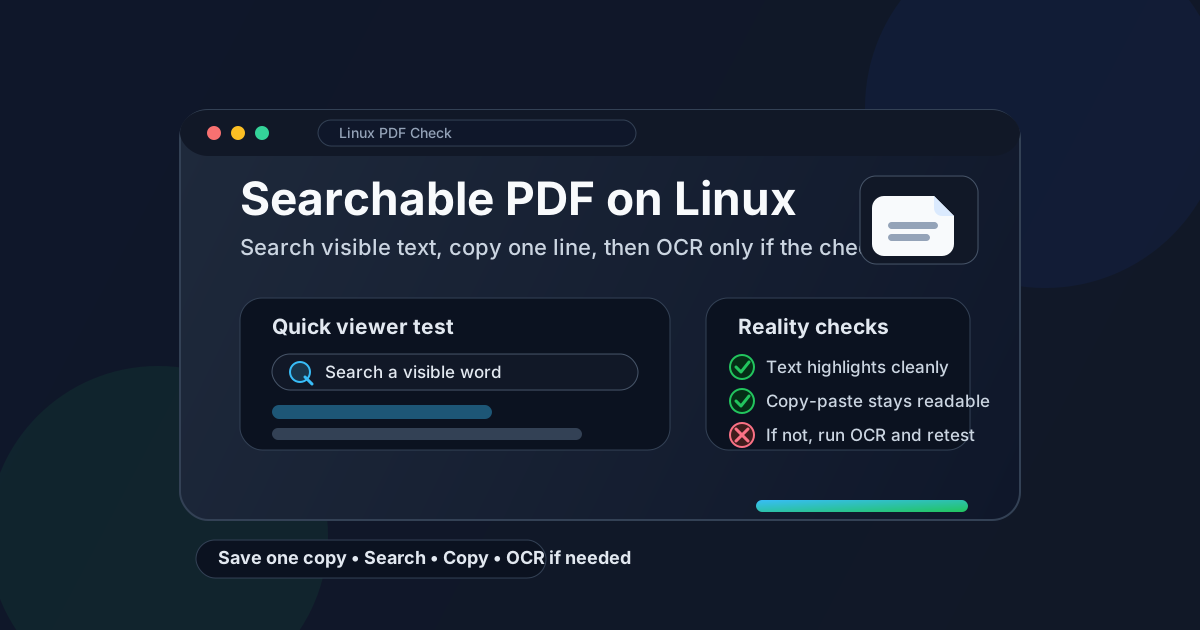
Table of contents
- Quick start: tell if a Linux PDF is searchable in under 2 minutes
- The easiest Linux workflow for checking searchable PDFs
- What “searchable” actually means on Linux
- Step-by-step: check a PDF from a viewer, browser, email, or cloud folder
- Fast warning signs that the PDF is not fully searchable
- When to run OCR and when to export a cleaner source file
- Linux habits that lead to cleaner searchable PDFs
- Related LifetimePDF tools and guides
- FAQ (People Also Ask)
Quick start: tell if a Linux PDF is searchable in under 2 minutes
If you already have the file on your Linux machine and just need a fast answer, use this order:
- Save the exact file from email, chat, cloud storage, or a browser preview into one obvious folder such as Downloads, Desktop, or your project directory.
- Open the PDF in your usual viewer or browser and search for a word you can clearly see on the page.
- Highlight one short sentence, copy it, and paste it into a plain-text note so formatting does not hide bad extraction.
- If you want a stronger check, run the file through PDF to Text and see whether the extracted content stays readable.
- If those tests fail or only work on some pages, run OCR PDF and repeat the same checks.
The easiest Linux workflow for checking searchable PDFs
On Linux, the biggest mistake is testing the wrong copy. People preview one version in a browser, open another from a synced folder, then upload a third copy from Downloads and assume the PDF is probably fine because one version behaved correctly. That creates false confidence fast.
A cleaner workflow is simple: work from one saved file, run the quickest search and highlight checks first, and only move into OCR or deeper extraction testing when the easy checks raise doubts. That keeps the process fast for healthy PDFs and practical for messy ones.
| Linux situation | Best move | Why it helps |
|---|---|---|
| The PDF came from email, chat, or a browser download | Save one local copy first | You avoid testing one version and sharing another |
| The PDF came from LibreOffice, Google Docs, Word, or another source app | Run the quick search and copy tests first | Native PDFs often already contain a good text layer |
| The PDF came from a scanner, copier, fax, or phone camera | Expect OCR to be the likely next step | Scans often look readable but still behave like images |
| The file is a mixed packet with inserts, signatures, or photographed pages | Test more than one page | Search may work on some pages while failing on others |
In plain English: checking searchability on Linux is mostly about resisting shortcuts. If the PDF is headed into review, quoting, compliance, accessibility, AI extraction, or archiving work, one minute of testing saves far more time later.
What “searchable” actually means on Linux
A searchable PDF contains a usable text layer behind the page image or layout. That text layer is what makes search, highlighting, copying, extraction, indexing, and follow-up workflows work properly. Without it, Linux apps are mostly looking at a picture of text.
Most PDFs fall into one of three buckets:
- Native PDF: exported from LibreOffice, Google Docs, Word, spreadsheets, slides, or another app with real text already built in.
- Scanned PDF: a picture of paper pages, usually with no usable text layer yet.
- Hybrid PDF: part native, part scanned, or OCR applied unevenly so some pages work and others do not.
The tricky part is that all three can look fine in Firefox, Chrome, Evince, Okular, or another viewer. That is why behavior tests beat guesswork.
Step-by-step: check a PDF from a viewer, browser, email, or cloud folder
Here is the practical Linux workflow that covers most real-world situations.
1) Start with the exact file you plan to keep or share
If the PDF is still sitting inside a browser tab, email preview, chat window, or synced cloud pane, save it first if that makes the workflow clearer. One obvious copy in a real folder reduces version mistakes and makes retesting much easier.
This matters more than people expect. It is common to test a PDF in one browser preview, download a different revision later, and wonder why search behavior changed. Use one saved file and the rest of the testing becomes much more trustworthy.
2) Search for a visible word you know is on the page
Open the PDF in your normal Linux viewer or browser and search for a word you can clearly see, such as a heading, invoice label, city name, or repeated term. If the document really has a usable text layer, search should find obvious words without much drama.
One failed search does not prove the whole file is broken. Maybe you picked a word that appears inside an image, maybe the page is slightly skewed, or maybe only part of the packet is scanned. But when several obvious words fail in a row, treat that as a strong sign that the PDF is not fully searchable.
3) Highlight one short line and copy it into plain text
Search is fast, but copy-paste is often the better reality check. Highlight one short sentence, copy it, and paste it into a plain-text note, terminal editor, or scratch file. If the text lands cleanly, you probably have a workable text layer.
If nothing pastes, every word arrives in the wrong order, letters are missing, or the line breaks become nonsense, the file may still be technically searchable while being poor for real work. That is exactly the kind of PDF people regret trusting later when they need to quote it, summarize it, translate it, or feed it into another workflow.
4) Test more than one page when the document is mixed
A lot of Linux PDF headaches come from hybrid files. A contract packet might include native text pages, scanned signature pages, photographed IDs, and flattened attachments all inside one document. In those cases, page one can pass while page seven quietly fails.
If the file came from several sources, test a few page types:
- a normal body-text page,
- a page with a table or dense numbers,
- a page that looks scanned or slightly blurry, and
- any page you actually need to quote or extract from.
5) Use PDF to Text when you want a stronger answer
Search and copy-paste tell you whether the PDF is probably usable. PDF to Text tells you whether the extracted content still holds together when the file leaves the viewer.
This is useful when you plan to reuse the content in notes, audits, research, support work, or AI tools. If the extracted text stays readable, roughly ordered, and complete, the file is in much better shape than a PDF that technically searches but falls apart when extracted.
6) OCR and retest if the PDF behaves like an image
If the document came from a scanner, camera, old archive, fax workflow, or copier, OCR is usually the right next step. Use OCR PDF, then repeat the same tests on the processed file.
Do not stop at “OCR finished.” The real win is not the label. The real win is that the new PDF now searches, highlights, copies, and extracts well enough for the job you need to do.
Fast warning signs that the PDF is not fully searchable
Sometimes the PDF tells on itself quickly. Watch for these signs on Linux:
- Search misses obvious words. If headings you can clearly read do not appear in search results, the text layer may be absent or weak.
- The whole page highlights like one image. That often means you are looking at a scan without usable text behind it.
- Copy-paste produces empty or scrambled text. A weak text layer can be almost as frustrating as no text layer at all.
- Only some pages work. Mixed PDFs are common in packets that combine exports, scans, and signed pages.
- Numbers and columns break badly. Tables, invoices, bank statements, and forms often expose hidden extraction problems first.
When to run OCR and when to export a cleaner source file
OCR is powerful, but it is not always the best first fix. The right move depends on where the PDF came from.
Run OCR when:
- the file is a scan of paper pages,
- the PDF came from a phone camera or copier,
- you inherited an archive with image-only pages,
- search fails on obviously readable text, or
- some pages are usable and others clearly are not.
Export a cleaner source file when:
- the document started in LibreOffice, Word, Google Docs, or another editable app,
- the PDF is already digital but exports with broken text order,
- fonts embedded badly in the original file, or
- you still have access to the source document and can create a fresh PDF in seconds.
In other words, do not OCR a file just because it is annoying. OCR is best when the problem is “this is really an image of text.” A fresh export is better when the problem is “this digital PDF was generated badly in the first place.”
If you do OCR, clean obvious scan issues first. Rotated or sideways pages, giant borders, and low-contrast captures make text recognition harder than it needs to be. A quick stop at Rotate PDF can improve the next step more than people expect.
Linux habits that lead to cleaner searchable PDFs
Linux users often juggle viewers, browsers, synced folders, and project directories more than casual desktop users do. That makes a few habits especially valuable:
- Name the working copy clearly. If you are testing multiple revisions, a precise filename beats guessing later.
- Keep the pre-OCR and post-OCR versions separate. That makes it much easier to verify whether OCR actually helped.
- Use plain-text copy tests. Rich editors can hide spacing and ordering problems that matter in real extraction workflows.
- Retest after cleanup. If you rotate, crop, OCR, or recompress a file, rerun the fast checks once.
- Match the test to the job. A PDF that is “good enough” for a casual read may still be bad for quoting, accessibility, research, or data extraction.
These are not glamorous habits, but they save time. Most searchable-PDF problems are not mysterious. They come from using the wrong copy, trusting a nice-looking preview, or skipping the thirty-second checks that would have exposed the issue immediately.
Related LifetimePDF tools and guides
If your Linux PDF turns out to be weak, these next steps usually solve the problem faster than starting over blindly:
- PDF to Text for a stronger extraction check.
- OCR PDF when the document is image-only or mixed.
- How to OCR a PDF on Linux for a full Linux-focused OCR workflow.
- How to Check if a PDF Is Tagged on Linux if you also care about accessibility structure.
- How to Compress a PDF on Linux if the file becomes too large after OCR.
Useful next move: if the PDF fails the quick Linux tests, do not keep guessing. Extract the text, OCR the file, or move into the Linux OCR guide so you can fix the real problem directly.
FAQ: How to check if a PDF is searchable on Linux
How do I check if a PDF is searchable on Linux?
Open the PDF, search for a visible word, highlight one short line, and paste it into a plain-text note. If those tests fail, the PDF usually needs OCR before it becomes properly searchable.
Can a PDF open normally on Linux and still not be searchable?
Yes. A PDF can look perfectly readable in a viewer or browser while still behaving like an image to software. Searchability depends on whether the file has a usable text layer, not just whether it looks sharp on screen.
Why does search work on some Linux PDF pages but not others?
Many PDFs are mixed files. Some pages were exported with real text, while other pages were scanned, flattened, or inserted as images. Search works on the text pages but fails on the image-only pages until OCR is added.
Is copy-paste a reliable Linux test for PDF searchability?
Yes. Copy-paste shows whether the text layer is useful beyond a lucky search result. If pasted text comes out empty, scrambled, or full of spacing errors, the PDF needs more work even if one or two searches seem to work.
Should I OCR the PDF or export a fresh one from LibreOffice, Google Docs, Word, or another app?
If the file is a scan, OCR is usually the right first step. If the file came from an editable source and still behaves badly, a cleaner export from the source is often better than repeated patching.