How to Check if a PDF Is Linearized on Linux: qpdf, Browser Tests, and Fast Web View Checks
To check if a PDF is linearized on Linux, run qpdf on the exact file you plan to publish, then open the real live PDF URL in a fresh Chromium or Firefox tab and see whether page 1 starts rendering before the full file finishes downloading.
If qpdf reports linearization problems or the browser only becomes useful after the whole file arrives, the PDF is probably not ready for Fast Web View and should be optimized before you publish or replace it online.
On Linux, you get something better than a guess: qpdf gives you a direct technical check, while the browser gives you the real human experience. Put those together and you can stop arguing with half-truths like “it opens fine on my machine” when what you actually care about is whether a visitor can start reading quickly from the web.
Fastest path: check the exact file with qpdf, test the real URL in a fresh browser tab once, then linearize the final copy and retest if page 1 still takes too long to show up.
In a hurry? Jump to Quick start: the fastest Linux linearization check.
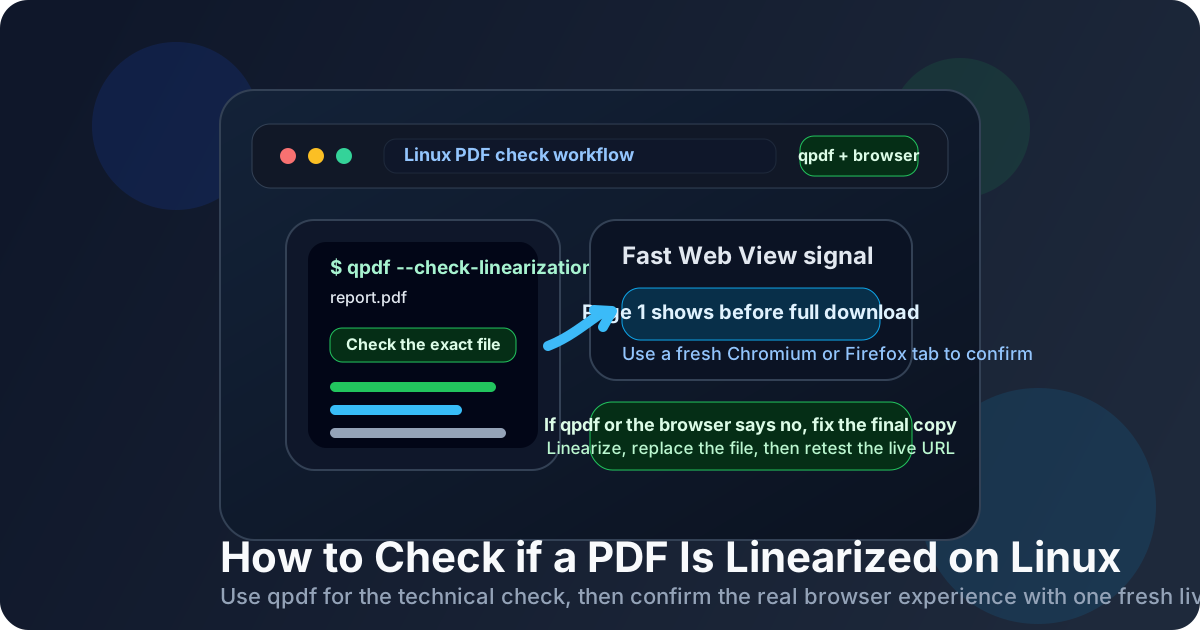
Table of contents
- Quick start: the fastest Linux linearization check
- What a linearized PDF means on Linux
- Method 1: check the file directly with qpdf
- Method 2: test the live URL in Chromium or Firefox
- Method 3: compare the local copy with the live copy
- How to read the results without fooling yourself
- Compression vs linearization on Linux
- What to do if the PDF is not linearized
- Common Linux mistakes that create false confidence
- Related LifetimePDF tools and guides
- FAQ (People Also Ask)
Quick start: the fastest Linux linearization check
If your real question is is this PDF ready for the web on Linux or not?, use this order:
- Start with the exact file you plan to publish or the exact file you already published.
- Run qpdf --check-linearization on that file.
- Open the real PDF URL in a fresh Chromium or Firefox tab and watch whether page 1 becomes readable before the full file finishes loading.
- If the live copy feels slow, compare it with the local file only to understand the difference between disk access and web delivery.
- Use Linearize PDF on the final copy, replace the live file, and rerun the same browser test once.
qpdf --check-linearization report.pdf
qpdf --show-linearization report.pdf
What a linearized PDF means on Linux
A linearized PDF is arranged so the beginning of the document can be delivered early, which makes browser-based reading feel faster. You will often hear this called Fast Web View. The idea is simple: when someone opens a live PDF link, the first useful page should not have to wait for the entire document to arrive first.
On Linux, this matters whenever people open PDFs from a browser, help center, LMS, client portal, product docs site, knowledge base, or file-sharing link. A file that feels fine from disk can still be frustrating when it is streamed from the web on an average connection.
| File state | What you usually notice on Linux | Best fit |
|---|---|---|
| Linearized PDF | Page 1 often becomes useful earlier while later content keeps loading | Public links, documentation portals, browser previews, customer-facing downloads |
| Non-linearized PDF | The browser may hold back longer before anything useful appears | Less noticeable when the file is opened locally from disk |
| Compressed but not linearized | The file may be smaller, but the loading order can still be clumsy | Helpful for size, not always enough for first-page speed |
Method 1: check the file directly with qpdf
This is the strongest Linux-specific advantage in the whole workflow. Instead of guessing from a preview, you can inspect the file itself. qpdf is a practical command-line tool for this job, and on many Linux systems it is either already available or easy to install from your distro repositories.
qpdf --check-linearization report.pdfIf you want a more detailed look, you can also run:
qpdf --show-linearization report.pdf1. Check the exact file
Do not test an old export, a draft copy, or a downloaded preview if the live site uses a different PDF.
2. Look for a clean result
If qpdf reports that the file is not linearized or shows linearization warnings, treat that as a real issue until you fix the final copy.
3. Retest after publishing
A clean local check is great, but you still want one live browser retest to confirm that the right file is actually online.
Why qpdf matters
Browser behavior can be affected by caching, network quality, and previous downloads. qpdf strips out a lot of that noise by telling you something direct about the PDF itself.
Method 2: test the live URL in Chromium or Firefox
After qpdf, switch from file truth to user truth. Open the real published PDF URL in a fresh browser tab. Use a private window if you have already opened that document before, because caching can make a mediocre PDF look better than it really is.
- Use the actual live PDF URL.
- Open it in a fresh Chromium or Firefox tab, or use a private session.
- Watch the first few seconds instead of waiting until the whole document finishes.
- Ask one practical question: does page 1 become readable before the full file is done downloading?
- Repeat the same browser test once after you optimize the final PDF.
| What you see in the browser | What it usually means | Next move |
|---|---|---|
| Page 1 appears early while the rest keeps loading | Good real-world sign that the PDF is browser-friendly | Keep the file if the full experience feels solid |
| The viewer waits too long before showing anything useful | The file may not be linearized, or the live site may still be serving the old version | Fix the final copy and retest the same URL |
| The second open is much faster than the first | Cache may be covering up a weak first-visit experience | Use a fresh private session again |
The browser trap
If you keep reopening the same link in the same browser session, the test slowly turns into a cache test instead of a delivery test. That is why one fresh retest is worth more than ten casual reopenings.
Method 3: compare the local copy with the live copy
This step is not the main proof of linearization, but it helps you avoid the oldest mistake in PDF publishing: confusing a pleasant local open with a pleasant web experience.
On Linux, a PDF opened from disk in your file manager, document viewer, or browser can feel smooth simply because the whole file is already local. That says nothing about how quickly the live version gives page 1 to a first-time visitor.
What the local copy is good for
- Confirming you are testing the right file
- Comparing before-and-after exports
- Checking page count, order, and obvious quality issues
What the local copy cannot prove
- That the published browser version is optimized
- That the live server is already serving the new file
- That first-page web delivery feels good for a new visitor
How to read the results without fooling yourself
The cleanest outcome is when qpdf looks good and the browser behaves well. That means the file structure and the user experience agree.
- Best case: qpdf looks clean and the browser starts showing page 1 early.
- Technical fail: qpdf reports linearization problems even if the file feels tolerable on your connection.
- Delivery fail: qpdf looks fine, but the live URL still behaves badly, which often means the wrong file is online, the cache is misleading you, or the server copy was not actually replaced.
This is why the final workflow should always point back to the actual published copy. If you optimize a local PDF but upload a different one, you can spend half an hour “debugging linearization” when the real problem is a workflow mix-up.
Compression vs linearization on Linux
These are not the same fix. A smaller PDF can still be badly ordered for web delivery, and a properly linearized PDF can still feel heavier than it should if giant images or scanned pages make the file enormous.
- Compression reduces the amount of data that has to travel.
- Linearization changes the order of the data so useful content can appear earlier.
If your Linux browser test feels slow and the file is also unusually large, the strongest workflow is often to compress the final copy first and then linearize the version that will actually go live.
What to do if the PDF is not linearized
Once the Linux check shows a real problem, work from the final approved file rather than a temporary export or a browser download with an uncertain history.
Reliable Linux workflow: check the file with qpdf, test the real URL, compress if needed, linearize the final copy, replace the live file, and retest once as if you were a brand-new visitor.
Common Linux mistakes that create false confidence
- Testing the wrong copy: a downloaded browser version may not be the same file you think you published.
- Stopping after a local open: local comfort is not proof of live browser performance.
- Trusting only qpdf or only the browser: file truth and user truth are stronger together.
- Reusing the same browser session: cache can make a weak file look healthier than it is.
- Assuming compression solved everything: smaller is helpful, but first-page delivery still depends on structure.
- Optimizing one PDF and publishing another: always fix the final version that actually goes live.
None of these are exotic Linux problems. They are normal workflow mistakes, which is exactly why a short repeatable checklist is better than vague memory.
Related LifetimePDF tools and guides
FAQ (People Also Ask)
How do I check if a PDF is linearized on Linux?
Run qpdf on the exact file you plan to publish, then open the real live PDF URL in a fresh Chromium or Firefox tab and watch whether page 1 starts rendering before the entire file finishes downloading.
What qpdf command should I use to check PDF linearization?
A practical first command is qpdf --check-linearization report.pdf. If you want more detail, qpdf --show-linearization report.pdf can help you inspect the file more closely.
Is a browser test still necessary if qpdf looks good?
Yes. qpdf gives you the technical answer, while the browser gives you the user experience answer. The strongest result is when both agree that the final published copy is ready.
Does a smaller PDF mean it is already linearized?
No. Compression reduces the file size, while linearization changes the internal order so page 1 can appear sooner in a browser. Some PDFs need one fix, and some benefit from both.
What should I do if the PDF is not linearized on Linux?
Start with the final approved copy, compress it first if it is bloated, linearize that final version, replace the live file, and retest the same URL in a fresh browser session.
Ready to fix a slow web PDF on Linux?
Good default workflow: check with qpdf → test the live URL in a fresh browser tab → compare local and live copies only when needed → optimize the final copy → retest the same URL once
Published by LifetimePDF — Pay once. Use forever.