How to Check if a PDF Is Linearized on iPad: Safari, Files, and Fast Web View Checks
To check if a PDF is linearized on iPad, open the real web PDF in a fresh Safari tab and see whether page 1 starts rendering before the full file finishes loading.
If the document only feels fast after it is fully downloaded, cached, or reopened from Files, it is probably not properly optimized for Fast Web View and should be linearized before you publish or replace it online.
That is the short answer. The useful iPad answer is knowing how to separate a smooth local preview from real browser delivery, how to avoid false confidence from Safari caching and in-app previews, and how to retest the exact published copy after you optimize it. A PDF can feel perfectly fine in Files, Notes, Mail, or a cloud app while still loading clumsily when someone opens the live link from an iPad browser.
Fastest path: save one local copy in Files, test the real URL in a fresh Safari tab once, then linearize the final file and retest if page 1 still arrives too late.
In a hurry? Jump to Quick start: the fastest iPad linearization check.
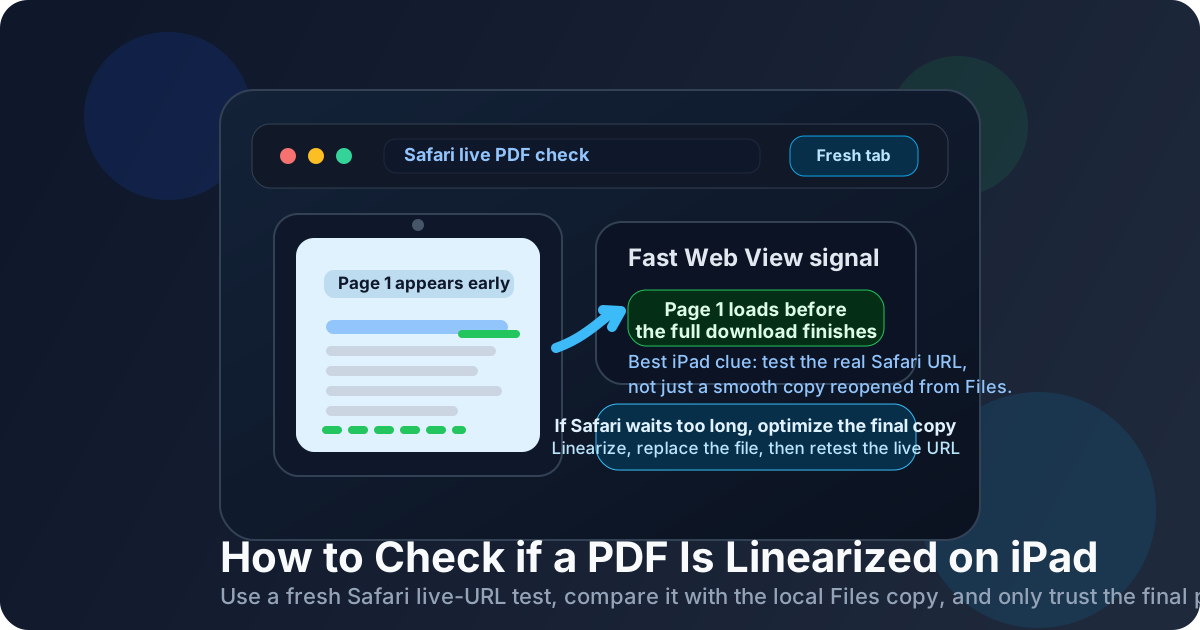
Table of contents
- Quick start: the fastest iPad linearization check
- What a linearized PDF means on iPad
- The best order to test it on iPad
- Method 1: test the live URL in Safari
- Method 2: compare it with the local Files copy
- Why iPad previews can fool you
- Compression vs linearization on iPad
- What to do if the PDF is not linearized
- Common iPad mistakes that create false confidence
- Related LifetimePDF tools and guides
- FAQ (People Also Ask)
Quick start: the fastest iPad linearization check
If your real goal is simply tell me whether this PDF is web-friendly on iPad, use this order:
- Save the exact PDF in Files so you know which local copy you are comparing against.
- Open the real published PDF URL in a fresh Safari tab or private session.
- Watch whether page 1 becomes readable while the rest of the file is still loading.
- If the live file feels slow, open the local Files copy and notice whether it is only smooth because it is already fully downloaded.
- Run the final approved PDF through Linearize PDF, replace the published file, and repeat the same live Safari test once.
What a linearized PDF means on iPad
A linearized PDF is structured so the parts needed for page 1 arrive early. On iPad, that matters because people often open PDFs straight from Safari, Mail, Messages, client portals, course platforms, support pages, or cloud-storage links instead of downloading them first. If the file is arranged well, the beginning of the document can start rendering sooner.
In many tools, this idea is labeled Fast Web View. The name sounds technical, but the user-facing effect is simple: the PDF feels more responsive because useful content appears earlier instead of making the iPad wait on the entire file.
| File state | What you usually see on iPad | Best fit |
|---|---|---|
| Linearized PDF | Page 1 often becomes usable earlier while later content keeps loading | Public links, portals, support docs, browser previews, course materials |
| Non-linearized PDF | Safari may wait longer before showing anything useful | Less noticeable for local or download-first workflows |
| Compressed but not linearized | The file may be smaller, but first-page delivery can still feel awkward | Bandwidth help without a full Fast Web View fix |
The best order to test it on iPad
The safest answer comes from a short sequence rather than one guessy test. On iPad, this order works well because it keeps you close to the real tablet experience:
1. Save one local copy
Use Files so you know which exact PDF you are testing and which one you may replace later.
2. Run the live Safari test
Check the published URL in a fresh session because that is what real visitors experience on iPad.
3. Retest after optimization
Make sure the improved behavior is coming from the actual live file, not just from the version stored on the device.
That sequence protects you from the most common tablet mistake: treating a smooth local preview as proof that the public browser experience is already good.
Method 1: test the live URL in Safari
This is the strongest iPad-specific test because it reflects the real environment where many people open PDFs. Copy the exact live PDF URL and open it in a fresh Safari tab, ideally in a private session if you have already opened the file earlier.
- Use the real published URL, not a local share-sheet preview, attachment card, or cloud thumbnail.
- Open a fresh Safari tab or private session.
- Load the PDF and watch the first few seconds.
- Ask one practical question: does page 1 become readable before the full document is done loading?
- Repeat once more after any optimization so you know the live file really changed.
| What you see in Safari | What it usually means | Next move |
|---|---|---|
| Page 1 appears quickly while the rest keeps loading | Good sign the PDF is linearized or at least browser-friendly | Keep the file if the experience feels solid |
| Safari waits too long before useful content appears | The PDF may not be linearized or the live file may still be the old version | Optimize the final copy and retest the live URL |
| The second open feels much faster than the first | Caching may be hiding the real first-visit behavior | Use a fresh tab or private session again |
The tablet trap
If you keep reopening the same PDF on the same iPad, Safari can make a slow file feel fixed when it is really just cached. That is why a fresh session matters more than people expect.
Method 2: compare it with the local Files copy
The Files app is not the main proof of linearization, but it is still useful. It helps you answer a different question: is the PDF only smooth because it is already fully downloaded on the iPad?
Open the same document from Files after the Safari test. If the local copy feels perfect but the live URL was slow to show page 1, you have learned something important: the PDF itself may be readable, but the browser delivery is not optimized.
What Files is good for
- Confirming the exact copy you saved
- Comparing before-and-after local versions
- Spot-checking page order and page count
What Files cannot prove
- That the live browser version is optimized
- That Fast Web View is definitely on
- That the published file was really replaced
Think of Files as your local control copy, not the final judge of web performance.
Why iPad previews can fool you
iPad users often open PDFs from apps that are trying to be helpful. Mail may show an attachment preview, Messages may keep a temporary copy, Notes may reopen a previously downloaded file, and a cloud-storage app may show you a cached version instead of the real published document. All of that is convenient, but none of it is the cleanest test of true first-visit browser delivery.
If the browser experience matters, the safest habit is simple: copy the actual URL and test it in a fresh Safari session. Use app previews only as supporting evidence, not the final verdict.
Compression vs linearization on iPad
These are related but not interchangeable fixes. A smaller PDF can still be poorly ordered for browser delivery. A linearized PDF can still feel heavy if giant scans, embedded images, or extra attachments make the document huge.
- Compression lowers the amount of data that has to travel.
- Linearization changes the order of the data so page 1 can appear sooner.
If the PDF is both large and slow, the best result often comes from compressing the final file first when needed, then linearizing the finished version you actually plan to publish.
What to do if the PDF is not linearized
Once the iPad check shows a problem, work from the final approved PDF instead of an old draft or an exported test copy.
- Make sure you have the final file that is supposed to be published.
- If the document is bloated, reduce the weight with Compress PDF.
- Run the final file through Linearize PDF.
- Replace the live file or upload the optimized version to the portal people actually use.
- Open the same live URL on iPad again in a fresh Safari session.
Reliable tablet workflow: finalize the PDF, compress if necessary, linearize the final copy, replace the published file, then test the real iPad URL once more as if you were a new visitor.
Common iPad mistakes that create false confidence
- Testing only the local copy: that proves the PDF opens, not that the live browser version is optimized.
- Reusing the same Safari session: cache can make a slow PDF look fixed.
- Trusting a Mail, Messages, or Drive preview alone: those previews may not reflect the real published URL behavior.
- Assuming a small PDF is automatically linearized: size and loading order are different jobs.
- Optimizing one copy and publishing another: always fix the final version that really goes live.
- Stopping after the local file improves: retest the public URL so you know the update actually propagated.
None of these are rare technical edge cases. They are normal workflow mistakes, which is exactly why a repeatable iPad-first process is so useful.
Related LifetimePDF tools and guides
FAQ (People Also Ask)
How do I check if a PDF is linearized on iPad?
Open the real published PDF URL in a fresh Safari tab and watch whether page 1 starts rendering before the entire file finishes loading. If the file only feels fast after it is fully downloaded or cached, it is probably not properly optimized for Fast Web View.
Can the Files app tell me if a PDF is linearized?
Not reliably. Files is useful for confirming the exact local copy and comparing before-and-after versions, but a smooth local preview does not prove that the live browser version is optimized for web delivery.
Why should I use a fresh Safari tab or private session on iPad?
Because cached PDFs can make a slow document look faster than it really is. A fresh session is much closer to what a first-time visitor experiences when they tap the link on iPad.
Is a compressed PDF automatically linearized on iPad?
No. Compression reduces file size, while linearization changes the internal loading order so the first page can appear sooner in a browser. Many PDFs need one of those fixes, and some benefit from both.
What should I do if the PDF is not linearized?
Start with the final live copy, compress it if it is unusually heavy, linearize it, replace the published file, and retest the same live URL on iPad once more so you know the public version actually changed.
Ready to fix a slow tablet PDF?
Good default workflow: save one copy → test the live Safari URL → compare with Files only as a control → linearize the final copy → retest the live URL once
Published by LifetimePDF — Pay once. Use forever.