How to Check if a PDF Has a Text Layer on Mac: Preview Tests Before You OCR or Extract Text
To check if a PDF has a text layer on Mac, open it in Preview, search for a visible word with Command+F, then highlight and copy one short line into TextEdit or Notes.
If search misses obvious text, the page behaves like one flat image, or the pasted text looks broken, the PDF probably needs OCR before you extract text, summarize it, or ask AI questions about it.
That is the quick answer. The more useful answer is knowing how to test the exact Mac copy you plan to keep, how to tell the difference between a missing text layer and a weak one, and how to avoid wasting time on a file that only looks readable on screen. A clean-looking PDF in Preview is not always a PDF that macOS can search, select, copy, extract, or summarize reliably.
Fastest path: save one local copy, run the Preview search test, copy one line into TextEdit, and only use OCR if the text layer is weak or missing.
In a hurry? Jump to the 2-minute Mac check.
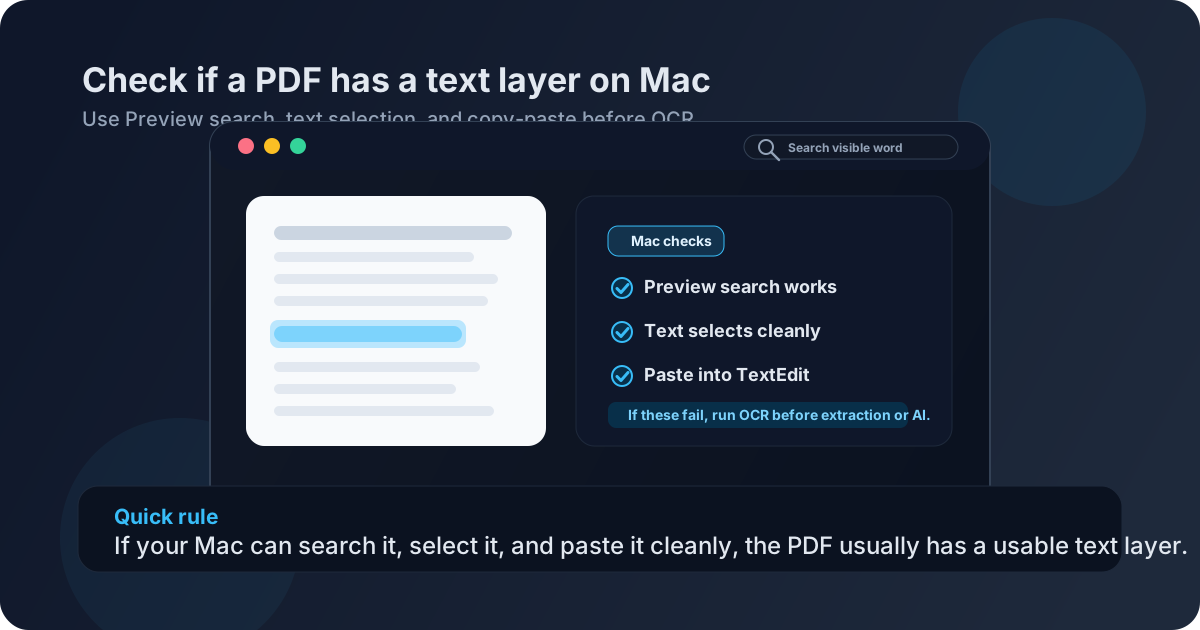
Table of contents
- Quick start: check for a text layer on Mac in 2 minutes
- What a PDF text layer actually means on Mac
- The best Preview workflow for checking text layers
- What your results mean
- How to spot a weak text layer, not just a missing one
- When to OCR and when to export a cleaner PDF instead
- What to do after the check
- Related LifetimePDF tools and guides
- FAQ (People Also Ask)
Quick start: check for a text layer on Mac in 2 minutes
If you only need a fast yes-or-no answer, use this order:
- Save the PDF from Mail, Safari, AirDrop, or iCloud Drive into one obvious Finder folder.
- Open it in Preview and search for a visible word with Command+F.
- Highlight one short sentence.
- Copy that sentence and paste it into TextEdit or Notes.
- If all of that works cleanly, the PDF has a usable text layer. If it fails, use OCR PDF.
What a PDF text layer actually means on Mac
A text layer is the machine-readable text behind the visible page. It is what makes a PDF searchable in Preview, selectable with your cursor, and useful for extraction, summarization, translation, AI Q&A, and accessibility workflows. Without a usable text layer, the file may still look fine in Preview, but it behaves more like a screenshot than a document.
On Mac, that distinction matters because many people work from a mix of sources:
- Native PDFs exported from Pages, Word, Excel, Google Docs, or design tools
- Scanned PDFs from a copier, office scanner, or phone capture app
- Mixed PDFs where some pages are native and others were inserted as scans, screenshots, signatures, or photos
The trouble is that all three can appear perfectly readable on screen. That is why behavior tests are better than assumptions. If you can search, select, and paste text cleanly, the file is usually ready. If one of those steps breaks, the text layer is weak or missing, and downstream tools will feel less reliable than they should.
The best Preview workflow for checking text layers
The easiest Mac mistake is testing the wrong copy. Someone opens a PDF preview in Mail, another version in Downloads, and a third copy from iCloud Drive, then concludes the file is probably okay because one version behaved well. If you want a reliable answer, test one saved file from Finder and stick to it.
1) Save one local copy first
If the PDF is still inside a browser tab, Mail preview, or Quick Look panel, save it first if that makes the workflow clearer. This matters less because macOS cannot read previews and more because version confusion causes bad decisions. One obvious local file means one honest diagnosis.
2) Search for a visible word in Preview
Open the file in Preview and choose a word you can clearly see on the page. Use something distinctive like a heading, invoice number fragment, surname, or product name instead of a common short word. If Command+F cannot find it, the PDF may be image-only or the text layer may already be broken.
3) Highlight one full sentence
Drag across a line of visible text. If selection behaves naturally, that is a strong sign the file contains real text. If the cursor feels like it is moving over one big photo, or if selection jumps in strange fragments, the text layer is missing or poorly aligned.
4) Copy and paste into TextEdit or Notes
This is the strongest quick check because it shows whether the text layer is actually usable. Paste one copied sentence into plain text. If the result stays clean, you are in good shape. If spacing collapses, characters break, columns paste out of order, or the text becomes gibberish, the file may technically have text but not a text layer you should trust.
5) Run one stronger extraction test if the file matters
If the PDF is headed into legal review, research, accounting, AI summarization, or archive work, it is worth checking the file with PDF to Text. That gives you a clearer view of whether reading order, paragraph flow, and extracted content still make sense beyond a single successful search hit.
Recommended Mac sequence: Finder copy → Preview search → text selection → TextEdit paste → PDF to Text if the file matters → OCR only if needed.
What your results mean
Once you run those checks, use the table below to choose the next step instead of guessing.
| What happened on Mac | What it usually means | Best next step |
|---|---|---|
| Preview search, text selection, and copy-paste all work cleanly | The PDF has a usable text layer | Move straight to PDF to Text, PDF Summarizer, or PDF Q&A |
| Search fails and the page behaves like a picture | The PDF is probably image-only | Run OCR PDF |
| Search works, but pasted text looks messy | The file has a weak or damaged text layer | Retest with PDF to Text and consider OCR or a cleaner export |
| Only some pages work | The PDF is mixed: part native, part scanned, or partially flattened | Check the important pages and OCR the problem pages or the whole file |
| Text selects in tiny fragments or strange order | The text layer exists, but it is badly aligned or low quality | Do not trust extraction blindly; clean the source, OCR, or re-export the PDF if possible |
How to spot a weak text layer, not just a missing one
A lot of PDFs on Mac fall into the awkward middle: they are not completely image-only, but they are not clean enough for reliable extraction either. That is why the copy-paste check matters so much.
Common warning signs of a weak text layer include:
- Copy-paste returns scrambled text with broken spacing, missing letters, or merged words
- Search finds some matches but misses obvious ones
- Multi-column pages paste in the wrong order
- Tables, totals, or lists become hard to read after extraction
- One page works well while the next page behaves like an image
- Rotated scans or dark borders confuse recognition
In other words, a weak text layer can still trick you into thinking the file is ready because one search hit succeeds. That is not enough if you plan to quote from the PDF, extract contract clauses, summarize research, or feed the document into AI tools. If the pasted text is ugly, the later workflow will usually be ugly too.
When to OCR and when to export a cleaner PDF instead
OCR is not the right answer to every bad PDF. Sometimes it is the best fix. Sometimes it is a patch on top of an avoidable export problem.
Run OCR when
- the PDF came from a scanner, copier, or phone capture,
- Preview cannot find obvious text,
- the page behaves like one flat image,
- the file mixes photos, scans, and native pages, or
- you need the file to become searchable before summarizing, translating, or asking AI questions.
Export a cleaner source file when
- the PDF originally came from Pages, Word, Excel, Keynote, or another editable app,
- the source document still exists,
- copy-paste order is consistently messy even though the source was digital, or
- the PDF was created through a rough print-to-PDF workflow that flattened text badly.
A simple rule works well here: if the file started on paper, think OCR first. If it started in software, think clean re-export first. You can still use OCR afterward, but a better source file often saves time and quality.
Need cleanup before OCR? Rotated pages and heavy scan borders make weak text layers even worse.
What to do after the check
Once you know the condition of the text layer, the rest of the workflow becomes much easier.
If the text layer is clean
- Use PDF to Text if you need editable extracted text.
- Use PDF Summarizer if you want the main points fast.
- Use PDF Q&A if you need targeted answers from the file.
- Use Translate PDF or Redact PDF only after you know the text behaves properly.
If the text layer is weak or missing
- Clean the file if needed with Rotate PDF or Crop PDF.
- Run OCR PDF.
- Repeat the same Mac tests in Preview and TextEdit.
- Then move into extraction, summarization, translation, or AI Q&A once the file behaves like real text.
The main benefit of this check is not theoretical. It saves you from blaming the wrong tool later. If the text layer is weak, every later step feels less accurate than it should. If the text layer is solid, you can skip unnecessary reprocessing and get straight to the task that actually matters.
Related LifetimePDF tools and guides
- PDF to Text - extract text once the Mac PDF is behaving properly
- OCR PDF - add a searchable text layer to scanned or image-only PDFs
- PDF Summarizer - turn a readable PDF into a fast brief
- PDF Q&A - ask follow-up questions once the text layer is usable
- How to Check if a PDF Has a Text Layer - generic cross-platform version
- How to Check if a PDF Is Searchable on Mac - related Mac searchability workflow
- Why Is My PDF Not Searchable? - common causes behind image-only PDFs
FAQ (People Also Ask)
How do I check if a PDF has a text layer on Mac?
Open the PDF in Preview, search for a visible word with Command+F, highlight one short sentence, and paste it into TextEdit or Notes. If those tests work cleanly, the PDF has a usable text layer. If they fail, the file probably needs OCR.
Is a searchable PDF the same as a PDF with a text layer?
In most everyday situations, yes. A searchable PDF usually has a text layer underneath the page. The real nuance is quality: some PDFs have a weak text layer that partly works for search but still fails during copy-paste or extraction.
Why does Preview show the PDF clearly if it has no text layer?
Because visual clarity and machine-readable text are different things. Preview can display a PDF that is only a picture of words. Search, selection, and copy-paste are the fast tests for whether the file contains real text underneath.
Should I OCR a PDF that already has selectable text?
Usually not if the pasted text stays clean. If search, selection, and copy-paste all work well, you can usually move straight into extraction, summarization, or AI Q&A. OCR is more useful when the page behaves like an image or the copied text looks messy.
What should I do after I confirm the text layer is good?
Use PDF to Text if you need extracted content, PDF Summarizer if you want a quick brief, or PDF Q&A if you want targeted answers from the file. Once the text layer is clean, you can usually skip unnecessary OCR.
Ready to test the file for real?
Good default workflow: save one copy → test in Preview → paste one line into TextEdit → use PDF to Text if it matters → OCR only if needed → retest before you continue