How to Add Text to a PDF: Type on Forms, Scans, and Shared Documents Without Breaking the Layout
To add text to a PDF, open the file in LifetimePDF's PDF Field Editor, place a text box exactly where the wording belongs, then download the updated copy.
If the PDF is really a form, a scan, or a locked file, switch to PDF Form Filler, OCR PDF, or PDF Unlock first so the final text stays clean and readable.
That is the short answer. The useful part is knowing when a quick text box is the right move, when you are actually dealing with a form, when a scan needs OCR before you touch it, and how to save one polished final PDF instead of creating three confusing versions with slightly different text placement.
Fastest path: open PDF Field Editor, upload the exact file you intend to send, add only the text the page really needs, then save the finished PDF with a new filename.
In a hurry? Jump to Quick start: add text to a PDF in 3 minutes.
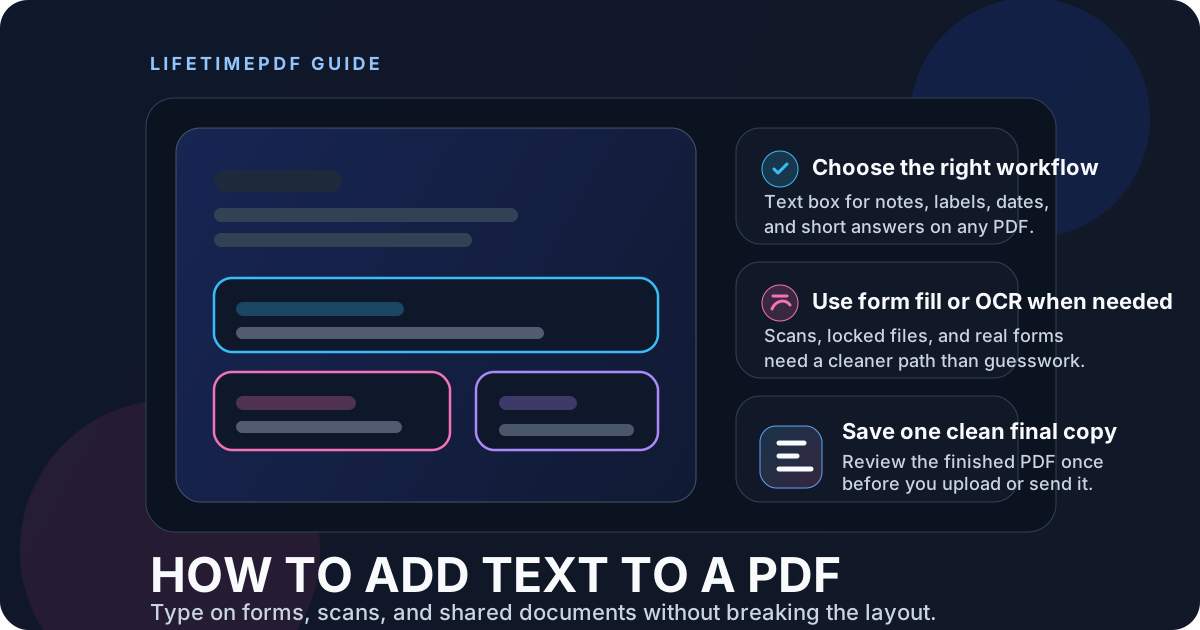
Table of contents
- Quick start: add text to a PDF in 3 minutes
- Text box vs form filler vs full editing
- Step-by-step: add text without creating a messy final file
- Scanned PDFs, OCR, and image-only pages
- How to keep the text aligned and readable
- How to save, sign, share, and protect the finished PDF
- Common mistakes when adding text to a PDF
- Related LifetimePDF tools and guides
- FAQ
Quick start: add text to a PDF in 3 minutes
If you just need to type on a PDF cleanly, this is the shortest workflow that works for most people:
- Open PDF Field Editor.
- Upload the exact PDF you intend to send back, not a preview or duplicate copy.
- Add a text box where the wording belongs and zoom in before final placement.
- If the document is really a form, switch to PDF Form Filler.
- If the PDF behaves like an image, run OCR PDF first.
- Download the finished PDF, reopen it once, and confirm the text still looks right at normal zoom.
Text box vs form filler vs full editing
Most PDF frustration comes from picking the wrong kind of edit before you begin. Adding text is not the same thing as editing the original document, and it is definitely not the same thing as completing a structured form.
| What you need | Best option | Why it works |
|---|---|---|
| Add a date, note, label, initials, price, or short answer | Text box in PDF Field Editor | Fastest way to place visible text without rebuilding the whole file. |
| Complete boxes on a true form | PDF Form Filler | Keeps answers aligned and usually looks cleaner than stacking loose text overlays. |
| Fix a scan or image-only PDF | OCR PDF, then add text | Makes the document searchable and easier to inspect before you place anything on top. |
| Rewrite sentences, paragraphs, or page content | Convert and edit properly | A real content edit is more reliable than pretending a text box is a full editor. |
In other words, a text box is perfect for visible additions, not for faking a deep rewrite. If the file is a form, fill the form. If the file is a scan, OCR it. If the job is really document editing, use PDF to Word and make the actual content changes there.
Step-by-step: add text without creating a messy final file
1) Confirm which PDF is the real source of truth
Many people end up typing on the wrong copy because the same PDF exists in an email preview, a cloud drive, a download folder, and an upload portal at the same time. Before you add anything, decide which file you are actually returning to the other person.
Save it with a clear filename if needed. That small bit of discipline prevents a lot of later confusion.
2) Open PDF Field Editor and add only the words the page needs
Open PDF Field Editor and upload the file you just confirmed. Use it for dates, notes, labels, initials, short answers, corrections, and other visible additions that should sit on top of the page cleanly.
The goal is not to make the PDF look heavily edited. The goal is to make the new text feel natural, readable, and deliberate.
3) Switch tools early if the document is really a form
If the page is full of blanks and you are effectively completing a questionnaire, registration packet, school form, medical intake form, or HR document, use PDF Form Filler instead. Structured forms usually look much better when answers sit in the right places automatically.
Loose text boxes everywhere can work in an emergency, but a form workflow is calmer and easier to review.
4) Do not force a scan to behave like a clean digital PDF
If the page behaves like one flat image, you are not dealing with a normal text-ready PDF. Run OCR PDF first, especially if the file came from a phone camera, office scanner, copier, or old paper archive.
You can still add visible text on top of a scan, but OCR usually makes the whole workflow easier to inspect and trust.
5) Reopen the finished PDF once before you share it
The final check matters more than people think. Open the downloaded file, read it at normal zoom, and make sure the text still lands where you intended. That catches the most common problems: slightly awkward placement, the wrong filename, or a final copy that is not the one you meant to send.
Shortest reliable sequence: confirm the right PDF → add the text you actually need → switch to form fill or OCR when appropriate → save as a new copy → reopen the final file once.
Scanned PDFs, OCR, and image-only pages
A scanned PDF often looks normal until you try to work with it. You click where a blank line appears to be, nothing happens, and the whole page feels slightly slippery. That is because the PDF is really an image or a flattened page layer rather than a healthy digital document.
In that situation, OCR is the practical fix. OCR PDF makes the text searchable and usually makes later review much easier because you are no longer placing text blindly onto a single picture.
OCR is especially useful when you need to add text to:
- phone scans of signed paperwork
- printed forms that were scanned back in
- old contracts and archived records
- receipts, invoices, and image-heavy statements
- school packets or government paperwork saved from a copier
How to keep the text aligned and readable
Clean placement is mostly about restraint. The more text you try to jam into the page, the more obvious it becomes that you were improvising.
- Zoom in before final placement: small alignment errors become much easier to spot.
- Keep additions short when possible: dates, names, prices, labels, initials, and compact notes usually look best.
- Respect the shape of the page: use the natural white space instead of crowding existing content.
- Match the purpose, not necessarily the original font: readability matters more than pretending nothing was added.
- Review at normal zoom: a placement that looked perfect while zoomed in can feel slightly off once the page returns to everyday size.
If you find yourself adding paragraph after paragraph, that is a sign you may not be doing a simple text-addition task anymore. At that point, a deeper edit workflow is usually the better choice.
How to save, sign, share, and protect the finished PDF
Save the updated file with a clear new name
Keep the original untouched if you can. A filename like contract-notes-added.pdf, application-completed.pdf, or invoice-corrected.pdf makes the next step far less confusing.
Sign only after the wording is final
If the PDF needs a signature, use Sign PDF after you finish the text. That way you do not have to redo the signature because of one last wording fix.
Compress large files before you upload them
Image-heavy PDFs often grow after edits. If the file ends up too large for email or a portal, run it through Compress PDF before you send it.
Protect sensitive copies when needed
If the final document contains private information, use PDF Protect before sharing it. If something truly needs to disappear, redact it instead of assuming overlaid text will hide the original content underneath.
Common mistakes when adding text to a PDF
I typed on the wrong version of the PDF
This is the most common mistake by far. Save the source file intentionally first and make the finished copy obvious with a new filename.
The text looked fine while editing but awkward after download
Reopen the saved PDF at normal zoom. The exported copy is what matters, not the temporary editing view.
I am using text boxes for what is clearly a real form
Switch to PDF Form Filler. The result is usually cleaner and faster.
The PDF is scanned and nothing lines up naturally
Run OCR first. Scan-based PDFs are much harder to work with until the text layer becomes searchable.
I actually need to rewrite the document, not just add text
Use PDF to Word and edit the content properly. A text overlay is the wrong tool for a true rewrite.
Related LifetimePDF tools and guides
Adding text to a PDF often turns into one or two follow-up steps. These are the most useful companions:
- PDF Field Editor — add visible text and handle light field-level changes.
- PDF Form Filler — better for structured forms and aligned answers.
- OCR PDF — make scan-heavy PDFs easier to search and review.
- PDF to Word — the right move when you need deeper content edits.
- Sign PDF — add a signature after the wording is final.
- Compress PDF — shrink bulky final files before upload.
Related reading on LifetimePDF: How to Add Text to a PDF in Chrome, How to Add Text to a PDF on Windows, How to Add Text to a PDF on iPad, How to Fill Out an Uneditable PDF Form, PDF Form Filler, and Edit PDF Text Online Free.
Best shortcut: use a text box for short visible additions, switch to form filling for real forms, and OCR a scan before you try to make it behave like a clean digital PDF.
FAQ: How to add text to a PDF
Can I add text to a PDF without Adobe Acrobat?
Yes. A browser-based PDF text workflow is often enough for notes, dates, labels, short answers, initials, and other visible additions. Use deeper tools only when the file is really a form, a scan, or a true document-editing job.
What is the difference between adding text to a PDF and editing the original text?
Adding text places new visible words on top of the page. Editing original text changes the document itself. If you need to rewrite paragraphs or reshape content, use a deeper edit path like PDF to Word first.
Can I type on a scanned PDF?
Yes, but it usually goes more smoothly after OCR. Once the scan becomes searchable, it is much easier to position text cleanly and review the final result.
Should I use a text box or a PDF form filler?
Use a text box for short visible additions. Use PDF Form Filler when the document is a real form with lots of answers, aligned blanks, or signature fields that should stay tidy.
How do I keep added text aligned in a PDF?
Zoom in before final placement, keep additions concise, save the edited PDF as a new copy, and reopen the final file once at normal zoom before sending it onward.
Published by LifetimePDF — Pay once. Use forever.