Watermark PDF Online: Add Draft, Confidential, and Sample Labels Without Hiding the Content
To watermark a PDF online, upload the file to LifetimePDF's Watermark PDF tool, enter a short label like DRAFT or CONFIDENTIAL, use a light-to-medium opacity with a diagonal angle, preview a few pages, and download the finished PDF.
The best result is usually a watermark that is obvious at a glance but still leaves paragraphs, charts, signatures, and tables comfortable to read.
Watermarking sounds like a tiny task until the same need keeps showing up in real work: draft proposals, internal policies, client packets, sample files, legal review copies, branded PDFs, and anything that should stay clearly labeled after it gets forwarded or printed. A good online workflow is not just about adding text to a page. It is about labeling the file clearly, keeping the content readable, and knowing when to follow up with protection, redaction, splitting, or compression.
Fastest path: upload the PDF, enter a short watermark label, choose clean readability-first settings, then preview the result once before sharing it onward.
In a hurry? Jump to Quick start: watermark a PDF in under 3 minutes.
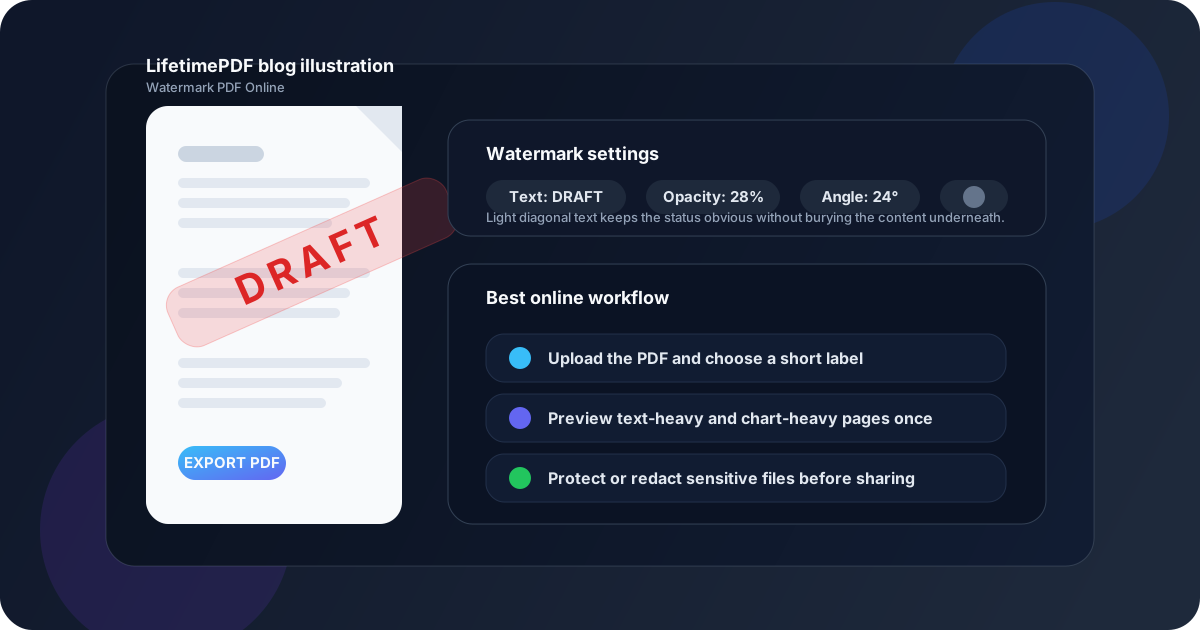
Table of contents
- Quick start: watermark a PDF in under 3 minutes
- When watermarking a PDF online makes sense
- Step-by-step: how to watermark a PDF with LifetimePDF
- Best watermark settings for readable results
- Draft, confidential, sample, and branded watermark use cases
- How to watermark only selected pages
- Watermark vs protect vs redact: what each step does
- Common watermark mistakes that make PDFs harder to use
- Related LifetimePDF tools and useful internal reads
- FAQ (People Also Ask)
Quick start: watermark a PDF in under 3 minutes
If your file is ready and you mostly want a clear status label before sharing it, this workflow is usually enough:
- Open Watermark PDF.
- Upload the PDF you want to label.
- Enter short text such as DRAFT, CONFIDENTIAL, SAMPLE, or your company name.
- Choose a diagonal angle and light-to-medium opacity.
- Preview one text-heavy page, one page with graphics, and the last page.
- Download the finished PDF.
- If the file is sensitive, follow up with PDF Protect or Redact PDF.
When watermarking a PDF online makes sense
Watermarking is not about decoration. It is about context. A PDF gets detached from the original email, downloaded to someone's desktop, printed for review, dropped into a shared folder, or forwarded into a chat. Once that happens, the file needs to explain itself.
That is why people watermark PDFs in the first place. A visible label tells the next reader whether the document is final, confidential, internal, a draft under review, or just a sample. If the PDF could be misunderstood when viewed on its own, watermarking is often the simplest fix.
Common situations where an online watermark helps
- Draft proposals: stop unfinished copies from being mistaken for final documents.
- Confidential files: make sensitivity obvious before the reader even starts scrolling.
- Sample downloads: show that a PDF is a preview, demo, or lead magnet excerpt.
- Internal policies and handbooks: keep the audience clear after the file gets saved elsewhere.
- Branded business documents: reinforce ownership on shared or exported files.
Step-by-step: how to watermark a PDF with LifetimePDF
LifetimePDF's Watermark PDF tool is designed for the practical version of this job: take a real document, apply a visible text label, and keep the result readable enough to send immediately.
Step 1: decide what the watermark needs to say
Start with the meaning, not the styling. If the document is still under review, DRAFT is honest and useful. If it contains sensitive information, CONFIDENTIAL or INTERNAL USE ONLY may be better. If you are sharing a preview, SAMPLE usually does the job. Short labels work best because they stay legible across different page layouts.
Step 2: upload the PDF
Choose the file from your device and think one step ahead. If the PDF includes information that should never stay visible, watermarking alone is not enough. In those cases, use Redact PDF first. If the document is fine to read but should not be casually opened by everyone, plan to use PDF Protect after watermarking.
Step 3: set the watermark so it stays readable
This is where most bad watermarks happen. The goal is not maximum aggression. The goal is clarity. A diagonal watermark with balanced opacity usually looks more natural than a huge opaque label sitting straight across the page like a headline.
Step 4: preview representative pages
Never judge the watermark from one easy cover page alone. Check a page with dense paragraphs, a page with a chart or image, and a page with signatures or tables. If the watermark still communicates clearly without making those pages annoying to read, the settings are probably right.
Step 5: download the file and finish the workflow
Once the watermark looks good, download the PDF and move straight into the next step if needed. That might mean protecting the file, compressing it for email, signing it, or splitting out just the pages a client should actually receive.
Quick workflow: Upload PDF → use a short label → preview real pages once → protect or redact if the document is sensitive.
Best watermark settings for readable results
A professional-looking watermark usually comes down to restraint. People notice ugly watermarks more than useful ones. The best settings keep the label visible while leaving the document easy to review on screen and in print.
| Setting | Best starting point | Why it works |
|---|---|---|
| Text | Short and direct | Easier to read across every page type |
| Opacity | Light to medium | Keeps the watermark visible without burying body text |
| Angle | Diagonal | Looks like a document label rather than part of the content |
| Color | Gray or a muted brand tone | Feels cleaner than bright, heavy colors |
| Size | Noticeable, not oversized | Prevents charts, signatures, and tables from becoming hard to read |
Text: say one thing well
The wording should communicate status or ownership in a second. Long phrases usually look worse than short labels. A watermark is not a paragraph. It is a flag.
Opacity: visible without turning hostile
Dense text pages usually need a lighter touch than image-heavy pages or wide-blank proposals. If the watermark is the first thing you notice and the content feels harder to read, it is probably too strong.
Angle: diagonal is the safest default
Diagonal placement helps readers recognize the watermark as a status layer instead of confusing it with a title, footer, or annotation. It also tends to work across different page layouts with less manual fuss.
Draft, confidential, sample, and branded watermark use cases
Different watermarks solve different problems. The wording should match the job the PDF needs to do after it leaves your hands.
Draft copies
A DRAFT watermark prevents the classic confusion where someone forwards an unfinished file and everybody starts treating it like the approved version. This matters a lot for contracts, proposals, policy updates, pitch decks, and design reviews.
Confidential files
A confidentiality label is a visual warning. It does not encrypt anything by itself, but it makes the document's sensitivity obvious immediately. That is useful for pricing sheets, legal documents, financial reports, HR files, and internal planning material.
Samples and previews
Sample watermarks are common when you sell templates, distribute course material previews, share brochure drafts, or send example deliverables. They help the PDF travel without losing the fact that the reader is looking at a preview rather than the final deliverable.
Branded internal or client documents
Some teams use a company name, department label, or client name as a watermark to reinforce ownership and context. This can be useful for training packs, account handoff documents, review packets, or files that move through multiple inboxes.
How to watermark only selected pages
Sometimes every page should carry the same label. Sometimes only one section should. If the watermark tool applies text across the whole document by default, there is still a clean workaround.
- Use Extract Pages or Split PDF to isolate the section that needs the watermark.
- Apply the watermark to that smaller file with Watermark PDF.
- Rebuild the full packet with Merge PDF.
This is especially useful when one section should say CLIENT COPY and another should stay internal, or when a sample watermark should appear only on the preview pages rather than the whole document.
Watermark vs protect vs redact: what each step does
These tools are related, but they solve different problems. Choosing the right one prevents a lot of false confidence.
| Task | What it does well | What it does not do |
|---|---|---|
| Watermark PDF | Shows status, ownership, or confidentiality visibly | Does not control access or erase hidden content |
| PDF Protect | Adds access control before sharing | Does not remove visible sensitive information already on the page |
| Redact PDF | Permanently removes information that should not remain visible | Does not replace a status label or branded document context |
For truly sensitive documents, the strongest workflow is often: redact what must disappear, then watermark the file for context, then protect the final PDF before sharing it. That sequence makes the document both clearer and safer.
Handling sensitive files? Watermarking is the visual layer. Protection is the access-control layer. Redaction is the removal layer.
Common watermark mistakes that make PDFs harder to use
- Using too much opacity: the watermark competes with the actual document.
- Making it too large: charts, signatures, or table cells become harder to read.
- Writing a full sentence: long text turns visual noise into a repeated problem on every page.
- Skipping the preview: the settings may look fine on page 1 and awful on dense interior pages.
- Treating watermarking as security: it labels the file, but it does not replace protection or redaction.
When in doubt, go cleaner. A subtle watermark that communicates clearly is almost always better than an aggressive one that makes a PDF annoying to review.
Related LifetimePDF tools and useful internal reads
Watermarking is often one step in a broader document workflow. These tools pair naturally with it:
- Watermark PDF - add text labels across the document.
- PDF Protect - control access before the file moves onward.
- Redact PDF - remove data that should not stay visible.
- Extract Pages - isolate the section that needs a watermark.
- Split PDF - break apart sections that need different treatment.
- Merge PDF - rebuild the packet after editing.
- Compress PDF - shrink the finished file for email or upload forms.
- Sign PDF - finalize the document after review.
Useful related articles
- Add Watermark to PDF
- Watermark PDF Online Free
- Watermark PDF Without Monthly Fees
- Password Protect PDF Online Free
- Redact PDF Online Permanently
- Browse all LifetimePDF articles
Ready to label your PDF clearly?
Best practical sequence: watermark → preview once → protect or redact if needed → compress before sharing.
FAQ (People Also Ask)
1) How do I watermark a PDF online?
Open Watermark PDF, upload the file, enter the watermark text, set a readable opacity and angle, preview the result, and download the finished PDF.
2) What is the best opacity for a PDF watermark?
Light to medium opacity usually works best because the label stays visible without making the file uncomfortable to read. Dense text pages typically need a lighter setting than pages with large graphics or more white space.
3) Is watermarking a PDF the same as password-protecting it?
No. Watermarking is visual and communicates status or ownership. Password protection controls access. Sensitive files often need both steps.
4) Can I watermark only selected pages of a PDF?
Yes. Use Extract Pages or Split PDF first, watermark that section, then rebuild the final packet with Merge PDF.
5) What should I write in a PDF watermark?
Common choices include DRAFT, CONFIDENTIAL, SAMPLE, INTERNAL USE ONLY, a company name, a department label, or a client/project name. Short wording nearly always reads better than long instructions.
Published by LifetimePDF — Pay once. Use forever.