Password Protect PDF for Posteo: Add File-Level Privacy Before You Send
To password protect a PDF for Posteo, finish the document first, compress it if needed, add the password to the final copy, test it once, and then attach that protected file in Posteo.
If the PDF matters, send the password through a different channel instead of the same message thread.
Posteo users usually care about keeping personal data exposure low, but attachment mistakes still happen: the unprotected original gets attached from Downloads, the file gets locked before redaction or cleanup is done, or the sender assumes a privacy-minded mailbox means the PDF no longer needs its own protection after it is downloaded, saved elsewhere, or forwarded later. A clean Posteo workflow keeps the mailbox tidy while still protecting the file itself.
Fastest path: finish the PDF, reduce size if needed, protect the final copy, open it once to confirm the password prompt, then attach that file in Posteo.
In a hurry? Jump to Quick start: protect a PDF for Posteo in under 4 minutes.
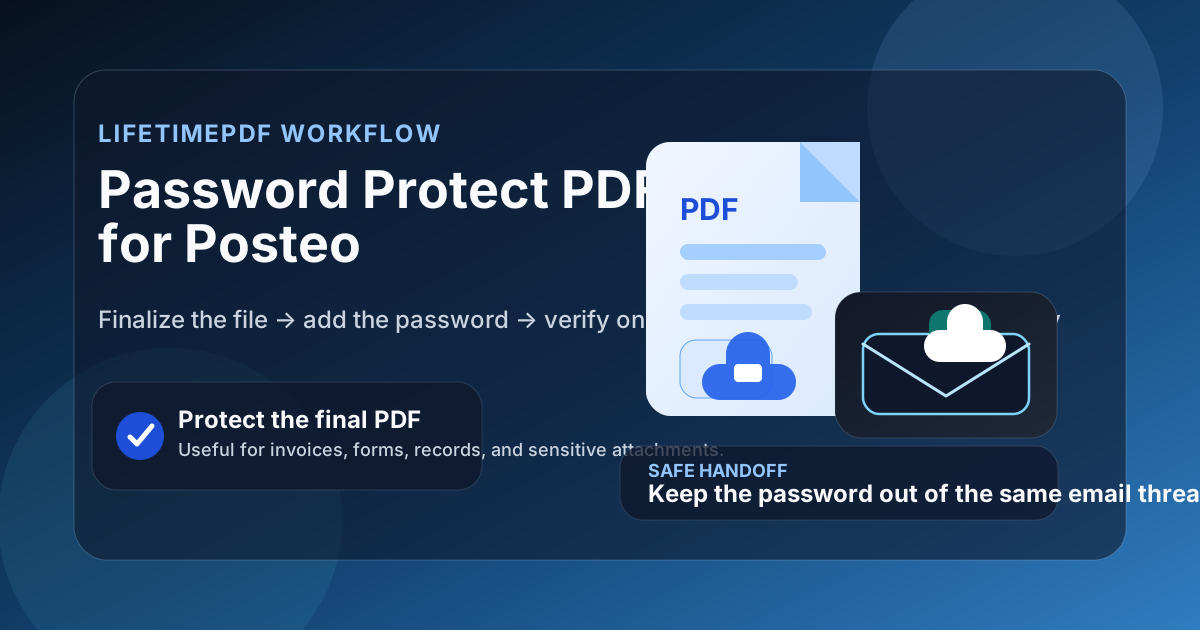
Table of contents
- Quick start: protect a PDF for Posteo in under 4 minutes
- Why Posteo still benefits from file-level PDF protection
- Step-by-step: how to password protect a PDF for Posteo
- How to avoid sending the wrong copy from a privacy-first workflow
- What to finish or remove before you add the password
- How to share the password more safely
- Common Posteo mistakes and quick fixes
- Posteo on desktop vs phone or tablet
- Related LifetimePDF tools and guides
- FAQ
Quick start: protect a PDF for Posteo in under 4 minutes
If the document is finished and you simply need to send it through Posteo without leaving it wide open, use this order:
- Confirm that the PDF is the final version you actually plan to send.
- If size might be a problem, use Compress PDF or remove unnecessary pages first.
- Open PDF Protect and add the password to that final version.
- Download the protected copy and open it once to confirm the password prompt works.
- Rename it clearly, then attach the protected file in Posteo.
- Send the password separately when practical.
That order matters because it prevents the two most common problems: protecting a file too early and later sending an older unprotected copy by mistake.
Why Posteo still benefits from file-level PDF protection
Posteo can be part of a privacy-conscious email setup, but mailbox choice and file security are not the same thing. Once a PDF is downloaded, copied into another folder, saved to shared storage, or forwarded later, the mailbox is no longer the whole story. A PDF password adds protection that travels with the file.
That is especially useful when you are sending documents like contracts, ID paperwork, financial statements, legal records, HR forms, invoices, or medical files. In those cases, the question is not only whether the message reaches the right person. It is also whether the attachment stays harder to open if it lands in the wrong place.
Think of Posteo as the delivery channel and the password as protection on the document itself. When you use both together, your process becomes much harder to mess up.
Simple rule: if you would hesitate to leave the PDF open on a shared laptop or synced folder, it is a strong candidate for password protection before you send it.
Step-by-step: how to password protect a PDF for Posteo
1) Finish the document first
Review the PDF before you add any password. This is the moment to fix page order, remove the wrong draft, finish signatures, or clean up stray pages. If the recipient should not see some information at all, use Redact PDF first.
2) Reduce file size before you lock it
If the document is large, compress it before password protecting it. That keeps the workflow cleaner because you only produce one final protected copy instead of a chain of versions. It also helps if the recipient is opening the file on a phone, slower connection, or limited storage.
3) Add the password to the final copy
Open LifetimePDF PDF Protect, upload the finished file, enter the password carefully, confirm it, and download the protected version. Use a password that the recipient can actually enter correctly, especially if they may be working from mobile.
4) Test the protected file once
Open the downloaded copy immediately. You are not looking for a deep audit here. You only need to confirm that the password prompt appears, the file opens correctly after entry, and the PDF content looks normal.
5) Rename it so you do not attach the wrong file
A name like client-agreement-protected.pdf is safer than leaving both the original and the protected copy with nearly identical names.
Small naming mistakes are one of the easiest ways to defeat your own privacy workflow.
6) Attach in Posteo and send the password separately
Once you know the protected file is correct, attach that copy in Posteo. If practical, send the password in another channel such as text message, chat, a password manager share, or a quick phone call. That separation is what gives the protection more real-world value.
How to avoid sending the wrong copy from a privacy-first workflow
People who care about privacy often use tidy folder systems, downloads cleanups, and careful mail habits, but that can still backfire if several versions of the same PDF are sitting close together. The easiest fix is to make your final protected file unmistakable.
- Rename the final file with a clear suffix like
-protected. - Move the original draft out of your immediate upload folder if you no longer need it.
- Keep only one send-ready copy in the location you are about to attach from.
- Open the attachment picker slowly enough to confirm the filename, not just the icon.
None of that is glamorous, but it prevents the exact kind of human error that leads to accidental oversharing.
What to finish or remove before you add the password
Password protection controls access. It does not clean the document for you. Before you lock the file, ask these questions:
- Did you remove pages the recipient does not need?
- Did you redact information that should never be visible?
- Did you confirm the final signatures, initials, and form fields?
- Did you compress large scans if attachment size is a concern?
- Did you check whether comments, markup, or hidden layers should be removed first?
If the answer to any of those is no, pause and fix it before you protect the file. Locking a bad version only makes the wrong document slightly harder to open.
How to share the password more safely
The password should be easy enough for the recipient to use and separate enough from the PDF that the protection still matters. In practice, good options include:
- a text message sent after the email,
- a chat thread outside the email conversation,
- a phone call when the document is sensitive, or
- a password manager share if both sides already use one.
Sending both the attachment and the password in the same Posteo message is still better than sending no protection at all, but it gives you much less separation if that one message is accessed by someone else.
Common Posteo mistakes and quick fixes
"I protected the PDF, but then I edited the original and attached the wrong file."
Redo the workflow in the right order: edit first, protect the final version second, then rename it clearly before attaching.
"The file became too large after I finished scanning everything."
Compress before you password protect. That way you only need one clean final protected copy.
"I sent the password in the same thread because I was rushing."
If the document is sensitive, follow up with a different channel next time. The extra step is short, and the privacy gain is real.
"I assumed password protection would hide everything inside the PDF."
It does not. If something should never be visible, redact it before you protect the file.
Posteo on desktop vs phone or tablet
The same workflow works everywhere, but the risk points change a little depending on device.
On desktop
Desktop is usually the easiest place to finish the document, compare versions side by side, rename the final protected copy clearly, and attach the right file without rushing.
On phone or tablet
Mobile is convenient, but it is easier to tap the wrong file, overlook a duplicate filename, or forget where the protected copy was saved. If the PDF is sensitive or multi-step, preparing it on desktop first is often the safer choice.
Related LifetimePDF tools and guides
- PDF Protect for adding the password to the final file.
- Compress PDF if the attachment is too large.
- Redact PDF if the recipient should never see certain details.
- Password Protect PDF for Mailbox.org if you want a similar privacy-first workflow comparison.
- Password Protect PDF for Tutanota for another secure-mailbox companion guide.
Need to send it today? Protect the final PDF first, then attach it in Posteo only after you confirm the correct file opens with the password.
FAQ
How do I password protect a PDF for Posteo?
Finish the file, compress it first if needed, add the password to the final copy, test the protected PDF once, then attach that version in Posteo and share the password separately when practical.
Do I still need a PDF password if I use Posteo?
Usually yes. The password protects the file itself after download, storage, or forwarding, which is different from the security of the mailbox that carried it.
Should I compress the file before or after password protecting it?
Before. Compressing first helps you create one clean final protected version instead of multiple nearly identical files.
Is it okay to send the password in the same Posteo email?
It works in a pinch, but it is safer to use a different channel if the document is sensitive. Separation is what gives the protection more real value.
Does password protecting a PDF remove sensitive information inside the file?
No. Use redaction first if there is content the recipient should never be able to see.