PDF SEO Best Practices: How to Optimize PDFs for Search, Speed, and Usability
To improve PDF SEO, start with a clean title, searchable text, a useful filename, and a PDF that opens quickly on the web.
Then publish it from a page that gives search engines and human readers enough context to understand why the document matters.
That is the real difference between a PDF that quietly lives on your site and a PDF that actually helps your visibility. Search engines can index PDFs, but they have fewer signals to work with than a normal HTML page. So the job is not to stuff keywords into a file and hope for the best. The job is to make the document readable, crawlable, fast enough to open, and clearly connected to the topic people searched for.
Fastest path: fix the title metadata, run OCR if needed, compress and linearize the final file, then publish the PDF from a descriptive page with clear anchor text.
In a hurry? Jump to Quick start: optimize a PDF for SEO in 15 minutes.
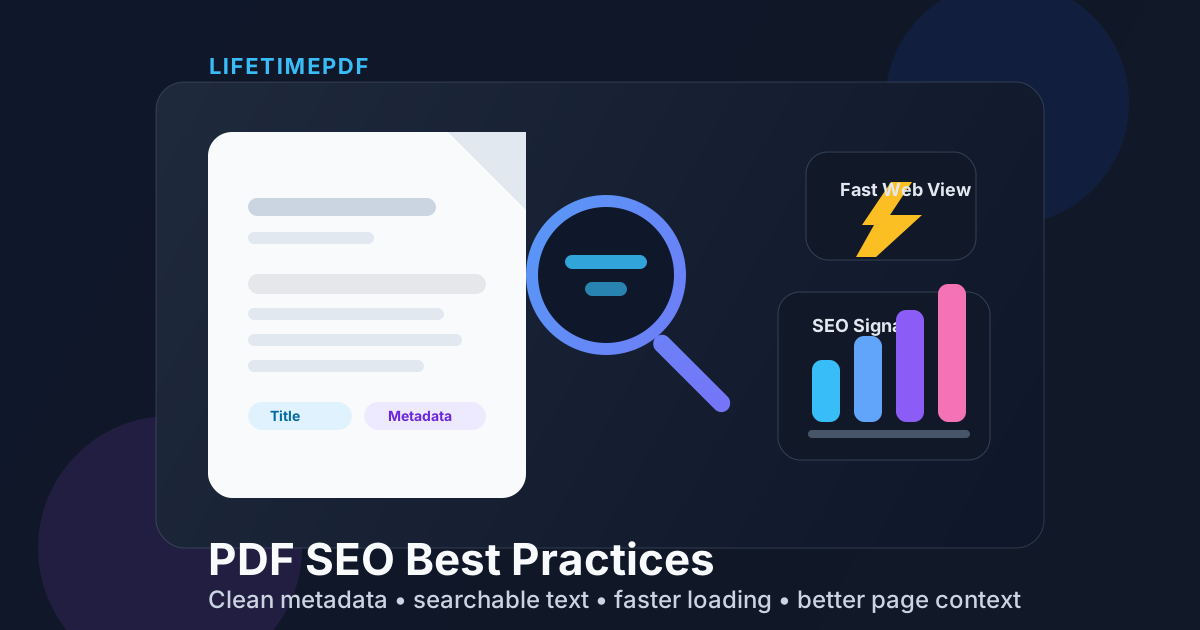
Table of contents
- Quick start: optimize a PDF for SEO in 15 minutes
- Why PDF SEO is different from normal page SEO
- What search engines actually read from a PDF
- Metadata and filenames: the first easy wins
- Searchable text, OCR, and accessibility
- Speed, compression, and Fast Web View
- Page context, links, and when HTML beats PDF
- Step-by-step PDF SEO workflow with LifetimePDF
- Common PDF SEO mistakes
- Related LifetimePDF tools and articles
- FAQ (People Also Ask)
Quick start: optimize a PDF for SEO in 15 minutes
If you want the short version, use this workflow:
- Open PDF Metadata Editor and replace any messy title with a clean, human-readable one.
- Rename the file so the URL and downloaded filename make sense to a real person.
- If the PDF is scanned or image-only, run OCR PDF so the text becomes searchable.
- Use Compress PDF if the file is heavier than it needs to be.
- Use Linearize PDF so page 1 starts loading faster in browsers.
- Publish the document from a page that clearly explains what the PDF is and why someone should open it.
- If the content is strategically important, consider adding an HTML version or companion page too.
Why PDF SEO is different from normal page SEO
A PDF can rank, but it does not behave like a full web page. You do not get a flexible layout, rich internal navigation, or the same amount of on-page context that you would have in HTML. That means search engines often rely on a smaller set of clues when they try to understand the document.
In practice, PDF SEO is less about clever optimization tricks and more about eliminating ambiguity. You want the file to have a clean title, readable text, a sensible filename, a fast loading experience, and a surrounding page that explains what the document is. Once those basics are in place, the PDF is much easier for both people and search engines to trust.
| Format | Strength | Limitation |
|---|---|---|
| Great for fixed layouts, printing, downloads, and signed or shareable documents | Provides fewer SEO and UX signals than a strong HTML page | |
| HTML page | Better for navigation, internal linking, responsive design, and search context | Not always ideal when people need a faithful printable file |
| Both together | Best for high-value documents that need search visibility and a downloadable version | Takes a little more publishing discipline |
What search engines actually read from a PDF
Search engines do not see a PDF the same way a designer or content manager does. They look for machine-readable signals that help them understand the file. Some of those signals live inside the PDF itself. Others live around it.
Inside the file
- Title metadata: often the first clue about what the document should be called.
- Searchable text: crucial if you want the actual content to be readable by machines.
- Document structure: cleaner source files usually produce cleaner text extraction and better usability.
- File size and organization: these affect how quickly users can open the document on the web.
Around the file
- Filename and URL: these can reinforce or confuse the topic.
- Anchor text: links that say what the PDF actually is help far more than “download here.”
- Page context: the page linking to the PDF tells search engines why the document matters.
- Companion HTML content: sometimes the best SEO move is to support the PDF with an HTML explanation or full text version.
Metadata and filenames: the first easy wins
If you do only one thing today, fix the title metadata. So many public PDFs still carry leftovers like final-v2, brochure-new, or a scanner default. That looks sloppy to users and weakens search visibility because the document's identity is fuzzy before anyone even opens it.
What a strong PDF title looks like
- Human-readable, not internal shorthand
- Specific about the document topic
- Short enough to scan quickly
- Consistent with the page linking to the file
The filename matters too.
A URL like /downloads/2026-benefits-enrollment-guide.pdf is far more useful than /uploads/file-7-final-FINAL.pdf.
Even when metadata is the stronger signal, a clean filename supports trust, clarity, and shareability.
If you are fixing a live document that already shows the wrong title in search, the most direct starting point is LifetimePDF's PDF Metadata Editor. For a deeper walkthrough, see How to Fix PDF Title in Search Results.
Searchable text, OCR, and accessibility
A beautiful scanned PDF can still be terrible for SEO if the text is just a picture. When the document is image-only, search engines and assistive tools have very little to work with. That is where OCR stops being a convenience feature and becomes a core publishing step.
OCR will not magically turn a weak document into a great one, but it does solve a basic problem: it makes the text machine-readable. That helps with indexing, accessibility, copying, searching, summarizing, and general usefulness. If the PDF contains words people need to find, those words should exist as actual text, not just pixels.
When OCR matters most
- Scanned brochures, manuals, forms, and reports
- Phone-captured documents turned into PDFs
- Older archives with image-only pages
- Compliance or knowledge-base files that users need to search later
Use OCR PDF before you worry about finer SEO improvements. If the text cannot be read, the rest of the workflow is operating on a weak foundation.
Speed, compression, and Fast Web View
File size is not the whole story, but it absolutely affects how painful a PDF feels to open. Slow documents create friction, especially on mobile data, public Wi-Fi, or embedded browser viewers. If a PDF is large because of oversized images, duplicate pages, or export bloat, trim the waste.
First use Compress PDF to reduce unnecessary file weight. Then use Linearize PDF so page 1 starts loading sooner in the browser. Compression makes the file lighter. Linearization makes the delivery smarter. For web-hosted PDFs, both are usually worth doing.
What to keep readable after compression
- Headings and table text
- Charts, screenshots, and small labels
- Logos and diagrams
- Footnotes, annotations, and legal details
If your main issue is slow in-browser loading rather than pure file size, read Linearize PDF Online for Fast Web View.
Page context, links, and when HTML beats PDF
One of the easiest PDF SEO mistakes is treating the file like a standalone destination with no explanation around it. A raw PDF URL can rank, but it usually performs better when it is linked from a strong page that gives people context before they click.
Good page context looks like this
- A page title that matches the document topic
- A short description that explains what the PDF contains
- Clear anchor text such as “Download 2026 Benefits Enrollment Guide (PDF)”
- Helpful surrounding copy that tells users whether the PDF is a guide, form, policy, report, or checklist
Sometimes the better answer is to publish HTML, not to push harder on the PDF. If the content is strategically important for organic search, conversion, or accessibility, an HTML version usually gives you more room to win. You can still keep the PDF for downloads while letting the HTML page carry more of the search burden.
That is especially true for evergreen guides, public documentation, resource hubs, and any document people may want to read on mobile. If you need a workflow for that, see PDF to HTML: The Professional Guide to Web Publishing in 2026 or open PDF to HTML.
Step-by-step PDF SEO workflow with LifetimePDF
Here is a clean, repeatable workflow that works for most public PDFs:
1) Fix identity first
Open PDF Metadata Editor and clean the Title, Author, Subject, and other obvious leftovers. Save the file with a sensible name people can understand without opening it.
2) Make the text readable by machines
If the file is scanned, run OCR PDF so the content becomes searchable. This is one of the highest-leverage fixes for archives, reports, manuals, and uploaded forms.
3) Trim the weight
Use Compress PDF if the file is larger than it needs to be. If a huge appendix or duplicate pages are the real issue, delete or split those sections instead of crushing the entire document harder.
4) Optimize for web delivery
Run Linearize PDF to improve first-page loading in browsers. This matters when the document is opened from websites, portals, help centers, or mobile devices.
5) Publish from a real page
Link the PDF from a page that introduces the file properly. Use descriptive anchor text, explain who the document is for, and keep the wording aligned with the title metadata.
6) Decide whether the PDF also needs an HTML companion
If the document is just a download, the PDF may be enough. If it is important for search, support, onboarding, or education, create an HTML version or companion page so the content is easier to discover and use.
Useful publishing stack: metadata editor for naming, OCR for searchability, compression for weight, linearization for speed, and PDF-to-HTML when the content deserves a stronger web presence.
Common PDF SEO mistakes
- Keeping draft metadata: ugly internal titles are still one of the most common avoidable problems.
- Uploading image-only scans: if the text is not searchable, the document is much harder to index and use.
- Using vague link text: “click here” tells users and search engines almost nothing.
- Ignoring file weight: a bloated PDF makes mobile and browser experiences worse.
- Publishing the PDF with no supporting page: context matters more than people think.
- Forcing PDFs to do HTML's job: sometimes the right move is to keep the PDF as a download and publish the important content in HTML.
Related LifetimePDF tools and articles
These tools and guides pair well with a PDF SEO workflow:
- PDF Metadata Editor — fix titles and other document properties before publishing.
- OCR PDF — turn scanned PDFs into searchable text.
- Compress PDF — reduce oversized files before upload.
- Linearize PDF — improve in-browser loading with Fast Web View.
- PDF to HTML — publish strategically important content in a stronger web format.
- How to Fix PDF Title in Search Results — deeper metadata and search-result cleanup.
- PDF to HTML: The Professional Guide to Web Publishing in 2026 — when a companion page or full conversion is the better SEO move.
FAQ (People Also Ask)
Can Google index PDF files?
Yes. Google can index PDFs, but PDFs usually provide fewer optimization signals than a full HTML page. That is why clean titles, searchable text, useful filenames, strong page context, and decent loading speed matter so much.
What is the most important PDF SEO fix?
Usually the basics: clean title metadata, searchable text, and a filename that makes sense. Those three changes remove a surprising amount of confusion before you even get into speed or HTML companion pages.
Should I rank the PDF itself or convert it to HTML?
If the PDF is mainly a downloadable asset, keep it. If the content is central to your organic strategy, support, or education funnel, HTML usually gives you better navigation, link structure, and user experience. In many cases, the best answer is both.
Does OCR help PDF SEO?
Yes, especially for scanned or image-only files. OCR makes the text readable by machines and humans who need search, copy, accessibility tools, or better indexing support.
Does file size affect PDF SEO?
Indirectly, yes. A bloated PDF is slower and more frustrating to use, especially on mobile or in browsers. Good compression and Fast Web View improve usability, which supports a better overall search experience.