Merge PDF and TXT Files Online: Turn Plain Text Notes and Logs Into One Shareable PDF
To merge PDF and TXT files online, the most reliable workflow is to convert the TXT file to PDF first in your browser, then use Merge PDF to combine that new PDF with the rest of your documents in the right order.
That keeps line breaks readable, avoids layout surprises, and gives you one final PDF that is easier to send, upload, archive, or hand off to someone else.
Most people searching this phrase are not trying to perform a weird file-format experiment. They are trying to finish a real packet without installing desktop software: a transcript beside signed pages, a plain-text change log behind a report, a notes file attached to a proposal, or a lightweight technical appendix that should travel with the rest of a PDF bundle. Once you treat TXT as source content and PDF as the finished delivery format, the online workflow becomes much simpler.
Fastest dependable path: clean the TXT file, turn it into PDF online, merge the PDFs in the right order, then only compress or number pages if the actual final handoff needs it.
Need the short version? Jump to Quick start: merge TXT and PDF files online in about 4 minutes.
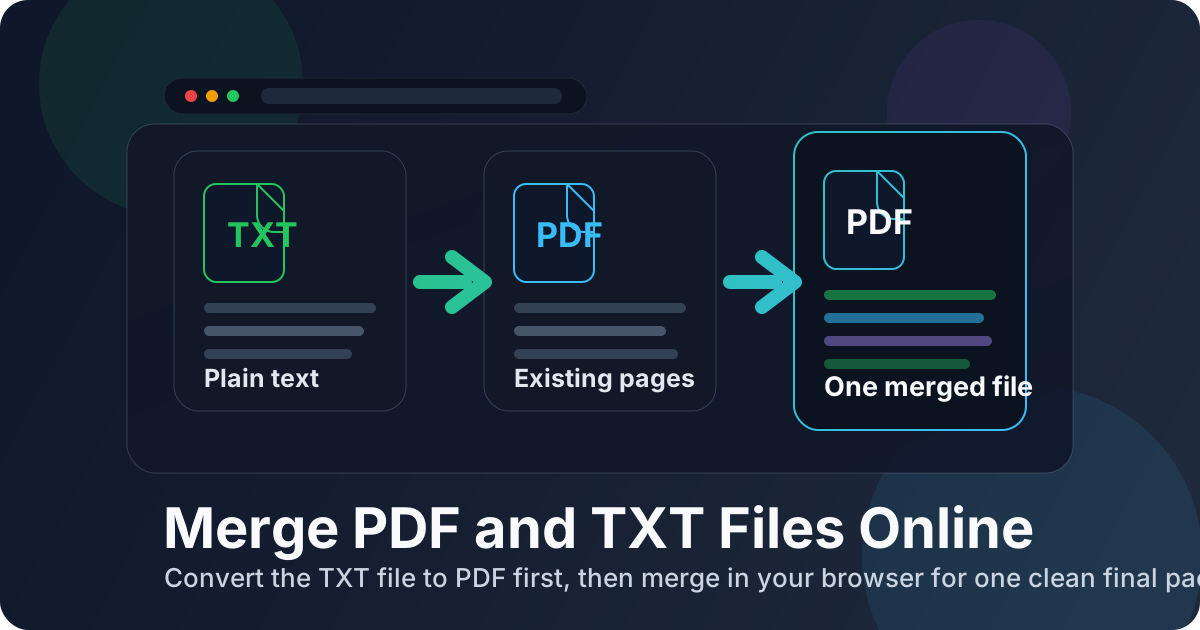
Table of contents
- Quick start: merge TXT and PDF files online in about 4 minutes
- What “online” really means for this workflow
- Why TXT to PDF first is still the cleanest method
- Step-by-step: merge the files without creating a messy packet
- How to keep plain text readable after browser conversion
- Common real-world use cases
- Troubleshooting file size, ugly wrap breaks, and awkward page flow
- Related LifetimePDF tools and companion guides
- FAQ (People Also Ask)
Quick start: merge TXT and PDF files online in about 4 minutes
If the text is already finalized and you just need one clean document, this is the workflow most people actually want:
- Open Text to PDF.
- Convert the final TXT file into PDF in your browser.
- Open Merge PDF.
- Upload the new text-based PDF together with the other PDF pages, appendices, scanned pages, reports, or signed sheets.
- Drag the files into the exact order you want, merge them, and download the final packet.
- If the result is too large or needs easier navigation, use Compress PDF or Add Page Numbers to PDF.
What “online” really means for this workflow
A search like merge PDF and TXT files online usually sounds like a request for one magical button. In practice, “online” mostly means you want to finish the job in a browser without desktop software, while still ending up with a PDF packet that feels settled and readable.
The important part is not the browser itself. The important part is the order of operations. If a TXT file becomes part of a serious handoff, the text needs to be frozen into pages before it joins the rest of the document bundle. Otherwise you are handing someone a mixed-format pile and asking them to reconstruct the story on their own.
| If your goal is... | The better workflow is usually... | Why |
|---|---|---|
| One clean shareable PDF | TXT → PDF → Merge PDF | You get stable pages, predictable reading order, and a calmer final packet. |
| Just reviewing raw notes for yourself | Keep it as TXT | You may not need a PDF at all if nobody else is consuming it as a document. |
| Adding notes, logs, or transcripts behind another PDF | Convert first, then merge | The plain text becomes a readable section instead of an awkward extra file. |
Why TXT to PDF first is still the cleanest method
People often search for a mixed-file solution because the problem feels small. But the moment another person needs to read, print, upload, archive, or forward the result, the quality of the packet starts to matter. A raw TXT file may be perfectly useful to you and still feel rough, cramped, or contextless to somebody else.
That is why the safest browser workflow is still simple: clean the text, convert it once, then merge only PDFs. Once the TXT content becomes a stable PDF, you can place it before, after, or between other documents with far fewer surprises.
| Workflow | Best when | Main tradeoff |
|---|---|---|
| Convert TXT to PDF, then merge online | Logs, transcripts, evidence packets, notes, appendices, technical handoffs, summaries | One extra step, but much better readability and layout control |
| Try to combine mixed files immediately | Very casual internal sharing where presentation barely matters | Less predictable page flow and more chances for a messy final handoff |
In other words, merge PDF and TXT files online usually means create a stable text-based PDF first, then package it with the rest of the document set. That is how you keep the final result useful instead of merely technically combined.
Step-by-step: merge the files without creating a messy packet
The browser workflow is straightforward, but doing each step in the right order prevents most of the usual problems.
1) Clean the TXT file before conversion
Fix accidental wrap breaks, add blank lines between sections, and make short headings or labels more obvious. A TXT file can be useful and still feel rough if it came from a terminal window, chat export, copied email, or raw note dump without a quick cleanup pass.
2) Convert the TXT file to PDF in your browser
Use Text to PDF with the exact plain-text version you plan to share. This step turns the source content into stable pages so the merge is packaging, not improvisation.
3) Gather the supporting PDFs
These might include contracts, screenshots already saved as PDF, scanned exhibits, compliance forms, invoices, reports, or signed pages. Putting everything in one folder or browser batch first makes the merge step calmer and reduces accidental omissions.
4) Merge in the final reading order
Open Merge PDF, upload the converted TXT-based PDF and the rest of the PDFs, then drag them into the sequence the recipient should actually follow. Reading order matters more than people expect because the packet will be experienced top to bottom, not as a list of filenames.
5) Review the merged packet once before sharing
- Check the first page: does the packet open with the right summary, cover page, or core document?
- Check one text-heavy page: are the TXT-derived pages comfortable to read, or do they need cleaner spacing first?
- Check transition points: do logs, appendices, or evidence sections begin where you intended?
- Check file size: is the packet reasonable for email or upload limits?
- Check the filename: does it make sense to the person receiving it?
Calmest sequence: clean the text, convert once, merge once, review once, then only number pages, compress, or protect the final packet if the workflow actually needs it.
How to keep plain text readable after browser conversion
Most problems in this workflow are not really merge problems. They are readability problems that started inside the TXT file itself. A merge usually preserves what it receives. If the text was chaotic before conversion, the merged PDF will preserve that chaos more officially.
Use clear section breaks
Plain text becomes much easier to read when you separate sections with blank lines, short headings, timestamps, or simple labels. This matters especially for transcripts, issue summaries, and long notes that would otherwise blur into one gray wall of text.
Keep bullets and indentation consistent
Mixed tabs, random spacing, and inconsistent bullets make plain-text pages feel rougher than they need to. Even a short cleanup pass can make the final PDF feel intentional instead of accidental.
Think about the recipient, not just the source file
A raw terminal export may be enough for you because you already know what you are looking at. Another person usually does not. If the text is evidence, a summary, or supporting material, light formatting discipline helps the packet do its job faster.
Add page numbers after the merge for longer packets
If the final file is several pages long, use Add Page Numbers to PDF after the merge. That is especially useful for logs, transcripts, incident documentation, and technical appendices that may need to be referenced later.
| If the TXT problem is... | The better fix is usually... |
|---|---|
| The page feels cramped | Add blank lines between sections and break up long blocks before converting. |
| Bullets look messy | Normalize spacing and indentation inside the plain-text source first. |
| The final packet is hard to cite | Add page numbers after the merge so review comments stay clear. |
| The merged file is too large | Finish the merge first, then use Compress PDF on the actual final packet. |
Common real-world use cases
This keyword exists because the need is ordinary and practical. Here are the situations where it shows up most often.
Logs attached to reports
Someone writes the main narrative in PDF form, but the evidence still lives in a TXT file. Converting the text to PDF and merging it into the packet creates a cleaner case file for review, escalation, or recordkeeping.
Transcripts and interview notes
A transcript may begin as plain text while summaries, forms, or signed paperwork already exist as PDFs. One merged file is easier to share with a team, upload to a system, or archive consistently.
Plain-text appendices for formal documents
Sometimes the cleanest appendix is still plain text: a command list, change summary, raw notes, or readme-style section. Turning it into PDF before the merge keeps the packet formal without overcomplicating the content.
Support documentation and handoff packs
Teams often need to combine instructions, notes, exports, and support files into one packet. A merged PDF saves the next person from chasing separate attachments and guessing which file matters most.
In each case, the value is not just convenience. It is clarity. One well-ordered PDF reduces confusion, missed attachments, and the annoying back-and-forth of “which file am I supposed to open next?”
If the packet is headed to an inbox or portal: merge first, then compress if needed so you are optimizing the real final file instead of guessing too early.
Troubleshooting file size, ugly wrap breaks, and awkward page flow
Most problems in this workflow are fixable without starting over.
The TXT-derived pages look cramped or messy
Go back to the plain-text source and clean it up. Add blank lines, make section labels clearer, and shorten obviously broken line wraps where sensible. The merge is rarely the real culprit.
The merged file is too large
Finish the merge first, then run Compress PDF on the combined result. That gives you a size fix based on the real packet instead of separate guesses.
The order feels wrong after download
Reopen the merge step and resequence the files by reading flow, not creation time. This is especially common when the TXT-based appendix was uploaded first even though it belongs later in the packet.
The packet is hard to reference during review
Add page numbers after the merge. Text-heavy packets become much easier to discuss when someone can say “see page 8” instead of “look near the middle of the log section.”
Related LifetimePDF tools and companion guides
This workflow works best as part of a small document toolkit rather than one heroic button. These are the most useful next steps and nearby guides:
- Text to PDF - convert TXT content into stable, readable PDF pages before the merge.
- Merge PDF - combine the converted text file with reports, forms, scans, or supporting documents.
- Compress PDF - reduce the final packet for email or upload limits.
- Add Page Numbers to PDF - make long text-heavy packets easier to reference.
- PDF Protect - add a password if the merged file contains sensitive records.
- Merge PDF and TXT Files - the broader companion guide when you want the same workflow without the browser-specific angle.
- TXT to PDF - focused help for turning plain text into a readable document before the merge.
- Best Way to Combine Multiple PDFs Into One File - broader guidance on packet assembly and reading order.
Bottom line: the smartest way to merge PDF and TXT files online is pleasantly boring - clean the text first, convert it to PDF in your browser, merge in order, and hand off one final packet that reads like a finished document instead of a pile of attachments.
FAQ (People Also Ask)
1) How do I merge PDF and TXT files online?
The cleanest method is to convert the TXT file to PDF first in your browser, then use a PDF merger to combine that new PDF with your other PDF files. That keeps the final packet easier to read, review, and share.
2) Can I combine a text file and a PDF into one final PDF online?
Yes. Convert the text file into PDF first, then merge it with the other PDF online. That gives you one finished document instead of a mixed-format handoff.
3) Why should I convert TXT to PDF before merging online?
Because TXT is source content, not final page layout. Converting first lets you preserve spacing and readability before the file becomes part of a larger packet.
4) What kinds of TXT files work well in this browser workflow?
Notes, transcripts, logs, summaries, readme files, technical instructions, plain-text appendices, and lightweight evidence files are all common fits. The workflow is most useful when the text needs to sit beside existing PDF material.
5) What should I do if the merged file is too large?
Finish the merge first, then use Compress PDF on the final packet. That gives you a size reduction based on the real finished file rather than on scattered parts.
Ready to build one clean final packet?
Best workflow: Clean the TXT file - Convert to PDF - Merge in order - Review once - Then number pages, compress, or protect only if needed.
Published by LifetimePDF - Pay once. Use forever.