Merge PDF and Images Online Free: Combine JPG, PNG, and PDFs Into One Clean File
To merge PDF and images online free, upload the existing PDF and your JPG, PNG, WEBP, or other image files to a mixed-file merge tool, drag them into the right reading order, and create one final PDF.
That gives you a cleaner result than juggling separate attachments, and it works especially well for receipts, screenshots, scanned proofs, reports, and application packets.
Most people searching this phrase are not trying to do anything exotic. They already have a PDF and a few images, and they need one file that another person can open without confusion. Maybe it is a reimbursement form plus receipt photos, a report plus screenshots, a school submission plus photographed pages, or a client packet with visual proof. The free part matters too, but so does getting a result that still looks organized instead of cobbled together.
Fastest dependable path: upload the PDF and images to Merge PDF, arrange them in the right order, merge once, then only compress or protect the final file if the real handoff needs it.
Need the short version? Jump to Quick start: merge PDF and images online free in about 4 minutes.
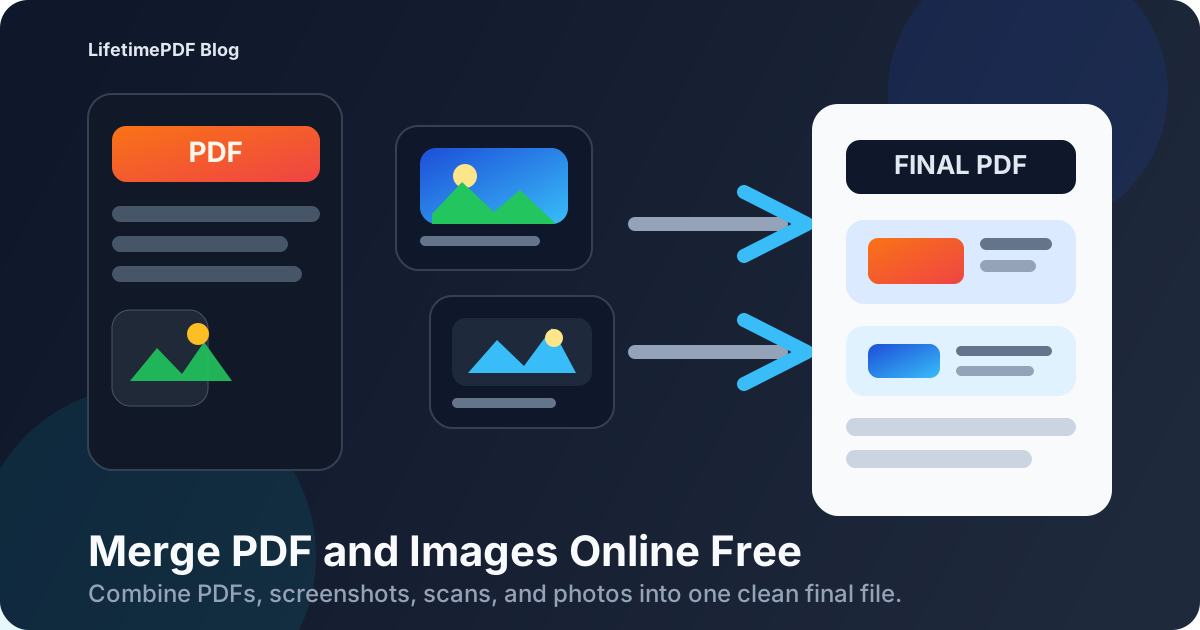
Table of contents
- Quick start: merge PDF and images online free in about 4 minutes
- What this free workflow actually means
- When to use Merge PDF vs Images to PDF
- Step-by-step: combine PDF and image files into one document
- How to keep page order and image quality clean
- Real-world use cases where this saves time
- Troubleshooting file size, sideways photos, and messy scans
- Related LifetimePDF tools and companion guides
- FAQ (People Also Ask)
Quick start: merge PDF and images online free in about 4 minutes
If your real goal is simply turn this PDF and these pictures into one file I can send, this is the workflow most people actually want:
- Open Merge PDF.
- Upload the PDF plus the JPG, PNG, WEBP, GIF, BMP, or TIFF files you want in the final document.
- Drag the files into the exact sequence the reader should follow.
- Merge everything into one PDF.
- Open the result once and check page order, image rotation, and readability.
- If the merged file is too heavy for email or a portal, use Compress PDF.
What this free workflow actually means
A lot of people search merge PDF and images online free as if the main challenge is the price tag. In practice, the real challenge is usually document assembly. You already have one or more finished PDF pages, and you also have supporting images that belong in the same handoff. The job is to make the whole set read like one document instead of four unrelated files.
Free is useful because it removes friction for everyday tasks: reimbursement packets, school work, admin submissions, support evidence, portfolio pages, proof-of-delivery photos, and quick client updates. But the better question is not just whether the tool costs money. It is whether the final PDF stays readable, ordered, and easy to share.
| If your goal is... | The better workflow is usually... | Why |
|---|---|---|
| One final PDF with existing PDF pages and image pages | Merge PDF + images | The PDF pages stay intact while each image becomes part of the same finished packet. |
| One PDF made only from screenshots or photos | Images to PDF | You do not need a mixed-file workflow if every input is already an image. |
| A lighter file for email or upload | Merge first, then compress | You shrink the real final document instead of guessing too early. |
When to use Merge PDF vs Images to PDF
These two workflows sound similar, but they solve different jobs. People often start with the wrong tool because both involve image files.
Use Merge PDF when you already have a PDF
This is the right workflow if you already have a report, form, signed document, statement, application, or exported PDF and you want to add image pages around it. That might mean inserting receipt photos after an invoice, adding screenshots behind a report, or attaching photographed pages to a school submission.
Use Images to PDF when everything starts as an image
If every file is a JPG or PNG, the simpler image-only route is often cleaner. You do not need a mixed-file merge when there is no existing PDF in the packet.
| Workflow | Best when | Main benefit |
|---|---|---|
| Merge PDF + images | You already have at least one PDF and want to add photos, screenshots, or scans | One organized mixed-file packet |
| Images to PDF | Every input is a photo or screenshot | Simpler image-only conversion |
Quick decision: if there is already a PDF in the job, start with Merge PDF.
Step-by-step: combine PDF and image files into one document
The free workflow is simple, but doing the steps in the right order keeps the result much cleaner.
1) Gather only the files that belong in the final packet
Start with the real PDF you plan to send and the actual image files that support it. Avoid adding extra screenshots, alternate versions, or duplicate phone photos unless they genuinely belong in the final handoff.
2) Open the merge tool in your browser
Go to Merge PDF. This is the calmer route when you need to combine finished PDF pages with image pages in one output file.
3) Upload the PDF and image files together
Add the existing PDF plus the JPG, PNG, WEBP, GIF, BMP, or TIFF files you want to insert. Think about whether each image belongs at the front, at the end, or between specific PDF sections.
4) Arrange the files in the order people should read them
This is the quality step most people underrate. File creation order is not the same as reading order. Put the summary, form, or main document first when that is what the reader needs to see first. Add supporting photos, screenshots, scanned proofs, or appendices after the main pages where they make the most sense.
5) Merge and review once
- Check the opening page: does the packet start with the right document?
- Check one image page: is it large enough to read comfortably?
- Check rotation: did any phone photo end up sideways?
- Check transitions: do the images appear where they support the right section?
- Check file size: is the final PDF still reasonable for email or portal upload?
Calmest sequence: gather the real files, merge once, review once, then compress or protect only if the real use case calls for it.
How to keep page order and image quality clean
Most problems in this workflow are not actually merge problems. They are page-prep and ordering problems. A merge step usually preserves what you give it.
Think in reading order, not upload order
If the file is headed to a manager, school, client, or portal reviewer, ask what they should see first. A tidy sequence makes the packet feel much more intentional.
Use readable source images
Blurry screenshots and dark phone photos stay blurry and dark after the merge. If the image contains important numbers, signatures, handwritten notes, or receipt details, make sure it is readable before you upload it.
Fix sideways photos before the final handoff
A single rotated image can make the entire PDF feel sloppy. If you need to correct PDF pages afterward, use Rotate PDF.
Compress after the merge, not before
If the final file is too large for email, WhatsApp, or a submission portal, run Compress PDF on the merged result. That gives you a smaller version based on the real final packet instead of shrinking separate pieces blindly.
| If the problem is... | The better fix is usually... |
|---|---|
| Image pages look blurry | Replace the source image with a clearer version before merging. |
| A phone photo is sideways | Rotate the image first or use Rotate PDF after merging. |
| The output file is too large | Merge first, then run Compress PDF. |
| The packet feels confusing | Reorder the files by reading flow instead of by creation time. |
Real-world use cases where this saves time
This keyword exists because mixed PDF-plus-image handoffs are normal work, not edge cases.
Expense and reimbursement packets
Put the reimbursement form first, then add receipt photos after the relevant pages so finance gets one complete file instead of a messy bundle of attachments.
Reports with screenshots
Add browser captures, chart exports, or UI screenshots behind a PDF report so the visual proof sits exactly where the reader expects it.
School and admin submissions
Combine a typed PDF with photographed pages, signed forms, or proof images when a portal asks for one upload instead of many separate files.
Client and compliance evidence
Merge summaries, forms, and supporting image proof into one packet that is easier to archive, forward, or review later.
In each case, the value is not only that the workflow is free. It is that the final file becomes easier for another human to follow without asking which attachment matters most.
If the packet is headed to an inbox or upload portal: merge first, then compress or protect the final result only if the handoff truly needs it.
Troubleshooting file size, sideways photos, and messy scans
Most issues are fixable without rebuilding the whole document.
The merged file is too large
Finish the merge first, then use Compress PDF on the finished document. That gives you a better reduction based on the actual final file.
The page order feels wrong
Reopen the merge step and order the files by reading flow. This is especially common when screenshots or receipt photos were uploaded in the order they were taken instead of the order they should be read.
The scans look awkward or oversized
If the issue is giant margins or empty borders, use Crop PDF after the merge or clean the images before upload. If you only need part of a longer file, use Extract Pages first.
The packet contains private information
Review the finished PDF before sharing it. Mixed-file packets often include IDs, receipts, addresses, signatures, or account details that should not travel farther than necessary. If needed, protect the final file with PDF Protect.
Related LifetimePDF tools and companion guides
This workflow works best as part of a small document toolkit rather than one heroic button. These are the most useful next steps and nearby guides:
- Merge PDF - combine the existing PDF with image pages in one final output.
- Images to PDF - best when every input is an image and you do not need a mixed-file packet.
- Compress PDF - reduce the size of the finished file for email or upload limits.
- Rotate PDF - fix sideways pages after merging if needed.
- Crop PDF - trim awkward margins or oversized page borders.
- Extract Pages - isolate only the pages that belong in the final packet.
- Merge PDF and Images - the broader mixed-file workflow.
- Merge PDF and Images Online - companion guide focused on the online workflow.
- Merge PDF and Images Without Monthly Fees - companion angle for people avoiding recurring subscriptions.
- Convert Images to PDF Online Free - the better fit when every source file is already an image.
Bottom line: the smartest way to merge PDF and images online free is to keep the workflow boring and reliable - upload the real files, put them in reading order, merge once, and only optimize the finished PDF after that.
FAQ (People Also Ask)
1) How do I merge PDF and images online free?
Upload the existing PDF and your image files to a mixed-file merger, drag them into the right order, merge them, and download one final PDF. That gives you a much cleaner handoff than sending the PDF and images separately.
2) Can I combine a PDF with JPG and PNG files for free?
Yes. A mixed-file merge tool can place JPG and PNG pages into the same final PDF alongside your original PDF pages. The most important step is arranging the order before you merge.
3) Should I use Merge PDF or Images to PDF?
Use Images to PDF when every file is an image. Use Merge PDF when you already have a PDF and want to add image pages before it, after it, or between sections.
4) Will image quality drop when I merge images with a PDF?
Usually the biggest quality factor is the source image itself. Start with readable images, merge first, and compress the final PDF later only if you need a smaller file.
5) What should I do if the merged file is too large?
Finish the merge first, then run Compress PDF on the combined result. That shrinks the real final file instead of forcing guesses on the separate pieces.
Ready to build one clean file from your PDF and images?
Best workflow: Gather the real files - Put them in reading order - Merge once - Review once - Then compress or protect only if needed.
Published by LifetimePDF - Pay once. Use forever.