Markdown to PDF: The Practical Way to Turn MD Files Into Clean Shareable Documents
To turn Markdown to PDF, open LifetimePDF Text to PDF, upload or paste your .md content, generate the PDF, and review headings, lists, links, and code blocks once before sharing.
If the file needs better table handling, branded styling, or tighter page control, convert the Markdown to HTML first and use HTML to PDF instead.
That is the short answer, but the useful part is knowing when a simple Markdown-to-PDF workflow is enough and when it is worth taking one extra step. Most people are not trying to create a glossy brochure. They just need a clean, portable copy of a README, changelog, note set, SOP, proposal draft, or internal document that another person can open without needing Git, a code editor, or the original workspace.
Fastest path: use Text to PDF for ordinary Markdown docs, then switch to HTML to PDF only if the export needs more styling, better page control, or cleaner tables.
In a hurry? Jump to the quick answer and workflow.
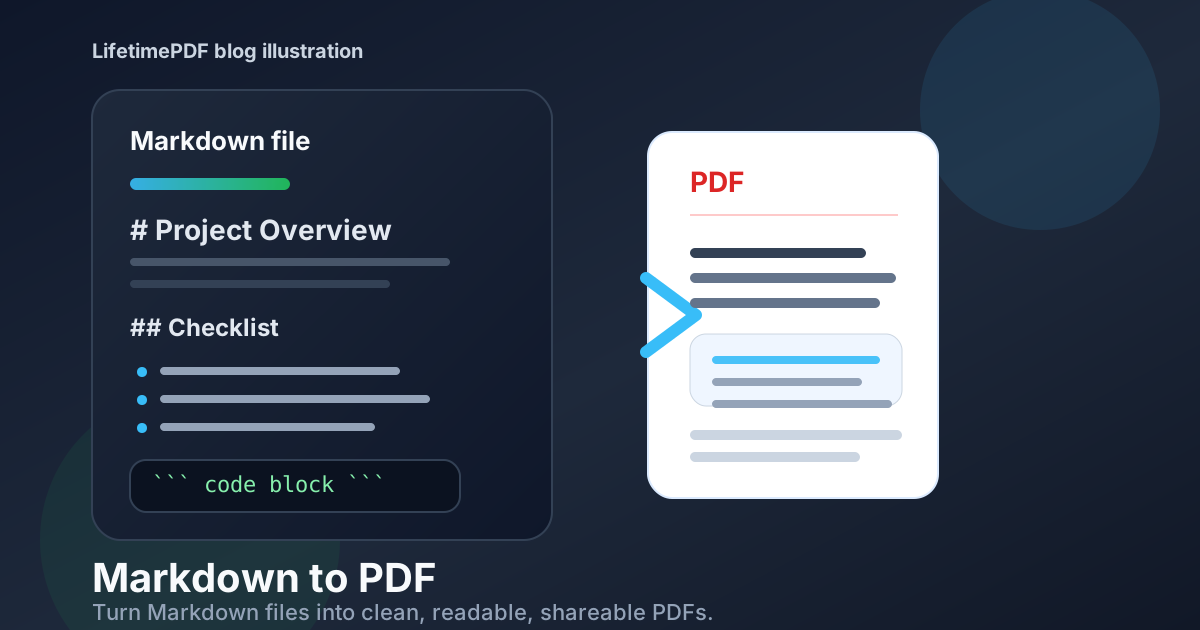
Table of contents
- Quick answer: the cleanest Markdown-to-PDF workflow
- When Markdown to PDF is the right choice
- Step-by-step: create a Markdown PDF with LifetimePDF
- How to keep headings, lists, links, and code blocks readable
- When to use Markdown to PDF vs HTML to PDF
- What to do after export
- Related tools and guides
- FAQ
Quick answer: the cleanest Markdown-to-PDF workflow
If your file is mostly headings, paragraphs, bullet lists, links, and a few code blocks, start with Text to PDF. That is usually the fastest way to make one readable document from Markdown without dragging the job into a bigger publishing workflow.
If the Markdown contains wide tables, design-heavy sections, or formatting that has to look more controlled on the printed page, convert it to HTML first and use HTML to PDF. That one extra step often saves more time than trying to force plain Markdown output into a layout it was never meant to carry.
When Markdown to PDF is the right choice
People usually search Markdown to PDF because the content already exists and the next problem is distribution. A teammate, client, manager, reviewer, or auditor needs a file they can open anywhere. Markdown is excellent for writing and versioning. PDF is better when the document has to travel.
| Situation | Why PDF helps | Best starting method |
|---|---|---|
| README and setup docs | Makes a repository document easy to share outside Git or a code editor | Text to PDF |
| Release notes and changelogs | Creates a stable approval or archive copy | Text to PDF |
| SOPs and internal notes | Produces a printable, handoff-friendly document | Text to PDF |
| Docs with complex tables or branding | Need stronger layout control than plain Markdown usually gives | HTML to PDF |
| Formal review packets | Lets everyone comment against one fixed version | Text to PDF, then page numbers if needed |
The real question is not whether Markdown can become a PDF. It can. The more important question is whether the result needs to be merely readable or carefully styled. If readability is the goal, Markdown usually gets you there quickly. If presentation precision matters, you will usually be happier switching to HTML before export.
Step-by-step: create a Markdown PDF with LifetimePDF
- Start with the Markdown you actually want to share. Trim notes, placeholders, or raw sections that do not belong in the final document.
- Open Text to PDF. This is the simplest route when the file is mostly text-first structure.
- Upload the
.mdfile or paste the content. Pick the version that represents the real handoff copy, not a half-finished draft. - Generate the PDF. Let the tool create a clean output before you decide whether any extra polish is needed.
- Review the first page, one middle section, and the end. That quick check catches most practical problems without turning the job into a full QA cycle.
- Switch to HTML to PDF only if the layout needs more help.
This workflow works because it respects what Markdown is good at. You are not asking it to become a design suite. You are using it as a fast, structured source format and turning it into a shareable file with as little friction as possible.
Recommended sequence: convert the Markdown first, review it once, then move to HTML only if the document needs more than clean, readable output.
How to keep headings, lists, links, and code blocks readable
Most bad Markdown PDFs are not caused by PDF tools. They come from messy source Markdown or from expecting plain text structure to behave like a rich layout engine.
Keep heading levels sensible
A clean heading structure makes the exported PDF feel organized immediately.
If the source jumps from # to #### without a good reason, the finished PDF often feels harder to scan.
Break long lines in code-heavy sections
Code blocks, terminal commands, and URLs can become awkward if the lines are too long. If the file is documentation for real humans, it is usually worth wrapping or trimming where possible before export.
Use lists for real lists
Bullet points and numbered lists generally survive Markdown-to-PDF conversion well when they are actually written as lists. Fake lists made with hyphens, odd spacing, or manual numbering are more likely to look uneven.
Be realistic about tables
Small tables can be fine. Wide tables, comparison grids, or dense technical matrices are where Markdown starts to show its limits. When that happens, convert the Markdown to HTML and use HTML to PDF so the layout has a better chance of staying readable.
When to use Markdown to PDF vs HTML to PDF
This is the decision point that saves the most time. Markdown to PDF and HTML to PDF are related, but they are not interchangeable.
Use Markdown to PDF when:
- the document is mostly headings, paragraphs, lists, and code snippets
- you need a fast export for sharing or review
- the source already lives in Markdown
- clarity matters more than visual polish
Use HTML to PDF when:
- the PDF needs branded styling or tighter page control
- the file contains wide tables or more complex layouts
- you need custom fonts, spacing, or print-friendly structure
- the Markdown export looks acceptable but not trustworthy enough to send
A lot of frustration disappears once you treat Markdown and HTML as different stages rather than rival formats. Markdown is the lightweight writing layer. HTML is the better formatting layer when the document has grown beyond simple structure.
What to do after export
Once the PDF looks right, the next step usually matters more than another round of formatting tweaks.
- Compress PDF if the file is too large for email, chat, or portal uploads.
- Protect PDF if the document contains internal notes, client details, or material that should not be passed around casually.
- PDF Page Numbers if the file will be reviewed in meetings, approvals, or documentation packets.
- Archive the exact exported version if you need a stable snapshot for future reference.
This is where a Markdown PDF becomes genuinely useful. A readable export is good. A readable export that is small enough to send, safe enough to share, and organized enough to review is much better.
Ready to finish the workflow? Export first, then make the PDF smaller, safer, or easier to review depending on where it goes next.
Related tools and guides
These are the most useful follow-up tools and companion articles for a Markdown-to-PDF workflow:
- Text to PDF for fast Markdown exports
- HTML to PDF for richer styling and layout control
- Compress PDF for easier sharing
- Protect PDF for safer document handoff
- Markdown to PDF Online Free for the quick browser-first companion angle
- HTML to PDF for the stronger formatting route
- Text to PDF for plain-text conversion workflows
- Convert PDF to Markdown for the opposite direction
FAQ
How do I convert Markdown to PDF?
Open LifetimePDF Text to PDF, upload or paste the Markdown content, generate the PDF, and review the result once for headings, lists, code blocks, and links. If the layout needs more control, convert the Markdown to HTML first and use HTML to PDF.
Is Markdown to PDF good for README files and documentation?
Yes. It is a strong workflow for README files, changelogs, SOPs, setup notes, release notes, and internal documentation when you need a stable file for sharing, printing, or approval.
When should I use HTML to PDF instead of Markdown to PDF?
Use HTML to PDF when the document needs more precise layout control, wider tables, branded styling, custom fonts, or more predictable page design than plain Markdown usually provides.
Will code blocks and links stay readable after export?
Usually yes, if the source Markdown is clean. Shorter lines, fenced code blocks, clear heading structure, and simple lists tend to produce the best PDF output.
What should I do after I create the Markdown PDF?
Compress it if it is too large, protect it if it contains sensitive material, and add page numbers if the PDF is going into a review packet, meeting, or archived approval flow.
Published by LifetimePDF — Pay once. Use forever.