Convert PDF to Markdown: Best Workflow for Clean, Editable Output
To convert PDF to Markdown, first check whether the PDF has selectable text, then use PDF to Text for speed or PDF to HTML for cleaner structure before final Markdown cleanup.
If the PDF is scanned, run OCR first; otherwise headings, lists, tables, and links usually come out messier than they need to.
Markdown is a great destination when the real goal is editing, documenting, publishing, note-taking, or feeding cleaner text into an AI workflow. The trick is not chasing a magical one-click export. The trick is picking the right extraction path, knowing when OCR is necessary, and doing a quick cleanup pass so the result is actually usable.
Fastest path: use PDF to Text for simple documents, PDF to HTML when structure matters, and OCR first if the PDF is scanned or image-only.
Need the short version? Jump to Quick start: convert PDF to Markdown in a few minutes.
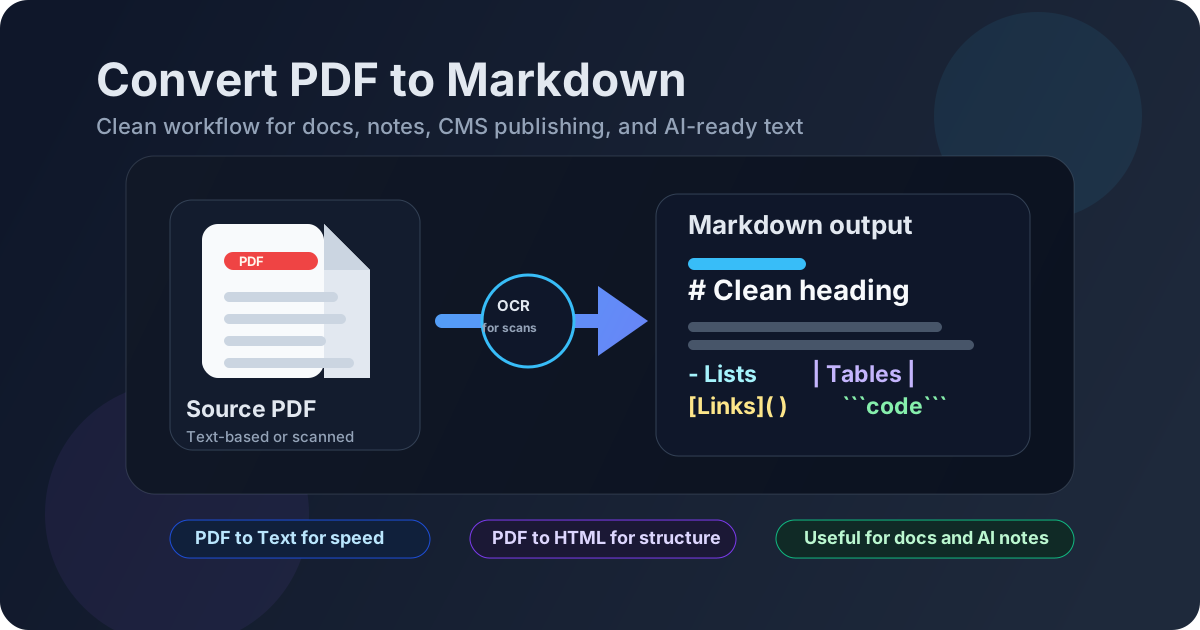
Table of contents
- Quick start: convert PDF to Markdown in a few minutes
- Why Markdown is often the right destination
- Choose the right workflow: PDF to Text vs PDF to HTML vs OCR
- Step-by-step: practical PDF-to-Markdown workflow
- How to clean the Markdown output
- Best use cases: docs, notes, CMS content, and AI workflows
- When Markdown is not the best target
- Privacy and document prep before conversion
- Related LifetimePDF tools and guides
- FAQ (People Also Ask)
Quick start: convert PDF to Markdown in a few minutes
If your PDF already contains searchable or selectable text, the fastest practical workflow looks like this:
- Open PDF to Text if you mainly care about getting editable content fast.
- Use PDF to HTML instead if headings, links, and section structure matter more than raw speed.
- If the PDF behaves like images, run OCR PDF first.
- Review the result in a Markdown editor and fix only the parts that actually matter: heading levels, lists, links, and key tables.
- Save the cleaned file as
.mdand use it in your docs, notes, CMS, or AI workflow.
Why Markdown is often the right destination
People rarely search for PDF to Markdown because they love Markdown syntax for its own sake. They search for it because they need a PDF to stop being locked. Markdown is useful because it is lightweight, editable, easy to version, easy to search, and easy to move between tools.
| Need | Why Markdown helps |
|---|---|
| Documentation | Markdown works well for GitHub, GitLab, Docusaurus, MkDocs, and internal knowledge bases. |
| Notes and research | Markdown fits Obsidian, note apps, study workflows, and citation-heavy text cleanup. |
| Publishing | Many CMS and static site workflows accept Markdown or convert it cleanly. |
| AI workflows | Plain structured text is easier to chunk, search, summarize, and reuse than a raw PDF. |
| Version control | Markdown makes diffs readable, which is far nicer than comparing new PDF exports every time. |
In other words, Markdown is not about preserving every visual detail. It is about recovering useful structure so the content becomes easier to work with.
Choose the right workflow: PDF to Text vs PDF to HTML vs OCR
The biggest quality difference usually comes from choosing the right route before you start cleaning the output. There is no single best workflow for every PDF. The right choice depends on the source file and what you want the Markdown to do afterward.
Option 1: PDF to Text for speed
Use PDF to Text when the PDF is mostly paragraphs, headings, and simple lists. This is the best route when you want quick editable output for research notes, AI ingestion, plain documentation, or quote extraction.
Option 2: PDF to HTML for cleaner structure
Use PDF to HTML when structure matters more. HTML often holds onto section hierarchy, links, and layout cues better than raw text extraction, which makes the final Markdown cleanup easier.
Option 3: OCR first for scanned PDFs
If the PDF came from a scanner, a phone camera, or a flattened export, it may not contain real text at all. In that case, OCR PDF should be the first step, not an afterthought.
| Workflow | Best for | Main trade-off |
|---|---|---|
| PDF to Text | Fast extraction, notes, AI-ready text, quick editing | Less structure for headings, tables, and links |
| PDF to HTML | Docs, articles, CMS migration, structured content | One more cleanup step before final Markdown |
| OCR then extract | Scanned files, photographed pages, legacy paper archives | Quality depends heavily on scan clarity and OCR accuracy |
Step-by-step: practical PDF-to-Markdown workflow
Step 1: Check whether the PDF contains real text
Try selecting a sentence or searching for a heading. If the PDF supports that normally, the extraction step is already much easier. If selection fails, assume OCR is needed before you think about Markdown formatting.
Step 2: Remove noise before you convert
If the PDF is huge and you only need a few pages, clean the job up first. These tools help reduce the mess before you extract anything:
- Extract Pages for only the pages you need
- Split PDF for large documents
- Rotate PDF if the scan orientation is wrong
- Crop PDF if margins and borders are hurting OCR or readability
Step 3: Choose the extraction route
Pick PDF to Text if you want speed. Pick PDF to HTML if you need better heading structure, better list preservation, or cleaner link handling. If the PDF is scanned, use OCR first and then return to this decision.
Step 4: Review the first page, a middle section, and the last page
You usually do not need to inspect every line. The fastest useful review is the first page, a representative middle section, and the last page. That catches most problems with heading order, reading flow, tables, or broken sections.
Step 5: Save the cleaned result where it will actually be used
If the destination is a repo, save the file as Markdown there. If the destination is a CMS or note app, paste it in after cleanup. If you later need a polished document again, rebuild it with HTML to PDF or Text to PDF after editing.
Ready to start? Begin with the route that matches your file, not the route that sounds fancy.
How to clean the Markdown output
Good PDF-to-Markdown conversion is usually not about doing more cleanup. It is about doing the right cleanup quickly. Most files only need a short pass if the extraction route was sensible.
Headings
Confirm the heading hierarchy makes sense. A file with every major section turned into plain paragraphs is harder to reuse later, especially in documentation or AI retrieval workflows.
Lists
Bullet and numbered lists often survive well, but indentation can drift. Fix nesting when it matters and ignore cosmetic perfection when it does not.
Tables
Tables are the first place where PDF-to-Markdown output can get awkward. If the table is central to the document, rebuild it properly. If it is just a supporting detail, a simplified plain-text version may be enough.
Links
Links are usually cleaner when you start with PDF to HTML. If the link text is vague or lost, restore only the links that actually matter to your downstream use.
Code blocks and technical text
Technical PDFs often need a quick pass for code fences, monospaced snippets, formulas, or shell commands. This is especially important if the Markdown is going into GitHub, developer docs, or prompt-ready knowledge bases.
Best use cases: docs, notes, CMS content, and AI workflows
PDF to Markdown is most useful when the goal is to reuse information rather than preserve page design.
Documentation and knowledge bases
Old manuals, SOPs, help-center exports, and PDF guides become easier to maintain once they are in Markdown. You can version them, search them, and update them without exporting a brand-new PDF every time.
Research notes and study workflows
Researchers and students often want PDF content inside note apps or linked knowledge systems. Markdown makes quoting, tagging, summarizing, and linking much easier.
CMS and content migration
If a PDF contains articles, FAQs, whitepapers, or evergreen instructional content, Markdown is often a faster intermediate format than copying fragments out manually.
AI and retrieval workflows
Clean Markdown or structured text is usually easier to chunk and search than a raw PDF. If the next step is summarization, question answering, indexing, or embeddings, a Markdown file is often the more useful working copy.
When Markdown is not the best target
Markdown is useful, but it is not always the smartest destination. Some PDFs really want a different intermediate format.
- Spreadsheets and financial tables: try PDF to Excel first.
- Editable reports and letters: try PDF to Word.
- Design-heavy layouts: use PDF to HTML if layout cues matter.
- Fillable forms: you may want a form workflow instead of Markdown cleanup.
- Image-heavy brochures: Markdown can strip too much context to be worth the effort.
The right question is not Can I force this into Markdown? The right question is Will Markdown make this document easier to use next?
Privacy and document prep before conversion
PDFs often contain contracts, customer details, HR information, internal roadmaps, or research notes that are not meant to travel everywhere. If you are converting to Markdown for internal editing or AI workflows, it helps to clean the document before extraction.
- Extract only the pages you need before conversion.
- Redact sensitive text first with Redact PDF.
- Remove metadata if necessary with PDF Metadata Editor.
- Protect the rebuilt final file with PDF Protect if you need to reshare it later.
Related LifetimePDF tools and guides
PDF to Markdown works best as part of a small toolkit rather than a single isolated button. These tools and guides fit naturally around the workflow:
- PDF to Text - fastest route for Markdown-ready text.
- PDF to HTML - better structure before Markdown cleanup.
- OCR PDF - essential for scanned PDFs.
- Extract Pages - reduce noise before converting.
- Text to PDF - rebuild a clean deliverable later.
- HTML to PDF - export polished structured content after editing.
Related reading: Convert PDF to Markdown Online, Convert PDF to Markdown Without Monthly Fees, PDF to Text Without Monthly Fees, OCR PDF Without Monthly Fees, and HTML to PDF Converter Without Monthly Fees.
Want a pay-once PDF toolkit instead of more subscription friction?
FAQ (People Also Ask)
1) How do I convert PDF to Markdown?
Start by checking whether the PDF has selectable text. For simple documents, extract text directly. For cleaner heading structure and links, convert the PDF to HTML first and then turn that output into Markdown. If the PDF is scanned, OCR should happen before either route.
2) What is the best workflow for PDF to Markdown conversion?
Use PDF to Text when speed matters and PDF to HTML when structure matters more. Scanned PDFs should go through OCR first. Then review heading levels, lists, tables, and links before saving the final Markdown file.
3) Can I convert a scanned PDF to Markdown?
Yes, but OCR is the key first step. A scanned PDF usually contains images rather than real text, so OCR creates the text layer needed before Markdown cleanup becomes practical.
4) Will PDF to Markdown preserve tables and formatting?
Basic headings, paragraphs, lists, and many links usually convert well. Tables, code blocks, footnotes, and multi-column layouts may still need manual cleanup depending on how complex the source PDF is.
5) When should I use another format instead of Markdown?
If the PDF is really a spreadsheet, a fillable form, or a layout-heavy brochure, Excel, Word, or HTML may be a better intermediate format. Markdown works best when the goal is editing and reuse, not visual fidelity.
Ready to turn a locked PDF into usable text?
Best workflow: check text layer -> choose extraction route -> OCR if scanned -> clean headings and tables -> save as Markdown.
Published by LifetimePDF - Pay once. Use forever.