Insert Image into PDF: Add Logos, Signatures, Photos, and QR Codes Without Wrecking the Layout
To insert image into PDF, open a PDF editor, upload the file, choose the page where the image belongs, place your PNG or JPG, resize it carefully, and save the updated PDF.
If the image is a logo, signature, stamp, or QR code, a tightly cropped PNG usually gives the cleanest result because it stays sharp and can avoid awkward white boxes.
That is the short answer. The part that actually saves time is knowing when you should insert an image onto an existing page versus merge a whole image as a new page, when a watermark workflow is faster, and how to avoid covering the very text, form field, signature line, total, or header you were trying to improve in the first place.
Fastest path: use LifetimePDF's editor for image placement, switch to Watermark PDF when the same logo or stamp should repeat across pages, and compress only after the layout is final.
In a hurry? Jump to Quick start: insert an image into PDF in a few minutes.
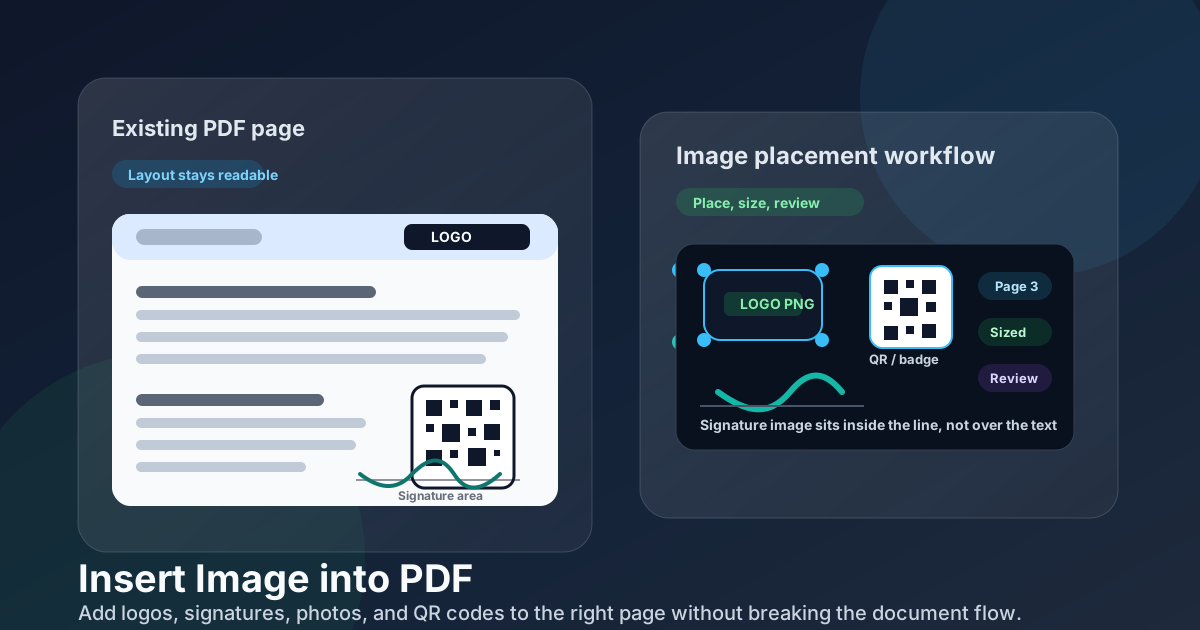
Table of contents
- Quick start: insert an image into PDF in a few minutes
- What people usually mean when they search insert image into PDF
- Insert image vs merge page vs watermark vs sign
- Step-by-step: add an image cleanly with LifetimePDF
- Best image formats for logos, signatures, photos, and QR codes
- Common placement mistakes and how to avoid them
- How to handle one page, several pages, or repeating marks
- How to keep the file size reasonable
- Final review and privacy checks before sharing
- Related LifetimePDF tools and companion guides
- FAQ (People Also Ask)
Quick start: insert an image into PDF in a few minutes
If you already have the PDF and the image ready, this is the fastest reliable workflow:
- Open Edit PDF.
- Upload the PDF you want to update.
- Go to the exact page where the image should appear.
- Insert the image and drag it into position.
- Resize it so it fits naturally without covering labels, totals, signatures, or body text.
- Download the updated PDF and review the page once before sending it anywhere.
What people usually mean when they search insert image into PDF
This query sounds simple, but it usually hides one of a few very specific document jobs. Figuring out which job you actually have makes the workflow much cleaner.
- Adding a company logo to an invoice, quote, proposal, or letterhead
- Placing a signature image on a form or approval page
- Dropping a QR code onto an event handout, menu, or flyer PDF
- Inserting a product photo, screenshot, or evidence image into an existing report
- The image covers the text it was supposed to complement
- The logo is too blurry or the signature has a white background box
- The same mark should repeat on many pages, but it gets placed manually one by one
- The finished PDF becomes unnecessarily huge because the source image was oversized
In other words, most people are not looking for “image insertion” as an abstract feature. They are trying to finish a document cleanly and quickly. The practical question is not just whether an image can be added. It is whether it lands in the right place, stays readable, and still leaves you with a file you can email, upload, print, or archive without drama.
Insert image vs merge page vs watermark vs sign
Choosing the right workflow first saves a surprising amount of time. These jobs sound similar, but they solve different problems.
Insert image into PDF
Best when the image should sit on an existing page, such as a logo, QR code, signature image, stamp, or supporting photo.
Merge PDF
Best when the image should become a new full page in the document rather than an overlay placed on top of an existing page.
Watermark PDF
Best when the same logo, draft mark, or approval stamp should repeat across many pages consistently.
Sign PDF
Best when the task is really about completing a signing workflow instead of manually positioning an image file.
A simple way to decide: if another person should still read the same page and just see an extra visual on it, insert the image. If the visual deserves its own page, merge it. If the same mark belongs everywhere, watermark it. If the job is truly signing, use Sign PDF rather than pretending a signature image solves every signing problem.
Two common examples
- Logo in the top-right corner of a proposal: insert image into the existing PDF.
- Scanned receipt that should appear after the expense summary: convert or merge it as a separate page instead.
Step-by-step: add an image cleanly with LifetimePDF
Here is the workflow that tends to produce the cleanest result with the fewest do-overs.
1) Start with the right image file
If you are adding a logo, signature, or stamp, use a cleaned-up PNG when possible. If you are adding a photo or screenshot, JPG is often fine. Before uploading, remove extra margins around the image so the placement box hugs the real visual instead of a lot of invisible padding.
2) Open the tool that matches the job
Use Edit PDF for general image placement. Use Annotate PDF if you also need arrows, notes, or labels around the image. Use Watermark PDF when the same mark should repeat through a packet.
3) Go to the exact page first
Do not drop the image onto the first visible page and hope to move it later mentally. Go to the page where it belongs, identify the real open space, and think about how the page will look once another person reads or prints it.
4) Place and resize the image deliberately
Aim for natural alignment: headers look intentional, signature boxes stay inside their boundaries, QR codes stay scannable, and photos do not swallow surrounding text. If the image feels hard to place, the issue is often the source file size or padding rather than the PDF itself.
5) Review the page at normal reading size
Zoom out and ask the human question: does this look like it belonged there all along, or does it look pasted on in a hurry? That one check catches most bad placements.
6) Export once, then compress only if needed
Save the finished PDF first. If it is now too heavy for email or a portal upload, run Compress PDF on the final file instead of guessing which source image to shrink before you even know the real output size.
Best image formats for logos, signatures, photos, and QR codes
The image format matters because different visuals fail in different ways.
- Company logos
- Transparent-background signatures
- Approval stamps
- Simple graphics and QR codes
Why: sharper edges, cleaner transparency, better for flat graphics.
- Photos
- Scene images
- Camera captures
- Visual evidence or reference shots
Why: better size efficiency for photographic detail, though it does not preserve transparency.
If your signature or logo has a white box around it, the issue is often not the PDF tool at all. It is usually a flattened JPG or a PNG that still contains extra white background. Clean the source asset first and placement becomes much easier.
What about QR codes?
QR codes usually behave best when they stay high-contrast and are not resized down too aggressively. Give them enough breathing room around the edges so they remain easy to scan on mobile screens and printed pages.
Common placement mistakes and how to avoid them
Most bad results come from a few predictable habits.
- Covering meaningful text: leave totals, form labels, signature lines, and reference numbers readable.
- Using a giant source image: oversize photos make the PDF heavy and awkward to position.
- Ignoring empty padding: crop the image first so you control the real visual, not a huge invisible canvas.
- Forcing one tool to do every job: repeated stamps belong in Watermark PDF, not manual placement page after page.
- Skipping the final review: always open the exported PDF once because print layout and mobile layout can expose mistakes you missed while editing.
How to handle one page, several pages, or repeating marks
The right approach depends on whether the image is unique or repeated.
One image on one page
This is the simplest case. Open the editor, place the image, size it carefully, export, and review.
Different images across several pages
This is common for reports, exhibits, property packets, or approval sets. Place each image only where it adds information. Keep naming clear and review page by page so you do not accidentally reuse the wrong visual.
The same image repeated across many pages
If the same logo, draft stamp, or confidentiality mark belongs across a whole packet, use Watermark PDF instead of hand-placing the same image again and again. It is faster, more consistent, and much less likely to drift out of alignment page to page.
When the image should really be a separate page
If you are adding a full-page receipt photo, scan, appendix image, or screenshot sheet, it is often cleaner to convert the image into PDF and merge it as a page. For that, use Images to PDF or Merge PDF rather than squeezing the whole thing onto an already busy page.
How to keep the file size reasonable
A single small logo rarely causes trouble. Large photos, screenshots, and repeated visuals can make a PDF much heavier than expected.
- Crop first: remove extra background and unused margins from the image.
- Use the right format: PNG for flat graphics, JPG for photos.
- Do not over-scale tiny images: stretching a small source file usually makes it look worse, not better.
- Compress last: once the final layout is correct, use Compress PDF if the output is larger than your sharing channel allows.
This matters most for email attachments, portal submissions, mobile sharing, and document packets that already started large before you inserted anything.
Final review and privacy checks before sharing
Once the image is in place, do one fast but deliberate review.
- Open the finished PDF once and check the edited page at normal reading size.
- Confirm the image does not cover important content such as totals, dates, names, or signature lines.
- Check margins and clipping so nothing disappears when printed.
- Make sure the image still looks intentional rather than awkwardly pasted on.
- Protect sensitive documents if needed before emailing or uploading them onward.
If the PDF now contains signatures, internal approvals, customer details, or sensitive supporting visuals, pair the final workflow with protection, redaction, or signing tools before sending it out.
Related LifetimePDF tools and companion guides
Inserting the image is often only one step in the full document workflow. These tools help when the job turns out to be adjacent rather than identical.
Watermark PDF
Repeat the same logo, draft mark, or approval stamp across many pages.
Open Watermark PDFImages to PDF
Turn standalone images into full PDF pages when they should not be overlaid on existing content.
Open Images to PDFCompanion guides
Useful adjacent reading for image placement and page-building workflows.
Without Monthly FeesMerge PDF and Images
More related tools
- Annotate PDF for arrows, labels, and callouts around an inserted image
- Sign PDF when the task is truly about signing instead of manual image placement
- Compress PDF if the finished file became too large to share comfortably
- Insert Image into PDF Online Free for the broader online companion guide
Need the shortest route? Use Edit PDF for one-off image placement, Watermark PDF for repeated marks, and Merge PDF or Images to PDF when the visual should become its own page.
FAQ (People Also Ask)
How do I insert an image into a PDF?
Open a PDF editor, upload the PDF, choose Add Image, place the PNG or JPG on the right page, resize it, review the page once, and save the updated PDF.
What image format is best for logos or signature images?
PNG is usually the best choice because it keeps edges sharp and can preserve transparency. JPG is usually better for photos where file size matters more than transparent background support.
Should I insert an image into PDF or merge the image as another page?
Insert an image when it belongs on an existing page, such as a logo, signature image, QR code, or approval stamp. Use Images to PDF or Merge PDF when the image should become a full separate page in the finished document.
Can I place the same image on multiple pages?
Yes, but if the same logo or stamp should repeat throughout the document, a watermark workflow is usually faster and more consistent than placing each copy manually.
Will adding an image make my PDF file bigger?
It can. Large photos and padded source files increase size quickly. Crop the source image first, use the right format, and compress the finished PDF afterward only if the final file is too large for email, upload, or mobile sharing.