Excel to PDF Online: Convert Spreadsheets in Your Browser Without Broken Columns or Messy Page Breaks
To convert Excel to PDF online, upload your XLSX, XLS, or ODS file to LifetimePDF's Excel to PDF tool in your browser, export the PDF, and review the first page, a wide table, and the last page before you send it anywhere.
If columns keep getting cut off, switch the sheet to landscape, set the print area, and fit the sheet to one page wide before you convert.
Most people searching this are not confused about the idea of a PDF. They are trying to get a spreadsheet into a format that opens cleanly on another screen, prints properly, uploads without drama, and stops behaving like a live workbook with moving parts. The browser part matters because the task is usually urgent and practical: a quote, a finance summary, a board pack, a school submission, a timesheet, or a dashboard that needs to look finished right now.
Fastest path: clean the sheet, convert it in your browser, then review the PDF once before sharing, printing, or uploading it.
In a hurry? Jump to the quick answer and workflow.
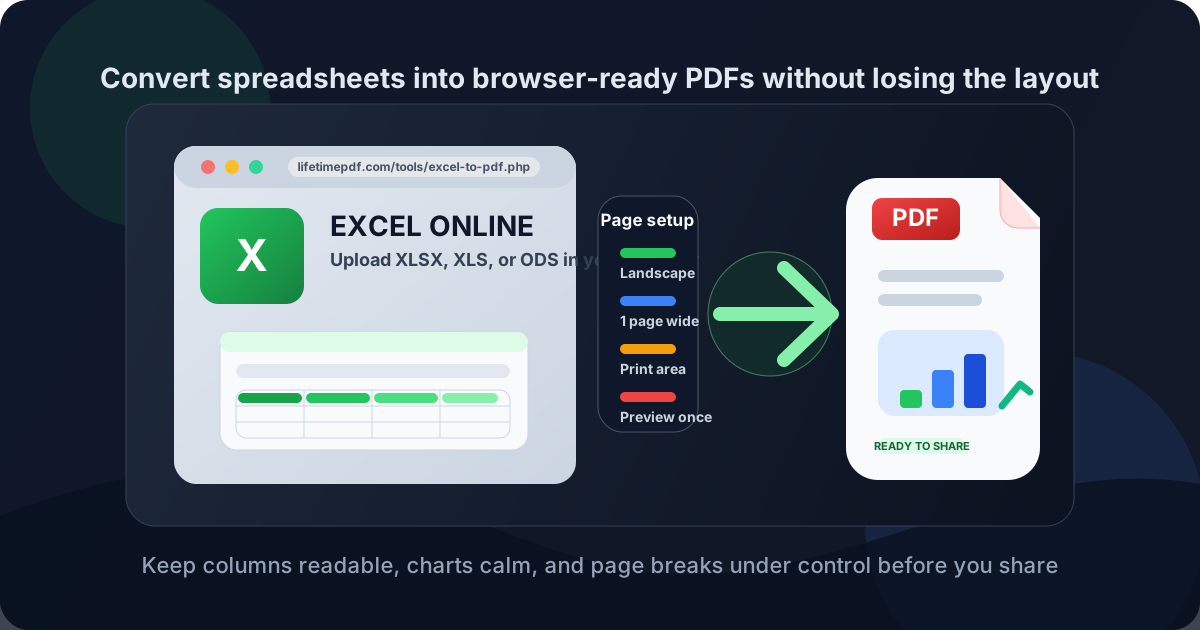
Table of contents
- Quick answer: the cleanest way to convert Excel to PDF online
- Why people specifically want the online workflow
- Step-by-step: convert Excel to PDF in your browser
- What to fix in the sheet before you export
- How to avoid cut-off columns, tiny text, and blank pages
- Multi-sheet workbooks, charts, and page breaks
- Using the workflow on mobile, Chromebook, Mac, and Windows
- What to do after conversion
- Related tools and companion guides
- FAQ
Quick answer: the cleanest way to convert Excel to PDF online
If the spreadsheet is already final, the simple workflow is this:
- Open Excel to PDF.
- Upload the spreadsheet you actually plan to share.
- Convert it and download the PDF.
- Check the first page, a wide table, and the final page for column clipping, tiny text, chart drift, or an accidental blank page.
That is the answer most people need. The part that saves time is not the button itself. It is knowing that most ugly spreadsheet PDFs are caused earlier by page layout, print area, scaling, and exporting far more of the workbook than anyone actually needed.
Why people specifically want the online workflow
The word online matters because a lot of spreadsheet exports happen outside a comfortable desktop routine. Maybe the file came from Google Drive. Maybe you are on a Chromebook. Maybe you are on a locked-down work machine, a borrowed laptop, or a phone where installing another converter is nonsense. Or maybe you simply want a fast browser path because the spreadsheet only needs to become a PDF once and then leave your life.
What people usually mean by Excel to PDF online
- No install: open a browser, upload the file, convert it, move on.
- Cross-device convenience: the spreadsheet may start on one device and finish on another.
- Fast handoff: browser access is often quicker than digging through export menus in whatever spreadsheet app created the file.
- A stable final format: the recipient should see the same layout instead of a living workbook with filters, formulas, and hidden tabs.
In other words, people are rarely searching for this out of curiosity. They are searching because a spreadsheet has reached the moment where it should stop being editable work and start being a deliverable.
| Situation | Why PDF is the better handoff |
|---|---|
| Invoices, quotes, and statements | The layout stays stable and feels final instead of negotiable. |
| Reports and dashboards | Charts, totals, and commentary are easier to review when the layout does not shift. |
| Portal uploads | Many portals preview PDFs more predictably than spreadsheet files. |
| Manager or client review | A read-only PDF is usually cleaner than sending formulas, helper tabs, and scratch ranges. |
Step-by-step: convert Excel to PDF in your browser
The best workflow is pleasantly boring. You prepare the workbook once, convert it once, review it once, and then do only the follow-up work the document actually needs.
1) Start with the real final sheet
If the workbook still contains draft notes, hidden helper ranges, rough formulas, or tabs that should never leave your team, clean that up first. PDF is a delivery format. If the workbook is still mid-thought, the PDF will preserve that mid-thought energy in a much less editable way.
2) Open the browser tool
Go to LifetimePDF Excel to PDF. This works well for XLSX, XLS, and ODS files, which matters if the spreadsheet came from Excel, LibreOffice, OpenOffice, or a mixed team environment.
3) Upload and convert
Upload the file, run the conversion, and save the PDF locally. At this point, your job is not to admire that a conversion happened. Your job is to check whether the finished document looks like something another person can trust immediately.
4) Review the spots that usually break first
- wide tables: are the rightmost columns still visible?
- text size: did the worksheet get shrunk into something nobody wants to read?
- charts and screenshots: do they still fit on the page without clipping?
- page order: does the document read like a report instead of a sliced-up workbook?
- the last page: did the export end cleanly or produce a lonely half-page of leftovers?
Best simple sequence: convert first, then only fix the next real problem instead of piling on extra steps by default.
What to fix in the sheet before you export
If you remember one thing from this article, make it this: a lot of PDF problems are really spreadsheet problems wearing a PDF costume. A one-minute cleanup in the workbook prevents a lot of ugly exports.
Set a real print area
Do not let the export guess what matters. If the workbook includes helper columns, test data, notes off to the right, or old rows far below the main table, define the exact range that belongs in the final PDF. Otherwise you may get blank pages, stray content, or an awkwardly huge document.
Choose landscape when the sheet is wide
This is the classic fix for reports, dashboards, comparison tables, schedules, and finance sheets. If the content naturally spreads across many columns, portrait pages are often the reason the PDF feels broken.
Fit to one page wide, not one page total
Forcing an entire worksheet onto one page is how readable spreadsheets turn into insect-sized PDFs. A better default is fit to one page wide and let the document continue vertically across more than one page. That usually preserves the structure without sacrificing every font in the process.
Repeat header rows for long tables
If page two begins with a wall of values and no labels, your reader has to reverse-engineer the sheet. Repeating the header row makes long exports much easier to trust and review.
Trim visual clutter before it becomes permanent
Oversized charts, floating logos, screenshots, and decorative boxes can bloat the PDF and shift page flow. If something already feels cramped in print preview, the PDF will not rescue it.
How to avoid cut-off columns, tiny text, and blank pages
These are the three complaints behind a huge share of Excel-to-PDF searches. The fix is usually not mysterious. It is just easier to handle before export than after.
| Problem | What usually causes it | Best practical fix |
|---|---|---|
| Columns get cut off | The sheet is wider than the page setup or still in portrait mode. | Switch to landscape, define the print area, and fit to one page wide. |
| Text becomes tiny | The workbook was forced onto a single page. | Let the content run across multiple pages vertically instead of shrinking everything. |
| Blank pages appear | Stray formatting or export ranges extend farther than you realized. | Reset the print area and remove unused rows, columns, or floating objects. |
| Charts get clipped | Visuals sit too close to page edges or outside the printable area. | Resize or reposition the chart before exporting. |
If the first export still looks wrong, go back to the workbook, adjust the layout once, and convert again. That is usually faster and cleaner than trying to patch a badly structured PDF later.
Multi-sheet workbooks, charts, and page breaks
Real spreadsheets are rarely just one neat page. They tend to include raw data tabs, summary tabs, working tabs, charts, exports, notes, and maybe a few mysterious leftovers that nobody wants to explain. That is why one of the most important decisions is whether the final PDF should include the whole workbook at all.
When to export only one sheet
If the client only needs the invoice tab, the manager only needs the summary, or the portal only needs one submission page, export only that content. Smaller PDFs are easier to review and much less likely to reveal internal context you did not mean to send.
When several sheets belong together
If the workbook is intentionally a packet, make sure the tabs follow a logical order and feel like sections of one document rather than evidence from your working process. If you prefer tighter control, export separate PDFs and combine them later with Merge PDF.
Watch charts with a print-preview mindset
Charts often look perfect in worksheet view and still export badly because they are too close to a page edge or scaled awkwardly. The fix is usually simple, but only if you notice it before sending the PDF.
Use page breaks deliberately
A summary table should not split in a silly place just because the workbook happened to be tall. If one section belongs together, adjust the workbook so the final PDF respects that structure.
If the PDF becomes part of a larger packet: add page numbers after export so reviewers can reference sections quickly.
Using the workflow on mobile, Chromebook, Mac, and Windows
One reason the online workflow is useful is that the spreadsheet may not be living in a normal desktop office setup. It might be in email, cloud storage, or a shared folder you opened from whatever device was closest.
On mobile
Browser conversion is handy when you need to send a quote, upload an assignment, or forward a report directly from your phone or tablet. The only real caution is screen size. Zoom into the exported PDF so you do not miss clipped columns or unreadable fonts.
On Chromebook
This is one of the nicest matches for an online Excel-to-PDF tool because browser workflows are already the default. If the file came from Drive, email, or a download folder, you can move straight from spreadsheet to final PDF without hunting for desktop software.
On Mac and Windows
Even if you have local export options, a browser workflow can still be simpler when the spreadsheet is already sitting online or when the PDF is only step one in a bigger workflow like compression, protection, or merging.
What to do after conversion
Converting the spreadsheet is usually the main task, but not always the last one. The next step depends on what happens to the PDF afterward.
- Need a smaller file? Use Compress PDF for email, portal uploads, or messaging apps.
- Need to lock down sensitive data? Use PDF Protect before sharing payroll, pricing, or internal reports.
- Need approval or signature? Use Sign PDF.
- Need one packet? Use Merge PDF to combine the export with appendices, cover pages, or supporting documents.
- Need editable data later? Use PDF to Excel when the workflow reverses and someone asks for the numbers back in spreadsheet form.
That is one reason a full PDF toolkit is more useful than a one-button converter. Real work rarely stops at “conversion complete.” There is usually one more thing to do before the file is truly ready.
Ready to finish the job cleanly? Convert the workbook first, then only use the extra tool that matches the next real step.
Related tools and companion guides
Excel-to-PDF conversion works best as part of a broader document workflow. These tools and guides fit naturally around it:
- Excel to PDF for the main browser conversion
- Compress PDF for upload-friendly exports
- PDF Protect for confidential reports and statements
- Sign PDF for approvals and formal delivery
- Merge PDF for packets and appendices
- Add Page Numbers for longer handoff documents
- PDF to Excel when you need the reverse workflow later
- Excel to PDF for the broader exact-match guide
- Excel to PDF Online Free for the free-intent version
- Excel to PDF Online Without Monthly Fees for the pay-once angle
- Excel to PDF Without Cutting Off Columns for layout-specific troubleshooting
- PDF to Excel Without Monthly Fees if the next request is to turn the PDF back into editable data
FAQ
How do I convert Excel to PDF online?
Open a browser-based Excel to PDF converter, upload your XLSX, XLS, or ODS file, export the PDF, and review the result once before sharing it. If the sheet is wide, use landscape orientation and fit it to one page wide first.
Why do my Excel columns get cut off in the PDF?
Usually because the sheet is wider than the page setup, the print area includes the wrong range, or the workbook was forced onto one page. Landscape orientation and fit-to-one-page-wide scaling usually fix it.
Can I convert XLSX, XLS, and ODS files to PDF online?
Yes. A solid browser workflow should support modern Excel workbooks, older XLS files, and ODS spreadsheets from LibreOffice or OpenOffice.
Should I share Excel or PDF?
Share Excel when someone still needs formulas, filters, or editing access. Share PDF when you want stable layout, cleaner printing, and a read-only handoff that looks the same on other devices.
What should I do after converting Excel to PDF?
Most of the time, just review the PDF once. After that, compress it if the file is too large, protect it if it contains sensitive information, sign it if approval is needed, or merge it with supporting documents if you are building a packet.
Published by LifetimePDF — Pay once. Use forever.