Edit PDF Form Fields: Fix Labels, Move Inputs, and Update Fillable Forms Cleanly
To edit PDF form fields, open the file in a PDF field editor, click the field you want to change, update the label, default value, required status, size, or position, then save the revised form.
If you only need to type into the existing blanks instead of changing the form structure, use a PDF form filler rather than editing the fields themselves.
That distinction matters because form problems usually come from the structure, not the data entry. A messy field label, a checkbox in the wrong place, a dropdown with outdated choices, or a signature area that lands on the wrong line can make an otherwise simple PDF feel broken. The good news is that most of these issues are fixable without rebuilding the entire document from scratch.
Fastest path: open PDF Field Editor, fix the field layout and settings first, then test the result in PDF Form Filler before sending the revised form to anyone else.
In a hurry? Jump to quick start: edit PDF form fields in a few minutes.
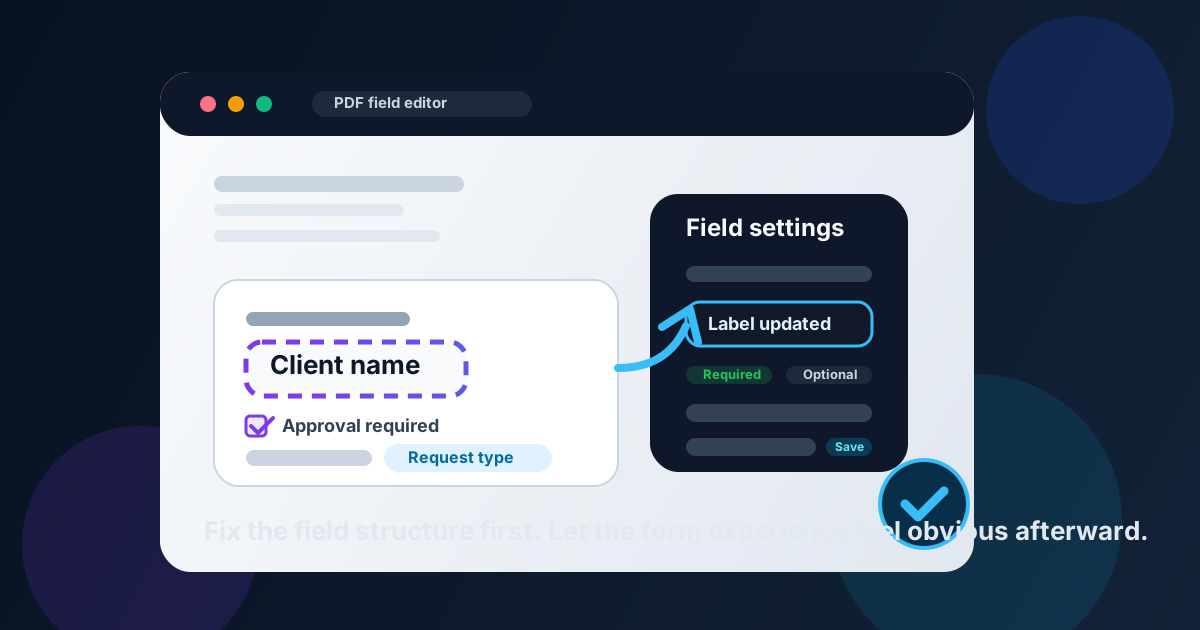
Table of contents
- Quick start: edit PDF form fields in a few minutes
- What editing PDF form fields actually changes
- Edit the form vs fill the form
- Step-by-step: how to edit PDF form fields
- Which form fields you can update
- How to clean up messy form layouts
- When to add, remove, or duplicate fields
- Common mistakes that make edited forms harder to use
- Related LifetimePDF tools and articles
- FAQ
Quick start: edit PDF form fields in a few minutes
If you already know the form is structurally wrong and needs to be fixed, this is the simplest reliable workflow:
- Open PDF Field Editor.
- Upload the fillable PDF you want to clean up.
- Select the field that needs attention.
- Change the label, position, size, default value, required setting, or field type.
- Add or delete fields if the current layout is incomplete or outdated.
- Save the revised PDF.
- Open the result in PDF Form Filler and complete it once like a real recipient.
What editing PDF form fields actually changes
Editing PDF form fields means you are changing the form itself, not just typing answers into it. You are working on the part of the document that controls where people click, what they can enter, and how the form behaves.
In practice, that includes jobs like:
- fixing a label that no longer matches the question
- moving a text box back under the right heading
- making a required field optional or the other way around
- replacing a plain text box with a checkbox or dropdown
- adding a signature area where the document forgot one
- removing duplicate or outdated fields from an old template
| Task | Best tool | Why |
|---|---|---|
| Change labels, field size, placement, or required settings | PDF Field Editor | Edits the structure of the form itself |
| Type answers into a form that is already built correctly | PDF Form Filler | Lets you complete the document without altering the field design |
| Add a place for someone else to sign | PDF Field Editor or Add Signature Field to PDF | Creates a sign-ready field rather than placing a personal signature immediately |
| Lock the finished form after all data is entered | Flatten PDF Form Data | Preserves the final result and removes the editable behavior |
Edit the form vs fill the form
People lose time here because both actions happen inside the same kind of PDF, but they solve very different problems.
Editing the form
You are changing the structure: field type, label, placement, dimensions, rules, and the overall logic of the file. This is the right choice when the form feels confusing, incomplete, or outdated.
Filling the form
You are only entering the answers. The form design is already acceptable, and you just need to complete it. In that case, go straight to PDF Form Filler instead of editing the field layout.
Step-by-step: how to edit PDF form fields
1. Start from the version you actually plan to keep
Make sure you are editing the current file, not last quarter's template or a half-complete copy someone already filled out. Form work goes sideways fast when the wrong version keeps circulating.
2. Select the exact field that needs work
Open PDF Field Editor and click the field you want to adjust. That could be a text box, checkbox, radio button, dropdown, date field, or signature area.
3. Update the field properties before you move on
Change the label, internal name, default value, required status, and any other settings that affect how the field behaves. If the field is technically present but still confusing, the label is often the first thing to fix.
4. Reposition and resize it so the page makes sense again
A field can be perfectly functional and still be frustrating if it sits too close to another element, overlaps a line, or looks like it belongs to the wrong question. Clean placement is part of usability, not just cosmetic polish.
5. Add or remove fields where the workflow changed
If the old form is missing a checkbox, still asks for an outdated department code, or has two text boxes where one dropdown would work better, fix the structure now instead of asking every user to work around it manually.
6. Save the revised PDF and test it like a real recipient
Open the exported file in PDF Form Filler, tab through the fields, complete the form once, and confirm the document flows cleanly from top to bottom.
Short reliable workflow: edit the field structure, complete one realistic test pass, then share the form only after the result behaves the way you intended.
Which form fields you can update
Most fillable PDFs use a small set of field types. Knowing which one you are looking at makes the edit faster and the finished form more consistent.
Text fields
Best for names, IDs, notes, totals, and other typed input. These fields are often the ones that need better labels, wider boxes, or clearer placement.
Checkboxes
Useful when the user may select yes or no, or choose several items from a list. Problems here usually come from poor alignment or labels that do not clearly belong to the right box.
Radio buttons
Best when the user must choose only one option from a group. If radio buttons are duplicated incorrectly or labeled vaguely, the form feels broken even if it technically works.
Dropdowns
Good for standardized choices like department, country, request type, or approval level. They are often worth editing when the old list is outdated or too long for a clean paper-style layout.
Signature fields
Use these when someone needs a clear place to sign later. If the PDF is missing a sign-ready area, see Add Signature Field to PDF for a deeper walkthrough.
How to clean up messy form layouts
Many PDF forms are technically fillable but still annoying to use. The fix is usually a layout cleanup, not a total redesign.
Fix labels before anything else
If the wording is unclear, every other improvement has less impact. Use plain labels that tell people exactly what belongs in the field.
Align related fields into a visible rhythm
When text boxes, checkboxes, and dropdowns snap into a consistent grid, users stop wasting energy figuring out what belongs where.
Resize fields for actual use
A cramped text box or tiny signature area might look acceptable in the editor but fail in real life. Leave enough room for normal typing and mobile completion.
| Good cleanup move | Why it helps | Watch out for |
|---|---|---|
| Clear labels | Users understand the field without guessing | Generic or outdated wording |
| Consistent alignment | The page feels structured and easier to scan | Fields that drift above or below the related text |
| Comfortable field size | Typing and tapping feel natural | Tiny boxes that only work on desktop zoom |
| One field per clear purpose | Reduces duplicate entry and form confusion | Several similar fields asking for the same thing |
When to add, remove, or duplicate fields
Editing is not always about fixing a single broken element. Sometimes the whole workflow changed, and the form should change with it.
Add fields when the old template no longer captures what matters
Common examples include adding an approval checkbox, a secondary contact field, a date field, or a signature box that was being handled manually before.
Remove fields when people should no longer fill them out
Old project codes, retired departments, duplicate fax lines, or internal-only notes should not linger in forms that customers or staff still use every week.
Duplicate patterns when consistency matters
If one page uses a well-sized name-and-date pair, duplicating that structure is often better than improvising a slightly different version on every page.
Common mistakes that make edited forms harder to use
Editing when you only needed to fill the form once
If the structure is already fine, editing just adds extra steps. Use PDF Form Filler instead.
Leaving labels vague
A field can work technically and still confuse everyone who sees it. Simple, specific wording does more than fancy design.
Forgetting mobile and tablet use
People do not only complete forms on large monitors. Tiny fields and cramped spacing often fail first on phones and tablets.
Flattening the form too early
Flattening removes the editable behavior. Use Flatten PDF Form Data after the workflow is finished, not while you still need people to interact with the file.
Skipping the test pass
The biggest avoidable mistake is sending the revised form without filling it out once yourself. A one-minute test pass catches a surprising amount.
Related LifetimePDF tools and articles
Editing PDF form fields usually sits in the middle of a larger workflow. These are the most useful next steps:
- PDF Field Editor - edit field labels, placement, size, and behavior.
- PDF Form Filler - complete the revised form like a recipient would.
- Sign PDF - place the actual signature when the file is ready to sign.
- Flatten PDF Form Data - turn the finished form into a stable non-editable result.
- PDF Protect - protect the final file if it contains sensitive information.
Helpful related reading
- Edit PDF Form Fields Online
- Add Signature Field to PDF
- Create Fillable PDF Forms Online
- Flatten PDF Form Data
- Sign PDF
Ready to clean up a fillable PDF?
Best workflow for most teams: edit the field structure → test the form experience → collect data or signatures → flatten or protect the final copy if needed.
FAQ
How do I edit PDF form fields?
Open the PDF in a form field editor, select the field you want to change, update its label, value, size, required setting, or placement, then save and test the revised file.
What is the difference between editing PDF form fields and filling out a PDF form?
Editing changes the structure of the form itself. Filling out a PDF form means entering information into fields that are already built and ready to use.
Can I add new fields while editing a PDF form?
Yes. You can add text boxes, checkboxes, radio buttons, dropdowns, or signature fields when the existing form is missing something important.
Should I flatten a PDF after editing form fields?
Only when the workflow is complete and you need a stable final copy. If people still need to fill or sign the file, keep it interactive until that step is done.
Why are my edited PDF form fields still not working for recipients?
The usual causes are unclear labels, poor alignment, duplicate field names, wrong required settings, or simply skipping the final test pass before you share the revised file.
Published by LifetimePDF — Pay once. Use forever.