Convert Quote PDF to Excel: Extract Quote Numbers, Line Items, Pricing, and Validity Dates Faster
To convert quote PDF to Excel, upload the quotation to LifetimePDF's PDF to Excel tool, export the XLSX, and review quote number, customer, validity date, line items, unit prices, discounts, taxes, and totals before using the spreadsheet.
If the quote is scanned or mixed with cover letters, terms pages, product sheets, or approval emails, isolate only the quote pages and run OCR first so the spreadsheet comes out cleaner and needs less repair.
Most people searching this phrase are not trying to admire a file conversion. They are trying to stop retyping commercial data by hand, compare revisions faster, check discounting more carefully, or hand quote rows to another system without dragging a static PDF through the rest of the workflow. A useful spreadsheet makes the quote easier to review, revise, approve, and reuse.
Fastest path: use LifetimePDF's PDF to Excel tool, and OCR the quote first if it came from a scan, phone photo, or image-only PDF.
In a hurry? Jump to Quick start: convert quote PDF to Excel in about 5 minutes.
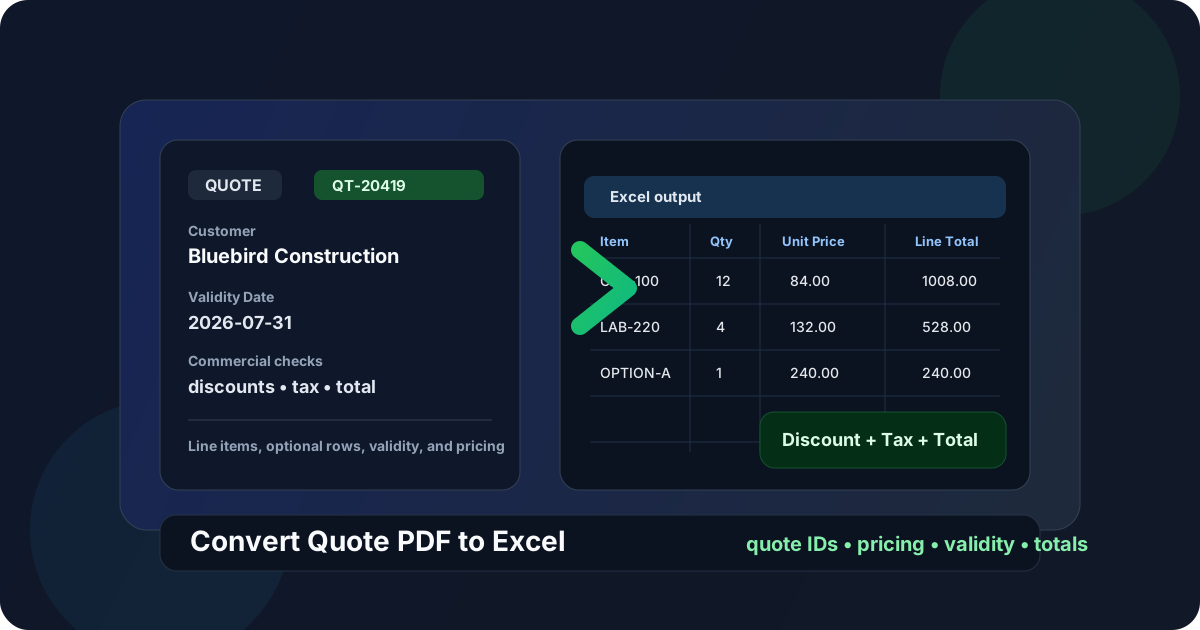
Table of contents
- Quick start: convert quote PDF to Excel in about 5 minutes
- Why teams need quote PDFs in Excel
- Which quote fields matter most
- What converts cleanly and what usually breaks
- Step-by-step: extract quote data with LifetimePDF
- Review checklist before you trust the spreadsheet
- Excel vs CSV for quote workflows
- Privacy and quote-document hygiene
- Related LifetimePDF tools and companion guides
- FAQ (People Also Ask)
Quick start: convert quote PDF to Excel in about 5 minutes
If the quote already contains selectable text and the layout is reasonably clean, this workflow is usually enough:
- Open PDF to Excel.
- Upload the quote PDF you want to extract.
- If the file also includes proposal covers, terms appendices, product sheets, or email chains, first isolate only the quotation pages with Extract Pages.
- If the quote is scanned or image-only, run OCR PDF before converting.
- Export the spreadsheet and review quote number, customer name, validity date, line items, unit prices, discounts, taxes, and total.
Why teams need quote PDFs in Excel
A quote PDF is fine when you only need to read it once. It becomes frustrating when you need to compare supplier pricing, review discounting, revise quantities, line up alternates, analyze margins, or import structured rows into CRM, ERP, procurement, or finance workflows. That is where Excel becomes much more useful than the original PDF.
- Sales-ops cleanup and approval prep
- Procurement comparison across multiple supplier quotes
- Estimating and revision tracking
- Discount, tax, and margin review
- Preparing structured rows for another system
- Quote ID lands in the right cell
- Customer and validity date stay readable
- Item descriptions remain attached to the right rows
- Discounts, taxes, and totals do not drift columns
- Optional or alternate lines are still easy to interpret
The goal is not fantasy-level one-click perfection on every ugly proposal packet. The goal is to get close enough that cleanup takes a minute or two instead of forcing someone to copy every item, quantity, and price manually. For sales teams, estimators, procurement staff, and finance admins, that time savings compounds quickly.
Why quotes deserve their own workflow
Quotes are awkward because they often mix structured pricing with persuasive context. A single quotation can contain branding, scope notes, alternate options, assumptions, exclusions, validity clauses, signatures, and approval blocks all on the same pages as the actual table. Humans read that easily. A spreadsheet extractor has to guess where the real rows begin and where the decorative or explanatory text ends.
Which quote fields matter most
Not every field matters equally. If you know what the spreadsheet really needs to preserve, the review step becomes much faster and more reliable.
| Header and control fields | Line-item and pricing fields |
|---|---|
| Quote number and issue date | Item code or SKU |
| Customer name and contact or company | Description |
| RFQ reference and salesperson or estimator | Quantity and unit price |
| Validity date, currency, and payment terms | Discount, tax, freight, and line total |
| Project, job, or location reference | Optional, alternate, or bundle lines |
In practice, the line-item section is usually the hardest part. Header fields live in labeled boxes. Item rows are where wrapped descriptions, alternate options, subtotal breaks, and repeated page headers can push a spreadsheet out of shape.
Rows that deserve extra attention
- Alternate or optional items: these can look like normal rows even when they should stay separate from the main total.
- Subtotal and discount lines: important for approvals, but easy to merge accidentally with the surrounding line items.
- Validity and assumptions: essential context that often sits outside the item table entirely.
- Reference codes: quote IDs, RFQ numbers, and customer references should usually stay as text when leading zeros matter.
- Notes under each line: specifications, scope notes, and exclusions can create blank or split rows if the layout is dense.
What converts cleanly and what usually breaks
Quote extraction gets easier when the PDF is already digital, text-based, and consistent across pages. It gets harder when the file was designed as a presentation document first and a data source second.
- Digital exports from CRM, ERP, CPQ, or accounting tools
- Files with selectable text
- Clean pricing tables with stable columns
- Standalone quote PDFs without unrelated appendices
- Scanned paper quotations or phone-photo PDFs
- Quotes with long wrapped descriptions or specification notes
- Packets mixed with contracts, product sheets, or emails
- Layouts with optional sections, alternates, or repeated headers on each page
If your quote falls into the second column, that does not mean the workflow is doomed. It usually means the file needs one sensible prep step first: isolate the quote pages, OCR the scan, rotate crooked pages, or crop away visual noise that confuses the table.
Step-by-step: extract quote data with LifetimePDF
This workflow usually gives the best balance between speed and reviewable output.
1) Start with the actual quote pages
If the PDF also contains a proposal cover, customer email thread, legal appendix, product cut sheets, or signed acceptance pages, separate those before converting. Smaller, focused input usually means a cleaner spreadsheet.
- Use Extract Pages if you only need certain quotation pages.
- Use Split PDF when one packet should become smaller files.
- Use Delete Pages if you want to remove appendix or noise pages before converting.
2) OCR scanned quotes before conversion
Image-only quotes often look readable to humans but opaque to a spreadsheet engine. Running OCR PDF first gives the converter a better shot at recognizing quote IDs, dates, item descriptions, quantities, discount rows, and totals as actual text.
OCR will not fix every terrible scan. But it is often the difference between “usable with a quick review” and “why did the total land in the assumptions section?”
3) Fix sideways or noisy pages before extraction
If a page is rotated, tilted, or padded with large borders, clean it up first. Rotate PDF helps with orientation problems, and Crop PDF helps when margins, footers, or decorative layout blocks are overwhelming the useful table area.
4) Convert the quote PDF to Excel
Open PDF to Excel, upload the cleaned quote PDF, and export the XLSX file. At this point, the goal is not abstract perfection. The goal is a structured sheet that already has most commercial fields in the right place.
5) Review the fields that fail most often
A conversion is only as useful as the fields you trust. Quotes tend to break in predictable places:
- Quote number and dates: easy to misread when the header uses small labels or crowded boxes.
- Multi-line descriptions: often wrap into extra rows or push quantities off alignment.
- Optional or alternate items: can blend into the main table even when they should stay distinct.
- Discount, tax, freight, and total lines: critical to verify because one shifted cell can create downstream approval noise.
- Validity and assumptions blocks: important context that sometimes lands inside the wrong column or far from the main quote summary.
6) Normalize before sharing or importing
If the spreadsheet is heading into CRM, ERP, procurement analysis, or an internal approval sheet, spend one extra minute standardizing headers, checking blank rows, and confirming totals. The better habit is not “convert and trust automatically.” It is “convert, review, then use.”
Need the tool stack? Start with conversion, then clean the source if the spreadsheet comes out messy.
Review checklist before you trust the spreadsheet
A short review catches most of the expensive mistakes. You do not need to inspect every row equally. You need to focus on the fields most likely to create quoting, approval, or comparison problems if they drift.
- Quote number
- Customer name
- Issue date and validity date
- Item description, quantity, and unit price
- Discount, tax, freight, and grand total
- Optional or alternate sections that affect the commercial meaning
- Description rows split across multiple lines
- Repeated page headers mixed into the pricing table
- Currency symbols separated from the amount
- Subtotal lines mistaken for normal items
- Assumptions or terms text appearing as fake data rows
- Totals merged with discounts or freight lines
If a quote is still messy after conversion, sometimes the smarter move is to extract a narrower page range, rerun OCR, or ask for a cleaner source export from the quoting system rather than fighting the worksheet row by row.
Excel vs CSV for quote workflows
People often ask whether quote data should end up in Excel or CSV. The answer depends on what happens after extraction.
- You still need to review and clean the output
- You want filters, formulas, comments, or highlights
- You plan to compare several quotes side by side
- You are handing the file to sales, finance, or procurement
- You only need plain rows and columns for an import
- The downstream system already expects CSV
- You do not care about workbook formatting
- The structure is already clean enough to skip manual review
For most quote workflows, Excel is the better first stop because it gives you room to review pricing, validate totals, separate alternates, and fix extracted rows before the data moves on. Once the sheet looks right, you can always save a CSV afterward if another system requires it.
Privacy and quote-document hygiene
Quotes are not harmless attachments. Even early-stage quotations can reveal customer names, negotiated prices, internal SKUs, margin-sensitive discounts, project references, validity dates, and commercial assumptions. That means the workflow should stay deliberate.
- Upload only the pages you need instead of the full proposal packet.
- Redact when appropriate if the document contains identifiers or notes that should not travel further.
- Remove extras before converting so you do not leak more information just to get a cleaner spreadsheet.
- Keep the source and reviewed spreadsheet traceable so manual corrections are easy to audit later.
- Protect final documents when needed if reviewed files are going out by email or to outside parties.
If the original PDF needs cleanup before or after extraction, pair this workflow with Redact PDF, Delete Pages, or PDF Protect depending on what the file needs next.
Related LifetimePDF tools and companion guides
Converting the quote is often only one step in the overall workflow. These related tools and guides help when the raw PDF needs cleanup before or after extraction.
- PDF to Excel for the core extraction step.
- OCR PDF for scanned quotations.
- Extract Pages and Split PDF for quote-only page ranges.
- Crop PDF for removing noisy margins and visual clutter before extraction.
- Compare PDFs if you need to inspect two quote revisions.
- Convert Quote PDF to Excel Online Without Monthly Fees if you want the cost-model angle.
- Convert Sales Order PDF to Excel, Convert Purchase Order PDF to Excel, Convert Proforma Invoice PDF to Excel, and Convert Commercial Invoice PDF to Excel for adjacent commercial-document workflows.
Bottom line: the best quote-to-Excel workflow is boring in a good way — keep only the real quote pages, OCR when needed, review the commercial fields once, then use the spreadsheet with confidence.
FAQ (People Also Ask)
How do I convert a quote PDF to Excel?
Upload the quote PDF to a PDF to Excel converter, export the XLSX file, and review quote number, customer details, validity date, line items, prices, discounts, taxes, and totals before using the spreadsheet. If the quote is scanned, OCR first usually improves the result.
Can I convert a scanned quotation PDF to Excel?
Yes, but the cleanest workflow is usually OCR first, then convert. Straight pages and readable scans make a big difference when the quote contains small labels, dense line-item tables, alternate sections, or repeated headers.
Why do some quote PDFs create messy spreadsheets?
Because many quotes combine customer blocks, item tables, optional sections, validity terms, signatures, and repeated headers on the same page. Mixed layouts, low-quality scans, and extra non-quote pages are common reasons columns shift or descriptions break.
Is Excel better than CSV for quote extraction?
Usually yes if a human still needs to review the result. Excel makes it easier to compare options, check discounts and totals, fix wrapped rows, and hand the file to sales, finance, or procurement before importing the data elsewhere.
What should I verify after converting quote data?
Check the quote number, customer name, issue date, validity date, item descriptions, quantities, unit prices, discounts, taxes, optional lines, and grand total. Those are the fields most likely to create downstream quoting or approval problems if one row shifts during extraction.
Published by LifetimePDF - Pay once. Use forever.