Convert PDF to Google Docs Online: Best Ways to Open, Edit, and Clean Up a PDF in Docs
Yes — you can convert PDF to Google Docs online by uploading the file to Google Drive and opening it with Google Docs, but the cleanest results usually come from converting the PDF to DOCX or text first.
If the PDF is scanned, run OCR before you expect Google Docs to keep paragraphs, headings, tables, or lists readable.
Most people searching for this are not trying to preserve the PDF as a perfect visual replica. They want the content editable inside Google Docs so they can rewrite, comment, translate, share, or reuse it without retyping everything by hand. The practical question is not just whether Google Docs can open a PDF, but which route gets you the cleanest editable document with the least cleanup.
Fastest path: use direct upload only for simple PDFs, use PDF to Word for cleaner structure, and use OCR first whenever the PDF is really a scan.
In a hurry? Jump to Quick start: move a PDF into Google Docs in a few minutes.
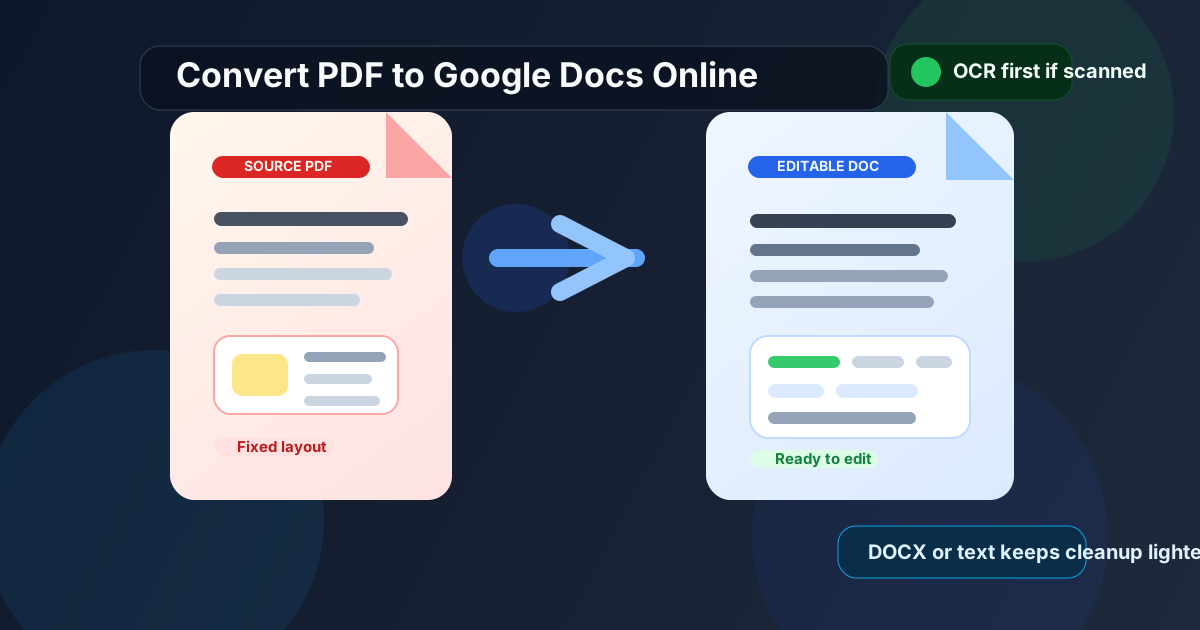
Table of contents
- Quick start: move a PDF into Google Docs in a few minutes
- Which route is best: direct upload, DOCX first, or text first?
- Step-by-step: convert PDF to Google Docs online
- When PDF to Word is the smarter route
- Scanned PDFs and OCR: what changes
- Common formatting problems and how to clean them up
- How to turn the cleaned Google Doc back into PDF
- Privacy and workflow decisions
- Related LifetimePDF tools and guides
- FAQ (People Also Ask)
Quick start: move a PDF into Google Docs in a few minutes
If you want the shortest useful workflow, use this order:
- If the PDF is a scan or photo-based document, start with OCR PDF.
- If the PDF contains structured content like headings, lists, images, or light tables, use PDF to Word.
- If you only need the words and not the layout, use PDF to Text.
- Upload the PDF, DOCX, or cleaned text-based file to Google Drive and open it with Google Docs.
- Review headings, paragraph breaks, tables, repeated headers, page numbers, and images before you share the document.
Which route is best: direct upload, DOCX first, or text first?
There is no single perfect route for every PDF. The right choice depends on whether your real goal is editable wording, preserved structure, or simple text extraction.
| Route | Best when | What to expect |
|---|---|---|
| Upload the PDF directly to Google Docs | Short, text-heavy PDFs with simple formatting | Fastest route, but layout can shift and tables may break |
| Convert PDF to DOCX first | You want cleaner headings, lists, images, and page structure | Usually the best editing experience for reports, resumes, forms, contracts, and guides |
| Extract text first | You only need the written content, not the visual formatting | Lightweight and useful for research, rewriting, summarizing, or translation workflows |
This is where people often lose time. They assume Google Docs should somehow preserve a PDF perfectly, then spend longer repairing the imported mess than they would have spent choosing a better conversion route first.
Step-by-step: convert PDF to Google Docs online
1) Decide what you actually need from the PDF
Ask a basic question before you touch the file: Do you need editable content, preserved structure, or just the text? That answer shapes everything that follows.
- Use direct upload for simple documents that are mostly paragraphs.
- Use PDF to Word when the document still needs to look organized while you edit it.
- Use PDF to Text when formatting does not matter and speed matters more.
2) Clean the PDF before conversion if it is messy
Conversion quality improves when the source file is calmer. If the PDF has unnecessary appendices, sideways pages, giant white margins, or noisy scan borders, fix that first.
- Use Extract Pages to isolate only the pages you need.
- Use Rotate PDF if page orientation is wrong.
- Use Crop PDF when huge margins or scanner borders get in the way.
3) Convert with the route that fits the document
For most editable-document workflows, PDF to Word is the best middle ground. It gives Google Docs a structure it understands better than a raw PDF. If the PDF is simple and you only need the copy, PDF to Text may be enough.
4) Upload the result to Google Drive and open it in Docs
Once you have the cleanest possible input file, upload it to Google Drive and open it in Google Docs. This is where collaboration, comments, suggestion mode, and shared editing become easy.
5) Do one cleanup pass before you share or republish
Open the doc once and check the pieces that most often drift during conversion:
- heading hierarchy and section order,
- paragraph breaks and line wrapping,
- tables and list indentation,
- repeated page numbers or headers, and
- captions, signatures, or pasted images.
Need a cleaner editable starting point?
When PDF to Word is the smarter route
People often assume "Google Docs can open PDFs" means direct upload is the best workflow. It often is not. DOCX is usually the better bridge format when the PDF is more than plain text.
Use PDF to Word first when the document includes:
- clear headings and subheadings you want to preserve,
- bulleted or numbered lists,
- lightly formatted tables,
- images with captions,
- forms, signatures, or business-document structure, or
- multi-page reports where readability matters after editing.
In those cases, Google Docs is still useful, but it is more useful as the editing destination than as the first conversion engine.
Scanned PDFs and OCR: what changes
A scanned PDF is not really text in the way Google Docs wants. It is usually a stack of images that only looks like a document to a human eye. That is why scanned PDFs create the worst Google Docs results when people skip OCR.
OCR turns the visible characters into machine-readable text. Once that happens, you can search, copy, edit, and restructure the content far more reliably.
- Run the file through OCR PDF.
- Review whether the text is now selectable and searchable.
- Then choose whether to send that result into PDF to Word or open it more directly in Google Docs.
Common formatting problems and how to clean them up
Most cleanup work falls into the same small set of issues. The table below helps you spot the problem quickly and pick the least annoying fix.
| Problem after import | Why it happens | Usually best fix |
|---|---|---|
| Paragraph breaks on every line | The PDF preserved visual line endings rather than true paragraphs | Try PDF to Word first, or do a quick cleanup in Docs before final editing |
| Repeated headers and page numbers | Google Docs treats page furniture as normal text | Remove repeated header/footer text once before serious editing |
| Tables collapse or drift | PDF spacing is visual, not truly cell-based | Use PDF to Word or PDF to Excel if the real goal is data reuse |
| Columns read in the wrong order | Multi-column layouts confuse extraction order | Use PDF to Text only for raw copy, or rebuild from a better source if order matters |
| Signatures, stamps, or handwritten notes look awkward | These elements are often embedded as images or overlays | Keep the original PDF for recordkeeping and edit a working copy separately |
In practice, the goal is not perfection. The goal is a document that is editable enough to finish the job without wasting another half hour on avoidable cleanup.
How to turn the cleaned Google Doc back into PDF
Once the content is fixed in Google Docs, you have two sensible ways to get back to PDF:
- Export directly from Google Docs when the document already looks right.
- Download as DOCX and use Word to PDF when you want a second browser-based route or expect more PDF cleanup afterward.
After that, use Compress PDF if the file is too heavy, or PDF Protect if the final document contains sensitive information.
Need the final handoff polished?
Privacy and workflow decisions
Google Docs is convenient because collaboration is built in. But convenience and sensitivity are not the same thing. If the PDF contains contracts, HR material, financial records, medical information, or internal client documents, think about whether the file should move into Google Drive at all.
A sensible middle ground is to clean the file first, extract only the pages you need, and only then move the working version into Docs. That keeps the collaboration workflow useful without automatically pushing a noisy full-file archive into the cloud.
Related LifetimePDF tools and guides
If you are building a broader workflow around Google Docs and PDFs, these tools and guides fit together well:
- PDF to Word for cleaner editing structure before Docs
- OCR PDF for scanned documents that need real text first
- PDF to Text when layout does not matter
- Word to PDF for the trip back into shareable PDF form
- Google Docs to PDF Online for the reverse workflow
- Convert PDF to Google Sheets if the real goal is data, not document editing
FAQ (People Also Ask)
How do I convert PDF to Google Docs online?
Upload the file to Google Drive and open it with Google Docs if the PDF is simple. For cleaner editing, convert the PDF to DOCX or text first, then open that result in Docs. If the PDF is scanned, run OCR before you expect good editing results.
Can Google Docs edit a PDF directly?
Sometimes, but only loosely. Google Docs can open some PDFs and turn them into editable text, but layout-heavy files often come in with broken headings, tables, page breaks, or image placement. Converting to Word first is often the cleaner route.
What is the best way to move a scanned PDF into Google Docs?
Use OCR first. A scanned PDF behaves like an image until OCR creates machine-readable text. Once that happens, Google Docs has a much better chance of producing editable paragraphs instead of a messy image-only file.
Will tables and images stay intact when I convert PDF to Google Docs?
Simple images usually survive better than complex tables. Tables, columns, forms, repeated headers, and sidebars are where direct PDF-to-Docs workflows struggle most. DOCX conversion usually keeps structure cleaner than direct upload.
Should I upload the PDF directly or convert it to Word first?
Upload directly when the PDF is short, text-heavy, and not very sensitive to layout. Convert to Word first when the PDF has headings, tables, form content, images with captions, or a format you want to preserve more carefully while editing.