Convert PDF to DOCX: Get an Editable Word File with Better Formatting and Less Cleanup
To convert a PDF to DOCX, upload the file to LifetimePDF's PDF to Word tool, download the editable .docx result, and review headings, tables, and page breaks before you share or reuse it.
If the PDF is scanned or acts like one flat image, run OCR first so the DOCX becomes genuinely editable instead of a picture sitting inside Word.
That is the short answer. The useful part is knowing when DOCX is the right target, how to avoid sloppy formatting, and why a two-minute review after conversion saves more time than pretending every PDF can become a perfect Word file in one click. Most people searching for this are trying to update a proposal, reuse a contract, fix a resume, revise a report, or recover editable text without rebuilding the whole document from scratch.
Fastest path: convert the PDF into DOCX, OCR scans first, then review the few sections most likely to break before sending the file onward.
In a hurry? Jump to the quick answer and workflow.
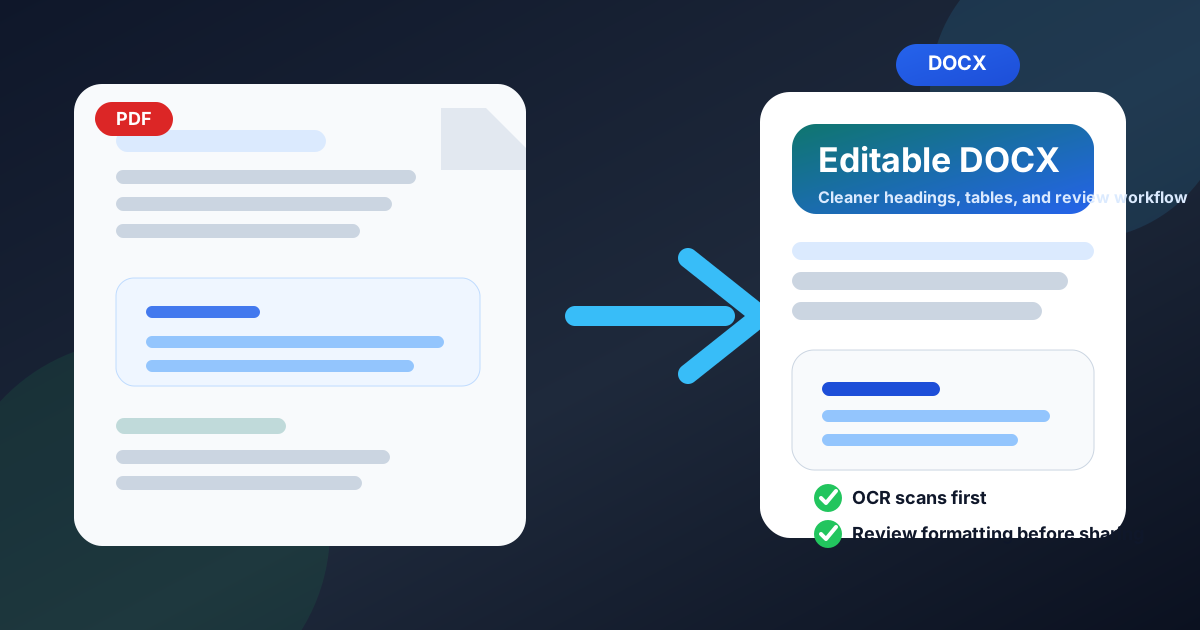
Table of contents
- Quick answer: the fastest way to convert PDF to DOCX
- Why DOCX is usually the right destination
- When PDF to DOCX works well
- Scanned PDFs: why OCR should come first
- Step-by-step workflow with LifetimePDF
- How to get cleaner formatting results
- DOCX vs DOC vs broader PDF-to-Word workflows
- Common PDF to DOCX problems and fixes
- Related tools and guides
- FAQ
Quick answer: the fastest way to convert PDF to DOCX
If the PDF already contains selectable text, the workflow is straightforward: open PDF to Word, upload the file, convert it, and download the editable DOCX output. Then open the file in Word or LibreOffice and review the first, middle, and last pages before you assume everything landed perfectly.
The reason for that short review is simple. PDF conversion is usually very good at recovering the text, but the places people care about most are also the places most likely to need attention: tables, headings, page breaks, signature areas, bullet lists, and anything that depended on delicate spacing in the original PDF.
Why DOCX is usually the right destination
Plenty of users search for PDF to Word, but people who search for convert PDF to DOCX often want something more specific. They want a modern Word file that is easier to edit, comment on, share, and reopen later without stepping back into an older legacy format.
Why DOCX matters in real workflows
- Modern compatibility: DOCX is the default for current Microsoft Word workflows and behaves well in LibreOffice and many cloud editors.
- Better editing: styles, comments, tracked changes, and normal office collaboration are built around DOCX, not old compatibility-first formats.
- Cleaner round trips: edit the DOCX, then use Word to PDF when you need a stable final copy again.
- Less ambiguity: “Word file” can mean a few things; DOCX is the clearest modern target when the goal is real editing.
That does not make DOC useless. It just means DOC usually exists for older systems, older portals, or inherited office habits, while DOCX is the format most people actually want when they need the file to stay editable after conversion.
When PDF to DOCX works well
PDF to DOCX works best when the PDF already has a sensible text structure. In practice, that usually means the file started life as a digital office document rather than a camera photo, photocopy, or heavily designed brochure.
Usually converts cleanly
- Letters, reports, and proposals: paragraphs, headings, and lists usually survive well.
- Contracts and policy documents: text-heavy pages often become editable with only light cleanup.
- Resumes and CVs: ordinary one- or two-column layouts usually convert well enough to update quickly.
- Basic tables: schedules, lists, and standard office tables often come through better than people expect.
Often needs some cleanup
- Multi-column layouts: text order can drift when the original design was visually complex.
- Floating images and text boxes: object placement can move when the PDF is rebuilt as editable Word content.
- Merged-cell tables: complex tables are one of the first places conversion can wobble.
- Manual spacing tricks: PDFs built with tabs, repeated spaces, or fussy line breaks may need tidying afterward.
Usually needs a different first step
- Scanned PDFs: image-only pages normally need OCR first.
- Phone-photo documents: skew, shadows, and perspective issues make direct DOCX conversion less reliable.
- Marketing layouts: if visual design matters more than editability, a rebuild may be smarter than a straight conversion.
| PDF type | Expected result | Best next move |
|---|---|---|
| Standard office PDF | Usually clean DOCX output | Convert directly |
| Scanned or image-only PDF | Poor editability without OCR | Run OCR first |
| Complex design layout | Text may shift or reorder | Convert, then manually tidy the layout |
| Table-heavy PDF | Mixed results depending on structure | Review tables immediately after download |
Scanned PDFs: why OCR should come first
If the PDF came from a scanner, copier, fax, or phone camera, it may look readable while still being terrible for Word conversion. In that case the converter is not working from real text. It is working from pictures of text.
Run OCR PDF first when:
- you cannot highlight normal text in the file,
- search does not find words that are visibly on the page,
- the pages behave like flat images instead of editable content, or
- the document came from a low-quality scan or photographed paper copy.
OCR is what gives the PDF a searchable text layer. Once that is in place, DOCX conversion has a much better chance of producing editable paragraphs, headings, tables, and list structure instead of an awkward image-backed file.
If the file is scanned, this one step matters most. OCR first almost always improves the DOCX result.
Step-by-step workflow with LifetimePDF
- Check the PDF once. Try selecting text or searching for a visible word so you know whether OCR is needed.
- Run OCR first if the file is scanned. Start with OCR PDF when the source behaves like an image.
- Open PDF to Word. Go to LifetimePDF PDF to Word and upload the source or OCR-cleaned PDF.
- Download the DOCX output. Open it in Word or LibreOffice and check that the document is truly editable.
- Review the pages most likely to break. Focus on page 1, a middle page, the last page, plus any important tables, signatures, or forms.
- Edit the document. Make the wording, formatting, or structural changes you actually need.
- Export back to PDF if needed. Use Word to PDF when the finished file needs a fixed layout again.
This sequence works because it separates the real jobs. OCR solves text recognition. DOCX solves editability. Exporting back to PDF solves final-file stability. Treating those as separate steps is much cleaner than expecting one button to solve everything at once.
How to get cleaner formatting results
The smartest conversion habit is not “convert and hope.” It is feeding the converter the cleanest possible source, then doing a quick review where structural problems are most likely to show up.
Best habits for cleaner DOCX output
- Use the cleanest PDF you have: digital exports usually beat scans.
- Trim the job if you only need part of the document: use Extract Pages so you are not reviewing pages you do not care about.
- Watch tables early: if a table is mission-critical, inspect it immediately after conversion.
- Keep the original PDF open: comparing side by side speeds up cleanup more than memory does.
- Normalize fonts and styles once: if the result looks a little messy, one clean style pass is usually faster than starting over.
Where the problems usually hide
- Headers and footers that repeated on each page in the original file
- Manual page breaks that shift after editing starts
- Side-by-side content that relied on layout tricks rather than clear structure
- Images with wrapped text that move slightly after conversion
DOCX vs DOC vs broader PDF-to-Word workflows
These phrases overlap, but they are not identical. PDF to Word is the broad editing task. Convert PDF to DOCX is the modern-format version of that task. Convert PDF to DOC usually points to older compatibility needs.
| Target | Best fit | Why people choose it |
|---|---|---|
| DOCX | Modern editing and collaboration | Best default for current Word workflows, comments, and cleaner formatting support |
| DOC | Legacy compatibility | Useful when an older office system or upload portal specifically asks for it |
| PDF to Word | Broader umbrella intent | Covers both modern and legacy Word-oriented editing goals |
My practical rule is simple: if nobody explicitly asked for DOC, aim for DOCX. It is the cleaner modern target and the one most people actually mean when they say they need a Word document.
Common PDF to DOCX problems and fixes
The text is editable, but the layout looks strange
That usually means the PDF used a more visual or complex structure than Word naturally likes. Review columns, image placement, and page breaks, then clean up the specific sections that matter instead of trying to preserve every design trick from the original PDF.
The tables broke apart
Complex tables often wobble first. If the table is the real point of the document, compare it against the original immediately or consider whether a spreadsheet-focused workflow such as PDF to Excel fits the job better.
The DOCX is mostly images or unusable text
That is usually a scan problem, not a DOCX problem. Go back, run OCR first, then reconvert from the searchable version.
The file is editable, but fonts and spacing changed
That often happens when the original PDF used embedded fonts, odd spacing, or layout tricks. Reapply a standard office font, clean up headings, and normalize styles once. It is still usually much faster than recreating the whole document manually.
The revised file should not stay editable
After you finish the edits, convert it back with Word to PDF so the final version keeps a stable layout for customers, approvals, printing, or archives.
Related tools and guides
If PDF to DOCX is part of a bigger document workflow, these are the most useful next steps:
- PDF to Word for the main editable conversion step
- OCR PDF for scanned files that need real text first
- Word to PDF for turning the revised DOCX back into a stable PDF
- Extract Pages if you only need part of the source document
- PDF Protect before sharing a sensitive final file
- Convert PDF to DOCX Online Free for the browser-first angle
- Convert PDF to DOCX Without Monthly Fees for the pay-once pricing angle
- Convert PDF to DOC if an older workflow specifically needs the legacy format
Ready to convert the file now? Start with the DOCX workflow, OCR first for scans, then save back to PDF only if the final document needs a fixed layout.
FAQ
How do I convert PDF to DOCX?
Upload the PDF to a PDF-to-Word converter, download the editable DOCX file, then review the formatting before you share or keep editing it. If the source is scanned, OCR first so the result becomes genuinely editable.
Is DOCX better than DOC for converted PDFs?
Usually yes. DOCX is the modern Word format, works better with current office software, and is the best default unless an older system specifically asks for DOC.
Can I convert a scanned PDF to DOCX?
Yes, but OCR should usually happen first. Once the scan gains a searchable text layer, the DOCX output is much more likely to be useful and editable.
Will PDF to DOCX keep the original formatting?
Often for ordinary reports, letters, proposals, and simple tables. Complex layouts, columns, scans, unusual fonts, and design-heavy pages may still need cleanup afterward.
When should I save the edited DOCX back to PDF?
Save it back to PDF when the final file needs a stable layout for sending, approvals, printing, signatures, or archiving.
Published by LifetimePDF — Pay once. Use forever.