Convert PDF to DOC: Get an Editable Word File for Older Systems Without Rebuilding the Layout
To convert a PDF to DOC, upload the file to LifetimePDF's PDF to Word tool, download the editable Word result, and save it as legacy .doc if your older system specifically requires that format.
If the PDF is scanned or behaves like one flat image, run OCR first so the converted file becomes truly editable instead of a picture trapped inside Word.
That is the short answer. The practical part is knowing when DOC still matters, when DOCX is the smarter choice, and how to avoid wasting time on a conversion that looks editable until you hit the first broken table, page break, or signature block. Most people searching for this are dealing with a legacy portal, a client requirement, an older office setup, or a handoff where compatibility matters more than modern file-format purity.
Fastest path: convert the PDF to an editable Word file, save as DOC only if the workflow requires it, and use OCR first for scans.
In a hurry? Jump to the quick answer and workflow.
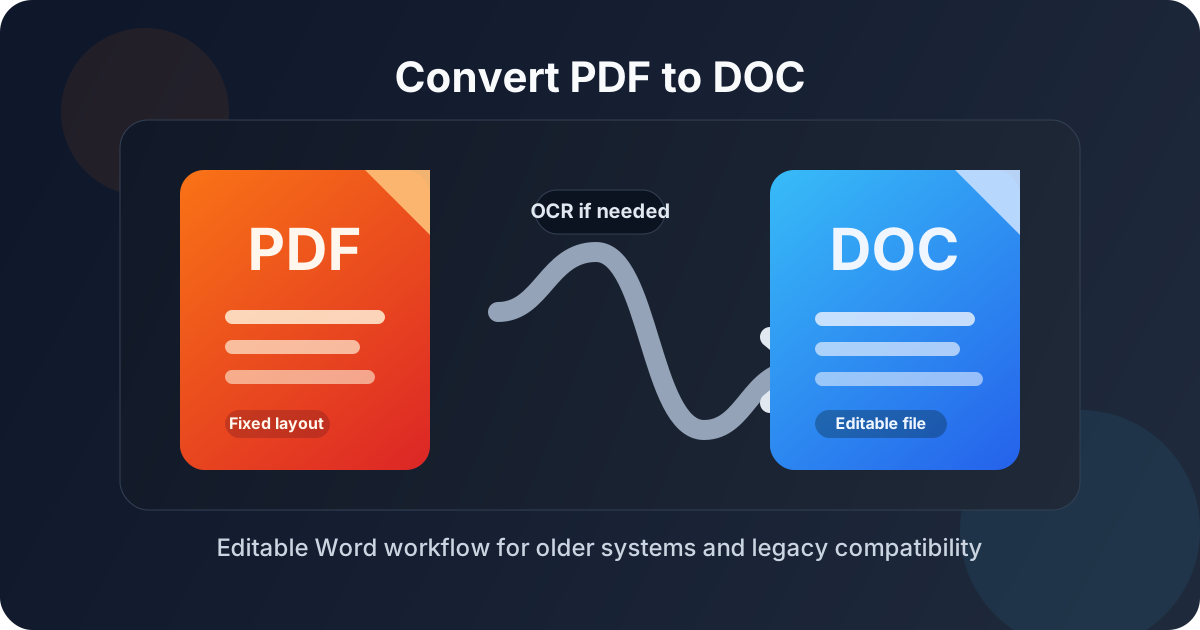
Table of contents
Quick answer: the fastest way to convert PDF to DOC
If the PDF already contains selectable text, the workflow is straightforward: open PDF to Word, upload the file, convert it, and download the editable result. If an older platform or office policy explicitly asks for .doc, save the converted file as DOC in Word or LibreOffice after the conversion.
That extra save step matters because many modern editing workflows naturally gravitate toward DOCX. The real goal is usually not "collect an old extension for its own sake." The goal is to hand someone an editable file that their older software, upload form, or internal process will actually accept.
When DOC still makes sense in 2026
DOC is old, but it is not imaginary. People still search for convert PDF to DOC because older requirements have a habit of surviving long after better formats exist.
Situations where DOC still shows up
- Legacy office environments: some teams still open documents in older Word versions or compatibility mode.
- Client or vendor upload portals: the instructions say DOC because nobody has updated the system in years.
- Inherited internal templates: macros, forms, or document libraries may still revolve around older Word files.
- Mixed software environments: one person uses modern Microsoft 365, another uses LibreOffice, and someone else is still on an older desktop build.
- Low-friction editing requests: sometimes the requester just wants "a Word file" and the workflow still translates that into DOC.
If none of those apply, you probably do not need DOC specifically. But if one of them does apply, the search intent is real and the conversion needs to respect compatibility rather than pretending every workflow is modern and clean.
DOC vs DOCX: what actually changes
The easiest way to think about it is this: DOC is the legacy format, while DOCX is the modern default. Both are Word-oriented editing targets, but they behave differently in current workflows.
| Feature | DOC | DOCX |
|---|---|---|
| Best fit | Older systems and legacy compatibility | Current editing and collaboration |
| Typical use case | Client portals, old templates, older Word installs | Modern Word, cloud workflows, team edits |
| Formatting support | Good, but more limited | Usually better for modern layouts |
| Recommended default | Only when specifically required | Yes, for most people |
My practical rule is simple: if the requirement says DOC, honor it. If it does not, use the editable Word output that gives you the least cleanup and the best compatibility with current tools. That is often DOCX first, with DOC reserved for workflows that explicitly depend on it.
Step-by-step workflow with LifetimePDF
- Check the source PDF once. Try selecting a sentence or searching for a visible word. If that fails, the file probably needs OCR.
- Use OCR first for image-only PDFs. Open OCR PDF when the document behaves like a scan rather than real text.
- Open PDF to Word. Go to LifetimePDF PDF to Word and upload the file.
- Download the editable output. Review headings, lists, tables, signatures, footers, and page flow.
- Save as DOC if needed. If the destination specifically asks for legacy DOC, use Save As in Word or LibreOffice to produce the final .doc file.
- Export back to PDF when the editing is finished. Use Word to PDF if you need a cleaner fixed-layout version for sending or archiving.
This workflow stays efficient because it respects the real order of operations. OCR solves text recognition. Word conversion solves editability. DOC solves legacy compatibility. Mixing those three problems together is what creates most of the confusion people run into.
How to get cleaner editing results
The conversion tool matters, but the source PDF matters just as much. If the starting file is badly scanned, overdesigned, or full of layout tricks, the Word output will reflect that.
What usually converts cleanly
- Plain paragraphs and headings
- Simple lists and short forms
- Standard letters, policies, reports, and proposals
- Basic tables with consistent columns
What often needs manual cleanup
- Complex multi-column layouts
- Heavily branded marketing PDFs
- Tables with merged cells and odd spacing
- Scanned pages with skew, shadows, or low contrast
- Documents with signatures, stamps, and floating graphics placed across text
The fastest quality check is not reading every page line by line. It is reviewing the first, middle, and last pages, then jumping straight to any table, signature block, or dense formatted section that looks most likely to break.
Scanned PDFs, OCR, and why it matters
A scanned PDF can look readable and still be terrible for Word conversion. If the file is really just page images, the converter does not have meaningful text structure to work with until OCR adds a searchable text layer.
- Without OCR: the output may be incomplete, badly segmented, or effectively a picture in a Word container.
- With OCR first: the converter has a better chance of producing editable paragraphs, usable tables, and cleaner line breaks.
- With a messy scan: rotate pages, crop dark borders, and start from the clearest copy you have before running OCR.
If the document matters enough that accuracy counts, use OCR, then spot-check names, dates, totals, and headings before you trust the result. OCR is often very good, but it still deserves one human review when the file contains anything important.
If you know you will later need a fixed final copy again, keep both versions: the editable Word file for changes and the finished PDF for sharing. That is often a better habit than trying to make one file do every job forever.
Common PDF to DOC problems and fixes
The file opens, but the layout looks strange
That usually means the PDF used a complex visual layout that does not translate cleanly into editable Word structure. Review columns, text boxes, headers, footers, and spacing. If the layout is heavily designed, a little cleanup is normal.
The text is editable, but the tables are messy
Tables are one of the first things to wobble in conversion. If the PDF is really table-heavy, compare the result against the original PDF and fix column alignment early before the spreadsheet-style data drifts any further.
The output is still not really editable
This is often a scan problem, not a Word problem. Go back, run OCR first, and then repeat the conversion from the searchable version.
The recipient needs DOC, but your download is newer Word output
That is fine. Open the converted file in Word or LibreOffice and use Save As to export it as DOC. The important thing is reaching an editable starting point first, then matching the target format requirement second.
The finished file should not stay editable
After you make the changes, convert it back with Word to PDF so the final version keeps a stable layout for clients, approvals, or archives.
Related tools and guides
If this conversion is part of a bigger document workflow, these are the most relevant next steps:
- PDF to Word for the main editable conversion step
- OCR PDF for scanned files that need real text first
- Word to PDF for turning the edited file back into a fixed-layout PDF
- PDF to Text if you only need the text rather than a Word document
- Convert PDF to Word for the broader modern Word workflow
- Convert PDF to DOC Online Free for the browser-first angle
- Convert PDF to DOC Without Monthly Fees for the pay-once pricing angle
- How to OCR a PDF on Linux if the source document started as a scan
Ready to convert the file now? Start with the editable Word workflow, then only force DOC when the destination actually needs the older format.
FAQ
How do I convert PDF to DOC?
Use a PDF to Word converter to create an editable Word file, then save it as DOC if your older software or upload portal specifically requires the legacy format. If the PDF is scanned, OCR first for a much better result.
Is PDF to DOC the same as PDF to Word?
They overlap, but PDF to DOC is more specific because DOC is the older Word format. PDF to Word is the broader editing task, and many modern workflows naturally end up in DOCX instead.
Can I convert a scanned PDF to DOC?
Yes, but OCR should usually happen first. Otherwise the file may still behave like page images instead of truly editable text inside Word.
Why does my PDF to DOC file need cleanup?
Cleanup is common when the original PDF uses complex columns, awkward tables, unusual fonts, image-heavy layouts, or low-quality scans. The best safeguard is a quick review of the pages most likely to break.
Should I choose DOC or DOCX?
Choose DOCX unless an older system, client, or internal workflow explicitly asks for DOC. DOC still matters for compatibility, but DOCX is usually the better default for current editing work.
Published by LifetimePDF — Pay once. Use forever.