Compress PDF for e-Builder: Keep Submittals, Drawing Sets, and Project PDFs Small Without Losing the Details
To compress a PDF for e-Builder, export or print the file as PDF, upload it to LifetimePDF's Compress PDF tool, start with Medium compression, and keep the smaller copy only if title blocks, approval notes, signatures, and schedule tables still look clear.
For most e-Builder PDFs, under 5MB works well for everyday submittals, owner reports, meeting packets, and pay application backups, while larger drawing sets and closeout packages often sit best around 5MB to 10MB.
e-Builder files usually get forwarded because somebody needs to make a decision, confirm an approval, or review one project issue without digging through a huge binder. A project manager needs a clean submittal packet. An owner rep needs a focused report appendix. A field lead only needs the relevant drawing sheets. A finance reviewer may only need the pay-app support pages tied to one cost item. Smaller PDFs help because they upload faster, reopen faster, and create less friction for the next person who has to read, forward, approve, or archive the document. The goal is not to crush every file into the tiniest number possible. The goal is to make it lighter while protecting the details that keep it usable.
Fastest path: run the e-Builder PDF through LifetimePDF's Compress PDF tool on Medium, then do one quick readability check before you upload, send, or archive the smaller copy.
Short on time? Jump to Quick start: compress an e-Builder PDF in under 2 minutes.
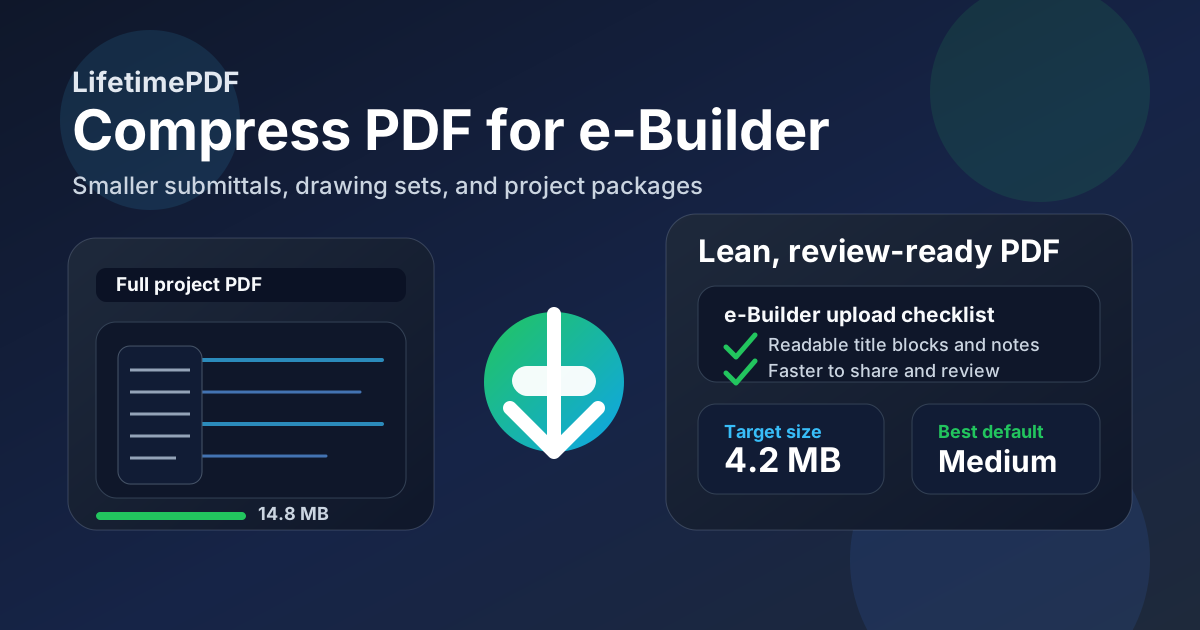
Table of contents
- Quick start: compress an e-Builder PDF in under 2 minutes
- Why smaller PDFs help in e-Builder workflows
- What file size should you aim for?
- Which compression level should you choose?
- Step-by-step: shrink an e-Builder PDF with LifetimePDF
- Best strategy for common e-Builder PDF types
- What if the PDF is still too large?
- How to keep project details readable
- Workflow habits that reduce PDF bloat
- Related LifetimePDF tools and internal links
- FAQ (People Also Ask)
Quick start: compress an e-Builder PDF in under 2 minutes
If your real goal is simply make this e-Builder PDF smaller so it is easier to upload, open, and review, this workflow is usually enough:
- Open Compress PDF.
- Upload the e-Builder file you want to shrink, such as a submittal package, drawing set, owner report, meeting packet, pay application backup, or closeout record.
- Choose Medium compression first.
- Download the smaller file and compare the new size with the original.
- Open it once and check the smallest useful details: title blocks, document numbers, approval notes, signatures, schedule tables, stamps, markup, and sheet notes.
- If the packet is long, use Extract Pages or Split PDF to keep only what the next reader actually needs.
- If the file is still bulky, trim repeated covers, superseded appendices, blank scans, or backup pages before pushing compression harder.
Why smaller PDFs help in e-Builder workflows
e-Builder documents are not just archive files. They get opened during submittal review, owner reporting, meeting follow-up, payment support, schedule coordination, approvals, and closeout. That means the file does not only need to exist. It needs to move quickly and stay readable in the places people actually use it.
Heavy PDFs slow that down. They take longer to upload, feel clumsy on tablets and laptops, and create friction when someone only needs one section of a package. In practice, the extra weight often comes from scan-heavy pages, oversized drawing exports, repeated covers, long appendices, or one giant PDF trying to serve several audiences at once. Good compression removes that friction without weakening the record.
Why compression usually helps
- Faster uploads: useful when you are attaching submittals, owner reports, cost backup, or closeout records.
- Smoother review: lighter files open more comfortably on the devices people use in meetings, field trailers, and remote review sessions.
- Cleaner handoffs: project managers, document controllers, owner reps, finance reviewers, and contractors can work from the same file with less attachment friction.
- Less archive bloat: recurring revisions stay easier to store and revisit.
- Less rework: one sensible compression pass is easier than rebuilding and resending a file after someone says it is too large or too slow.
What file size should you aim for?
There is no single perfect number because a short signed form behaves differently from a marked-up drawing set or a bulky closeout package. Still, these ranges work well for most e-Builder workflows:
- Under 2MB: ideal for short letters, forms, signatures, meeting notes, and lightweight approvals.
- 2MB to 5MB: a strong everyday target for submittals, owner reports, pay application backups, and smaller drawing excerpts.
- 5MB to 10MB: often a realistic range for drawing sets, scan-heavy project records, and closeout sections that still need fine detail.
- Above 10MB: usually a sign the packet may need both compression and cleanup, not just stronger compression.
The right size depends on who needs the file next. If a reviewer only needs one appendix, extract it. If a consultant only needs the revised sheets, split the package. Smaller, focused PDFs usually beat one oversized do-everything document.
Which compression level should you choose?
For e-Builder documents, the safest order is usually the same every time:
- Start with Medium. It usually shrinks the file while keeping small but important details readable.
- Use lighter compression when the PDF already looks lean. This is useful for clean digital exports, short forms, or files with fine text you do not want to soften.
- Use stronger compression only after cleanup. If you have already trimmed the packet and the file is still too large, then heavier compression can make sense.
Step-by-step: shrink an e-Builder PDF with LifetimePDF
- Export the e-Builder file as PDF.
- Open Compress PDF.
- Upload the file.
- Choose Medium compression first.
- Download the smaller version.
- Check the areas most likely to break first: title blocks, document references, approval notes, signatures, schedule tables, markup, and the smallest sheet notes.
- If the packet is still bigger than it needs to be, remove unnecessary pages or split it into smaller parts.
That last step matters more than people think. Most oversized project PDFs are not just too dense. They are also too broad. One file tries to serve a reviewer, an approver, an owner update, and an archive all at once. A smaller, purpose-built PDF is usually more useful than a heavily compressed all-in-one package.
Best strategy for common e-Builder PDF types
Submittal packages
These often combine product data, approval stamps, markup, and backup pages. Start with Medium compression, then trim repeated covers, old appendices, and reference pages that the next reviewer does not need.
Drawing sets and revised sheets
These often carry the heaviest files because they combine many sheets, title blocks, revision clouds, and notes. Start with Medium compression, then consider splitting by discipline, floor, or review purpose if the package is still bulky.
Owner reports and meeting packets
These usually need clean text, readable charts, and reliable dates more than ultra-high image fidelity. Compression helps quickly here, but always make sure summaries, action items, and attachment labels remain easy to read.
Pay application backups and finance support
These often deserve a little more breathing room. If signatures, invoice numbers, cost lines, and supporting references matter later, accept a slightly larger file rather than sacrificing long-term readability.
Closeout and handover records
These often benefit most from better selection. Keep the pages that prove scope completion, approvals, and turnover details. Remove duplicates, repeated divider pages, and bulky extras that add weight without adding meaning.
What if the PDF is still too large?
If Medium compression does not get you where you need to go, do not immediately crush the same file again. Usually the smarter move is structural cleanup:
- Extract only the relevant sheets or sections.
- Split one large packet into several focused PDFs.
- Delete repeated covers, superseded pages, blank scans, or appendix material the next reader does not need.
- Crop oversized scan margins if they add weight without adding information.
LifetimePDF tools that help here include Extract Pages, Delete Pages, Split PDF, and Crop PDF.
How to keep project details readable
The quality check for e-Builder PDFs should be fast but deliberate. Before you replace or send the smaller copy, zoom in on:
- Title blocks and document references
- Approval notes, signatures, initials, and stamps
- Schedule tables, dates, and line-item references
- Revision clouds and issue notes
- Small callouts, tables, and markup
- Any supporting detail another reviewer might question later
If any of those feel soft, muddy, or unreliable, back off the compression or trim the packet in a smarter way. In project-document workflows, trust matters more than shaving off one extra megabyte.
Workflow habits that reduce PDF bloat
- Send only the pages people need: a focused attachment is easier to review than a giant reference pack.
- Keep executive summaries and technical appendices separate: different audiences rarely need the full combined packet.
- Trim repeated scans: duplicate cover pages and blank dividers add up fast.
- Use OCR when scans are rough: OCR PDF can help text-heavy scanned documents stay more usable after cleanup.
- Compare revisions when needed: Compare PDFs is useful when you want smaller files but also need confidence about what changed.
Related LifetimePDF tools and internal links
If you work with e-Builder PDFs often, these tools usually pair well together:
- Compress PDF for the first size reduction pass
- Extract Pages to send only the relevant sections
- Split PDF for large drawing sets or closeout packs
- Delete Pages to remove repeated covers and bulky extras
- Crop PDF for oversized scan margins
- Rotate PDF for sideways scans and sheet fixes
Related reading on LifetimePDF: Compress PDF for Autodesk Build, Compress PDF for Oracle Aconex, and Compress PDF for Buildertrend.
FAQ (People Also Ask)
How do I compress a PDF for e-Builder?
Export the e-Builder file as PDF, upload it to a compressor, start with Medium compression, and review the smaller result before sharing it. Medium is usually the safest first pass because it lowers file size while keeping title blocks, approval notes, signatures, and schedule details readable.
What file size should I aim for with e-Builder PDFs?
Under 2MB works well for short meeting records and simple forms. Many everyday submittals, owner reports, and pay application backups work best around 2MB to 5MB. Larger drawing sets and closeout files often sit more comfortably around 5MB to 10MB as long as the smallest useful details still read clearly.
Will compression make e-Builder drawings blurry?
It can if you compress too aggressively. That is why Medium compression is usually the best starting point. Always review the smallest notes, title blocks, signatures, schedule rows, and markup before you keep the smaller file.
Should I split a large e-Builder PDF instead of compressing it harder?
Often, yes. If one PDF combines drawing sheets, appendices, owner-report sections, meeting backups, or audience-specific sections, splitting it usually works better than forcing stronger compression across the whole packet.
Which LifetimePDF tools pair best with e-Builder files?
Compress PDF is the main starting point. Extract Pages, Split PDF, Delete Pages, Crop PDF, OCR PDF, Rotate PDF, and Compare PDFs all help when you need smaller, cleaner project documents without sending the entire working pack every time.
Bottom line: if your e-Builder PDF feels heavier than the task requires, compress it first, then trim the packet until only the useful pages remain.