Compress PDF for Website Auditor: Share Smaller Technical SEO Audit Reports, Crawl Summaries, and Client PDFs Faster
To compress a PDF for Website Auditor, export or print the report as PDF, upload it to Compress PDF, start with Medium compression, and keep the smaller copy only if URLs, issue lists, charts, screenshots, and recommendations still look clear.
For most Website Auditor PDFs, under 2MB works well for short audit summaries and stakeholder recaps, while broader crawl exports, screenshot-heavy issue evidence, and client-ready technical SEO packs usually work best around 2MB to 5MB.
If the file is still heavy, split long appendices, remove duplicate evidence pages, or extract only the sections the next reader actually needs before you try stronger compression.
Website Auditor PDFs usually appear when technical SEO work needs to leave the app and become something another person can scan quickly. That might be a concise audit summary for a client, a crawl overview for an SEO lead, or a page-level issue pack for a developer who only needs the evidence and next action. Smaller PDFs make those handoffs easier. They upload faster, feel lighter in email and project tools, and create less friction when the real goal is to decide what to fix first. The best result is not the tiniest possible file. The best result is a lighter PDF that still feels dependable when someone checks issue labels, page URLs, screenshot callouts, chart trends, and fix priorities.
Fastest path: Run the Website Auditor export through LifetimePDF's Compress PDF tool at Medium, then do one quick readability check before you email, upload, or archive the smaller copy.
Short on time? Jump to Quick start: compress a PDF for Website Auditor in under a minute.
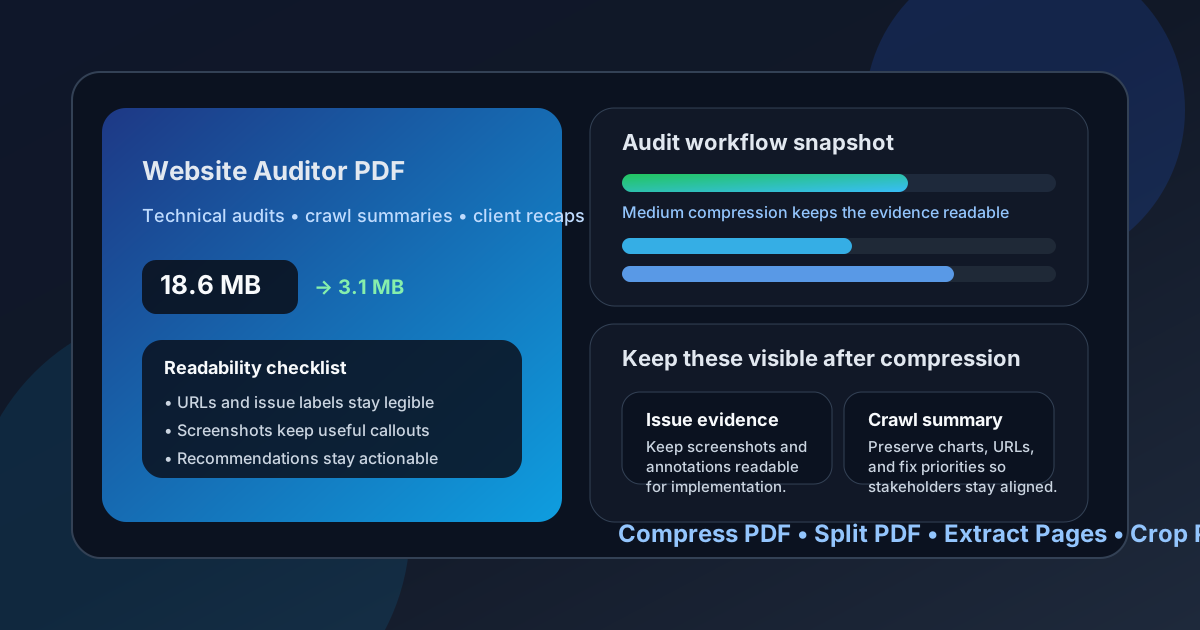
Table of contents
- Quick start: compress a PDF for Website Auditor in under a minute
- Why smaller PDFs help in Website Auditor workflows
- What file size should you aim for?
- Which compression level should you choose?
- Step-by-step: shrink a PDF with LifetimePDF
- Best strategy for different Website Auditor PDF types
- What if the PDF is still too large?
- How to keep issue lists, URLs, and screenshots readable
- Workflow habits that reduce PDF bloat
- Related LifetimePDF tools and internal links
- FAQ (People Also Ask)
Quick start: compress a PDF for Website Auditor in under a minute
If your real goal is simply make this Website Auditor PDF smaller so it is easier to send, review, and save, this is the shortest reliable workflow:
- Open Compress PDF.
- Upload the Website Auditor audit summary, crawl overview, issue appendix, screenshot pack, or client-ready technical SEO PDF you want to shrink.
- Choose Medium compression first.
- Download the smaller file and compare the new size with the original.
- Open it once to check issue labels, URLs, chart labels, screenshots, and recommendation notes.
- If the file is long, use Split PDF or Extract Pages to keep only the pages the next reader actually needs.
- If the pack includes duplicate screenshots, repeated evidence pages, or extra appendix sections, trim that weight before trying a stronger compression level.
Why smaller PDFs help in Website Auditor workflows
Website Auditor PDFs usually exist because a fixed version of the audit has to travel outside the platform. Maybe you are handing a crawl summary to leadership, attaching page-level issue evidence to a ticket, or sending a polished technical SEO recap to a client. That is where file size starts to matter.
Heavy PDFs are slower to upload, more annoying to forward, and easier for busy readers to postpone. In practice, the extra weight often comes from screenshot-heavy issue evidence, long appendices, repeated cover pages, or one oversized report trying to serve several audiences at once. Good compression is not about crushing every file to the smallest possible number. It is about trimming waste while keeping the details people still rely on, such as issue names, page URLs, chart labels, screenshots, status notes, and clear fix priorities.
When a PDF feels lighter and cleaner, people are more likely to actually use it. That matters whether you are escalating a technical blocker or packaging a full client review.
Why compression usually helps
- Faster client delivery: smaller PDFs are easier to email, upload into portals, and attach to recap messages.
- Smoother developer handoffs: lighter files are easier to open when someone only needs the affected pages and issue evidence.
- Cleaner archives: recurring monthly audits take up less space when they are not bloated with duplicate screenshots and stale appendix pages.
- Better mobile review: managers and clients are more likely to scan a lighter PDF on a laptop or tablet without friction.
What file size should you aim for?
The right target depends on what the PDF is for. A short executive summary does not need the same amount of visual detail as a full technical evidence pack.
- Under 2MB: usually a good target for short audit summaries, crawl snapshots, and quick stakeholder updates.
- 2MB to 5MB: usually realistic for broader crawl exports, screenshot-heavy issue reports, and client-ready technical SEO PDFs.
- Over 5MB: often a sign the file includes too many appendix pages, oversized screenshots, or separate audiences that should receive separate PDFs.
Do not chase the smallest number if the file becomes harder to use. If a developer cannot read the affected URL or a client cannot follow the issue explanation, the file is smaller but not better.
Which compression level should you choose?
Start with Medium compression first. It is usually the best fit for Website Auditor exports because it lowers file size without flattening the useful details that make a technical audit actionable.
- Low compression: good when the PDF already looks clean and just needs a small size reduction.
- Medium compression: the best default for most Website Auditor PDFs because it balances smaller files with readable issue lists, charts, URLs, and screenshots.
- High compression: better as a fallback only when delivery limits are strict and you are willing to double-check every chart label, screenshot, and issue note carefully.
Step-by-step: shrink a PDF with LifetimePDF
- Export the Website Auditor file as PDF. Save the audit summary, crawl report, issue appendix, or client recap you actually need to share.
- Upload it to Compress PDF. Use LifetimePDF's compressor in your browser.
- Choose Medium compression. This is usually the safest first pass for mixed technical reports.
- Download the smaller PDF. Compare the file size before and after compression.
- Check the most important details. Review issue labels, URLs, chart labels, screenshots, and recommendation sections.
- Trim extras if needed. If the file is still large, use Delete Pages, Extract Pages, or Split PDF before trying stronger compression.
Best strategy for different Website Auditor PDF types
Not every Website Auditor export should be compressed the same way. Use the PDF's job to guide how aggressive you are.
Short audit summaries
These usually compress well. If the PDF is mostly top findings, a few charts, and action items, Medium compression is often enough to get the file comfortably below common sharing limits without hurting readability.
Page-level issue evidence packs
These often mix screenshots, URLs, issue notes, and fix guidance. Keep an eye on annotated screenshots and long page addresses. If the smallest text starts to blur, it is better to keep a slightly larger file than to sacrifice the context a developer actually needs.
Crawl overviews and structure reports
These tend to rely on tables, charts, and comparisons across many pages. Compression helps, but trimming repeated views or splitting one large export into smaller sections often helps more.
Client-ready technical SEO recaps
These usually pick up extra weight from branded covers, screenshots, before-and-after examples, and supporting evidence. Compress the file, but also ask whether the client really needs every appendix page in the same PDF as the executive summary.
What if the PDF is still too large?
If Medium compression does not get you far enough, the problem is often the document structure rather than the compression setting itself.
- Split the file by audience: one PDF for the executive summary, another for the full issue evidence appendix.
- Extract only the necessary pages: keep the affected pages and drop the rest for the current handoff.
- Delete duplicate pages: repeated screenshots, old cover pages, and duplicate exports add weight without adding value.
- Crop oversized margins: this can help screenshot-heavy pages look tighter and cleaner.
- Re-export a leaner source PDF: if possible, remove unnecessary sections before you create the PDF in the first place.
In other words, if the file is still bulky after one reasonable compression pass, think like an editor, not just a compressor.
How to keep issue lists, URLs, and screenshots readable
Before you send the smaller PDF, do one quick quality pass. It only takes a moment, and it prevents the common mistake of creating a lighter file that no one enjoys reading.
- Check that page URLs and issue names are still easy to scan.
- Make sure chart labels and counts do not blur together.
- Review screenshot callouts to confirm arrows, highlights, and annotations still make sense.
- Open any page with tables or dense evidence blocks and make sure the smallest useful text still feels readable.
- Confirm the main summary page still looks clean enough for a client or manager to understand without extra explanation.
Workflow habits that reduce PDF bloat
A lot of oversized Website Auditor PDFs are created long before compression starts. A few simple habits make future exports easier to share.
- Separate summary from appendix: keep leadership-level findings apart from detailed issue evidence.
- Trim repeated screenshots: use one clear example instead of several nearly identical captures.
- Export only the sections you need: avoid printing every module when the audience only needs one part of the audit.
- Archive the full source separately: share a lean PDF while keeping the heavier original for internal reference.
- Name files clearly: clean titles and metadata make audit versions easier to find later.
Related LifetimePDF tools and internal links
Compressing the file is usually the first step, but not always the only one. These tools pair especially well with it:
- Compress PDF - shrink file size for easier sharing and quicker review
- Split PDF - break oversized audit packs into audience-specific files
- Extract Pages - keep only the pages the next reader actually needs
- Delete Pages - remove duplicate, blank, or unnecessary evidence pages
- Crop PDF - trim oversized screenshots and empty margins
- Compare PDFs - review audit revisions more easily
- PDF Metadata Editor - clean document properties before client delivery
Suggested internal reading
- Compress PDF for SEO PowerSuite
- Compress PDF for Screaming Frog
- Compress PDF for Sitebulb
- Compress PDF for Lumar
- Compress PDF for Oncrawl
- Compress PDF for Search Atlas
- Compress PDF Online
- How to Reduce PDF File Size for Email
- Browse all LifetimePDF articles
Ready to make your Website Auditor PDF lighter? Start with compression, then trim pages or metadata only if you actually need to.
FAQ (People Also Ask)
How do I compress a PDF for Website Auditor?
Export the Website Auditor report as a PDF, upload it to an online PDF compressor, start with Medium compression, and preview the smaller result before you send it or archive it. Medium is usually the safest first pass because it cuts file size while keeping URLs, issue labels, charts, screenshots, and recommendations readable.
What file size should I aim for before sharing a Website Auditor PDF?
A practical target is under 2MB for short audit summaries and quick stakeholder updates. For broader crawl reports, screenshot-heavy issue packs, and client-ready technical SEO recaps, 2MB to 5MB is usually more realistic.
Will compression make Website Auditor screenshots or issue tables blurry?
It can if you compress too aggressively. That is why Medium compression is usually the safest default. Always check page URLs, issue counts, chart labels, screenshot callouts, and recommendation notes before you keep the compressed copy.
Should I split a large Website Auditor PDF instead of compressing it harder?
Often, yes. If one PDF combines an executive summary, technical evidence, screenshot appendices, and developer notes for different readers, splitting it usually works better than forcing stronger compression across the whole file.
Which LifetimePDF tools pair best with Website Auditor exports?
Compress PDF is the main starting point. Split PDF, Extract Pages, Delete Pages, Crop PDF, Compare PDFs, and PDF Metadata Editor all help create cleaner, smaller, client-ready Website Auditor PDFs.
Need a smaller Website Auditor-ready PDF right now?
Published by LifetimePDF - Pay once. Use forever.